
Importing Contacts from a CSV or Google Sheet
Bring an existing contact list into Scope Wiser's Subscriber Manager from a CSV file or a Google Sheet, map the columns, check the result, and send new subscribers out to Google Contacts automatically.
This article shows you how to bring an existing contact list into Subscriber Manager from a CSV file or a Google Sheet, and how to send new subscribers out to Google Contacts automatically.
Imported contacts are not opted-in contacts
Importing a contact does not give you permission to message them. On WhatsApp, someone who never messaged you can only receive an approved template, and complaints lower your quality rating. Import only people who agreed to hear from you.
Step 1: Connect your Google account (Google Sheet imports only)
Skip this step if you are importing a CSV file.
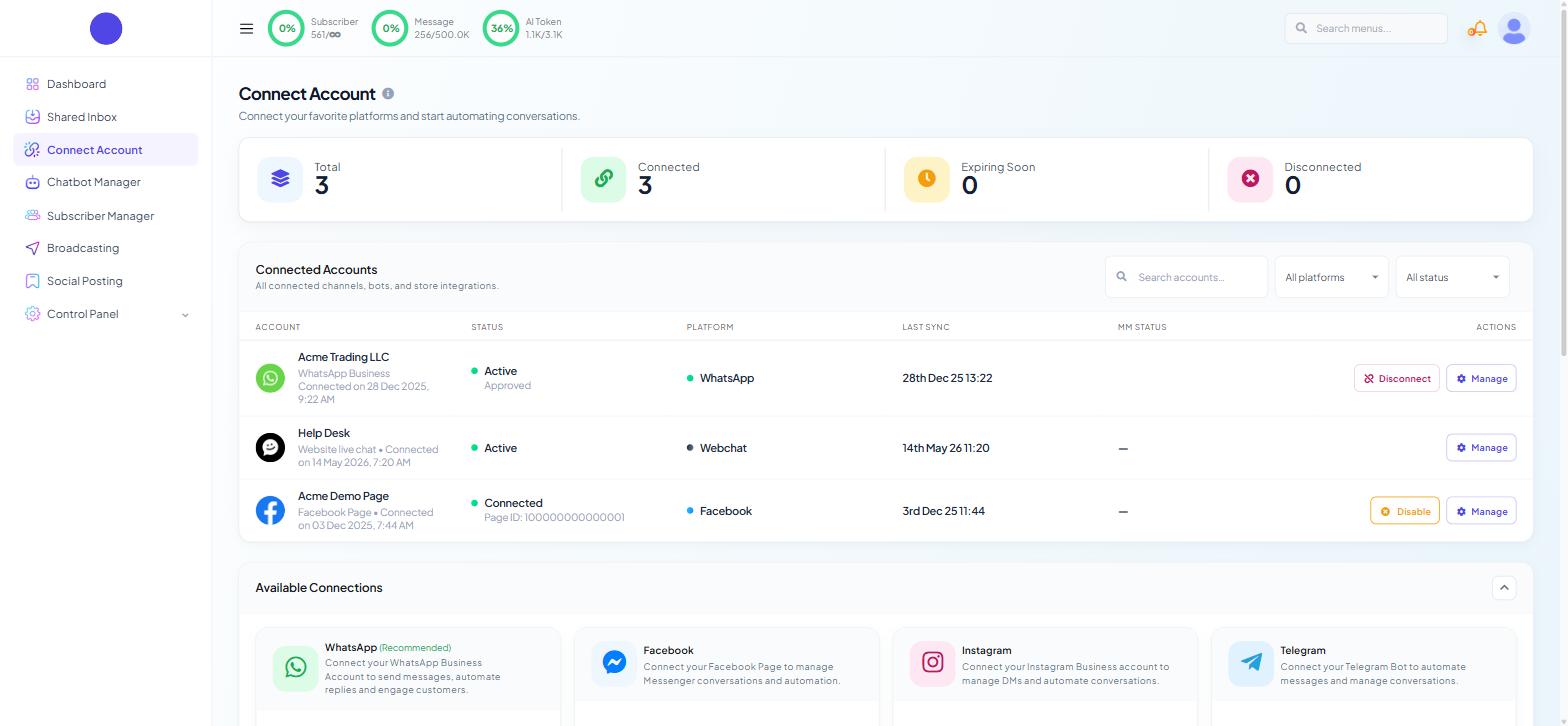
From the sidebar, open Connect Account.
Under Available Connections, choose Connect Google. You land on Google Integration.
Click Sign in with Google, choose your account and grant every permission Google asks for. Missing one permission is the usual reason the sheet list comes back empty.
Four tiles at the top show what is connected: Google Accounts, Sheets Access, Calendar Access and Limited Access. Below them, the Google Sheets section lists the sheets Scope Wiser can see, with the columns #, SHEET TITLE, ACTIONS, CREATED AT and MODIFIED AT.
Can't see Connect Account? Ask the owner to give your role the CONNECT ACCOUNT and GOOGLE permissions (Control Panel → User Permission).
Step 2: Clean your sheet
Whether it is a CSV file or a Google Sheet, check these before you import:
Every phone number has a country code.
+968 9000 0001, not9000 0001. Numbers without one cannot be matched to a channel and are the biggest cause of failed rows.Header names use letters and numbers only, and each one is unique.
phone,name,city— notPhone Numberore-mail.One contact per row. No merged cells, no empty header columns.
Custom fields exist first. Extra columns such as city or budget need a matching custom field to land in. Create them under Subscriber Manager → Manage → Custom Fields before you import.
Test with five rows first. A mapping mistake on five contacts is easy to fix; on five thousand it means a bulk delete.
Step 3: Import into Subscriber Manager
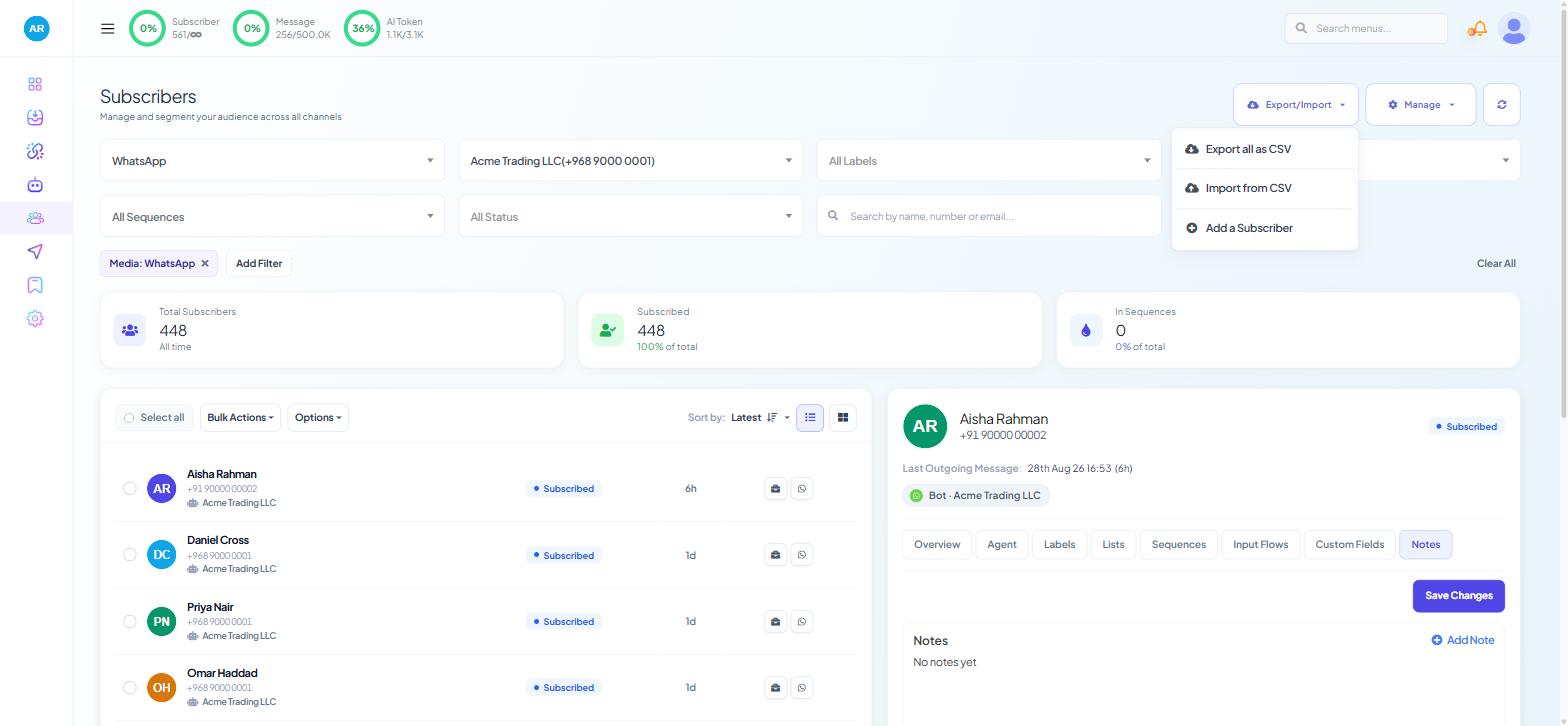
Open Subscriber Manager and set the channel and bot you are importing into.
Open the Export/Import menu at the top right and choose Import from CSV. The import dialog opens. (Use Add a Subscriber instead to type in a single contact.)
Choose your source: upload your CSV file, or choose Import from Google Sheet and pick a sheet from the account you connected in Step 1.
After choosing the file, a screen asks which column is the phone number, name, etc. Match each column to a field, then confirm.
Two rules on the mapping screen:
The phone number column is required. A row without one is not imported.
Only mapped columns are imported. Anything you leave unmapped is dropped.
What import does not do
Import adds; it does not update. Importing people you already have does not refresh their stored values. To change an existing contact, open the record.
There is no live sync. The import is a one-time copy. Changing the sheet afterwards changes nothing in Scope Wiser.
Split very large sheets. Keep each import to a few thousand rows.
Step 4: Send new subscribers out to Google Contacts
This is the reverse direction, and it is automatic once set.
If you also want new subscribers written to a Google Sheet, first register one on Connect Account → Connect Google, using the two buttons above the sheet list:
Create New Sheet builds a sheet from inside Scope Wiser. Give it a title, then add a header for each column you want. Headers accept letters and numbers only. Open it in Google Sheets afterwards.
Add Existing Sheet registers a sheet you already have. Copy the long code from the sheet's web address (between /d/ and /edit) and paste it in as the Sheet ID.
Then, on the bot:
Open Chatbot Manager and select the bot.
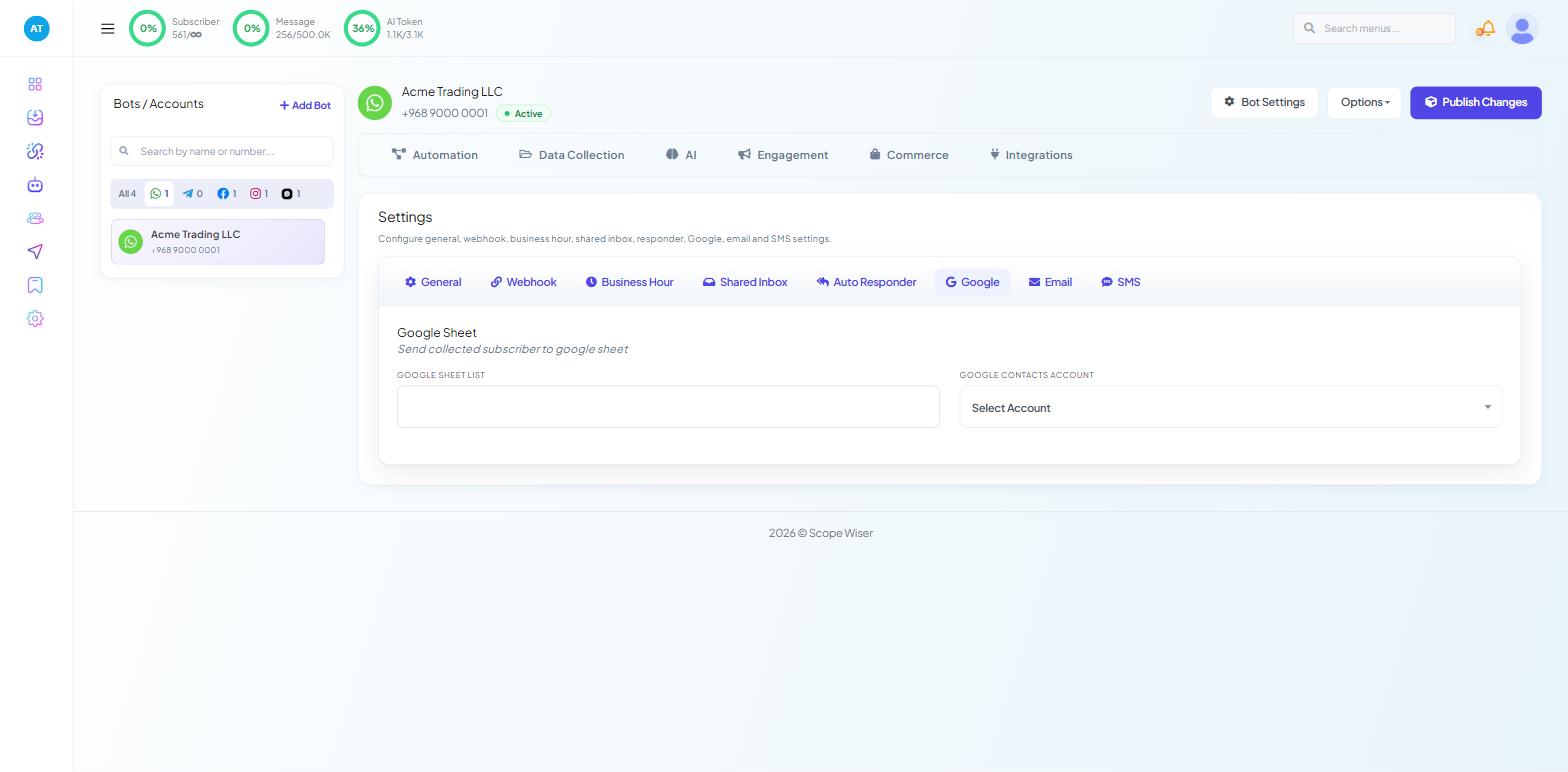
Click Bot Settings and open the Google tab. The section is headed "Google Sheet — Send collected subscriber to google sheet".
In GOOGLE SHEET LIST, pick the sheet that new subscribers should be written to.
In GOOGLE CONTACTS ACCOUNT, pick your Google account from Select Account.
Click Publish Changes.
From then on, new subscribers on this bot are saved to Google Contacts as they arrive, name and number together. Settings are per bot, so repeat this for each bot.
Chatbot Manager → Integrations → Google Sheets is a different feature. It lets a flow read from a sheet mid-conversation (order lookups, stock checks). It does not import contacts.
Step 5: Check the import
Read the Total Subscribers card. If it moved by much less than the number of rows you sent, check phone formatting first.
Open two or three imported records and confirm the Custom Fields tab holds the extra columns.
Put the batch in its own group straight away: Bulk Actions → Add to List, or Assign Label with the source name.
What to do next
Labels, Lists & Segments: How Scope Wiser Groups Subscribers covers keeping those groups useful as the list grows. To push what your flows collect out to a spreadsheet continuously, see Exporting Flow Data to Google Sheets.