
Fixing WooCommerce API Errors
Why a WooCommerce store will not connect: store URL, REST API and permalinks, API keys, and what to check once order notifications still do not arrive.
A WooCommerce connection fails in one of four places: the store address is wrong, WordPress is not serving its REST API (the part of WordPress that lets other software talk to your store), the API keys are wrong, or something on the site is blocking outside access. Check them in that order — regenerating keys first fixes only one of the four.
What the integration needs
Three conditions, all of which you can test from a browser:
A store URL that works, exactly as WordPress knows it, over HTTPS.
A live WordPress REST API at
/wp-json.An approved store connection — the store URL entered at Connect Account → Connect WooCommerce and API access approved on the WooCommerce side, which generates the API keys automatically.
Order notifications and cash-on-delivery verification are built on top of that connection, so none of them can work until all three are true.
Symptom to cause
What you see | Where to look |
|---|---|
Connection fails immediately on save | Store URL, or the keys |
| REST API disabled — check permalinks |
Connection saves, but no orders ever arrive | Store API selected in the campaign, or the campaign's message template |
Worked yesterday, fails today | Keys revoked, site moved, or a new security plugin |
Some orders trigger messages, others do not | The phone number on those orders, or the COUNTRY CODE setting |
Step 1: Confirm the store URL
An incorrect store address is a frequent cause and the quickest to rule out.
Open your store in a browser and copy the address from the address bar rather than typing it from memory. Then check three things:
Protocol. If the site uses SSL, the URL must start
https://, nothttp://.Subdomain.
https://www.example.comandhttps://example.comare different addresses. Use whichever WordPress itself is configured with — the value under Settings › General in WordPress admin is the authoritative one.Stray characters. A trailing slash, a doubled slash, or a space picked up when pasting will break the request.
Step 2: Test the REST API
WooCommerce's API rides on the WordPress REST API. If that is off, nothing else matters.
Open https://example.com/wp-json in a private browsing window, substituting your own domain. A page of code-like text means the store's API is working; an error, blank page or your homepage means it is not — continue to step 3.
Step 3: Fix permalinks
The usual reason the REST API is unavailable is the Plain permalink structure, which does not expose the routes the API needs.
Log in to WordPress admin at
https://example.com/wp-admin.Go to Settings › Permalinks.
Select Post name — the structure that produces
https://example.com/sample-post/. Anything other than Plain will work; Post name is also the better choice for search.Click Save Changes. Saving rewrites the site's rules even if the structure has not changed, which is why re-saving sometimes fixes this on its own.
Re-test
https://example.com/wp-json.

Step 4: Check the keys
In WordPress admin, go to WooCommerce › Settings › Advanced › REST API. Each key entry shows a description, the user it belongs to and its permissions.
Permissions must include write access if the integration needs to update orders rather than only read them. Read-only keys connect and then fail on the first write.
The owning user must be an administrator. A key generated under a low-privilege account returns permission errors that look like login failures.
If in doubt, delete the key in WooCommerce and run Connect Account → Connect WooCommerce again; Scope Wiser creates a fresh key automatically.
Step 5: Look for something blocking the request
If the URL is right, the test in step 2 works, and fresh administrator keys still fail, something on the site is refusing the request before WooCommerce answers it. Ask your web host or developer whether a security plugin, firewall, maintenance-mode plugin or password protection is blocking outside access to your store.
Step 6: Reconnect and build the campaign
With the store reachable, the connection lives in two places in Scope Wiser. Connect Account › Available Connections carries a WooCommerce card — "Connect your WooCommerce store for e-commerce automations and integrations." The campaign that uses it is built on the bot.
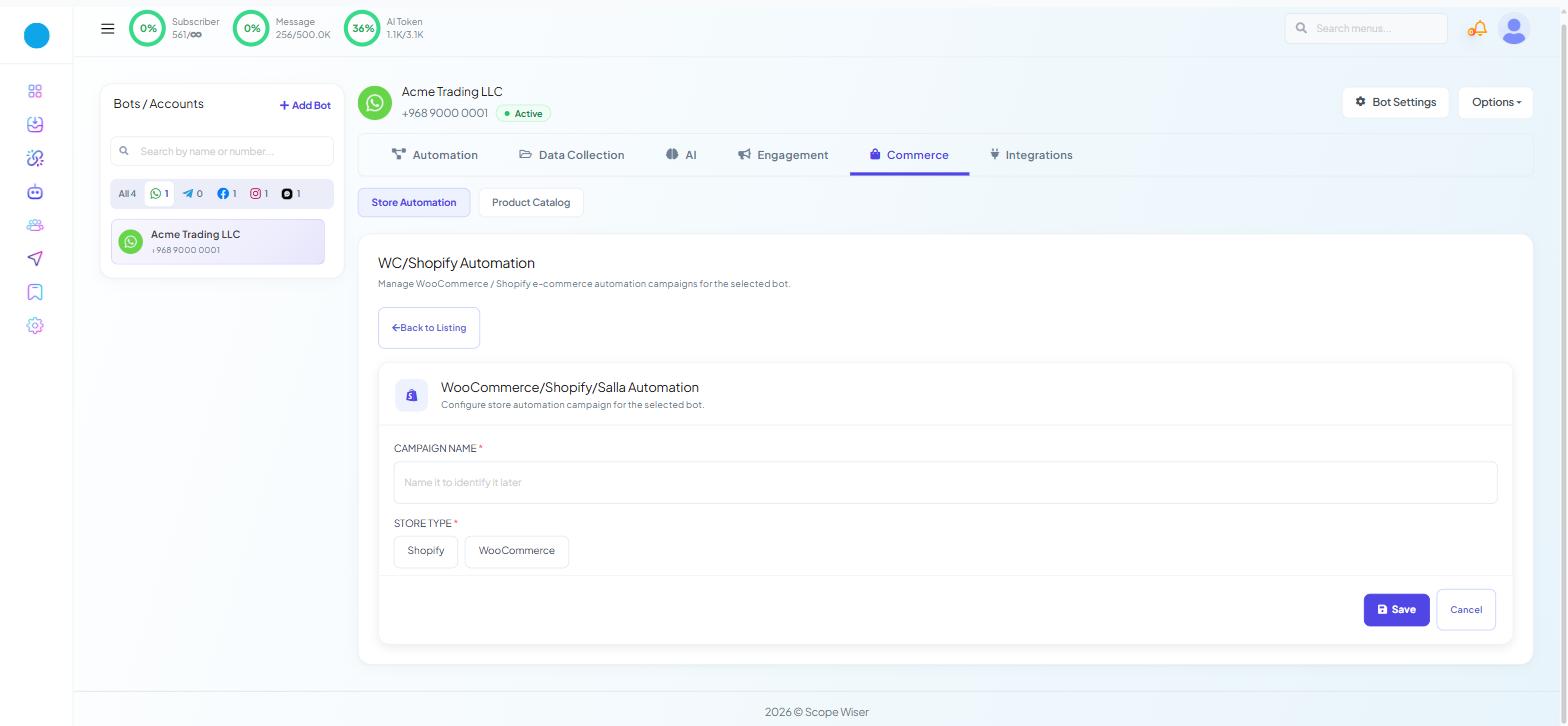
Go to Chatbot Manager, select the WhatsApp bot, then Commerce › Store Automation. The Commerce tab exists on WhatsApp only.
Press Create and complete the Store Automation form:
CAMPAIGN NAME * — placeholder "Name it to identify it later".
STORE TYPE * — choose WooCommerce. The remaining fields appear only after a store type is picked, which is why the form looks near-empty at first.
SELECT STORE API * — the stored connection, with ADD NEW API beside it.
ACTION * — for WooCommerce: Order Notification, COD Verification or Order Update Notification.
MESSAGE DELAY (MINUTES) * — defaults to
0for WooCommerce.MESSAGE TEMPLATE * — an approved WhatsApp template, with a refresh control beside it.
COUNTRY CODE (optional, set if phone number does not have any country code) — set this if your checkout collects local-format numbers. Without it, those orders produce unroutable numbers and no message.
ASSIGN LABEL and ASSIGN SEQUENCE — optional follow-up.
Click Save.
When the connection works but messages do not arrive
At this point the problem has moved from WooCommerce to WhatsApp:
The template is not approved. Check Automation › Message Templates — STATUS must read
Approved. A pending template cannot send.The template variables are not mapped, which produces error 132000 on the first attempt.
The customer's number is unreachable — see WhatsApp Error Code Reference for what the delivery codes mean.
The order phone number has no country code, and the COUNTRY CODE field is unset.
What to do next
If the store now connects but templates are the blocker, read Why Message Templates Get Rejected. For failures that produce a numeric code rather than silence, WhatsApp Error Code Reference decodes them.