
Why Message Templates Get Rejected
The format and content rules that get WhatsApp templates refused, how the Scope Wiser template composer maps onto them, and what to do about a rejection or a template stuck pending.
A message template is the only way to start a WhatsApp conversation with someone who has not messaged you in the last 24 hours. Meta reviews every template before it can be used; this page covers the rules that get templates refused and what to do about a rejection.
Rejections fall into two families. Format problems are mechanical: placeholders that do not line up. Content problems are editorial: what the message says, or which category you filed it under. The second family causes more rejections and takes longer to fix.
Where templates live
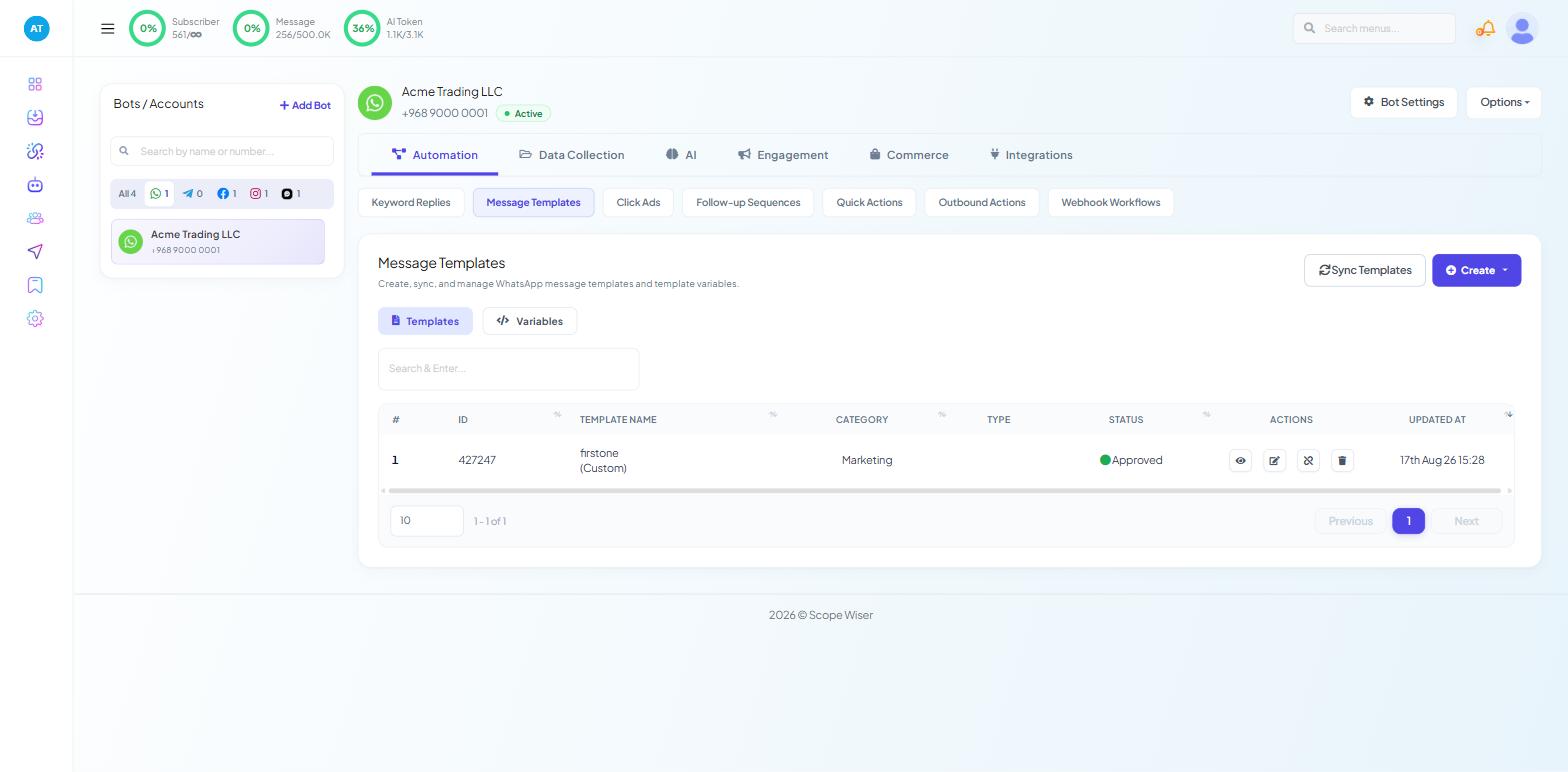
Open Chatbot Manager, select the WhatsApp bot, then Automation › Message Templates.
Two inner tabs sit under the heading: Templates and Variables. The list shows #, ID, TEMPLATE NAME, CATEGORY, TYPE, STATUS, ACTIONS and UPDATED AT, with STATUS carrying a coloured dot — Approved is what you are aiming for. Row actions cover preview, edit, disable and delete.
Two controls matter at the top: Sync Templates, which pulls the current state from Meta, and Create. Create → General Template is the one to use for most templates.
Get the category right first
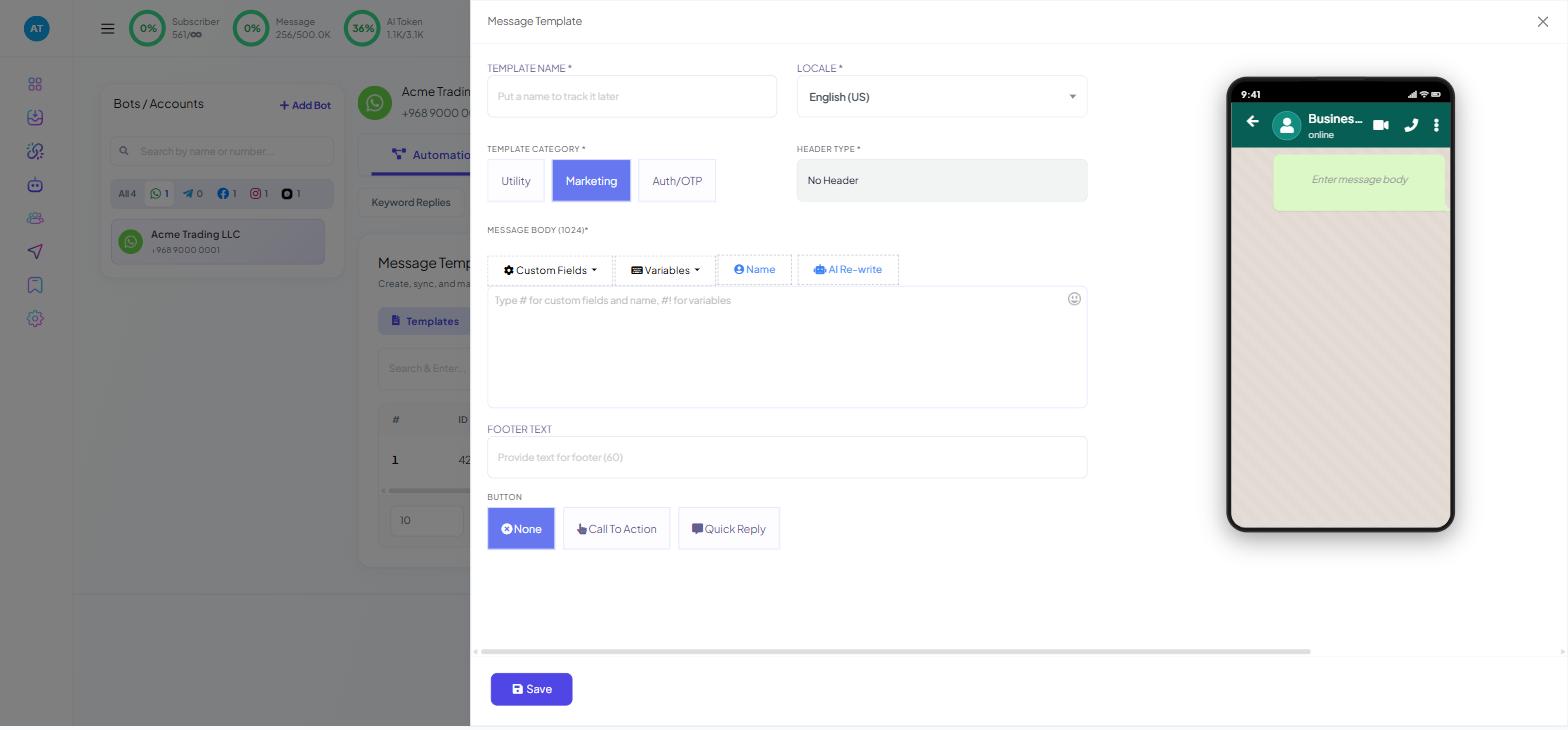
Create › General Template opens a window headed Message Template, with a live phone preview on the right. Near the top sits TEMPLATE CATEGORY *, offering three options: Utility, Marketing and Auth/OTP.
Choosing wrongly is one of the most common rejection causes:
Utility — messages about something the customer already did: an order confirmation, a delivery update, an appointment reminder, a payment receipt.
Marketing — anything promotional. Offers, launches, re-engagement, newsletters. If the message would make sense to a stranger, it is marketing.
Auth/OTP — one-time passcodes and login verification, and nothing else.
The failure mode is dressing up a promotion as a utility message to reach more people. Meta reads the body text, sees an offer, and rejects it. Categorise honestly and it goes through.
The format rules
Meta's requirements for placeholders are strict and mechanical:
Placeholders must use double curly braces and be numbered:
{{1}},{{2}},{{3}}.They must be sequential with no gaps. A template defining
{{1}},{{2}},{{4}}and{{5}}while{{3}}does not exist is refused.Placeholders must not contain special characters such as
#,$or%.Braces must be matched. A stray
{invalidates the template.A template body cannot begin or end with a placeholder, and cannot be nothing but placeholders — there has to be real text around them.
The composer helps you here. Its MESSAGE BODY (1024)* field carries the placeholder "Type # for custom fields and name, #! for variables", and the toolbar above it offers Custom Fields, Variables, Name and AI Re-write. Insert variables using those controls rather than typing braces by hand, and the numbering looks after itself.
Other fields in the same window have their own limits, shown in the labels:
HEADER TEXT* — 50 characters
MESSAGE BODY (1024)* — 1,024 characters
FOOTER TEXT — 60 characters
BUTTON TEXT* — 25 characters
HEADER TYPE * offers No Header, Text, Image, Video and Document. BUTTON offers None, Call To Action and Quick Reply, with a BUTTON TYPE*, BUTTON TEXT* and ACTION VALUE* per button row.
The content rules
These are the ones that need judgement.
Commerce policy. Templates promoting products Meta does not permit — the WhatsApp Commerce Policy lists them — are refused regardless of how well written they are. Check the policy before building a campaign around a product category you are unsure of.
Sensitive identifiers. Never ask for payment card numbers, financial account numbers, national identification numbers or anything comparable in a template. This is a hard rejection, and asking for such details over chat is a bad idea in any case.
Threatening or abusive content. Templates that threaten legal action, threaten to name and shame a customer, or use aggressive collection language are refused. Debt reminders have to be written neutrally.
Duplicates. A template whose body and footer match an existing template word for word is rejected as a duplicate. This catches people who create near-identical templates per region or per campaign — vary the body, or use variables rather than separate templates.
Spelling and grammar. Sloppy copy gets refused. Read the body aloud once before saving; the AI Re-write button in the composer toolbar is there for exactly this.
Shortened URLs. Links through URL shorteners are refused because the destination cannot be reviewed. Use your full domain, example.com/offer rather than a shortened redirect.
When a template is rejected
Fix the cause and submit again as a new template. Approval usually returns quickly once the specific problem is gone, and the fastest route is to change one thing at a time so you learn which rule you were breaking.
If the reason is not visible in Scope Wiser, WhatsApp Manager in Meta's own tools shows the review outcome for each template on that WhatsApp Business Account.
When a template is stuck pending
Occasionally a template submitted through Scope Wiser sits in a pending state far longer than review normally takes. The workaround is to create the template directly in WhatsApp Manager instead, then bring it back:
Build the template in WhatsApp Manager on the same WhatsApp Business Account.
Return to Chatbot Manager › Automation › Message Templates and press Sync Templates.
The template appears in the list. Open the Variables inner tab and map any variables it contains, so the flow supplies the right value in the right position.
Skipping the mapping step is what produces error 132000 — a mismatch between the number of variables the template expects and the number the flow supplies — when the template is first used.
A pre-submission checklist
Run through this before pressing Save:
Category matches what the message actually is.
Placeholders are sequential, in braces, with no gaps and no special characters.
There is real text around every placeholder.
No card numbers, account numbers or national ID numbers requested.
No shortened links.
Body and footer are not identical to an existing template.
Spelling and grammar are clean.
Every variable will have a value at send time — an empty variable delivers a broken sentence to a real customer.
What to do next
Once a template is approved, WhatsApp Error Code Reference explains the delivery codes you may still meet when sending it, including the per-user marketing limit that stops approved templates reaching people who have already had too many. If the template is fine but nothing is being sent at all, start with Why Your WhatsApp Bot Isn't Responding.