
WhatsApp Error Code Reference
What each WhatsApp delivery error code means, whether you are billed, and what fixes it — 130472, 131026, 131047, 131049 and 1026, template errors and disabled accounts.
WhatsApp delivery errors come from Meta, not Scope Wiser, and each code means the same thing for every business. This page tells you what each code means, whether you are charged, and what to do about it.
Where the codes appear
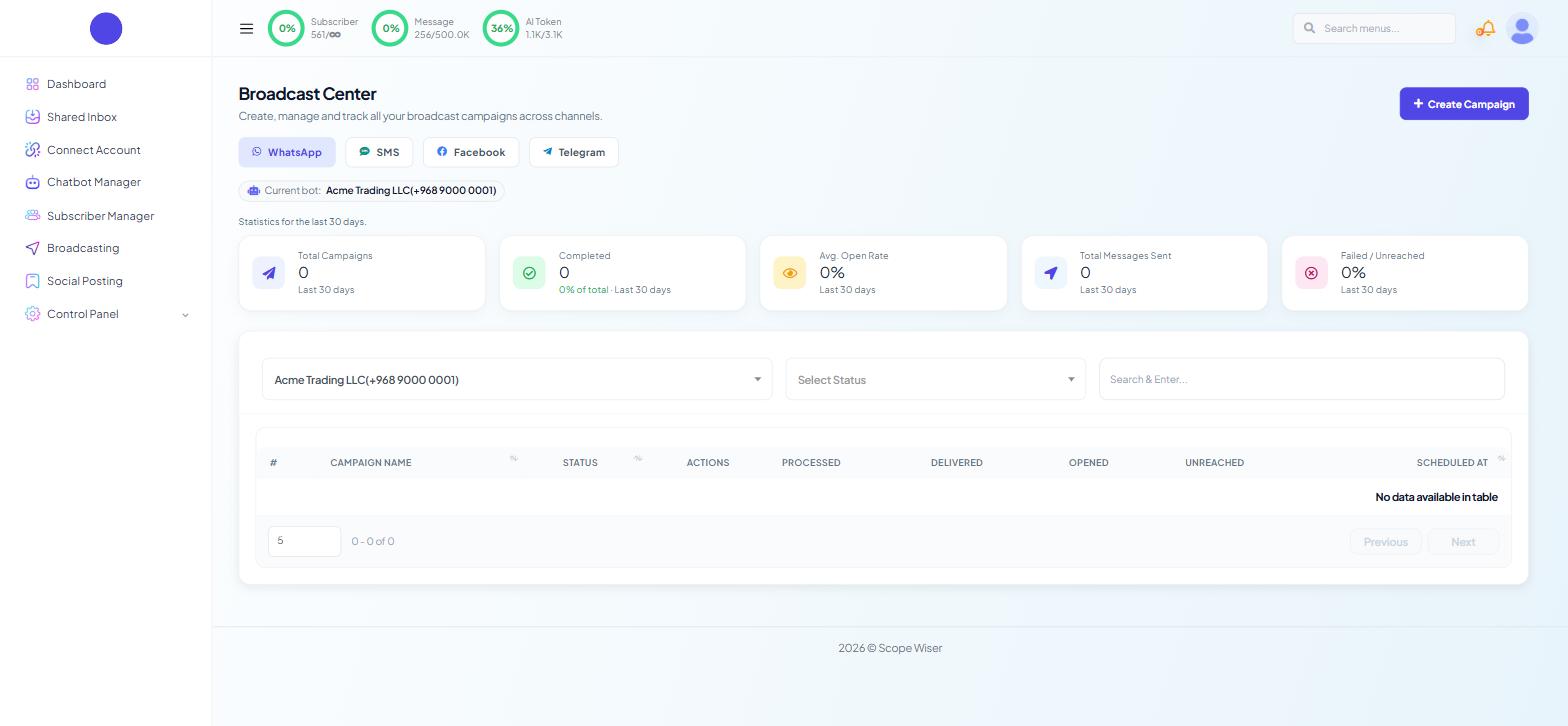
Broadcast Center reports campaign-level totals. The campaign table carries PROCESSED, DELIVERED, OPENED and UNREACHED columns; a rising UNREACHED count is the signal to go looking for a code.
Shared Inbox shows per-message delivery ticks on each conversation, so a single failure is visible in context.
Switch on ADD LABEL FOR UNSUCCESSFUL MESSAGE DELIVERY under Bot Settings › Shared Inbox. Failed recipients get labelled automatically, so you can exclude them from the next campaign.
The code itself can also be sent to software of your own — see the developer note at the end of this section.
For developers
Under Chatbot Manager › Bot Settings › Webhook, the toggle TRIGGER WEBHOOK FOR MESSAGE STATUS CHANGE sends status changes — including failures and their error codes — to a URL you control. Turn it on if you send at volume; it is the difference between knowing that fifty messages failed and knowing why.
The reference
Code | What it means | Are you billed? | What to do |
|---|---|---|---|
130472 | "This user's phone number is part of an experiment." The recipient is in a Meta test group and cannot receive marketing templates unless a conversation is already open. | No | Nothing to fix. Get the customer to message you first, then reply inside the open window. |
131026 | Message undeliverable — the problem is on the recipient's side. | No | Check the number is on WhatsApp; the recipient may need to accept current Terms or update the app. |
131047 | Re-engagement message — more than 24 hours have passed since that person last messaged you, so a free-form message is not allowed. | No | Send an approved template instead of free-form text. |
131049 | Per-user marketing template limit reached. Surfaces to the recipient as "This message was not delivered to maintain a healthy ecosystem engagement." | No | Stop sending marketing to that person for now. Retry after 12, then 24, then 48 hours. |
1026 | Same as 131049. | No | As 131049. |
132000 | The number of variables supplied does not match the number the approved template expects. | n/a — never sent | Re-map the template variables. |
132001 | The template being called does not exist for this number, or not in that language. | n/a — never sent | Sync templates, then re-select the template in the flow or campaign. |
Account disabled | Not a delivery code. Meta has disabled the WhatsApp Business account, usually over business information that does not check out. | n/a | Correct your Business Manager details, then appeal. |
130472 — the customer is in a Meta experiment
The full text reads "Failed to send message because this user's phone number is part of an experiment."
Meta has put this customer in a test group; your marketing template will only reach them after they message you first.
There is no setting that bypasses this, at either end. Resending produces the same error. Your account is not restricted, the rest of your list is unaffected, and you are not charged for the undelivered message.
Reach the customer on another channel — email, SMS, a phone call — and ask them to message you on WhatsApp. When they do, the window opens and your message goes through normally.
131026 — message undeliverable
This one is almost always about the recipient, not about you. Three causes account for most of it:
The number is not on WhatsApp. Common in imported lists, and the reason a bought list performs so badly.
The recipient has not accepted WhatsApp's current Terms and Privacy Policy. Their app will prompt them; until they do, business messages do not arrive.
Their WhatsApp app is out of date — ask them to update it.
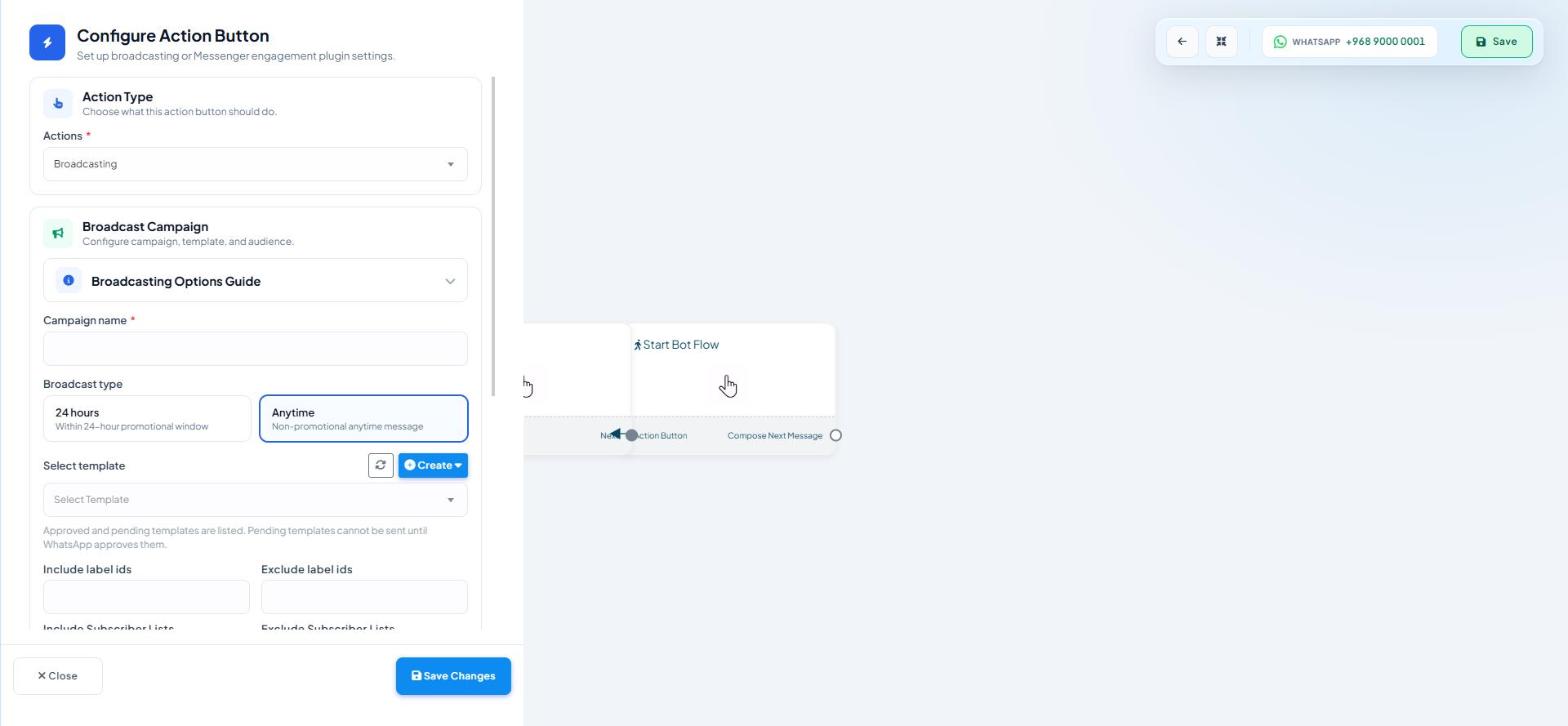
Nothing you change at your end fixes an individual case. What you can change is the list. Label numbers that fail repeatedly, exclude them from future campaigns using the exclude fields on the broadcast configuration, and where a number matters commercially, ask that customer to send you a message so you can confirm the number is reachable.
131049 and 1026 — the per-user marketing limit
The recipient sees "This message was not delivered to maintain a healthy ecosystem engagement", or wording close to it. Behind that phrasing is a cap on how many marketing template messages one person can receive in a given period, from all businesses, not just from you.
What to do:
Space campaigns out. Two marketing templates to the same person in the same day is what triggers it.
Do not resend immediately. Retry after 12 hours, then 24, then 48.
Prioritise engaged recipients. Send to people who have replied or clicked, using labels and lists in the broadcast configuration, rather than to everyone.
Use open conversations. Once someone replies, you are inside a service window and the per-user marketing limit no longer applies.
Make the first message worth answering. An Interactive block with a button gives people something to press, and a reply is what opens the window.
132000 and 132001 — template problems
These fail before anything is sent, and both are yours to fix.
132000 means the variable count is wrong: the approved template expects three substitutions and the flow supplied two. Open the campaign or the Template Message block and re-map the variables.
132001 means the template cannot be found for that number or that language. Templates belong to the WhatsApp Business Account behind a specific number, so this appears most often after a flow has been copied from one bot to another. Go to Chatbot Manager › Automation › Message Templates, press Sync Templates, confirm the template shows as Approved, then re-select it in the flow.
"Your WhatsApp Business account has been disabled"
This is an account-level action by Meta, not a delivery failure, and it stops everything.
The usual trigger is business information that does not hold up: a business name in Business Manager that does not match the name you actually trade under, or a website link that is missing, broken, or unrelated to the business described.
To resolve it:
Make the business name match. Business Manager should carry your real, verifiable business name.
Fix the website. Provide a working link that visibly represents the same business — with contact details and a description that match the name.
Appeal. Submit a request for review through Meta's Business Support Home at business.facebook.com/help, explaining what you corrected.
Check the health of the connection at your end too. Connect Account › WhatsApp lists each number with STATUS, QUALITY, MESSAGING LIMIT, LAST SYNC and MM STATUS. A quality rating that has slipped to Medium or Low is a warning that your sending is generating blocks and reports — act on it before it becomes a restriction.
Reducing failures in general
Most of these codes respond to the same few habits. Send to people who opted in and have engaged recently. Keep frequency low enough that one person is not receiving several marketing templates a week. Prefer replying inside an open window to starting a new marketing conversation. Watch the QUALITY column, which moves before restrictions do.
What to do next
If your problem is a template that never reached the approved state, read Why Message Templates Get Rejected. Where messages are not being attempted at all — no failures, no deliveries, just silence — the issue is upstream, and Why Your WhatsApp Bot Isn't Responding is the right page.