
What Scope Wiser Is: Complete Platform Overview
A map of the whole product: the dashboard, Chatbot Manager, Flow Builder, Shared Inbox, broadcasting and where your account settings live — and what changes per channel.
Scope Wiser is one workspace for the conversations your business has on WhatsApp, Facebook Messenger, Instagram and your own website. This page shows what each part of the product is for, what changes from channel to channel, and where to find the settings people search for.
The sidebar
Eight items, top to bottom:
Section | What it is for |
|---|---|
Dashboard | Account health, usage against your plan, quick actions |
Shared Inbox | Every conversation from every channel in one queue, where both people and bots can reply |
Connect Account | Adding and checking channel connections |
Chatbot Manager | Where a bot is built and configured — the part you will spend most time in |
Subscriber Manager | Contacts, labels, lists, custom fields, segments |
Broadcasting | Sending campaigns and reading their results |
Social Posting | Scheduling Facebook and Instagram posts |
Control Panel | Security logs, team access and payment records — shown only to roles with Control Panel access |
Two things to know before you go looking. There is no top-level Integrations area — integrations attach to one bot, under Chatbot Manager › Integrations, and the list there depends on the channel. And Control Panel › Settings & Integration is not where your account settings live; it holds security tools such as Logged-in Devices, Login Activity and IP Manager. Your own account is under your avatar — see the last section.
The dashboard
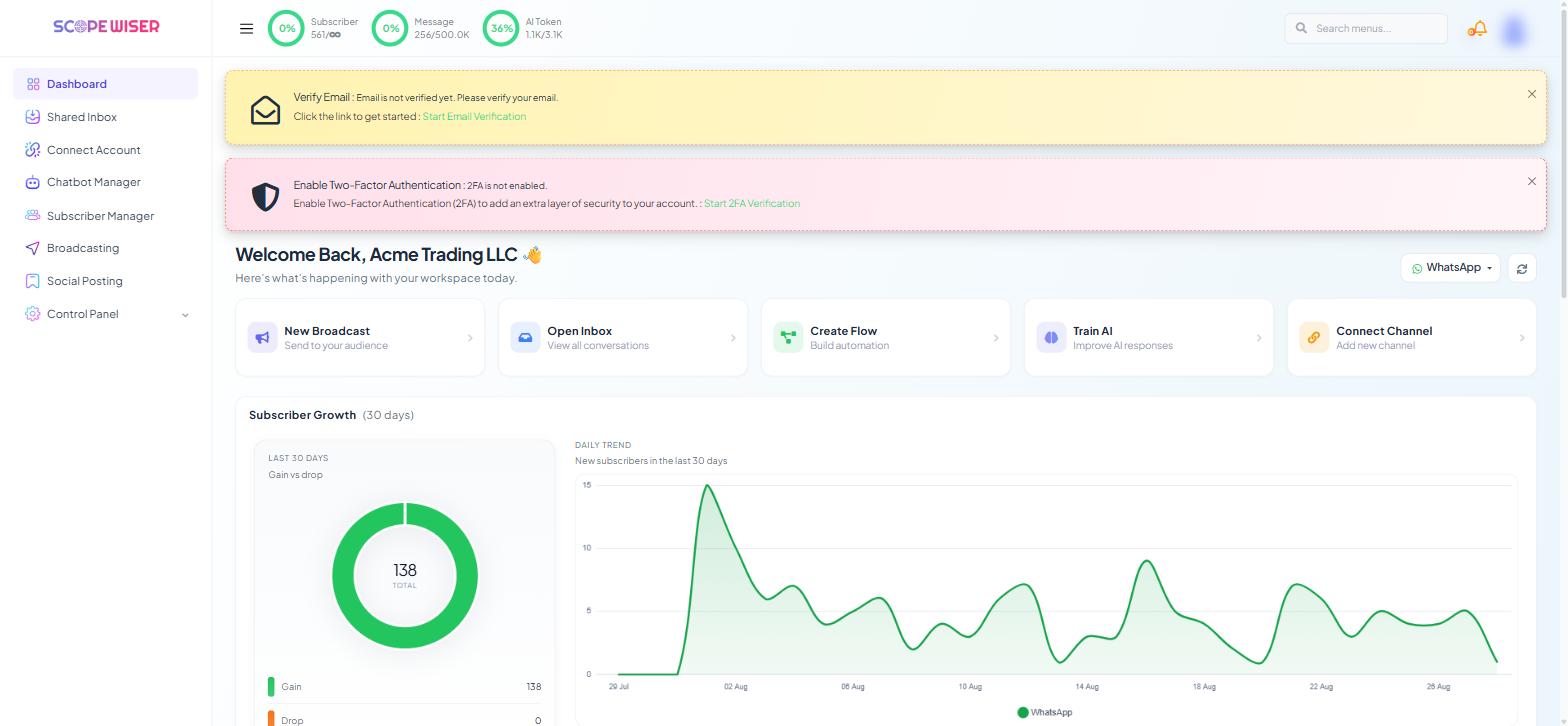
The dashboard opens with a "Welcome Back" greeting. A channel selector and a refresh button sit at the top right.
Along the top bar of every page sit three ring meters:
Subscriber — contacts held against your plan's allowance
Message — messages sent this period
AI Token — AI credits used
Check these first when a broadcast stops halfway or AI replies go quiet — a full meter is the usual cause.
Beneath the meters are five quick-action cards, each a shortcut into another section:
New Broadcast — Send to your audience
Open Inbox — View all conversations
Create Flow — Build automation
Train AI — Improve AI responses
Connect Channel — Add new channel
Below are report cards for broadcasts, sequences and recent activity, each with a View all → link. A new account shows "No data found" in all of them — that is normal. At the bottom, AI Assistant Status shows whether the assistant is active and when it was last trained.
If your email is unverified or two-factor authentication is off, banners at the top of this page offer Start Email Verification and Start 2FA Verification. Do both early.
Connecting a channel
Connect Account opens on four stat cards — Total, Connected, Expiring Soon, Disconnected — above a Connected Accounts table with the columns ACCOUNT, STATUS, PLATFORM, LAST SYNC, MM STATUS and ACTIONS. WhatsApp rows offer Disconnect and Manage, Facebook rows offer Disable and Manage, Webchat rows offer Manage.
Under the table, Available Connections shows a card for each thing you can connect: WhatsApp (marked Recommended), Facebook, Instagram, Webchat, Google, Shopify and WooCommerce. A store connection is what later feeds order notifications into a bot.
Facebook and Instagram connect through the same page, headed "Facebook Integration". There is no separate Instagram connection screen.
Chatbot Manager
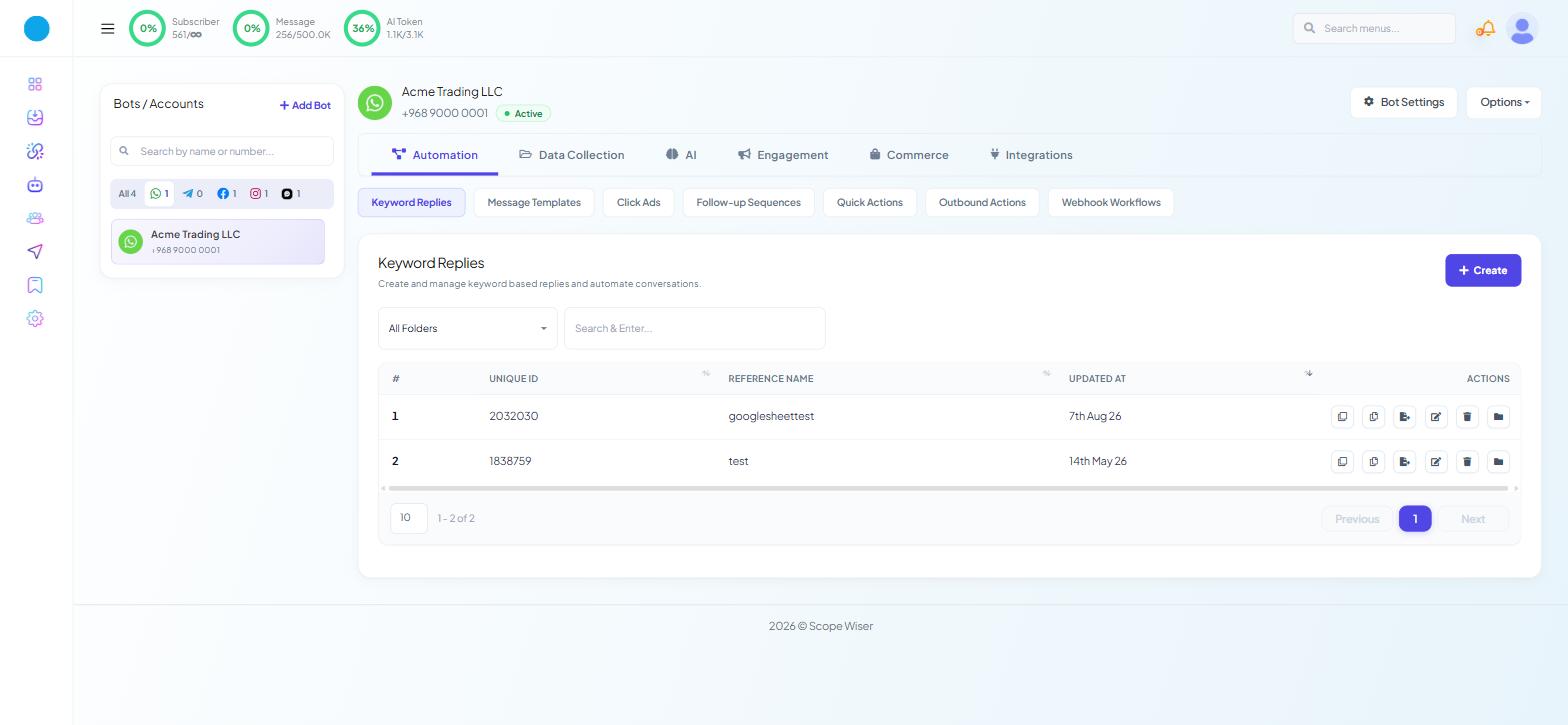
This is where a bot is built. A left panel titled Bots / Accounts lists every connected bot, with a + Add Bot button, a "Search by name or number..." box and channel filter chips. Click a bot and its name, number and an Active badge appear in the header, next to Bot Settings and Options.
Six primary tabs run across the top: Automation, Data Collection, AI, Engagement, Commerce and Integrations. For a WhatsApp bot the sub-tabs are:
Automation — Keyword Replies, Message Templates, Click Ads, Follow-up Sequences, Quick Actions, Outbound Actions, Webhook Workflows
Data Collection — User Input Flows, WhatsApp Flows
AI — AI Configuration, Agents
Engagement — Chat Entry
Commerce — Store Automation, Product Catalog
Integrations — HTTP API, Google Sheets, Autoresponder, Email, SMS
Facebook, Instagram and Webchat bots show a slightly different set of tabs; only WhatsApp has a Commerce tab.
Bot Settings is a separate panel
The Bot Settings button opens its own panel with eight tabs: General, Webhook, Business Hour, Shared Inbox, Auto Responder, Google, Email and SMS. These control how the bot behaves: whether a no-match reply fires and how often, whether the bot keeps replying while an agent is on the mobile app, business hours and timezone, session expiry times, and where collected email addresses are sent.
Changes here are not live until you press Publish Changes. Forgetting that button is the commonest reason a setting "did not work".
The Flow Builder
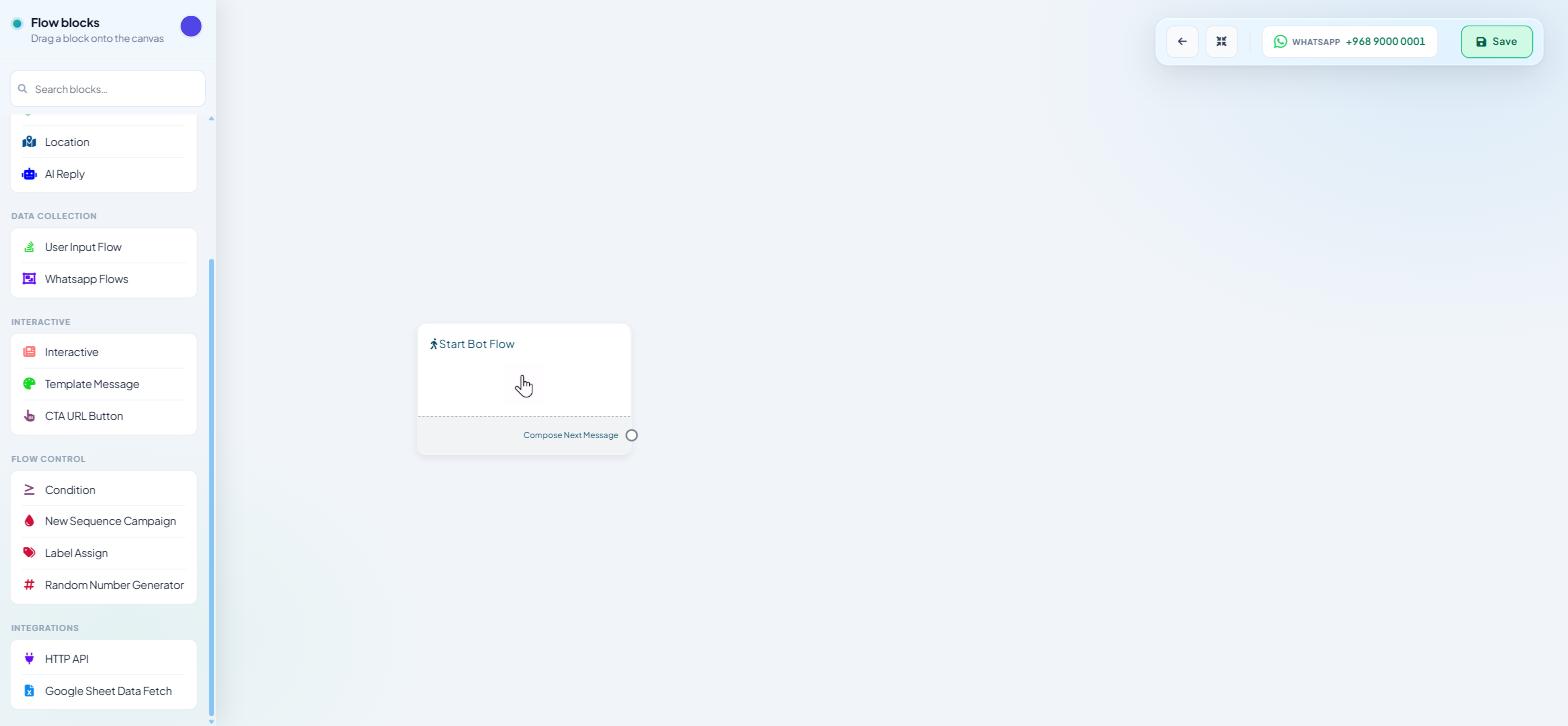
Every automated reply is a flow. Flows are built on a canvas that opens when you press + Create in Keyword Replies. A left palette headed Flow blocks — Drag a block onto the canvas lists the blocks you can use; the canvas starts with a single Start Bot Flow node whose outlet is labelled Compose Next Message.
The blocks on offer differ by channel — Introduction to Flow Builder: How Scope Wiser Flows Are Built lists them.
Conversations, contacts and campaigns
Shared Inbox is where people reply. Conversations from all channels arrive in one list, with an icon rail down the left for Mine, All, Important, Unread, Archived, Blocked and Resolved. Each conversation has a Chat Actions rail — Pause Bot, Pause AI, Scheduled, Notes — and a Customer Snapshot that shows, among other things, whether the messaging window is still open.
Subscriber Manager holds the contacts. Labels, Lists and Custom Fields are created from the Manage menu, and CSV import and export from Export/Import.
Broadcasting opens the Broadcast Center, with channel tabs and stat cards for the last 30 days. + Create Campaign opens the Flow Builder in a new tab rather than a form: a campaign is a flow with broadcasting settings attached.
Social Posting schedules Facebook and Instagram content in three formats: Multimedia Post, CTA Post and Carousel/Video Post.
Where your account settings live
Click your avatar at the top right and choose Account. That page holds your plan, two-factor authentication, password, timezone and usage logs. It is not under Control Panel.
What to do next
Read Build Your First Chatbot in 5 Minutes next — it takes one connected channel and turns it into a bot that answers a real message. If you have not connected anything yet, start with How to Connect WhatsApp to Scope Wiser: Complete Setup Guide, then come back.