
Why Your WhatsApp Bot Isn't Responding
A diagnostic order for a silent bot: is the channel connected, did the change publish, is a keyword matching, is the 24-hour window open, and is another flow taking the message first.
A bot that has gone quiet almost never needs rebuilding. Work through the checks below in order — each one rules out everything above it, and the first two take under a minute.
First, narrow the symptom
Answer these before you touch anything, because they halve the search:
Everyone or one person? One person points at that conversation's state — a paused bot, a closed messaging window, a handover to a human. Everyone points at the connection or the bot's settings.
Every flow or one flow? One flow points at keywords. Every flow points at the channel.
Since when? If it stopped the moment you changed something, the change is your first suspect regardless of how unrelated it seems.
1. Is the channel still connected?
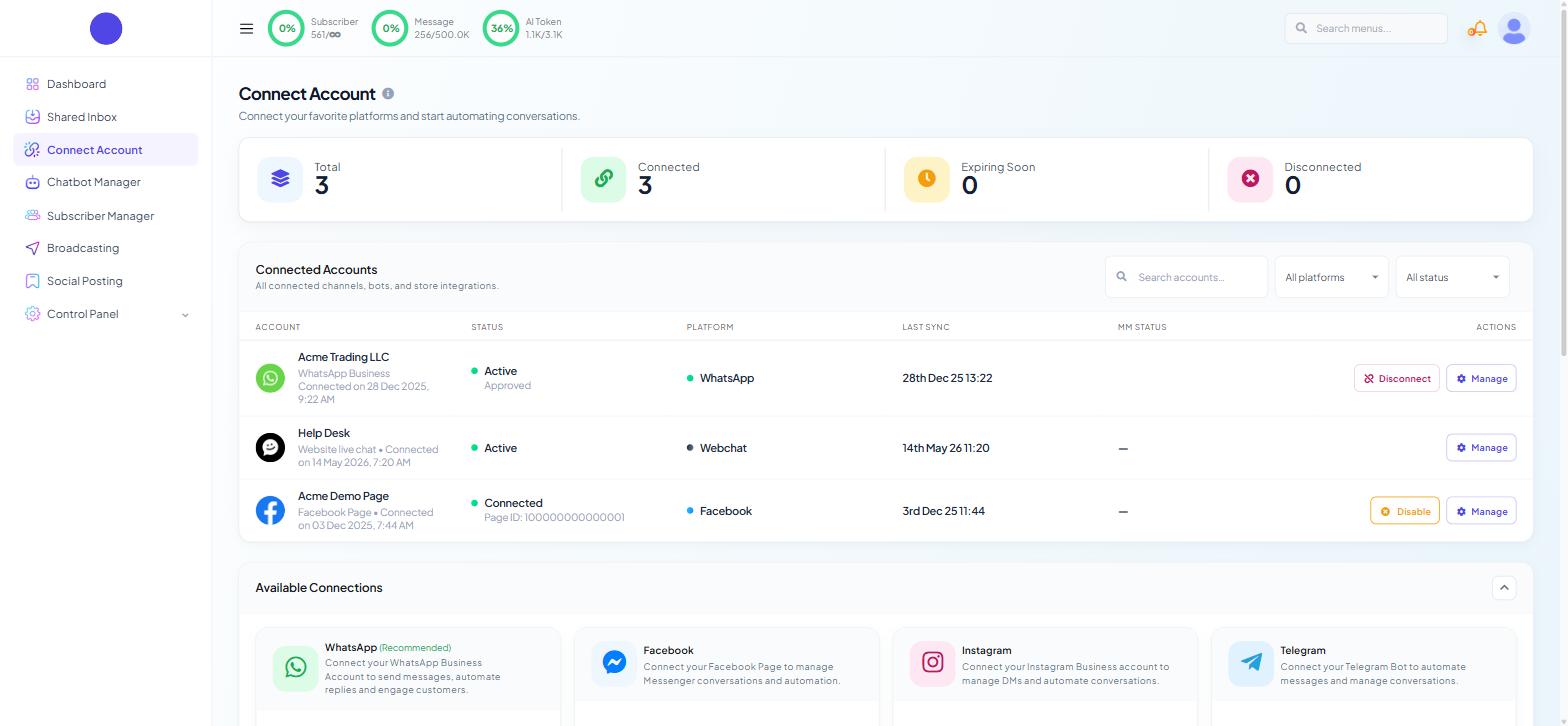
Open Connect Account. The Connected Accounts table gives a STATUS and a LAST SYNC per account.
Check STATUS is Active and LAST SYNC is recent; a LAST SYNC that stopped when the bot went quiet points at the connection.
For a WhatsApp number, open Connect Account › WhatsApp for the fuller picture: the Phone Numbers table shows STATUS, QUALITY, MESSAGING LIMIT, LAST SYNC and MM STATUS. An expired access token or revoked permission usually surfaces here first, and Manage Account re-syncs from Meta.
2. Is the message arriving at all?
Open Shared Inbox and send the bot a test message from an outside account.
If the inbound message appears in the conversation list, the connection is fine and the problem is automation. Skip to step 3.
If nothing appears, messages are not reaching Scope Wiser and no amount of flow editing will help. Go back to step 1 and re-sync, or see Fixing Channel Connection Problems.
If you connected with your own API credentials, ask whoever set it up to check the webhook points at Scope Wiser and is subscribed to messages.
For developers
For a number connected through Create Your Own API Connection, the webhook is yours to maintain. It must point at Scope Wiser, be verified, and have the messaging fields subscribed — a webhook that is configured but not subscribed to message events produces exactly this symptom: a healthy-looking connection and total silence.
3. Has the bot been paused on that conversation?
Open the conversation in Shared Inbox and look at the Chat Actions rail on the right. Its quick actions include Pause Bot and Pause AI. An agent who paused the bot to handle a customer manually, and never resumed it, leaves that one conversation silent while every other conversation works normally.
The same rail's Customer Snapshot reports the bot name, the subscription status and the messaging window state.
Related: if the customer pressed Chat with Human, the conversation has been handed over deliberately. Bot Settings › Shared Inbox controls how long that lasts, through CHAT WITH HUMAN SESSION EXPIRY TIME (IN MINUTE). Set to 0, a handover does not time out on its own.
4. Is the bot switched off by its own settings?
Open the Bot Settings panel from the bot header and check two tabs.
Business Hour. The tab carries a seven-day table with a START and END per day, a TIMEZONE and an OFF DAY field, plus two toggles: Disable bot reply during business hours and Disable AI assistant during business hours. Confirm the timezone first — a business hour table that is correct in local time and wrong in UTC produces a bot that works in the evening and sleeps all morning. The ENABLE SPECIAL BOT section below governs what replies outside those hours.
General. NO MATCH REPLY decides whether an unmatched message gets any answer at all. If it is off, a customer whose message matches no keyword receives silence, which reads exactly like a broken bot. Note also NO MATCH RESPONSE FREQUENCY LIMIT: set to Once a day, the same person testing repeatedly gets one reply and then nothing — the bot is working and the test is misleading.
5. Did the change actually publish?
Edits in the Bot Settings panel are not live until you press Publish Changes. Flows in the Flow Builder go live when you press Save on the canvas. These are two different buttons on two different screens, and confusing them is one of the most common reasons a change appears to have done nothing.
If you edited settings and closed the panel without publishing, reopen it and check whether your values are still there.
6. Is a keyword actually matching?
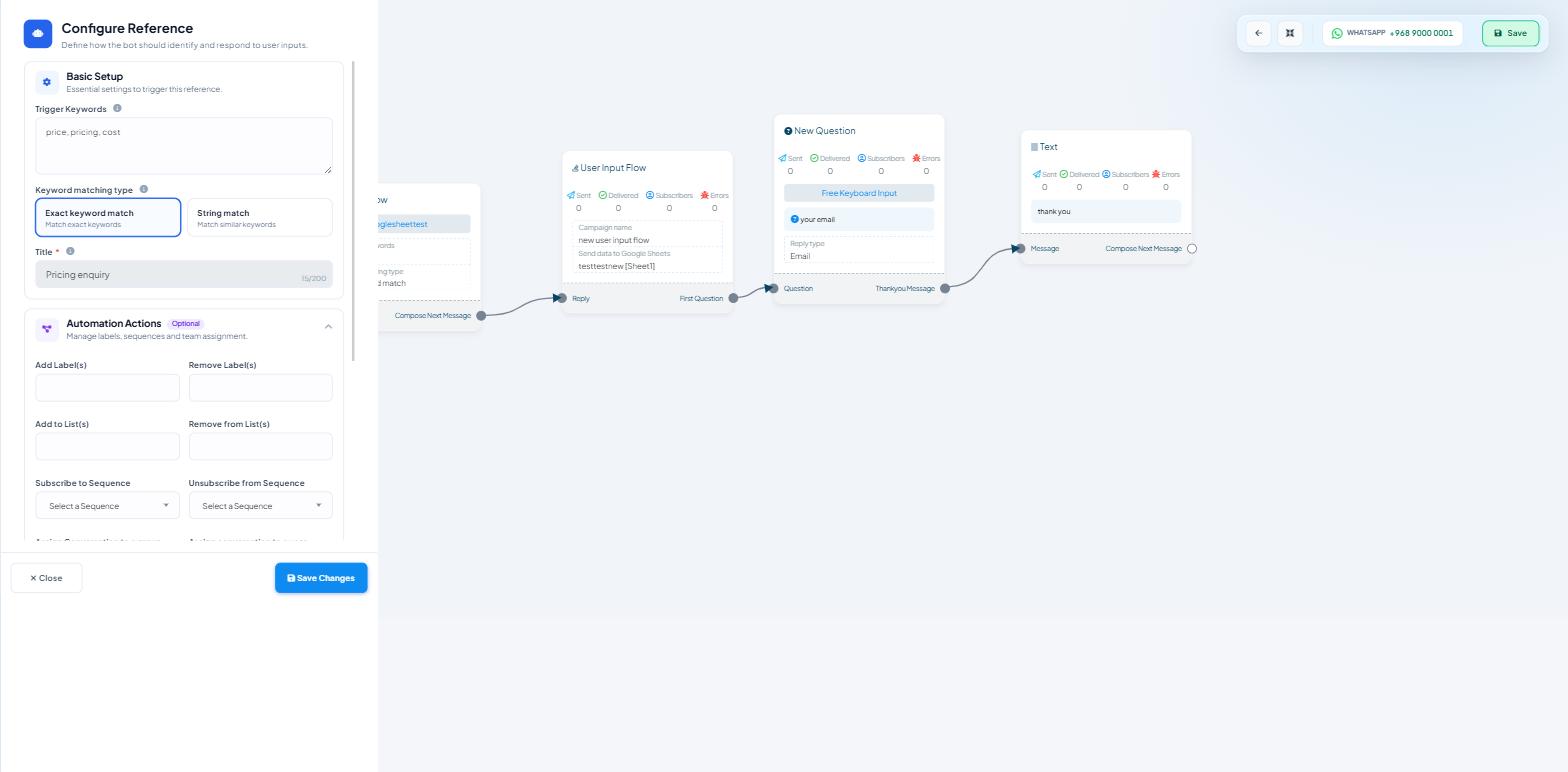
Go to Chatbot Manager › Automation › Keyword Replies and open the flow. Double-click the Start Bot Flow node to see the Configure Reference panel.
Trigger Keywords must contain what people really type. Hi does not match hii.
Keyword matching type is the setting people forget. Exact keyword match fires only when the message is that keyword. String match fires when the keyword appears inside a longer sentence. A flow set to exact matching will ignore hi there, are you open today? and behave, from the customer's side, like a dead number.
Switch a stubborn flow to string matching and test again. If it now answers, the original keyword list was too narrow.
Remember that the very first message from a new contact runs the Get-started quick action rather than a keyword flow. If new contacts get nothing but returning ones do, check Automation › Quick Actions › Get-started and confirm GET STARTED MESSAGE is enabled under Bot Settings › General.
7. Is the 24-hour window open?
WhatsApp only permits free-form messages within 24 hours of the customer's last message. Outside that window, an approved template is the only thing that can be sent — and a flow built from Text blocks will simply not deliver.
The conversation's Customer Snapshot in Shared Inbox shows the Messaging Window state, including a live countdown while it is open. If a flow works during a live conversation but does nothing when triggered later, this is why, and the fix is a Template Message block rather than a text one.
This constraint is WhatsApp's alone. Facebook, Instagram and Webchat flows are not governed by it, though Facebook has its own rules for messaging people outside an active conversation.
8. Is another flow taking the message first?
When two flows on the same bot claim overlapping keywords, the customer gets one answer and it may not be the one you were testing. A flow set to string matching on a short keyword — order, say — will intercept a large share of inbound messages intended for other flows.
Open the Keyword Replies list and read the REFERENCE NAME column with the UPDATED AT dates. Look for two flows that could plausibly both claim the message you sent. The usual culprit is an old test flow with a generic keyword that nobody remembered was live.
9. When it is the account, not the bot
If everything above checks out and messages still fail, the problem has moved up a level: the number's quality rating, its messaging limit, or an account-level restriction from Meta. Check the QUALITY and MESSAGING LIMIT columns on Connect Account › WhatsApp, and read WhatsApp Error Code Reference for what the resulting delivery codes mean.
What to do next
If you found delivery failures rather than silence, WhatsApp Error Code Reference decodes them. If you worked through every step and the bot is still quiet, Getting Help: What to Check and What to Send lists exactly what to gather before raising it — starting with the bot's name/number and the flow's UNIQUE ID.