
WhatsApp Business Profile, Verification & Limits
Why an unverified WhatsApp Business Account stops at 250 customers a day, how messaging tiers climb, how to get verified, and how to link your number to a Facebook Page.
A new WhatsApp connection can start conversations with only 250 customers a day until Meta verifies your business. This article explains the limits, where to read your current position inside Scope Wiser, how to get verified, and how to link your number to a Facebook Page.
What you get without verification
Until Meta verifies your business, two limits apply:
250 unique customers in a rolling 24-hour period, per phone number. This counts business-initiated conversations — broadcasts, template sends, anything you start.
A maximum of two registered phone numbers.
Neither limit affects your ability to reply. Customer-initiated conversations inside the 24-hour window are unaffected either way.
What verification changes
Unverified | Verified | |
|---|---|---|
Business-initiated conversations per number, per 24h | 250 unique customers | 1,000, rising to 10,000, 100,000 or unlimited |
Registered phone numbers | 2 | More than 2 |
Replies inside the 24-hour window | Unlimited | Unlimited |
Display name | Not approved | Approved, so customers see your brand rather than a number |
The tier is not granted all at once. Meta raises it as you send consistently and keep your quality rating up, and drops it back if customers block or report you.
How to get verified
Verification happens on Meta's side, against your business portfolio, not inside Scope Wiser.
Open Meta Business Manager.
Go to Security Centre.
Click Start Verification.
Upload documents that match your legal business name — name, address, and usually a website or a utility record.
Expect anything from a few hours to a few working days. What decides it is whether the documents agree with each other and with the business name on the account.
Reading your current limits in Scope Wiser
Everything you need sits on one screen. From the sidebar open Connect Account, then on your WhatsApp row click Manage. That takes you to WhatsApp Integration — "Connect and manage your WhatsApp Business Accounts and phone numbers."
Expand Business Accounts and look at the Phone Numbers table:
Column | What to read from it |
|---|---|
PHONE NUMBER | The number and the display name attached to it |
STATUS |
|
QUALITY | Meta's quality rating — |
MESSAGING LIMIT | Your tier — the 250-customer tier while you are unverified, rising (for example to 2K) once Meta lifts it |
LAST SYNC | When Scope Wiser last pulled this from Meta |
MM STATUS | Marketing message status. Usually blank |
MESSAGING LIMIT is the number that matters here. If it is not moving, the constraint is either verification or your own sending pattern — not the platform.
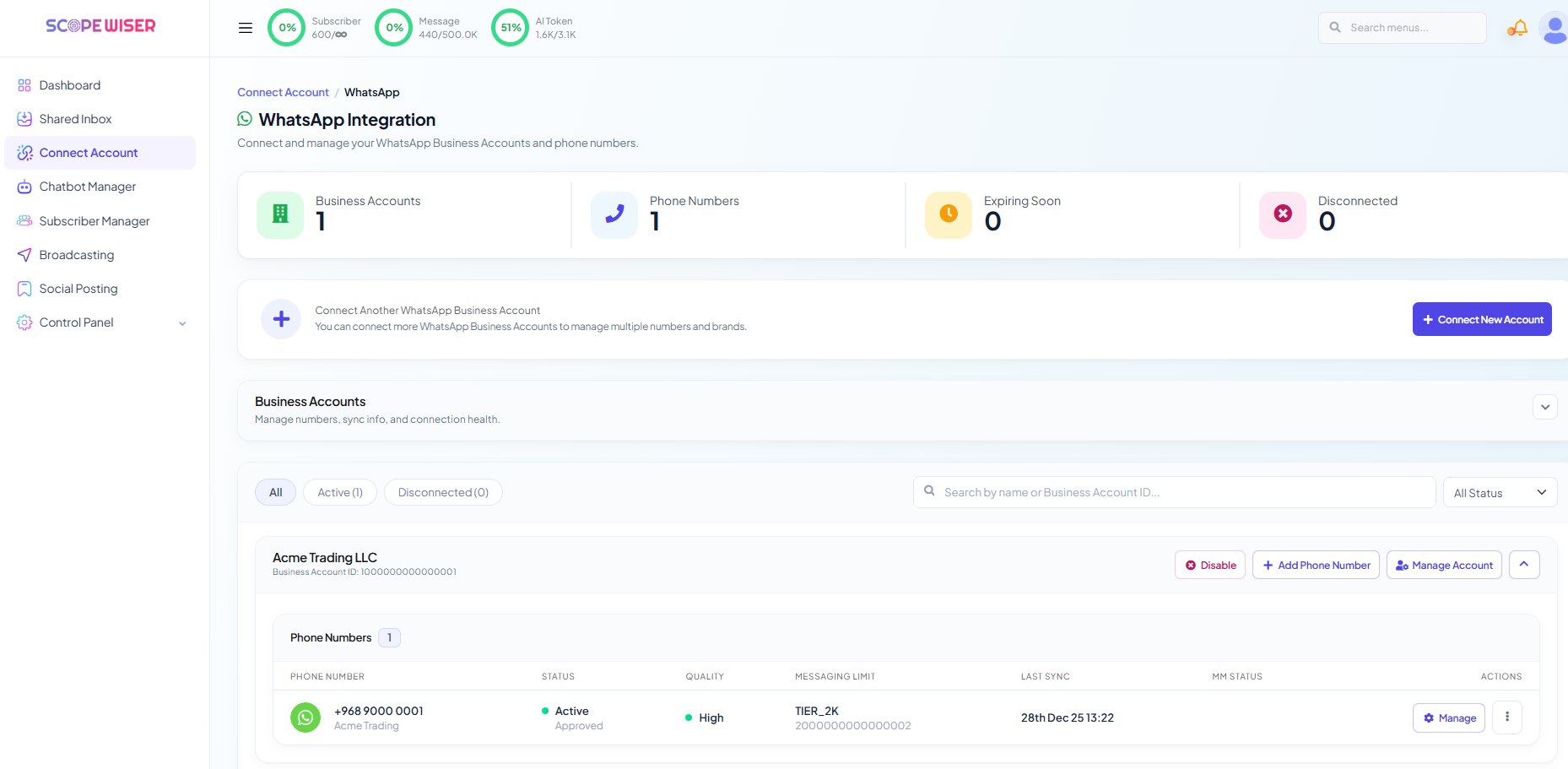
LAST SYNC is worth a glance too. A stale timestamp means Scope Wiser is showing you an old picture; Manage Account on the business-account block re-syncs it.
Your business profile
The profile a customer sees when they tap your name — the About line, address, description, contact email, website and business vertical — is edited in Meta's WhatsApp Manager, because a number on the Cloud API cannot be opened in the WhatsApp mobile app.
On the free plan the About line shows Scope Wiser branding; upgrading removes it.
An address, a working website and a monitored email do more for reply rates than any wording in the About field.
Linking your number to a Facebook Page
Connecting a WhatsApp Business Account to a Facebook Page is separate from connecting it to Scope Wiser. Do it if you want a WhatsApp button on the Page, or if you plan to run click-to-WhatsApp ads. One number can be linked to one Page at a time.
The work happens on Meta's side, in two halves, because the request and the approval sit with different tools.
1. Send the request from the Page. In your Facebook Page settings, open Linked accounts, choose WhatsApp, enter the number with its country code, and send the verification code. The Page then shows "Connection request pending".
2. Approve the request against the WhatsApp Business Account. Go to Meta Business Manager and open WhatsApp Manager. The pending request appears in your notifications and under the Requests section of Business Settings. Approve it there.
3. Check the result in Scope Wiser. Return to Connect Account → Manage on the WhatsApp row and confirm the number still reads Active on WhatsApp Integration. Linking to a Page does not change the connection, but it is the fastest way to notice if something was disturbed in Business Manager along the way.
If the request never arrives for approval, the usual cause is that the Page and the WhatsApp Business Account belong to different business portfolios.
Can I use my personal WhatsApp number?
Not while it stays personal. Delete the account from the ordinary WhatsApp app first, then connect the number here; it becomes a business number.
A number in the WhatsApp Business app is a different case. WhatsApp Coexistence lets it run in the app and on the API at the same time — see How to Connect WhatsApp to Scope Wiser: Complete Setup Guide.
What to do next
If your Facebook Page is not connected yet, Connect a Facebook Page is the natural follow-on — it also brings Instagram across in the same pass. If your numbers are connected but behaving oddly, go straight to Fixing Channel Connection Problems.