
Keyword Replies and Postbacks
Keyword Replies answer what customers type; Postbacks answer what they tap. How to create each, exact vs string matching, and which channels have which.
What you'll do: create a reply to what a customer types (a keyword reply) and a reusable reply to what they tap (a postback).
Time: 10 minutes each.
Two different questions sit behind almost every automated reply: what did the customer type, and what did they tap? Scope Wiser answers them with two separate tools, and knowing which one you need saves a lot of duplicated work.
Keyword Replies match text. Somebody writes price, hours or where are you and the matching flow runs.
Postbacks are reusable flows triggered by a tap: a button, a persistent menu item, a card action. They carry no keyword. You build one once and point several buttons at it.
Which one? Ask what the customer did:
They typed something → keyword reply.
They tapped something → the button either points at the next block on the canvas, or, on Facebook, Instagram and Webchat, at a postback.
More than one thing should reach the same answer → build it once as a postback and point everything at it.
Both end up in the same Flow Builder with the same block palette, so nothing you learn about one is wasted on the other.
1. Open Keyword Replies
Click Chatbot Manager and select a bot.
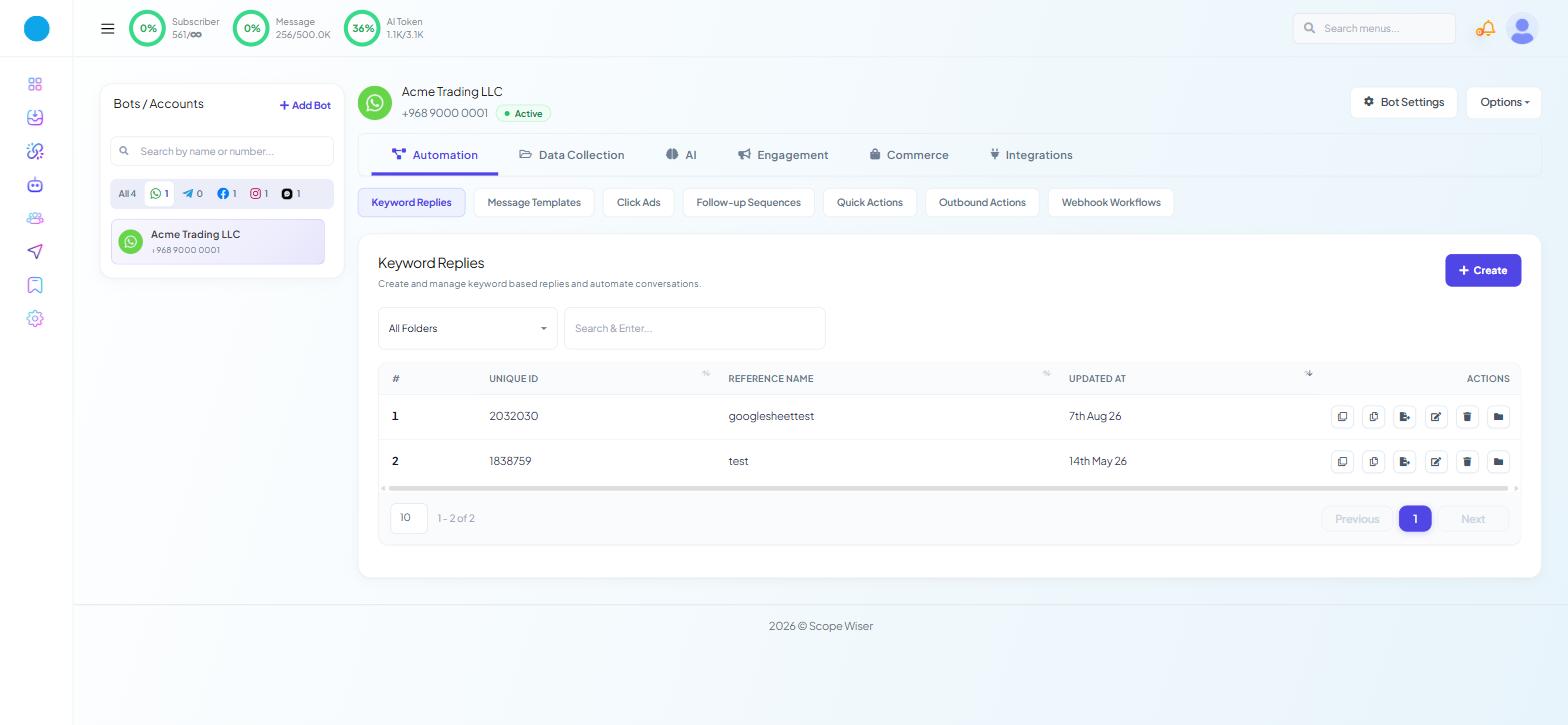
Stay on the Automation tab. The first sub-tab is Keyword Replies, headed "Create and manage keyword based replies and automate conversations." It exists on WhatsApp, Facebook, Instagram and Webchat alike.
2. Create a keyword reply
Click + Create. The Flow Builder opens with a single Start Bot Flow node on the canvas.
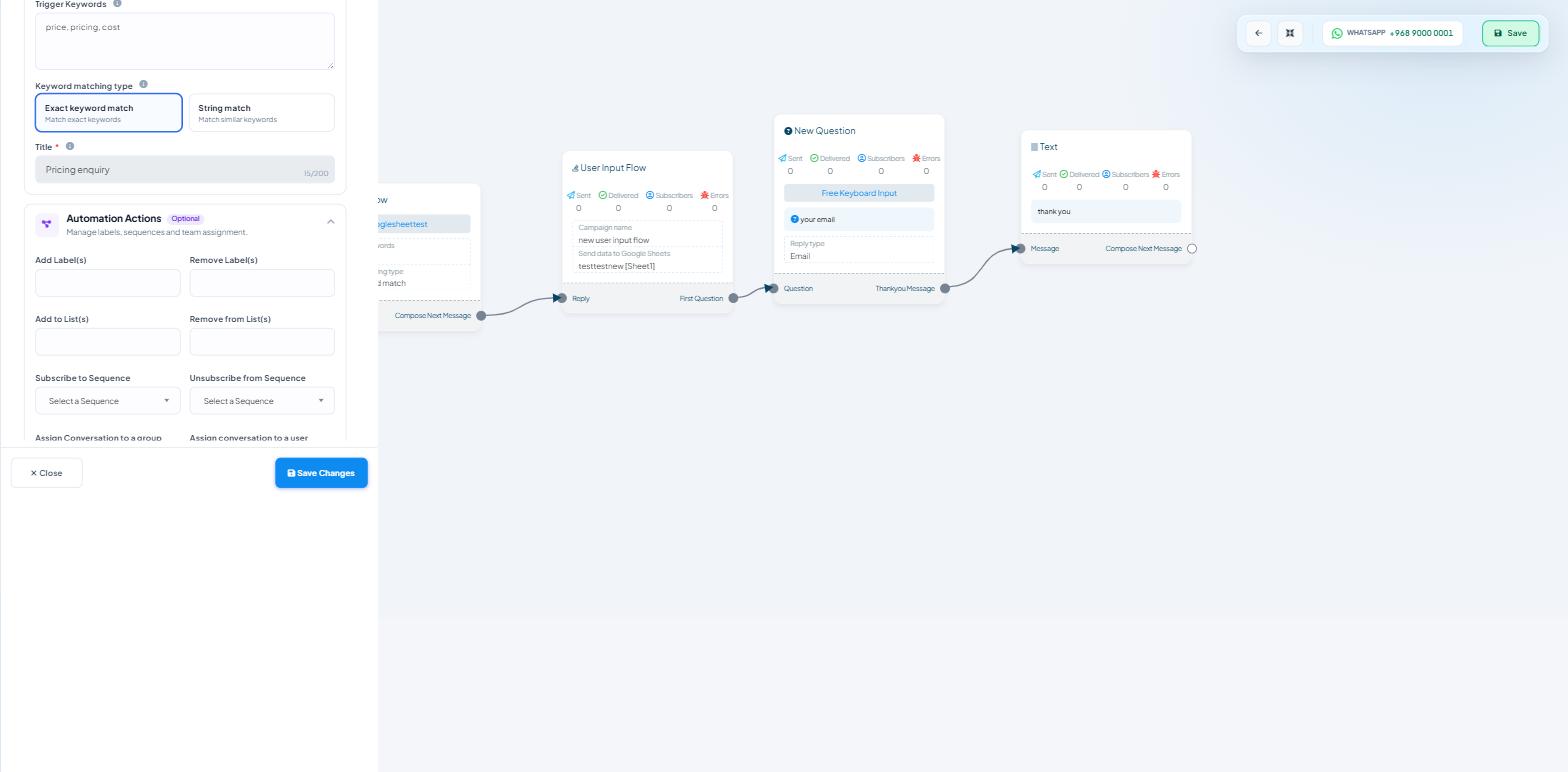
Click that node. The Configure Reference panel slides in from the left, headed "Define how the bot should identify and respond to user inputs."
Under Basic Setup, type the Trigger Keywords.
Choose the Keyword matching type (see below).
Type a Title. It becomes the reference name in the list. Name it after the customer's intent (
opening-hours,delivery-areas) so that six months later you can find the right one to edit.Optional: fill in Automation Actions (see step 3).
Optional: Data & Integrations, further down, saves an answer to a custom field or sends it on to Google Sheets.
Save the panel.
You should now see the values on the node itself: the title as a chip, plus Bot trigger keywords and Keyword matching type.
Drag your reply blocks from the palette onto the canvas and connect them to the Compose Next Message port.
Click Save in the canvas toolbar.
Introduction to Flow Builder: How Scope Wiser Flows Are Built covers the panel and the canvas in full.
Exact match or string match
The matching type is the most consequential control on the panel. There are two option cards:
Exact keyword match("Match exact keywords"): fires only when the message is the keyword.String match("Match similar keywords"): fires when the keyword appears anywhere in the message.
String matching is friendlier to real customers, and it is the usual cause of two flows answering one message. Use string matching for distinctive words, exact matching for short ones.
A
String matchonhiwill fire on shipping, this and high.
3. Add automation actions (optional)
This section is why keyword replies are worth more than their reply text. A single reply can answer the question, tag the person as interested, drop them into a follow-up sequence and route the conversation to your sales role, without a single extra block on the canvas. The options are listed under Reference.
4. Create a postback (Facebook, Instagram, Webchat)
Postbacks is a sub-tab under Automation, and it is not on WhatsApp (see Reference). On WhatsApp, buttons in a flow connect to their next block directly on the canvas instead.
Go to Automation → Postbacks. The screen is headed "Manage postbacks for this bot" and lists what you have built under POST-BACK NAME and POST-BACK ID.
Click Create. The Flow Builder opens, exactly as it does for a keyword reply.
Build the reply, name it, and save.
In any Button drawer, pick the postback by name.
The difference from a keyword reply is what starts it. Nothing types its way in; a button, a menu item or a card action refers to it by name. That makes postbacks the right home for anything more than one entry point should reach (Talk to sales, Track my order, Opening hours), because editing the postback updates every button pointing at it at once.
Don't confuse it with RCN Postback Manager. On Facebook, Engagement → RCN Postback Manager is about recurring notifications (customers opting in to receive repeat updates), not about button targets. It appears on Facebook only. Your button postbacks are not there.
✅ Done when…
☐ Typing your keyword from another account gets the reply
☐ Tapping a button that points at your postback gets the reply
If something doesn't work
Overlapping keywords are the most common reason a customer receives two replies to one message.
Give every reply a distinct trigger. If two flows both need price, merge them.
Prefer
Exact keyword matchfor short or common words.When you do use
String match, choose words that only appear in one context:refund, nothow.Keep the no-match fallback for genuine misses.
You can't find Postbacks on a WhatsApp bot. WhatsApp has no postback manager. Connect the button to its next block on the canvas.
Preventing Bot Conflicts and Duplicate Replies covers the no-match reply and the rest of that diagnosis, including the case where the duplicate has nothing to do with your keywords at all.
Reference
The Keyword Replies list
The list has the columns #, UNIQUE ID, REFERENCE NAME, UPDATED AT and ACTIONS, a "Search & Enter..." box, an All Folders filter and a + Create button. Each row carries six icons: duplicate, copy, export, edit, delete and move-to-folder.
Two of those repay attention early:
Copy moves a reply to another bot. If you run the same business on WhatsApp and Facebook, build the reply once and copy it rather than rebuilding it by hand. The two will drift otherwise.
Move-to-folder, with the All Folders filter above the table, is what keeps a bot with forty replies navigable. Set up folders before you have forty.
The REFERENCE NAME is your own label for the reply, not something the customer sees.
Automation Actions
Badged Optional: "Manage labels, sequences and team assignment."
Add Label(s)andRemove Label(s)Add to List(s)andRemove from List(s)Subscribe to SequenceandUnsubscribe from Sequence: each a dropdown reading Select a SequenceAssign Conversation to a group: Select Team RoleAssign conversation to a user: Select Team Member
Postbacks by channel
Channel | Postbacks sub-tab |
|---|---|
Yes | |
Yes | |
Webchat | Yes |
No |
What to do next
Read Preventing Bot Conflicts and Duplicate Replies if a customer is getting answered twice. If you are building flows for the first time, Introduction to Flow Builder: How Scope Wiser Flows Are Built covers the canvas, the palette and how blocks connect. For postbacks specifically, the natural next step is Persistent Menus, Get Started and Ice Breakers by Channel, since menu items are the main thing that points at them.
Next: Persistent Menus, Get Started and Ice Breakers by Channel