
Persistent Menus, Get Started and Ice Breakers by Channel
Always-visible menus, first-contact greetings and tappable opening questions work differently on Facebook, Instagram, Webchat and WhatsApp. Where each one is configured, channel by channel.
Three features shape what a customer sees before they type anything: a menu that never scrolls away, a greeting on first contact, and a set of tappable opening questions.
Each channel exposes a different subset, in a different place, and WhatsApp's are not configured in Scope Wiser at all. Start with the map.
Which channel gets what
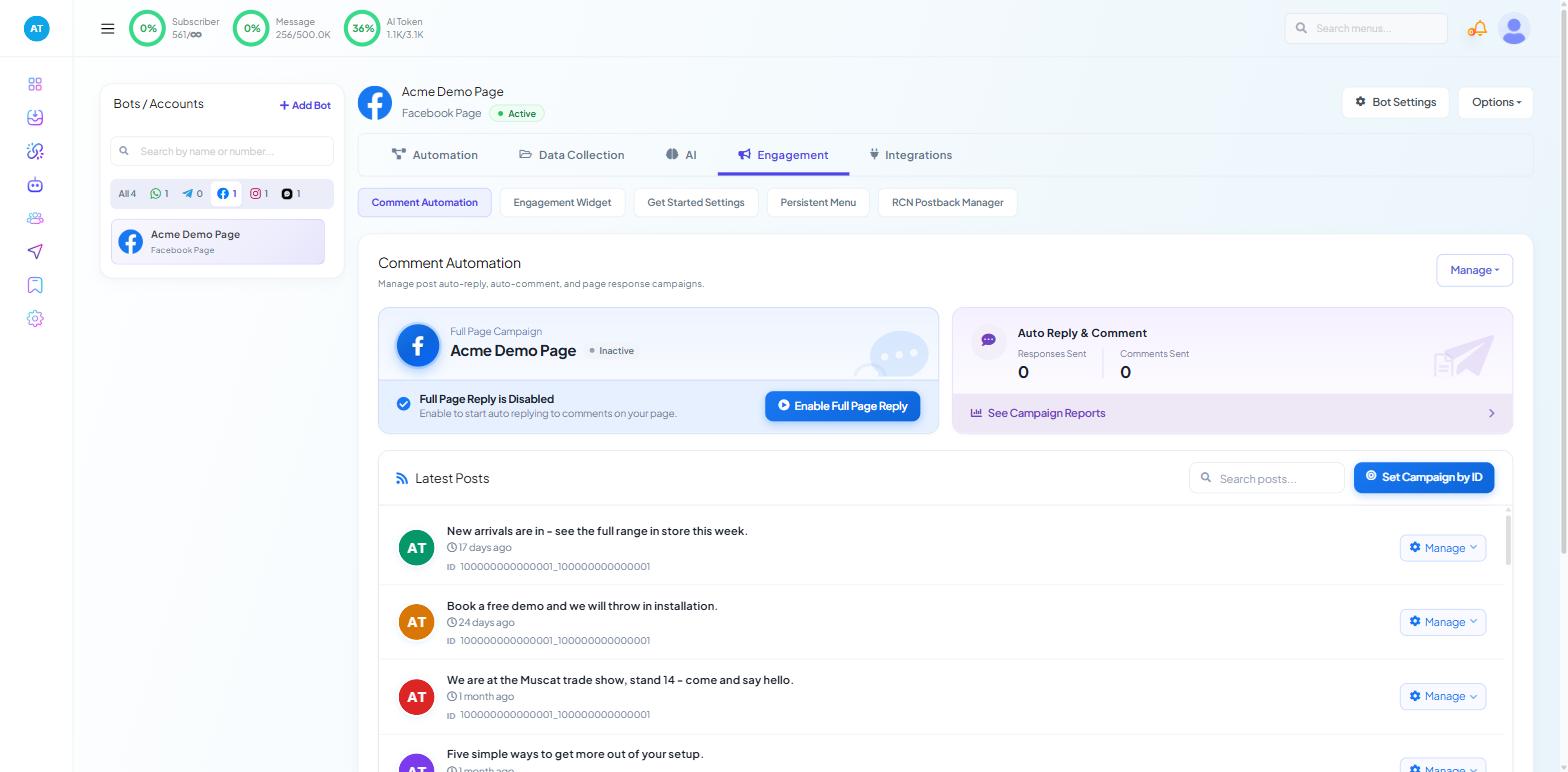
Select your bot in Chatbot Manager and open the Engagement tab. Its sub-tabs differ by channel:
Channel | Engagement sub-tabs |
|---|---|
Comment Automation · Engagement Widget · Get Started Settings · Persistent Menu · RCN Postback Manager | |
Comment Automation · Get Started Settings · Persistent Menu | |
Webchat | Get Started Settings · Persistent Menu |
Chat Entry — and nothing else |
So: persistent menus and Get Started Settings exist on Facebook, Instagram and Webchat. WhatsApp has neither, and its equivalents live in two other places entirely. Read the WhatsApp section below rather than trying to follow the Facebook steps on a WhatsApp bot.
Persistent menu — Facebook and Instagram
A persistent menu is a fixed list of options in the chat window that stays visible wherever the conversation goes. Customers use it to reach your opening hours, your catalogue or a human without having to remember a keyword.
Go to Engagement → Persistent Menu and click Create. The editor asks for:
Locale — the language this menu applies to. Set up
defaultfirst; add other locales afterwards, each with its own set of items.Composer Input Disabled — whether the customer can still type freely. Turning typing off forces everyone down your menu paths. It is occasionally the right call for a pure self-service bot and usually the wrong one for support.
Menu Title — the label the customer taps, such as Help, Shop or Contact Us.
Type — Web URL or Post Back.
Target — the address for a Web URL item, or, for a Post Back item, the name of a postback you created under Automation → Postbacks.
Add each further item, then save. Plan on roughly three top-level items per locale and write titles a customer would recognise, not internal names.
Saving is not publishing. The menu reaches customers only once you use Options → Publish on the Persistent Menu screen. The same menu offers Remove to take it down again.
Post Back is the item type that does real work. A Web URL item sends the customer to your website and out of the conversation. A Post Back item keeps them in the chat and starts a flow you built — which is why postbacks are worth setting up first. See Keyword Replies and Postbacks for how a postback is created on Facebook and Instagram.
One dependency catches people out: on Facebook the persistent menu depends on the Get Started button being enabled. Configure Get Started first, then the menu.
Persistent menu — Webchat
Webchat has the same Engagement → Persistent Menu sub-tab and the same Create flow. Items are either a URL or a chatbot reply as a postback, and the same Composer Input Disabled choice applies — with a more visible effect here, since a website visitor with typing disabled sees a chat window with no text box at all.
Separate settings, easily confused: the look of the website widget — its colours, position, title and wallpaper — is not on this tab. That lives under Connect Account → Webchat, in the Set Up Your Live Chat Widget drawer, starting with the field labelled Chatbox disaply title (spelled this way on screen).
Get Started — Facebook, Instagram and Webchat
The Get Started button is what a first-time visitor taps before any conversation exists. Its settings live at Engagement → Get Started Settings.
Set the Get Started Status to enabled.
Write a Welcome Message. Keep it to one sentence about what this bot can do, and one about what to do next. "Welcome to Acme Trading. Tap a question below, or type what you're looking for." beats a paragraph.
Save.
Ice breakers sit on the same screen, further down.
Ice breakers — Facebook and Instagram
Ice breakers are the tappable questions shown before the first message. They convert the visitor who has no idea what to type.
On the same Get Started Settings screen:
Set the Ice Breakers Status to enabled.
Type a question in the question block — a real one, phrased the way a customer would ask it: "Do you deliver to my area?", not "Delivery information".
Link it to a reply message template from the dropdown — it lists replies you have already built and saved, so build the reply first; on a bot with nothing built yet this dropdown is empty. That template is what the bot sends when the question is tapped.
Add further templates under the same question if one reply is not enough.
Add more question blocks for more ice breakers.
Save the settings.
Three or four good questions cover most first contacts. Twelve of them look like a menu and get ignored.
WhatsApp: the same three ideas, three different places
WhatsApp has no persistent menu and no Get Started Settings sub-tab. Its equivalents split across Scope Wiser and Meta.
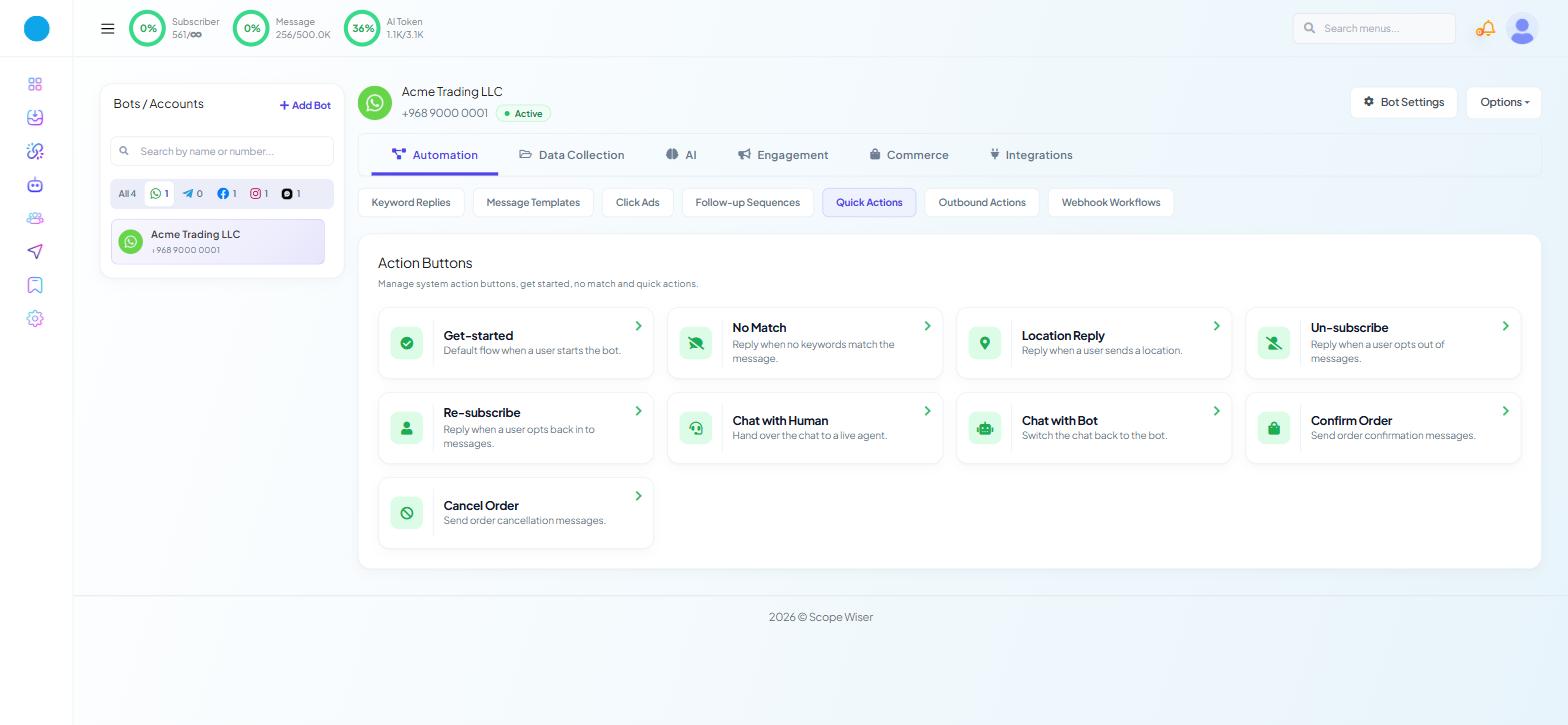
The greeting is a flow. Go to Automation → Quick Actions, headed Action Buttons. Open the Get-started card — "Default flow when a user starts the bot." — edit the message, and click Save.
Switching it on is a setting. Click Bot Settings, stay on General, and enable GET STARTED MESSAGE. Set GET STARTED MESSAGE FREQUENCY LIMIT to Every Time or Once a day, then click Publish Changes.
Ice breakers and commands come from Meta. They are not configured in Scope Wiser:
In Meta's WhatsApp Manager, go to Phone numbers → your number → Automations and add your Ice breakers and Commands.
In Scope Wiser, go to Automation → Keyword Replies and create one reply per item, using the full question — or the full command including its leading slash, such as
/hours— as the trigger keyword.
A useful WhatsApp extra: the Location block in the Flow Builder sends a message with a button the customer taps to share their position, so nobody has to type an address. The reply is handled by the Location Reply card in Quick Actions — "Reply when a user sends a location." — and the captured location is then visible from the Shared Inbox and Subscriber Manager.
Get-started and Location Reply are two of nine cards on that screen; the full set is listed in Quick Replies, Buttons & CTA URLs. The No Match card, the reply a customer gets when nothing matches, is covered in Preventing Bot Conflicts and Duplicate Replies.
Testing what you built
Menus and greetings are the two things most likely to look fine in the editor and wrong in the chat.
Message the bot from an account that has never contacted it. Ice breakers and the Get Started button appear on a first interaction, or after the chat history is cleared.
Tap every menu item. A Post Back item pointing at a deleted flow fails quietly.
If a Facebook or Instagram menu item opens a page on your own site, that domain must be whitelisted first — see Whitelist Domain for Facebook and Instagram.
What to do next
With the entry points in place, the next thing that shapes first impressions is what happens when somebody types something you did not anticipate. Preventing Bot Conflicts and Duplicate Replies covers the no-match reply and its frequency limit. For the flows behind each menu item, start at Build Your First Chatbot in 5 Minutes.