
Bot Settings Explained: All Eight Tabs
Bot Settings is the eight-tab panel that governs how one bot behaves — no-match replies, business hours, webhooks, session expiry, email and SMS. What each toggle does and why it matters.
Everything you build in the Flow Builder decides what your bot says. Bot Settings decides whether it says anything at all — during a live agent conversation, outside business hours, when nothing matches, when a customer first arrives.
Open it from the bot header in Chatbot Manager. Select a bot in the Bots / Accounts panel, then click Bot Settings next to Options. The panel is headed Settings with the subtitle "Configure general, webhook, business hour, shared inbox, responder, Google, email and SMS settings."
Three things to fix in your head before you touch anything.
These settings belong to one bot. Switching bots in the left panel switches the whole panel with it. A WhatsApp number and a Facebook Page do not share business hours or a no-match setting.
Nothing takes effect until you click Publish Changes. The button sits in the bot header alongside Bot Settings and Options, and it is the only place these eight tabs are committed. Change a toggle, move to another tab, close the panel — and you have changed nothing.
Bot Settings controls behaviour. The Automation and other tabs on the page behind it are where you build the replies themselves.
General
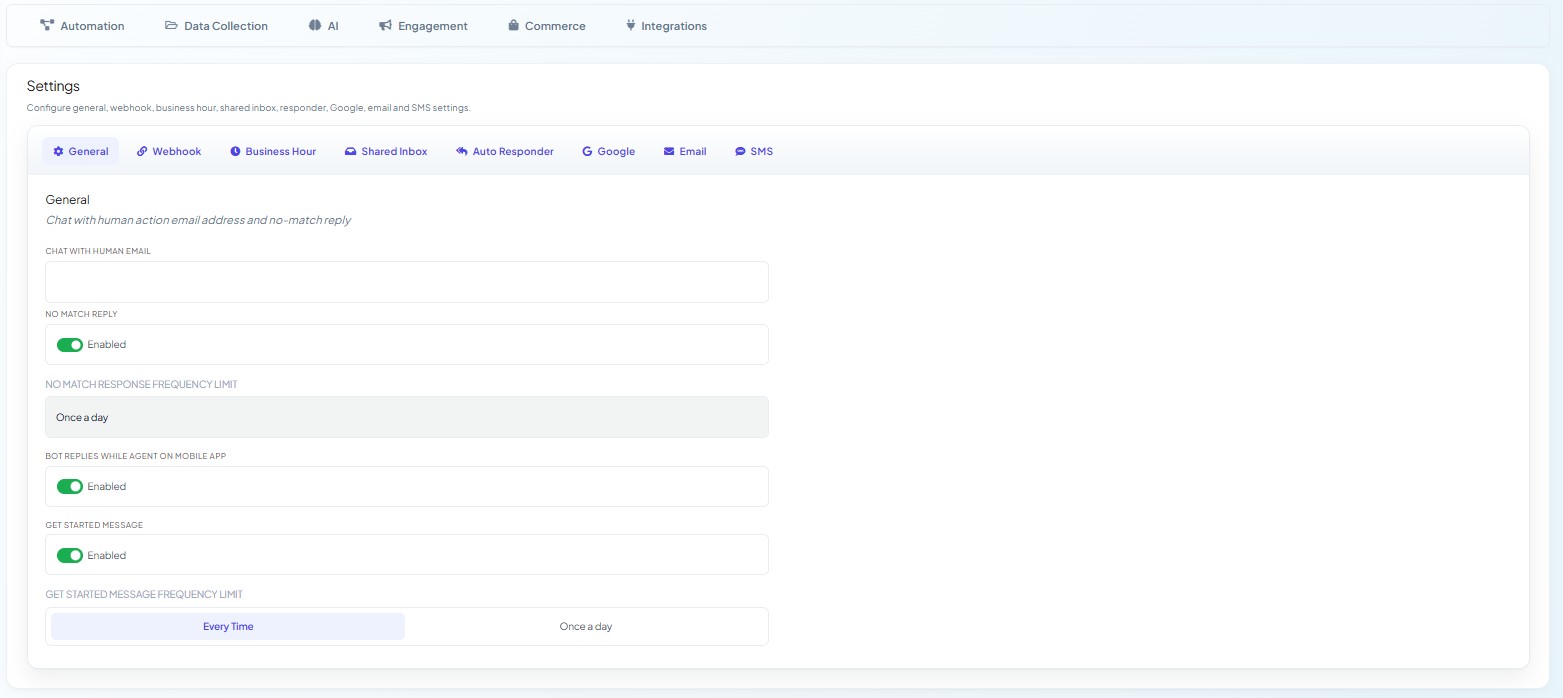
Headed General — "Chat with human action email address and no-match reply".
CHAT WITH HUMAN EMAIL— the address notified when a customer asks for a person. Fill this in before you publish a Chat with Human quick action, or the handover happens silently and nobody in your team knows a customer is waiting.NO MATCH REPLY— a toggle marked Enabled. When on, a customer whose message matches none of your keyword replies still gets an answer.NO MATCH RESPONSE FREQUENCY LIMIT—Every Time,Once a day,Once a monthorOnce a year. This is the difference between a helpful fallback and a bot that repeats the same apology four times in one conversation.BOT REPLIES WHILE AGENT ON MOBILE APP— whether automation keeps running while one of your agents is handling the thread from a phone. Turn it off if your team works mobile-first.GET STARTED MESSAGE— a toggle for the greeting a customer receives on first contact.GET STARTED MESSAGE FREQUENCY LIMIT—Every TimeorOnce a day, as a segmented control.
The content of both those replies lives elsewhere: Automation → Quick Actions, on the Get-started and No Match cards. This tab switches them on and controls how often they fire; it does not compose them.
Webhook
Sends a copy of every message and status change to your own system. Leave these off unless a developer asked for them.
For developers
Headed Webhook — "Send incoming or outgoing messages to external webhook URLs." Four toggles, each marked Enabled:
TRIGGER WEBHOOK FOR INCOMING MESSAGETRIGGER WEBHOOK FOR OUTGOING MESSAGETRIGGER WEBHOOK FOR MESSAGE STATUS CHANGETRIGGER WEBHOOK FOR CONVERSATION STATUS CHANGE
These are message-level mirrors: every message in or out, plus delivery and conversation status changes, pushed to your own endpoint.
Each toggle has its own URL. Switch one on and its address field appears beneath it — Webhook URL for Incoming Messages, Webhook URL for Outgoing Messages, Message Status Change Webhook URL and Webhook URL for Conversation Status Changes. They are independent, so you can send delivery statuses to one service and message copies to another, or enable just the one event you care about.
There is no Save button on this tab. Set the toggles and URLs, then press Publish Changes at the top right, or nothing is stored.
For sending selected data on selected events instead of the whole stream, use Automation → Outbound Actions, which has its own name, URL and field picker.
Business Hour
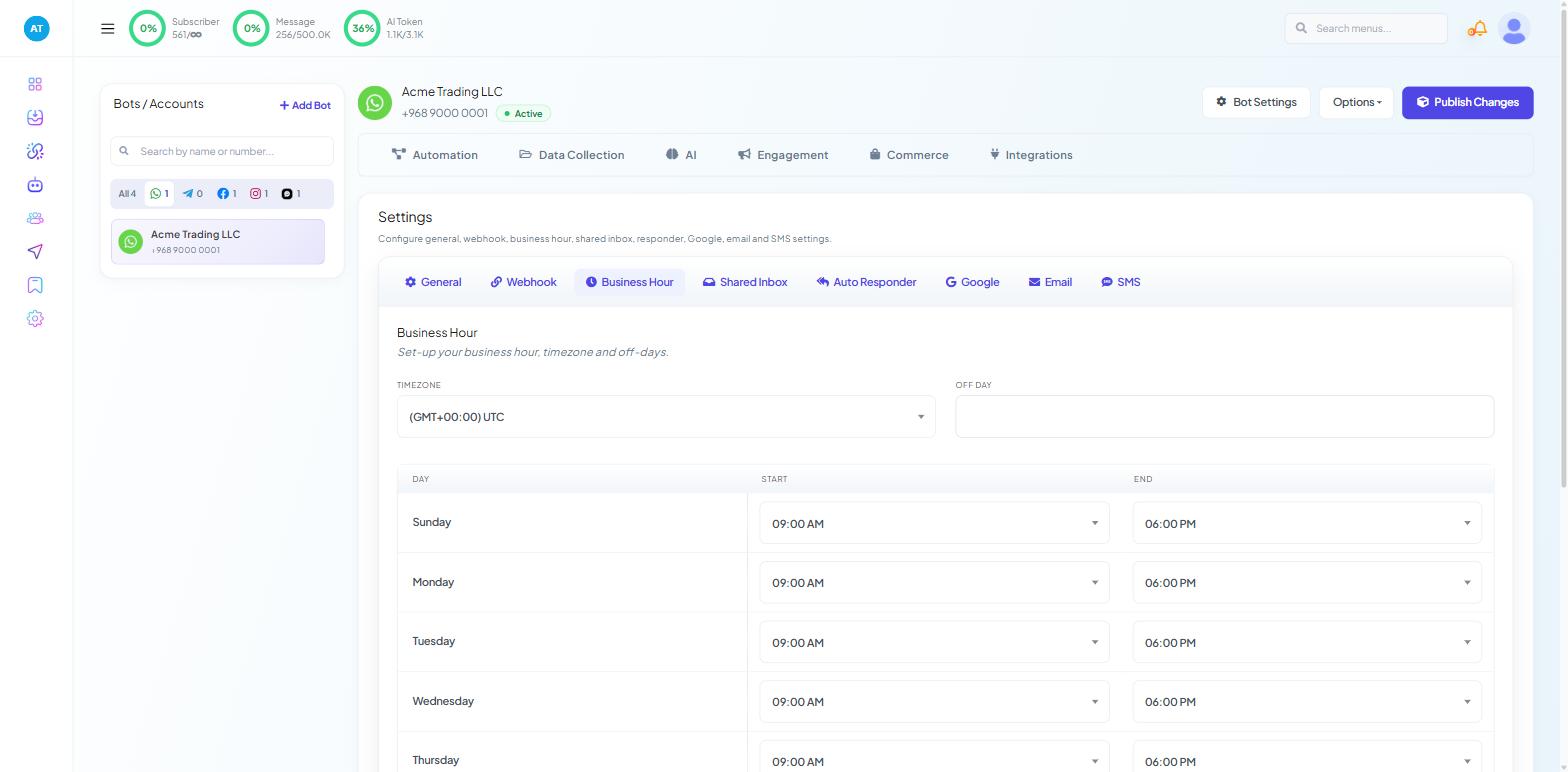
Headed Business Hour — "Set-up your business hour, timezone and off-days."
TIMEZONE— a dropdown; the default reads(GMT+00:00) UTC. Set this first. Every hour below is interpreted in it, and leaving it at UTC while your team works in the Gulf shifts your whole schedule by four hours.OFF DAY— a multi-select for days the bot should treat as closed.A seven-row table with the columns
DAY,STARTandEND, from Sunday to Saturday. Each row defaults to09:00 AMand06:00 PM.
Below the table sit two toggles and a further section:
Disable bot reply during business hoursDisable AI assistant during business hoursSpecial Bot during business off hours— "Set-up your business off hour special bot reply" — containing anENABLE SPECIAL BOTtoggle.
The Special Bot section is the one worth planning. It lets a different reply run when you are closed, so an out-of-hours customer gets "we open at 9" rather than a full sales flow that expects a human to pick it up.
Shared Inbox
Two sections on one tab.
Shared Inbox — "Shared Inbox Signature Message Configuration" — holds ENABLE SIGNATURE MESSAGE. A signature appends your agent's name or your business name to outgoing replies from the inbox, so a customer knows a person has taken over. The message body field is not shown while the toggle is off; switch it on first. Your account-level default lives under the profile menu at Account, in the SIGNATURE MESSAGE field.
Session Expiry Time — "Session Expiry Time Configuration":
INPUT FLOW SESSION EXPIRY TIME (IN MINUTE)— how long a half-finished User Input Flow waits for the next answer before it gives up. Both expiry fields on this panel start at0, so set a value that suits the form you are asking people to fill in.CHAT WITH HUMAN SESSION EXPIRY TIME (IN MINUTE)— how long the bot stays out of the way after a handover. Set this too high and the bot never resumes; too low and it interrupts a live conversation.ADD LABEL FOR UNSUCCESSFUL MESSAGE DELIVERY— pick a label from Select label and every failed delivery tags the subscriber. This is the single most useful setting on the tab: it turns invisible failures into a filter you can run in Subscriber Manager.
Auto Responder
Headed Auto Responder — "Send collected emails to auto responder accounts". It pushes email addresses your bot collects into an external marketing tool. It does not send anything itself.
Go to Control Panel → Settings & Integration → API Integration → Auto Responder API and connect Mailchimp, Brevo, ActiveCampaign or Mautic.
Come back here and pick the list in
MAILCHIMP LIST,BREVO LIST,ACTIVECAMPAIGN LISTorMAUTIC LIST.Click Publish Changes.
Connect each provider once for the whole account; the list itself is chosen per bot. Chatbot Manager → Integrations → Autoresponder is a shortcut to that same Settings & Integration screen.
The tab is labelled Google; the section inside reads Google Sheet — "Send collected subscriber to google sheet".
GOOGLE SHEET LISTGOOGLE CONTACTS ACCOUNT— a dropdown showing Select Account
Connect the Google account first from Connect Account, or the dropdown has nothing to offer.
Email and SMS
Both tabs send a message to the customer the moment they hand over the matching detail.
Email — "Send automated email to subscribers sharing email address through bot": EMAIL API (a Select dropdown), EMAIL SUBJECT and EMAIL CONTENT.
SMS — "Send automated sms to subscribers sharing phone number through bot": SMS API (a Select dropdown) and SMS CONTENT.
Pick the gateway first. Both dropdowns read from the same account-level store — Control Panel → Settings & Integration → API Integration, where Email API and SMS API sit — so until a gateway is configured there, the dropdown is the blocker rather than the message body.
A sensible order to work through it
Business Hour — timezone first, then hours, then off days.
General — chat-with-human email, then the no-match and get-started toggles with their frequency limits.
Shared Inbox — the failed-delivery label, then session expiry times.
Everything else only when you actually connect the tool it points at.
Publish Changes.
Then send yourself a message that matches no keyword, and a second one a minute later. If you set Once a day, you should get exactly one reply. That single test catches most of what goes wrong here.
What to do next
The settings on this panel are also the levers for the most common bot complaint — a bot that answers twice, or answers when a human is already talking. Read Preventing Bot Conflicts and Duplicate Replies next, which uses the General and Business Hour tabs in anger. If you run several bots, Managing Multiple Bots covers what does and does not carry across when you add another.