
Outbound Actions: Push Bot Data to Any CRM
Send chatbot data out to Zapier, a CRM or your own endpoint the moment it is collected. The trigger events, the field picker, and how Outbound Actions differs from the three other webhook features.
Outbound Actions sends the details a bot collects to your CRM or Zapier the moment they are collected. When a bot event fires, Scope Wiser sends the data you choose to a URL you choose. The other end can be Zapier, Make, a CRM that accepts webhooks, or an endpoint you wrote yourself.
Which webhook feature you actually want
Four things in Scope Wiser involve a URL, and choosing the wrong one costs an afternoon.
Feature | Direction | Use it when |
|---|---|---|
Automation → Outbound Actions | Out | A bot event should push selected subscriber data to an external service |
Automation → Webhook Workflows | In | An external service should trigger a message to a subscriber |
Bot Settings → Webhook | Out | You want the raw stream — every message in, out, and status change |
HTTP API block in the Flow Builder | Out and back | The flow needs a response to continue with, mid-conversation |
The distinction that matters most: Outbound Actions fires and forgets. If your flow needs the answer — a stock level, an order status, a price — use the HTTP API block instead, covered in Calling External APIs From a Flow.
Where it lives
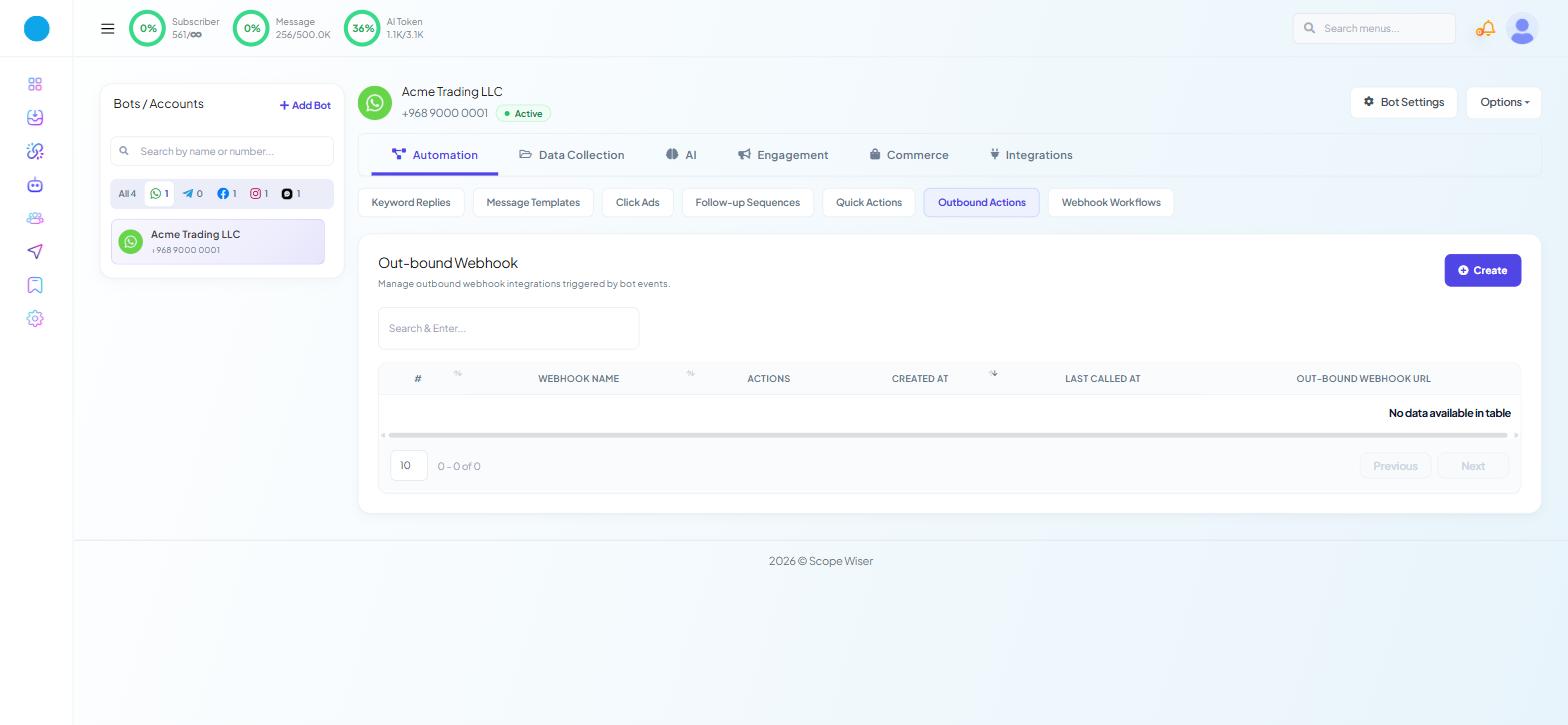
Open Chatbot Manager, select a bot, and stay on the Automation tab. The Outbound Actions sub-tab is subtitled "Manage outbound webhook integrations triggered by bot events." The screen calls it Out-bound Webhook; it is the same feature.
The list carries the columns #, WEBHOOK NAME, ACTIONS, CREATED AT, LAST CALLED AT and OUT-BOUND WEBHOOK URL, with a "Search & Enter..." box and a Create button.
LAST CALLED AT is the column to remember. It is the quickest answer to "is this thing firing at all?" — an integration that has stopped working shows a stale timestamp long before anyone notices missing leads in the CRM.
Collect the data first
An outbound webhook can only send what the bot has. Build the collection before the delivery.
The usual pattern is a User Input Flow: a trigger keyword, a short prompt, then questions whose answers save to fields — name, email, phone. Set each question's reply type to match what you are asking for, so an email question rejects something that is not an email before it ever reaches your CRM. What User Input Flows Are and When to Use Them covers the build.
Name the flow something you will recognise in a dropdown later. You will be selecting it by name when you wire up the webhook.
Create the receiving URL
If you are sending to Zapier, create the catch hook first so you have a URL to paste:
Create a new Zap.
Choose Webhooks by Zapier as the trigger app.
Select Catch Hook as the event.
Continue, and copy the webhook URL it generates.
Make, Pabbly and most CRMs offer the same shape of thing under a name like webhook trigger or inbound webhook. Any endpoint that accepts a POST will do — including your own, if you would rather not add a middleman.
Configure the outbound action
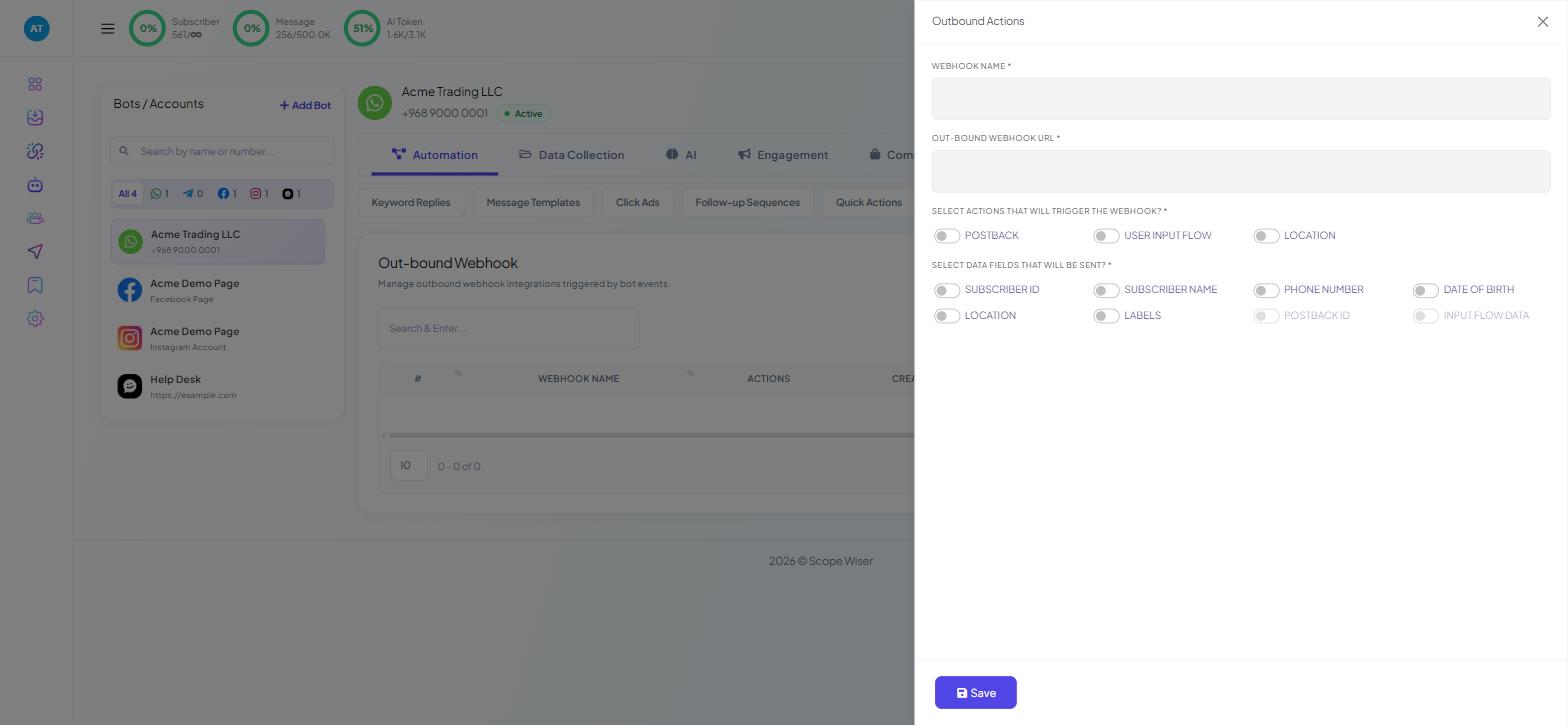
Back in Automation → Outbound Actions, click Create. A drawer titled Outbound Actions opens from the right.
WEBHOOK NAME * — your own label. Name it after the destination and the purpose, such as crm-new-lead, because the list shows only names and URLs.
OUT-BOUND WEBHOOK URL * — paste the URL you copied.
SELECT ACTIONS THAT WILL TRIGGER THE WEBHOOK? * — three toggles:
POSTBACK— the customer tapped a button or menu item backed by a postbackUSER INPUT FLOW— a User Input Flow completedLOCATION— the customer shared their location
SELECT DATA FIELDS THAT WILL BE SENT? * — eight toggles:
SUBSCRIBER ID · SUBSCRIBER NAME · PHONE NUMBER · DATE OF BIRTH · LOCATION · LABELS · POSTBACK ID · INPUT FLOW DATA
Then Save.
Two things about that field list. POSTBACK ID and INPUT FLOW DATA are disabled until their matching trigger is switched on, and they stay that way however hard you click: enable POSTBACK and POSTBACK ID becomes selectable, enable USER INPUT FLOW and INPUT FLOW DATA does. Nothing is broken — the field is waiting for the trigger that would give it a value.
And INPUT FLOW DATA is the one carrying your questions and answers. Without it, a webhook triggered by a completed form sends the subscriber's identity and none of what they said.
Always include SUBSCRIBER ID. It is the only stable key linking the record in your CRM back to the conversation in Scope Wiser. Names change and phone numbers get re-entered; the subscriber ID does not.
Test it before you build anything on top
Message the bot on the channel it is connected to and complete the flow properly — real answers, all the way to the end.
In Zapier, use Test Trigger on the catch hook. The incoming record should show the fields you toggled on.
Check the
LAST CALLED ATcolumn on the Outbound Actions list. A blank there means the webhook never fired, which is a Scope Wiser-side problem; a timestamp with nothing at the far end is a receiving-side problem.Only once the payload looks right, add the action that consumes it.
Testing with half-filled answers is the mistake worth avoiding. The webhook fires on a completed flow, so an abandoned test tells you nothing.
Limits worth knowing
Three triggers, eight fields, one URL. That is the whole mechanism, and it is worth knowing before you design around it. Outbound Actions is not a general event stream: nothing fires on an inbound message, a label change or a broadcast, and you cannot add a field that is not on the list of eight. Where the shape does not fit, Bot Settings → Webhook carries the raw message stream and the HTTP API block sends exactly what you compose.
Structured text only. Payloads carry field values, not files or media. Send a link if you need to move a document.
No response handling. Whatever your endpoint returns is not read back into the conversation. Use the HTTP API block for that.
Per bot. An outbound action belongs to the bot you created it on. Running the same integration on WhatsApp and Facebook means creating it twice.
Failures are quiet. A dead endpoint does not surface in the conversation. Watch
LAST CALLED AT, and see Bot Error Logs and Custom Fields for where execution failures do appear.
What to do next
Calling External APIs From a Flow covers the other direction — pulling a value into a conversation mid-flow and branching on it. If the collection side is what you still need, What User Input Flows Are and When to Use Them starts there.