
Organising, Exporting and Importing Flows
Folders, Move to Folder, Duplicate, Copy to other Bot, Export flow data and Flow Import — the six controls that keep a bot with dozens of keyword replies manageable, and how to move a flow between bots or accounts.
A bot with five keyword replies needs no organising. A bot with forty does, and so does a team that builds the same welcome flow for every account it runs. Scope Wiser gives you six controls for this, all on the Keyword Replies list: folders to group flows, and row actions that copy a flow inside a bot, to another bot, or out to a file and back in.
Open Chatbot Manager, select the bot, and stay on Automation → Keyword Replies. Everything below lives on that screen.
The six row actions
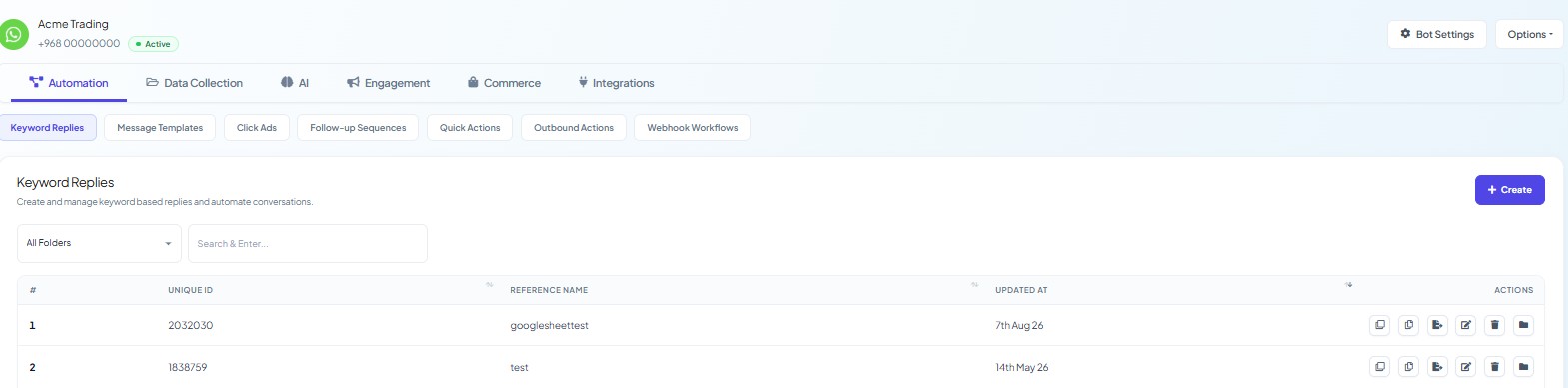
Every row in the Keyword Replies table carries the same six icons under ACTIONS:
Icon | What it does |
|---|---|
Duplicate | Makes a second copy of the flow in the same bot, immediately, with no dialog. Rename the copy before it confuses anyone. |
Copy to other Bot | Pushes a copy of the flow into another bot on the same account. Useful when several WhatsApp numbers or Pages need the same conversation. |
Export flow data | Downloads the flow as a text file. This is the file Flow Import accepts, so it is how a flow travels between accounts, or into a backup. |
Edit | Opens the flow in Flow Builder. |
Delete | Removes the flow. The trigger keyword stops working at once. |
Move to Folder | Files the flow under a folder you have created (see below). |
Duplicate and Copy to other Bot both create a live flow with the same trigger keyword as the original. On the same bot that is a conflict waiting to happen, two flows answering one word, so change the copy's keyword straight after copying. Preventing Bot Conflicts and Duplicate Replies explains what that looks like from the customer's side.
Folders
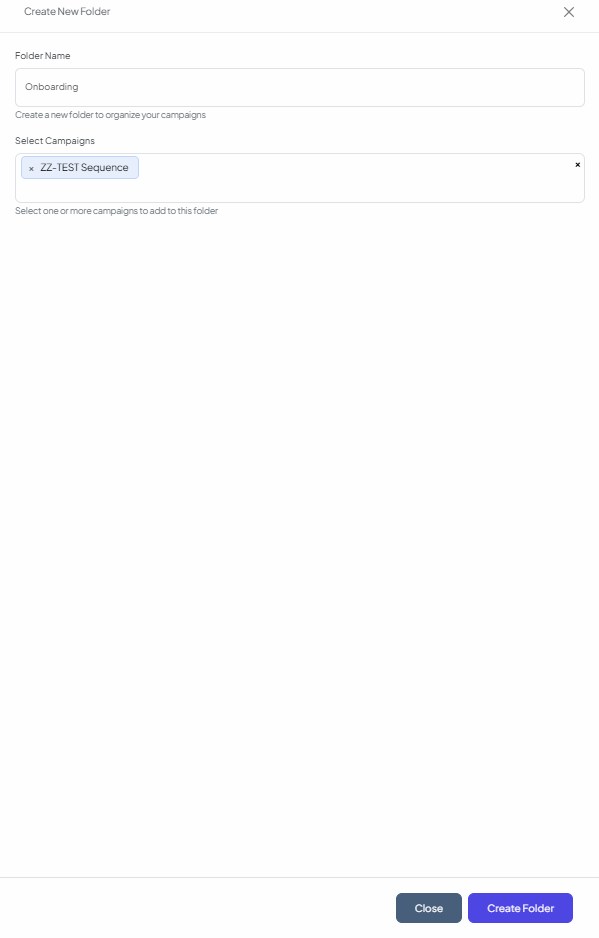
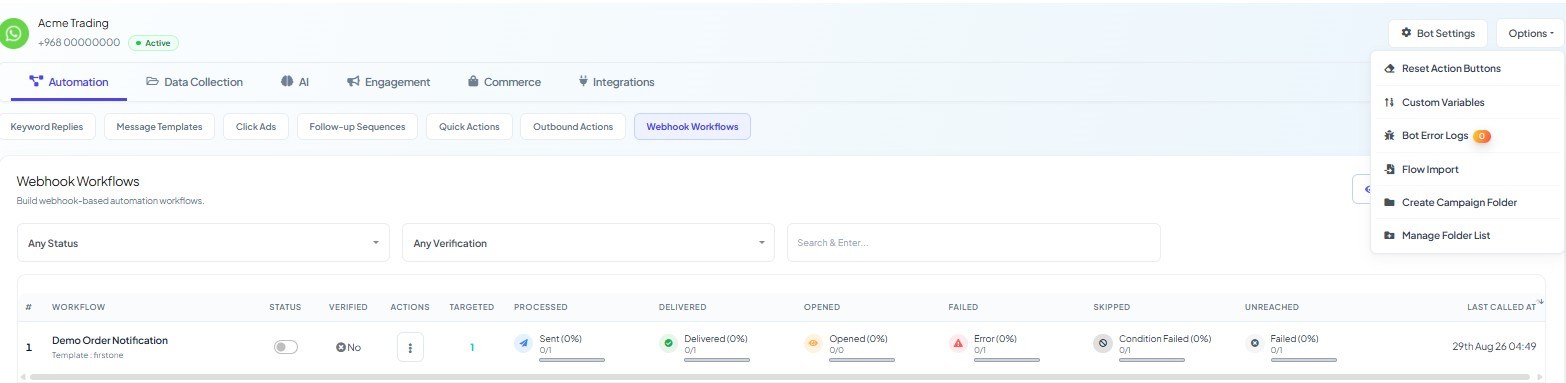
Folders are created from the Options ▾ menu at the top right of the bot's page, not from the table. The menu holds six items — Reset Action Buttons, Custom Variables, Bot Error Logs, Flow Import, Create Campaign Folder and Manage Folder List. The last two are the folder ones:
Create Campaign Folder opens a Create New Folder dialog with a Folder Name field ("Create a new folder to organize your campaigns") and a Select Campaigns picker ("Select one or more campaigns to add to this folder"). You can fill a folder at the moment you create it.
Manage Folder List opens a Folder List table with the columns #, Name, Social Media and Actions, where folders are renamed or removed.
Once a folder exists, the All Folders dropdown above the Keyword Replies table filters the list to one folder, and each row's Move to Folder action files it. Folders belong to a bot and a channel, which is why the list carries a Social Media column.
A workable scheme for most accounts is one folder per purpose: Onboarding, Support, Promotions, Seasonal. Create them before the list grows past a screen. Moving forty flows later is tedious; moving each one as it is built is not.
Exporting and importing a flow
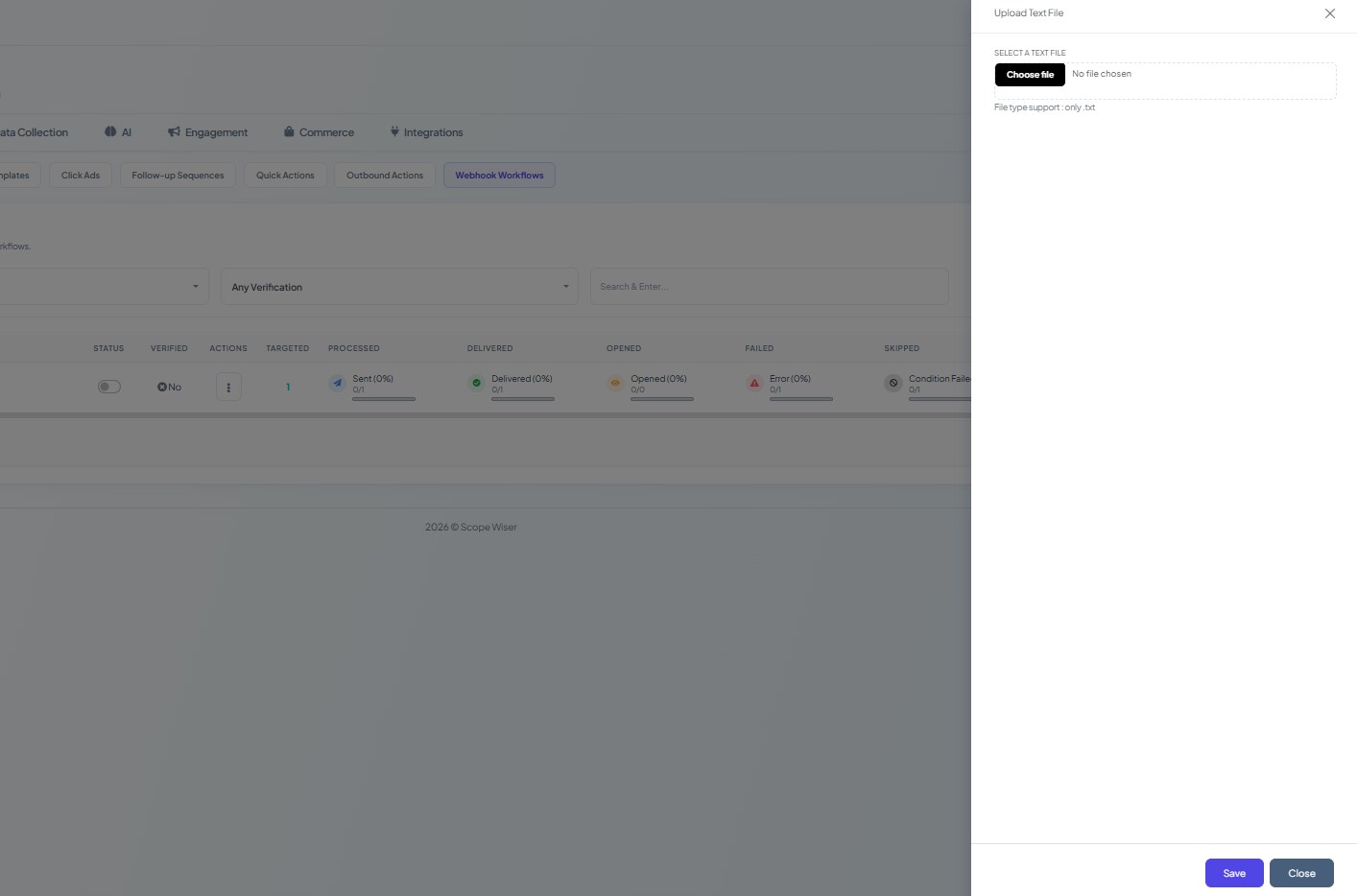
Export flow data on a row downloads that flow as a text file. Flow Import, in the same Options ▾ menu as the folder items, opens an Upload Text File dialog ("Select a text file", with the note File type support: only .txt) and a Save button that creates the flow in the current bot.
Together they cover three jobs:
Backup. Export the flows you would not want to rebuild. The file is small; keep it with the rest of the account's records.
Moving a flow to another account. Copy to other Bot only reaches bots on the same account. For a different account, a client's or a new workspace, export from one and import into the other.
Templating. Build a flow once, export it, and import it into each new bot as a starting point, then edit the copy.
After an import, open the flow in Flow Builder before trusting it. Anything that referenced resources on the source bot, such as a specific message template, a labels list or a saved HTTP API, has to be re-selected on the new bot, because those live per bot and do not travel in the file.
What to do next
Read Keyword Replies and Postbacks if you are still deciding how a flow should be triggered, and Managing Multiple Bots From One Dashboard for the account-level view of which bot holds what. If a copied flow answers alongside the original, Preventing Bot Conflicts and Duplicate Replies is the fix.