
Quick Replies, Buttons & CTA URLs
Everything tappable in a Scope Wiser flow — reply buttons off the Interactive block, list messages, the CTA URL Button block, and the nine system Quick Actions.
Buttons are more reliable than typed answers because you choose the options.
There are three separate things here, and they are easy to confuse:
Buttons inside a message — from the Interactive block on WhatsApp, or from Generic Template and Carousel on the other channels.
The CTA URL Button block — a WhatsApp-only block whose single button opens a web page.
Quick Actions — the system action buttons that already exist on every bot, each wired to its own flow.
Buttons off an Interactive block (WhatsApp)
A freshly dragged Interactive block already shows all five of its ports: the input Reply, and the outputs Next, Buttons, List Messages and E-commerce. Buttons are built on the canvas from the Buttons port, not inside the block's own panel.
Drag an Interactive block onto a WhatsApp canvas.
Click it to open Configure Interactive, fill in the message, then click Save Changes.
Drag a line out of the Buttons port onto empty canvas to create a Button node; click it to set the button text.
Repeat for each button. WhatsApp allows one to three buttons per message.
Connect a block to each Button node, then click the blue Save in the top-right toolbar.
Each Button node has its own three ports — Reply, Next and Subscribe to Sequence — so a button is a branch, not just a label. One tap can answer the question, send the next message and enrol the person in a sequence, without a Condition block anywhere.
The Configure Interactive drawer — "Configure your interactive message header, body and footer" — holds four sections and nothing else:
Section | What it takes |
|---|---|
Message Header (Optional) | Header Type: Text ("Text-only header") or Media ("Image, video or file"). Text is capped at 60 characters |
Message Body (required) | Up to 1024 characters, with Custom and Name inserters above the box and the placeholder "Type # for custom fields and name" |
Message Footer (Optional) | Up to 60 characters |
Delivery Options (Optional) | "Typing indicator and reply delay settings." |
When to use List Messages instead
List Messages is the other output on the same block, and it is the right choice once you have more options than three, or once the options are not fixed — products, appointment slots or order numbers pulled from an API. That pattern has its own article: Displaying Dynamic Lists From an API.
Buttons on Facebook, Instagram and Webchat
Those channels have no INTERACTIVE group. Buttons come attached to the card blocks instead: Generic Template for a single card with buttons beneath it, Carousel for several cards each carrying their own.
Drag Generic Template onto the canvas. It arrives with one Button node already connected.
For a second or third button, drag a line out of the template's Add Buttons port onto empty canvas. Each drag creates another Button node.
Click a Button node to open its drawer. Type the label into Button Title.
Under When user press the button, choose what the tap does: Send Message, Start a Flow, Redirect to Website URL, Webview, Call us or System Default.
Click Save Changes, then the blue Save in the toolbar.
Label buttons with the action, not the topic — "Book a slot" beats "Booking". Keep labels short enough not to truncate on a narrow phone. And connect something to every button, because an unconnected button is a dead end one tap away.
The CTA URL Button block
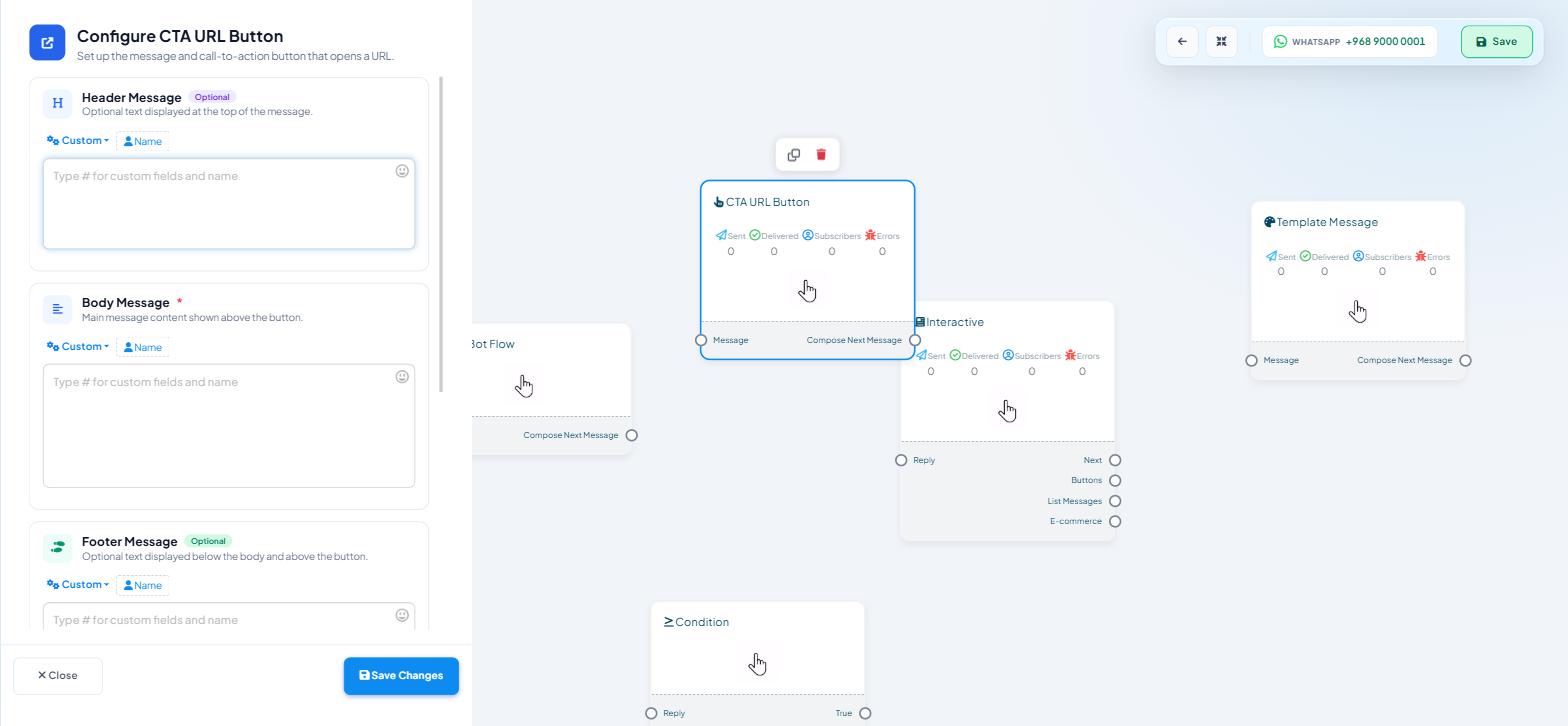
CTA URL Button sits in the INTERACTIVE group and is WhatsApp only — it does not appear in the Facebook, Instagram or Webchat palettes. It sends a message carrying a single button that opens a URL.
Pull a connector out of Compose Next Message and choose CTA URL Button from the picker menu, or drag the block across from the palette. The block takes a header, a body, a footer, the button's visible text and the destination URL.
Two things to design around. WhatsApp supports one URL button per message in this format, so a message offering three destinations needs a different block. And WhatsApp shows a confirmation prompt before opening the link, so send people somewhere they expect to go.
Scope Wiser does not count taps on this link; if you need that, use a tracking link from your website tool.
Quick Actions: the buttons that already exist
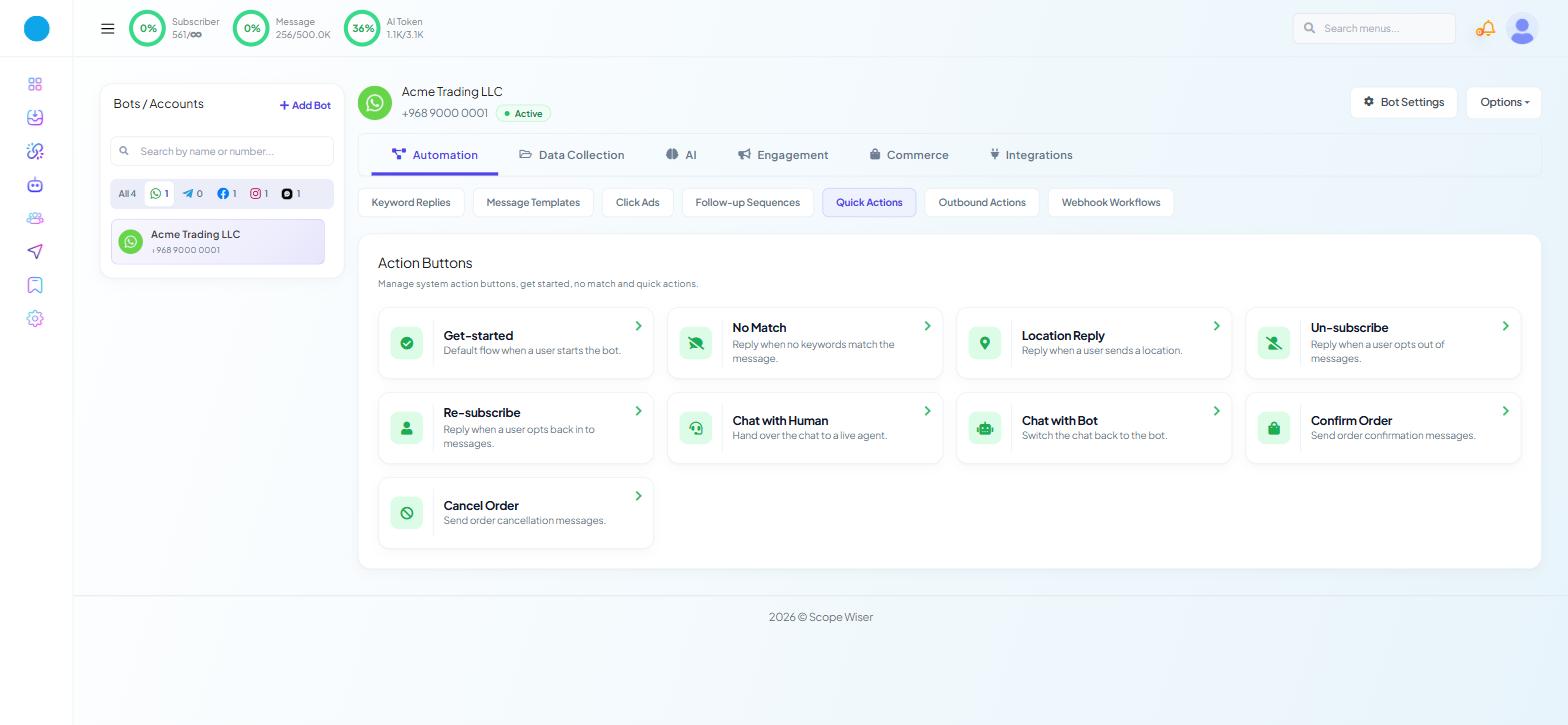
Go to Chatbot Manager → Automation → Quick Actions. The screen is headed Action Buttons — "Manage system action buttons, get started, no match and quick actions."
On a WhatsApp bot there are nine cards, each opening its own flow in Flow Builder:
Card | Description on screen |
|---|---|
Get-started | "Default flow when a user starts the bot." |
No Match | "Reply when no keywords match the message." |
Location Reply | "Reply when a user sends a location." |
Un-subscribe | "Reply when a user opts out of messages." |
Re-subscribe | "Reply when a user opts back in to messages." |
Chat with Human | "Hand over the chat to a live agent." |
Chat with Bot | "Switch the chat back to the bot." |
Confirm Order | "Send order confirmation messages." |
Cancel Order | "Send order cancellation messages." |
The list is shorter on other channels. A Facebook bot shows seven — the same cards minus Confirm Order and Cancel Order, because Commerce is WhatsApp-only. Check the screen rather than assuming nine.
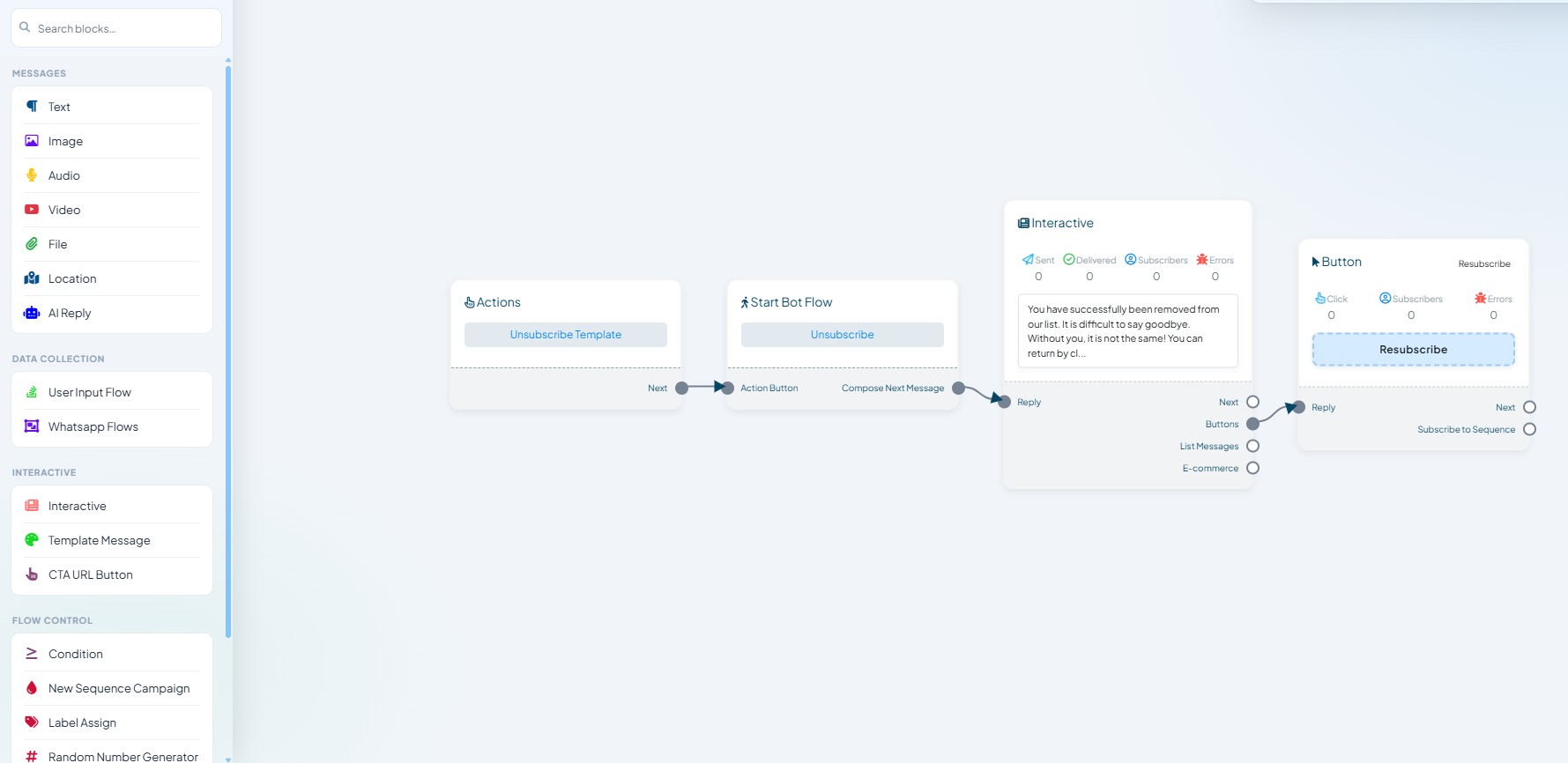
Click a card and Flow Builder opens on that flow. Each one has the same shape: an Actions node with a template chip and a Next port, feeding a Start Bot Flow node whose ports are Action Button and Compose Next Message, feeding the reply itself.
Most ship as a single Text block, so customising one is a matter of changing the message and saving. Four of them — Un-subscribe, Re-subscribe, Chat with Human and Chat with Bot — ship as an Interactive block with one Button node, so the customer can reverse the decision in one tap.
You can extend them. An Actions node feeds an ordinary flow, so Get-started can open with a Text block and then present an Interactive menu, and No Match can offer a route to a human.
Labels inside the flow differ slightly from the card names (for example Chat with Bot opens "Chat With Robot"); that is normal.
Reading the numbers
After a flow has been live for a day, read the stat rows on the Button and message nodes together.
Clicks on a button but nothing downstream — the branch is unconnected, or the block it leads to is unconfigured.
Messages delivered but no clicks anywhere — the buttons are not being seen as options. Usually the message above them is too long, and the buttons fall below the fold.
Clicks spread evenly across every button — often a sign the labels are not distinguishable, not that demand is genuinely even.
Testing
Save the panel with Save Changes, save the flow with the blue Save in the top-right toolbar, then send the trigger from a real phone on the connected channel. Button truncation, card rendering and the URL confirmation prompt all behave differently on a phone than on a desktop.
What to do next
Calling External APIs From a Flow is the next step up: buttons and lists whose options come from your own systems rather than from a fixed list you typed in.