
Connect a Facebook Page
Link your Facebook Pages to Scope Wiser in one login. What permissions to grant, where connected Pages appear, and why the same screen brings your Instagram accounts across too.
One Facebook login brings across every Page you administer and every Instagram Business account attached to those Pages. There is no per-Page setup, and no separate Instagram flow to run afterwards.
The permission prompt is where it goes wrong. Facebook offers to share only some of your assets by default, and Pages you expected to see then do not appear in Scope Wiser. Opt in to everything.
Before you start
You must be an admin of the Page. Editor is not enough. Facebook will let you log in and then quietly omit Pages where your role is too low.
The Page must be published. Unpublished Pages do not come through.
Be logged into the right Facebook account in the browser tab you are working in. If you hold two personal accounts, this is the most common cause of a short Page list.
If you also want Instagram, make sure the Instagram account is a Business account and is linked to one of these Pages before you begin. It then arrives in the same login.
Making the connection
1. Open the Facebook connection page. From the sidebar go to Connect Account. Under Available Connections, find the Facebook card — "Connect your Facebook Page to manage Messenger conversations and automation." — and click Connect Facebook →.
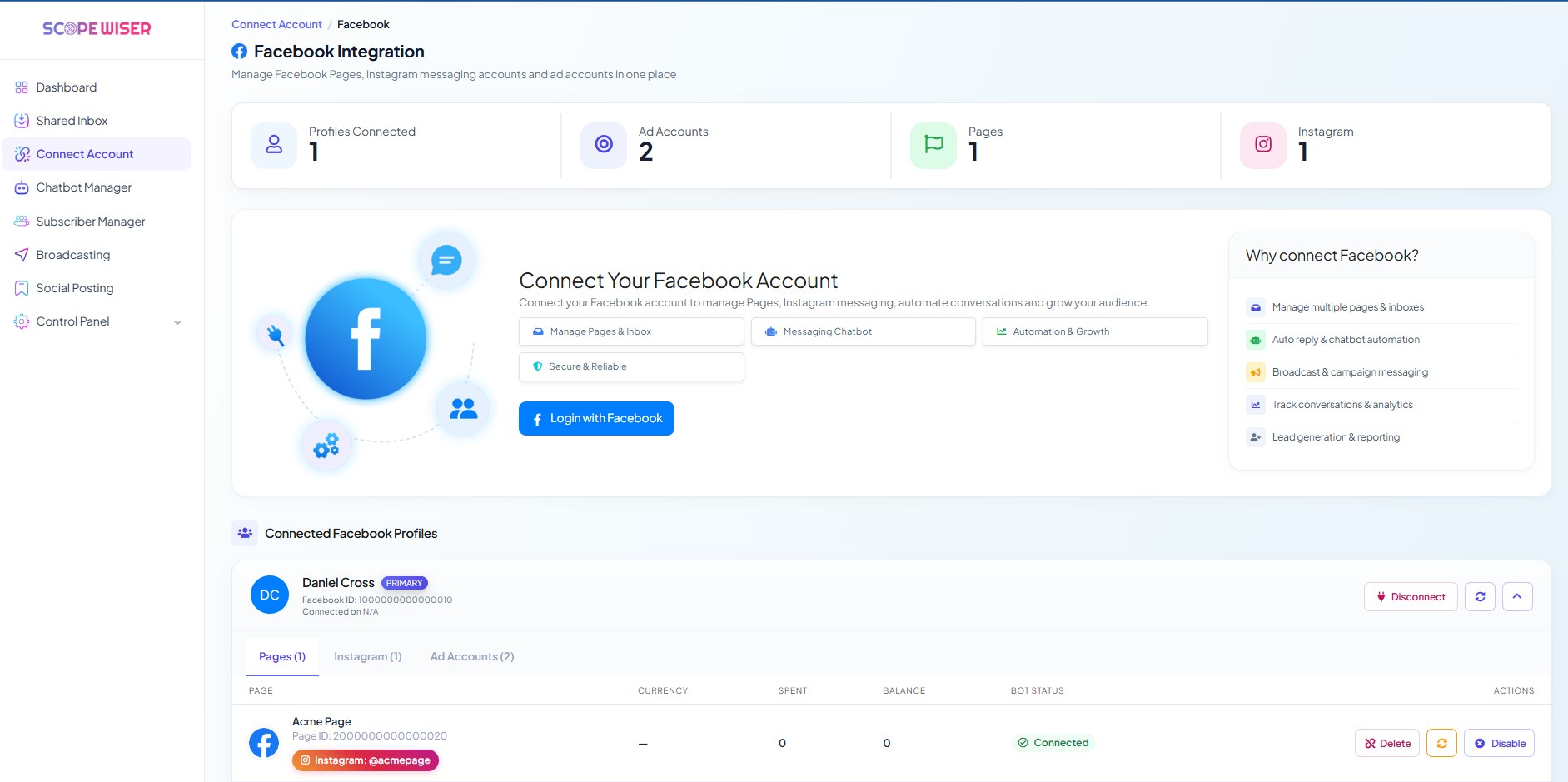
You arrive at Facebook Integration, breadcrumbed Connect Account / Facebook and subtitled "Manage Facebook Pages, Instagram messaging accounts and ad accounts in one place." Four stat cards run across the top: Profiles Connected, Ad Accounts, Pages and Instagram.
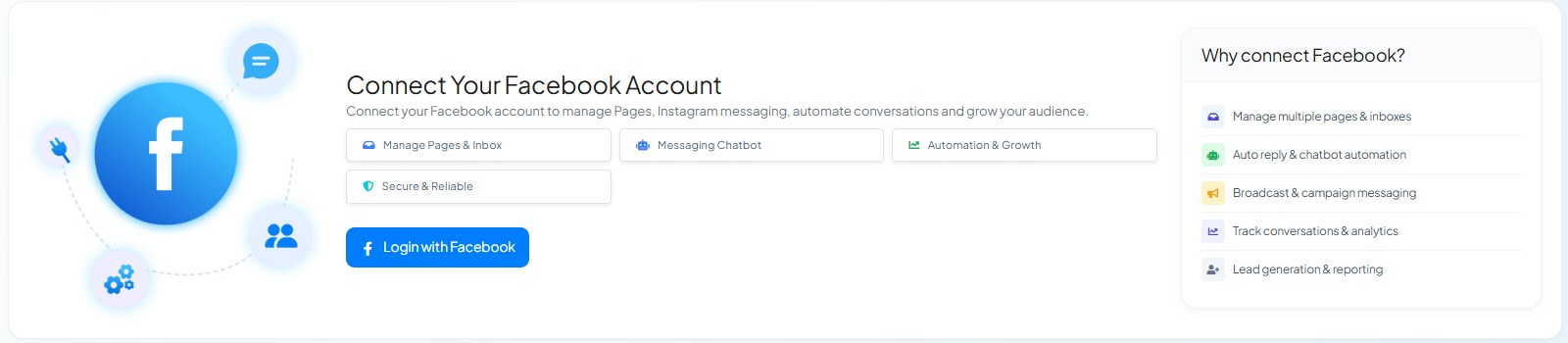
2. Start the login. The panel headed Connect Your Facebook Account explains the scope — "Connect your Facebook account to manage Pages, Instagram messaging, automate conversations and grow your audience." — above four chips: Manage Pages & Inbox, Messaging Chatbot, Automation & Growth and Secure & Reliable.
Click Login with Facebook.
3. Grant every permission. Facebook now walks you through three opt-in screens. On each one, choose the option that covers current and future assets:
Pages — opt in to all current and future Pages.
Businesses — opt in to all current and future businesses.
Instagram accounts — opt in to all current and future Instagram accounts.
Opting in to future assets means a Page you create next month appears without you repeating this login.
4. Review and save. The final screen lists what Scope Wiser is asking for — your email address, Page insights, and management of your business and Instagram content. Click Save. Facebook returns you to Scope Wiser.
What you should see afterwards
Facebook Integration now shows a Connected Facebook Profiles section. Your profile appears as a card carrying a PRIMARY badge, its Facebook ID, and a Connected on date, with a Disconnect button, a refresh icon and a collapse chevron.
Inside the profile card are three tabs: Pages (n), Instagram (n) and Ad Accounts (n). The counts in those tabs are the honest answer to "did it work". If Pages reads a smaller number than you expected, the permission step is where to look, not the connection.
Where connected Pages turn up
On Connect Account. The Connected Accounts table gains a row per Page: the Page name with Facebook Page • Connected on beneath it, a STATUS of Connected with the Page ID below it, PLATFORM Facebook, a LAST SYNC timestamp, and two row actions — Disable and Manage. Manage takes you back to Facebook Integration.
Disable is the reversible control. Use it when you want to stop a Page temporarily. Disconnect, on the profile card, removes the whole Facebook profile.
In Chatbot Manager. In the Pages (n) tab, switch on the toggle next to the Page to enable automation. The Page then appears in Chatbot Manager, in the left-hand Bots / Accounts panel, labelled with the Page name and Facebook Page. The channel filter chips above the list — All, WhatsApp, Facebook, Instagram, Webchat — carry counts, so you can confirm at a glance that Facebook has gone from 0 to 1.
Select the Page and the tab row changes to match the channel. Facebook offers Automation, Data Collection, AI, Engagement and Integrations. There is no Commerce tab — product catalogues are a WhatsApp feature.
Of those, Engagement is the one worth exploring early. It holds Comment Automation, Engagement Widget, Get Started Settings, Persistent Menu and RCN Postback Manager (recurring notification opt-ins) — the Messenger-specific behaviour that has no equivalent on other channels.
Integrations are per Page, not per account
Integrations (Google Sheets, email, SMS and the rest) are set per Page under Chatbot Manager → Integrations — select the right Page in the Bots / Accounts panel first. Anything you set up for one Page is not available to another.
Connecting several Pages, or several profiles
Nothing extra is required for multiple Pages: one login imports all of them, provided you opted in to all current and future Pages. To bring in Pages held under a different Facebook user, run Login with Facebook again while signed into that account. Each profile gets its own card under Connected Facebook Profiles, and one of them carries the PRIMARY badge.
Common problems
A Page is missing. Three causes, in order of likelihood: you are not an admin of it, you did not opt in to all current and future Pages, or the Page is unpublished.
Nothing happened after Save. Pop-up blockers and strict privacy extensions interrupt the Facebook dialog. Try again in a normal window of Chrome, Firefox or Edge, with cookies allowed and incognito mode off.
It worked, then stopped. Facebook tokens expire and permissions can be revoked from Facebook's own Business Integrations settings. Removing Scope Wiser there and reconnecting restores it.
Fixing Channel Connection Problems covers each of these in more depth.
What to do next
If you connected Instagram accounts in the same login, read Connect Instagram DM Automation to see where they surface and what they can do, which is not identical to Facebook. Otherwise, go to Chatbot Manager → Automation → Keyword Replies and build the reply that answers your first Messenger conversation.