
Connect Instagram DM Automation
Instagram connects through the same Facebook login as your Pages. What your account must be, how to switch it on for automation, and what an Instagram bot can do.
Instagram has no connection flow of its own. It rides on Facebook — the Connect Instagram card and the Connect Facebook card open the same Facebook Integration screen, and one Facebook login brings across your Pages and your Instagram accounts together.
So check first whether you are already connected. If you have linked a Facebook Page to Scope Wiser at any point, open Connect Account → Manage on that Facebook row and look at the Instagram (n) tab inside your profile card. Your accounts may be sitting there already.
What your Instagram account has to be
Two conditions, both set on Instagram's side, and neither of which Scope Wiser can work around:
A Business account. Personal and Creator accounts cannot be automated. Convert in the Instagram app before you start.
Linked to a Facebook Page you administer. The link is what Meta's API follows. Without it, the account does not appear in the Instagram tab no matter how many times you log in.
You also need to be logged into the correct Facebook user in your browser — the one that administers that Page.
Connecting
Follow steps 1-4 in Connect a Facebook Page; at step 3, opt in to all current and future Instagram accounts. Skipping that opt-in is the single most common reason an Instagram account never shows up.

Confirming the account arrived
Under Connected Facebook Profiles, your profile card shows a PRIMARY badge, its Facebook ID and a Connected on date. Open the Instagram (n) tab inside it. The count in the tab label tells you how many accounts came across.
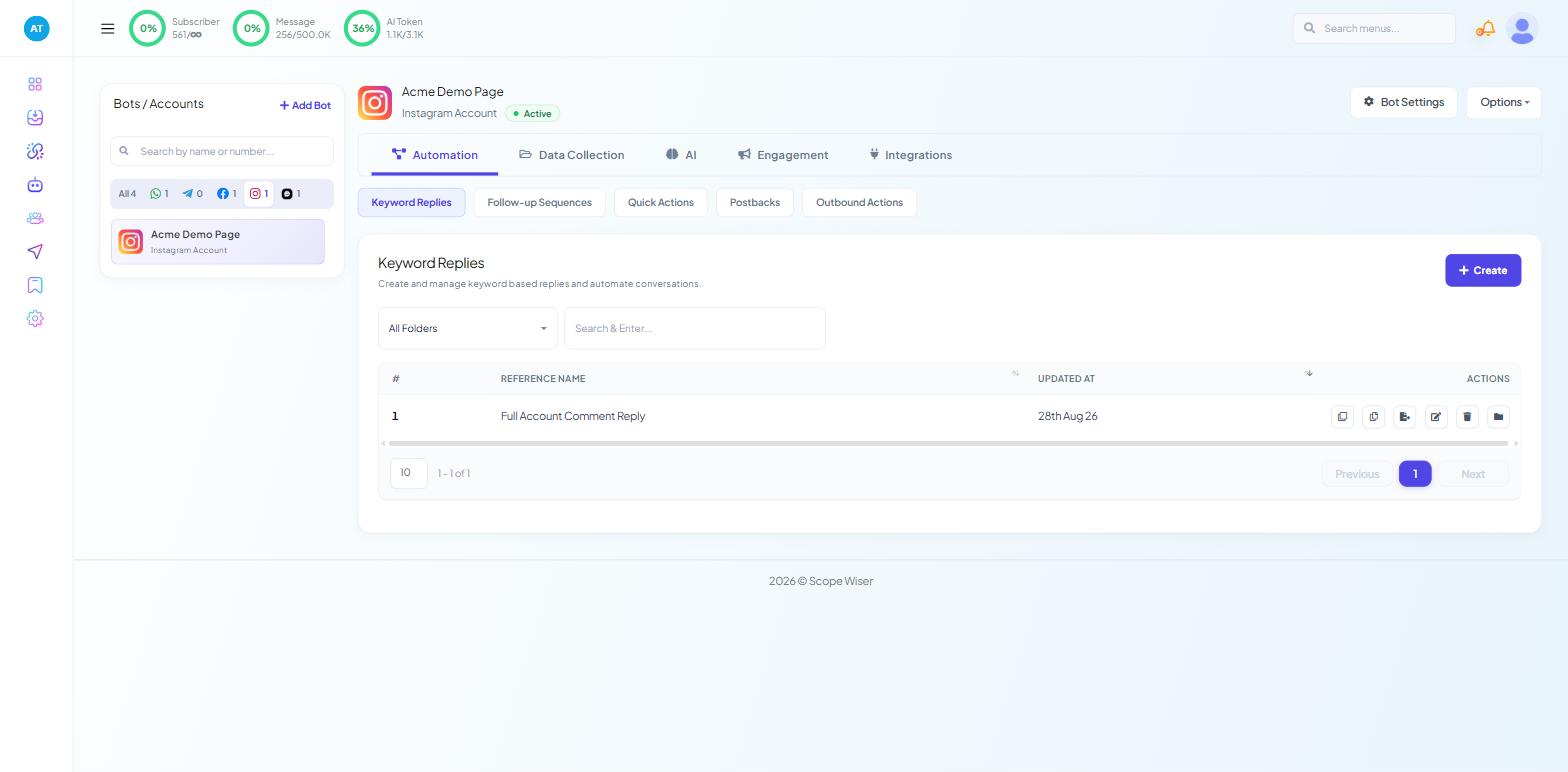
In that Instagram (n) tab, switch on the toggle next to the account to enable automation. It then appears in Chatbot Manager, in the left-hand Bots / Accounts panel, labelled with the handle and Instagram Account. Above that list, the channel filter chips — All, WhatsApp, Facebook, Instagram, Webchat — carry counts, so Instagram moving from 0 to 1 is your confirmation that the channel is live.
What Instagram can do
Select the Instagram account in Chatbot Manager and the tab row adapts to the channel. Instagram gives you Automation, Data Collection, AI, Engagement and Integrations — no Commerce tab, since product catalogues are WhatsApp-only.
The tabs worth knowing:
Automation — Keyword Replies, Follow-up Sequences, Quick Actions, Postbacks and Outbound Actions. Keyword Replies is where a DM bot begins.
Data Collection — User Input Flows, for capturing structured answers.
AI — AI Configuration ("Enable agents and map intents for the selected bot.") and Agents.
Engagement — Comment Automation, Get Started Settings and Persistent Menu. Comment Automation is the Instagram-specific one: it handles replies to comments on posts, alongside the DM automation.
Integrations — set up per account (Google Sheets, email, SMS and the rest); select the Instagram account in Bots / Accounts first.
Building the first DM reply
The build is the same on every channel: Automation → Keyword Replies → + Create opens the Flow Builder. Build Your First Chatbot in 5 Minutes walks it through.
Two blocks in the Instagram palette are worth knowing. Generic Template is a card with an image, title, subtitle and buttons; Carousel is a scrollable row of those cards, and is the pattern most Instagram shops end up building. There is no Interactive block — that one is WhatsApp-only.
Replying by hand
Instagram conversations land in Shared Inbox alongside every other channel — see Live Chat and the Shared Inbox: Complete Overview.
When the account will not connect
No Instagram accounts listed after login. Check the account type is Business, that it is linked to a Page you administer, and that you logged in as the right Facebook user.
Permission denied during the Facebook dialog. Run the login again and opt in to all current and future Instagram accounts.
Messages stop arriving. Reconnect from Connect Account and grant the permissions again.
Fixing Channel Connection Problems goes through each of these in detail.
What to do next
If your Facebook Pages have not been set up yet, Connect a Facebook Page covers what changes on the Messenger side. If the Instagram connection is behaving unpredictably, go to Fixing Channel Connection Problems.