
Before You Connect WhatsApp: What Meta Requires
The checklist to work through before you start connecting WhatsApp: a Facebook login, a Meta business portfolio, a phone number that is free to use, a display name Meta will accept, and business verification. What each one is, where to do it, and what happens if you skip it.
Connecting WhatsApp takes about ten minutes. Getting ready for it can take a day or two, because some of the requirements are Meta's, not ours, and one of them (business verification) is reviewed by a person.
Work through the checklist below first. Almost every failed connection we see is one of these five things missing.
The checklist
You need | Where it lives | How long |
|---|---|---|
A personal Facebook login | facebook.com | Minutes |
A Meta business portfolio | business.facebook.com | Minutes |
A phone number for the business | Your own phone | Minutes |
A display name Meta will accept | Chosen during setup | Reviewed by Meta |
Business verification | Business portfolio → Security Centre | Hours to a few days |
You can connect and start testing with the first three. Verification decides how many people you may message per day, so do it early, but it does not block you from getting started.
1. A personal Facebook login
Meta will not let a business exist on its own. A business portfolio has to be created by a person, using a normal Facebook account, and that person becomes its first admin.
Use your own real account. Do not create a new Facebook profile for the business — Meta routinely disables duplicate profiles, and if that happens you lose access to everything attached to it.
If your company already runs a Facebook Page, whoever administers that Page is usually the right person to do this.
2. A Meta business portfolio
The portfolio (Meta also calls it Business Manager, and it lives inside Meta Business Suite) is the container that holds your Page, your Instagram account, your WhatsApp number, your catalogue and the people who can touch them.
If you already have one, you do not need another. Multiple portfolios for the same company cause more problems than they solve.
To create one:
Go to business.facebook.com and sign in with your Facebook account.
Choose to create a business portfolio.
Enter your business name, your name, and a business email address you can open right now — Meta sends a confirmation link to it.
Confirm the email.
Use your real, legal business name. It is the name Meta checks documents against later, at verification, and changing it afterwards means re-verifying.
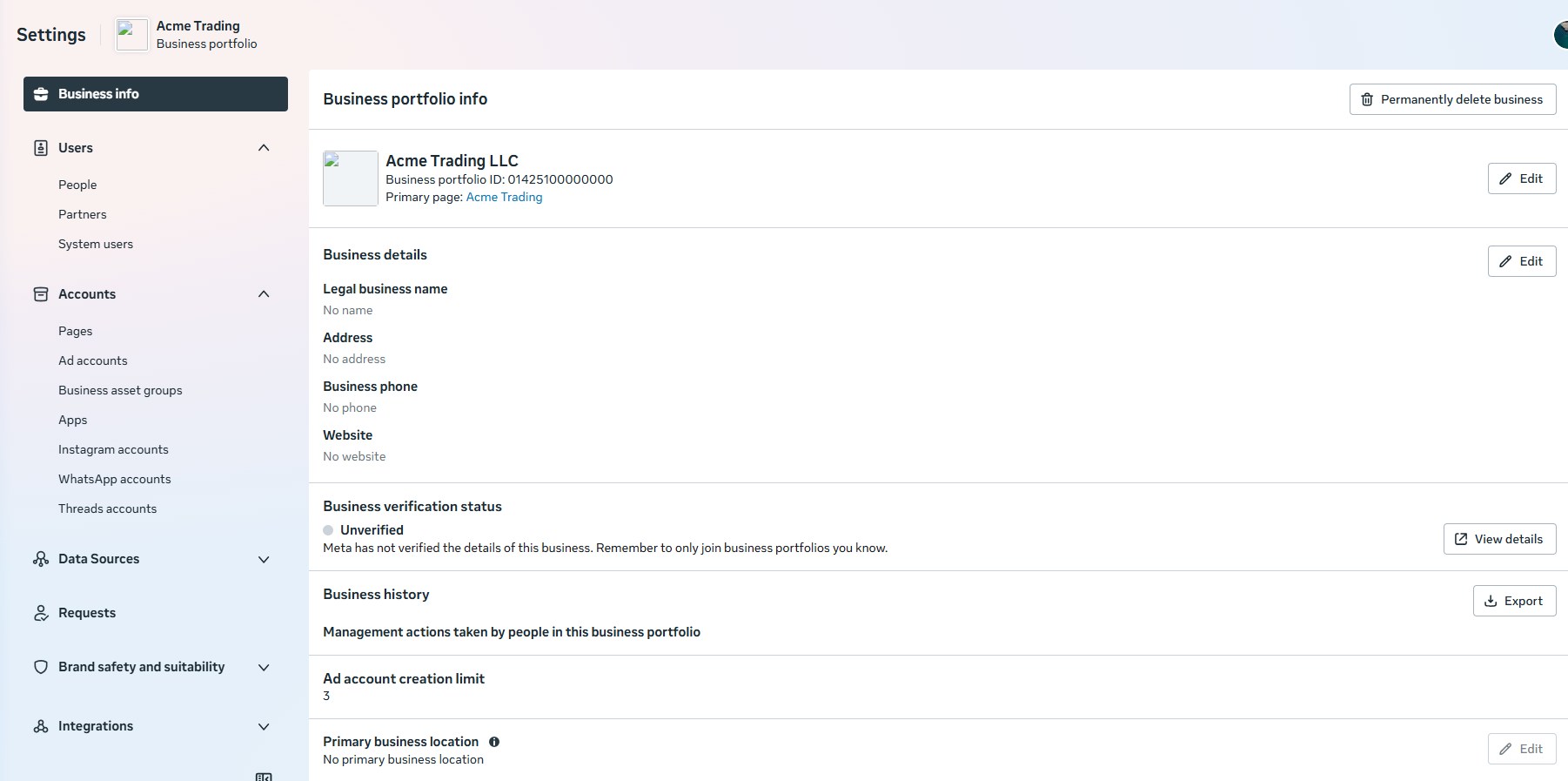
Check you are an admin. In the portfolio's settings, under people, your own entry should say full control or admin. If it says employee, someone else has to raise it. This is the single most common cause of the "You don't have permission" error part-way through the WhatsApp setup.
3. A phone number for WhatsApp
The number you connect becomes your business's WhatsApp number.
It must be able to receive a code, by SMS or by voice call. A landline is fine if it can take the voice call.
A number already in the WhatsApp Business app is fine. WhatsApp Coexistence lets you connect it here and carry on using the app on the phone at the same time. Your recent chats and contacts can come across with it, and you do not have to delete anything first.
A number on the ordinary WhatsApp app is not. Coexistence covers the WhatsApp Business app only. To use a number that is signed in on personal WhatsApp, delete that account from the app first — that erases the phone's chat history, so warn whoever uses it before you start.
Do not use your personal number unless you are happy for it to become a business number.
A brand-new SIM works just as well, and numbers can be swapped later.
4. A display name Meta will accept
The display name is what customers see at the top of the chat. Meta reviews it, and rejects names that do not obviously belong to the business: a generic word, a product category, a person's name with no connection to the company, or anything promotional.
Use your trading name, spelled the way it appears on your website and your documents. If your legal name and your trading name differ, the closer they are, the smoother verification goes.
5. Business verification
Verification is Meta confirming that your business is real. It happens in the portfolio, not in Scope Wiser: business.facebook.com → your portfolio → Settings → Security Centre → Start Verification.
Have ready:
Your legal business name, address and phone number, exactly as they appear on your paperwork.
A website on your own domain, with that same business name and contact details on it.
One official document — a certificate of incorporation, a business licence, a tax document or a recent utility bill in the business's name.
The details have to match each other. A licence in one name, a website in another and a portfolio in a third is the usual reason a verification comes back rejected.
Until you are verified, Meta limits how many people you may start conversations with each day, and the limit rises as you verify and as your quality rating stays healthy. WhatsApp Business Profile, Verification and Limits explains what those limits are and where to read yours.
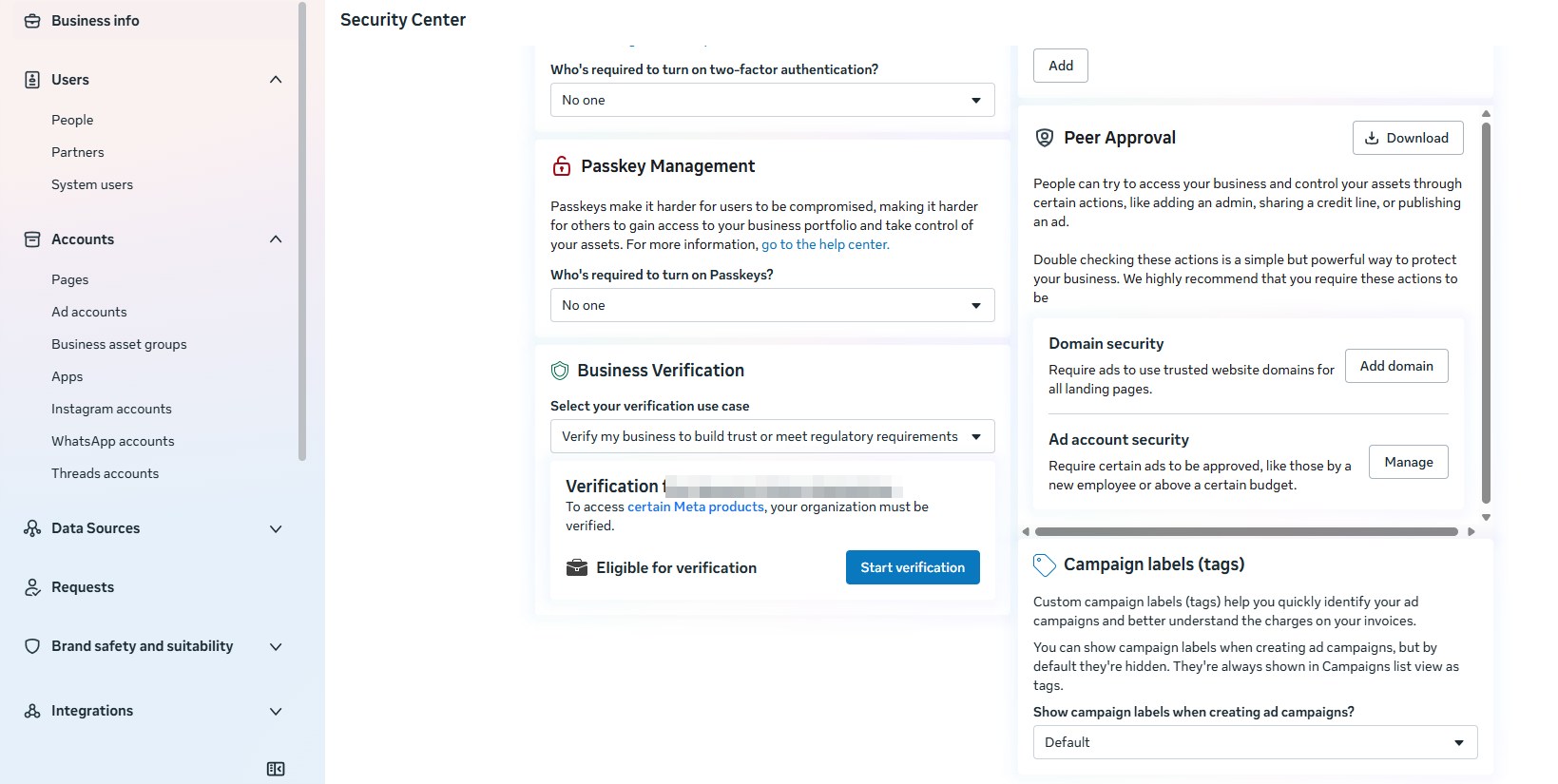
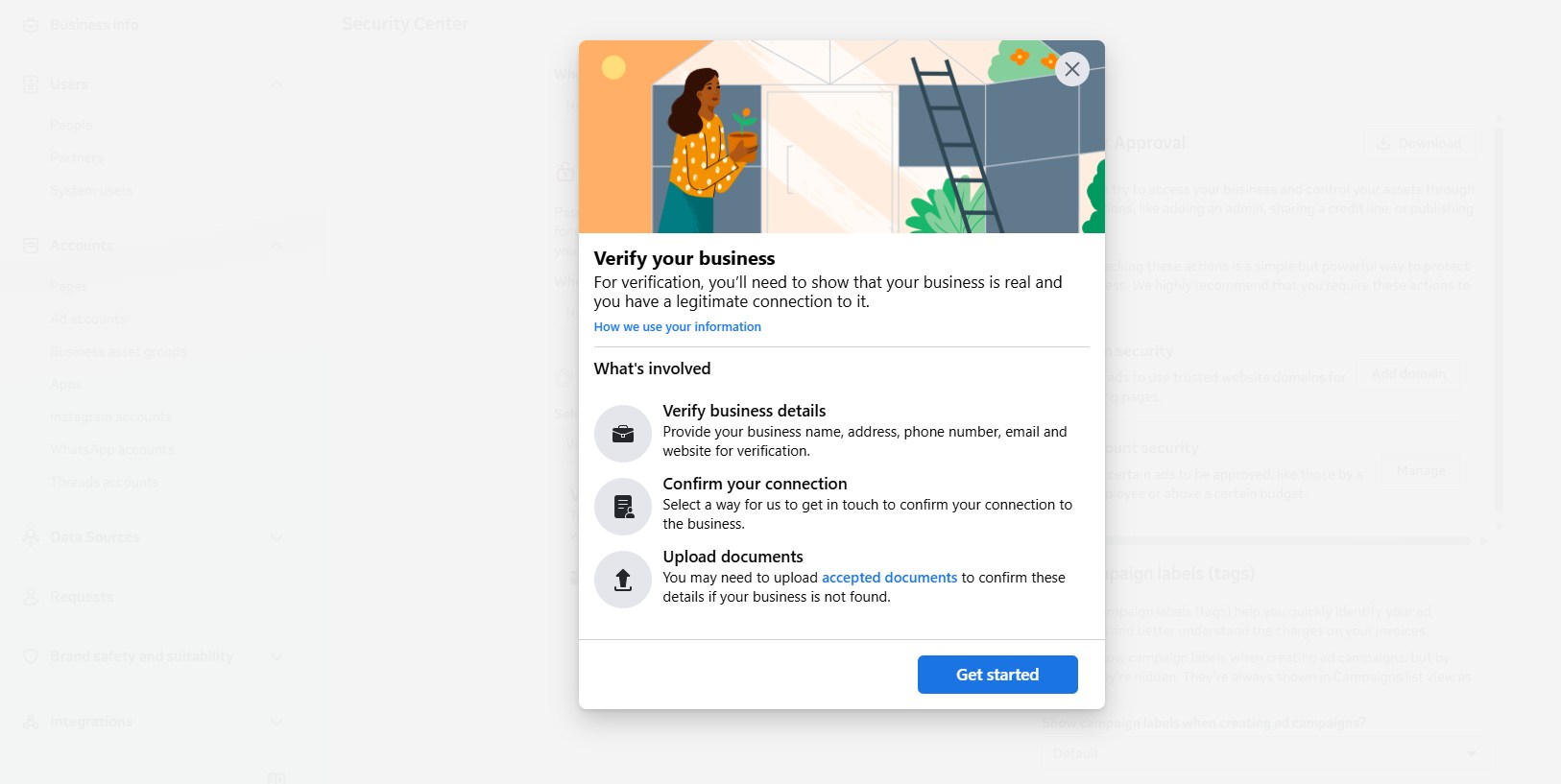
Starting it opens a Verify your business panel that spells out the three stages: verify your business details, confirm your connection to the business, and upload documents if Meta cannot find it already.
Optional, depending on what you sell
A catalogue, if you want customers to browse products inside the chat. It is created in Meta's Commerce Manager and attached to the same portfolio.
A Facebook Page, if you also want Messenger automation or comment replies. See Connect a Facebook Page.
What you can do once this is done
With the checklist finished, the connection itself is one guided flow — you sign in to Meta from inside Scope Wiser and pick the portfolio and number. How to Connect WhatsApp to Scope Wiser: Complete Setup Guide walks through it.
After that you can answer chats from a shared team inbox, reply automatically to keywords, build conversations in the flow builder, send approved template messages to lists of customers, sell from a catalogue, and let an AI agent answer the routine questions.
If something goes wrong
Most problems at this stage trace back to the checklist: the wrong Facebook user, an employee-level role, or a number still signed in on the ordinary WhatsApp app. Fixing Channel Connection Problems covers the errors you may see and what each one means.