
Fixing Channel Connection Problems
Why a channel will not connect, or stops working after it did. Diagnose from the Connect Account screen, fix the five causes behind most failures, and know what is safe to disconnect.
Almost every connection failure comes down to identity or permission: the wrong Facebook user, a role that is too junior, a permission skipped in a dialog, or an expired token. Do not disconnect and start again — it is the most destructive action on the page and rarely the one that helps.
Start by reading the connection state
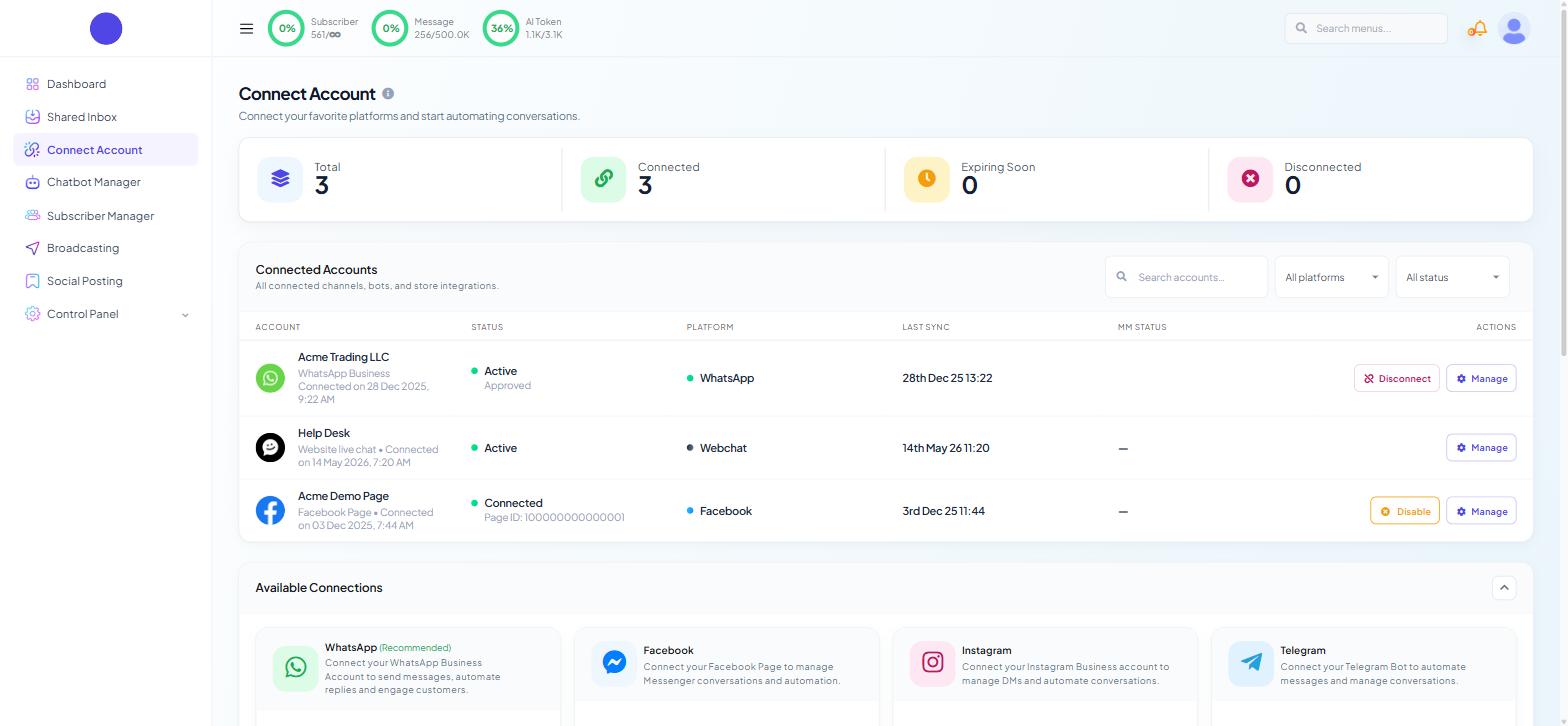
Open Connect Account from the sidebar. Four stat tiles sit at the top — Total, Connected, Expiring Soon and Disconnected. Expiring Soon is the one nobody looks at, and a count above zero there warns you a token is running out days before anything visibly breaks.
Below them, the Connected Accounts table carries the columns you need:
Column | What to read from it |
|---|---|
ACCOUNT | Account name, type, and the date it was connected |
STATUS |
|
PLATFORM | WhatsApp, Facebook, Webchat and so on |
LAST SYNC | When Scope Wiser last spoke to the platform successfully |
ACTIONS | Disconnect, Disable or Manage, depending on the platform |
LAST SYNC is your best single diagnostic. A timestamp from weeks ago on an account reporting Active means the status is stale, not healthy — you are seeing the last thing Scope Wiser heard. Filters above the table (Search accounts..., All platforms, All status) help once you run several channels.
The five checks that fix most cases
Run these before anything platform-specific; they resolve most reports.
The right identity. Are you logged into the Facebook account that administers the Page, portfolio or Instagram account? Two personal accounts in one browser is the classic trap.
Admin, not editor. Meta hands lower roles a partial asset list without saying so. Fix the role in Meta Business Manager first.
All permissions granted. Every opt-in screen during Facebook login must be set to all current and future assets. Anything narrower produces a short list later.
A normal browser window. Use a current Chrome, Firefox or Edge. Incognito mode, blocked cookies, privacy extensions and pop-up blockers break Meta's dialog without an error.
A hard refresh. Ctrl+F5 clears a good number of "it says disconnected but it isn't" reports; failing that, clear the browser cache.
A VPN or firewall blocking Meta's domains also stalls the dialog mid-flow, and that failure looks like a Scope Wiser problem.
Before you press Disconnect
Disable and Disconnect are not the same action. Facebook rows offer Disable, a reversible pause; WhatsApp rows offer Disconnect, which tears the connection down. Try Manage first — it opens the channel's own page, where a re-sync or a fresh login usually restores things without removing anything.
Open Connect Account → Manage on the WhatsApp row to reach WhatsApp Integration, where the filter chips All / Active / Disconnected and the All Status dropdown narrow a long list.
The number will not register. If it is signed in on the ordinary WhatsApp app, delete that account from the app, wait a few minutes and retry. A number in the WhatsApp Business app does not need deleting — WhatsApp Coexistence lets it run in both places. Failing that, the number is already attached to a different WhatsApp Business Account.
Status was fine, now reads Disconnected. The token expired or Meta revoked the permission. Use Manage Account on the business-account block to re-sync before reconnecting.
Messages are not reaching customers. Check the Phone Numbers table. A dropped QUALITY rating pulls MESSAGING LIMIT down, and past that limit sends fail rather than queue — see WhatsApp Business Profile, Verification & Limits.
Template sends fail. Only approved templates can start a conversation. Go to Chatbot Manager → Automation → Message Templates and press Sync Templates to pull current approval states from Meta. A template still pending at Meta cannot be sent, whatever the campaign says.
Replies fail but templates work. You are outside the 24-hour window. Open the conversation in Shared Inbox and read Messaging Window in the Customer Snapshot: a live Inside 24H countdown, or a red Outside 24H Window where only a template will reach the customer.
If you connected through embedded onboarding, there is no token of yours to check and the rest of this section does not apply to you.
For developers
Token problems on a manual connection. Where you supplied your own credentials, check the token has not expired (60 days unless permanent), belongs to a system user with the right role, and was pasted without a stray space.
Facebook Messenger
A Page is missing after login. In likelihood order: your role is below admin, you did not opt in to all current and future Pages, or the Page is unpublished.
Pages were there and have gone. Facebook's Business Integrations settings can revoke an app's access, and a password change invalidates the session. Remove Scope Wiser there, then run Login with Facebook again from Connect Account → Facebook.
The Page connects but receives nothing. Check the Page's own Facebook messaging settings — a Page can be set not to accept messages at all.
On Facebook Integration, each card under Connected Facebook Profiles has a refresh icon and the Pages (n) / Instagram (n) / Ad Accounts (n) tab counts — the fastest way to see whether a re-login changed anything.
The account never appears. Instagram must be a Business account linked to a Facebook Page you administer. Creator and Personal accounts are not supported, and reconnecting will never surface them.
Permission denied during login. You missed the opt-in for all current and future Instagram accounts. Run the login again.
Connected, but no DMs arrive. In the Instagram app, allow access to messages from connected tools. A role change on the linked Page also cuts the flow.
Webchat
Webchat fails differently: the connection is usually fine and the widget is simply not rendering. Go to Connect Account → Webchat to reach Website Chat Widgets, where a widget counted under the Inactive Widgets stat card explains a lot on its own. Each row shows WIDGET NAME, WEBSITE, STATUS and LAST ACTIVE, with Embed, Settings and a kebab menu.
The widget does not appear at all. Open Embed and confirm the whole snippet was pasted in, not a truncated copy. Then open Settings — the drawer "Set Up Your Live Chat Widget", whose first field is Chatbox disaply title * (spelled this way on screen) — and check Website URL * matches the site you are testing. Serve the page over HTTPS and clear any page or CDN cache.
It appears, but late or in the wrong place. The same drawer holds Loading Chatbox After N Second(s), Chatbox Position and the axis offsets. A long delay reads like a broken widget.
Connected, but the bot says nothing
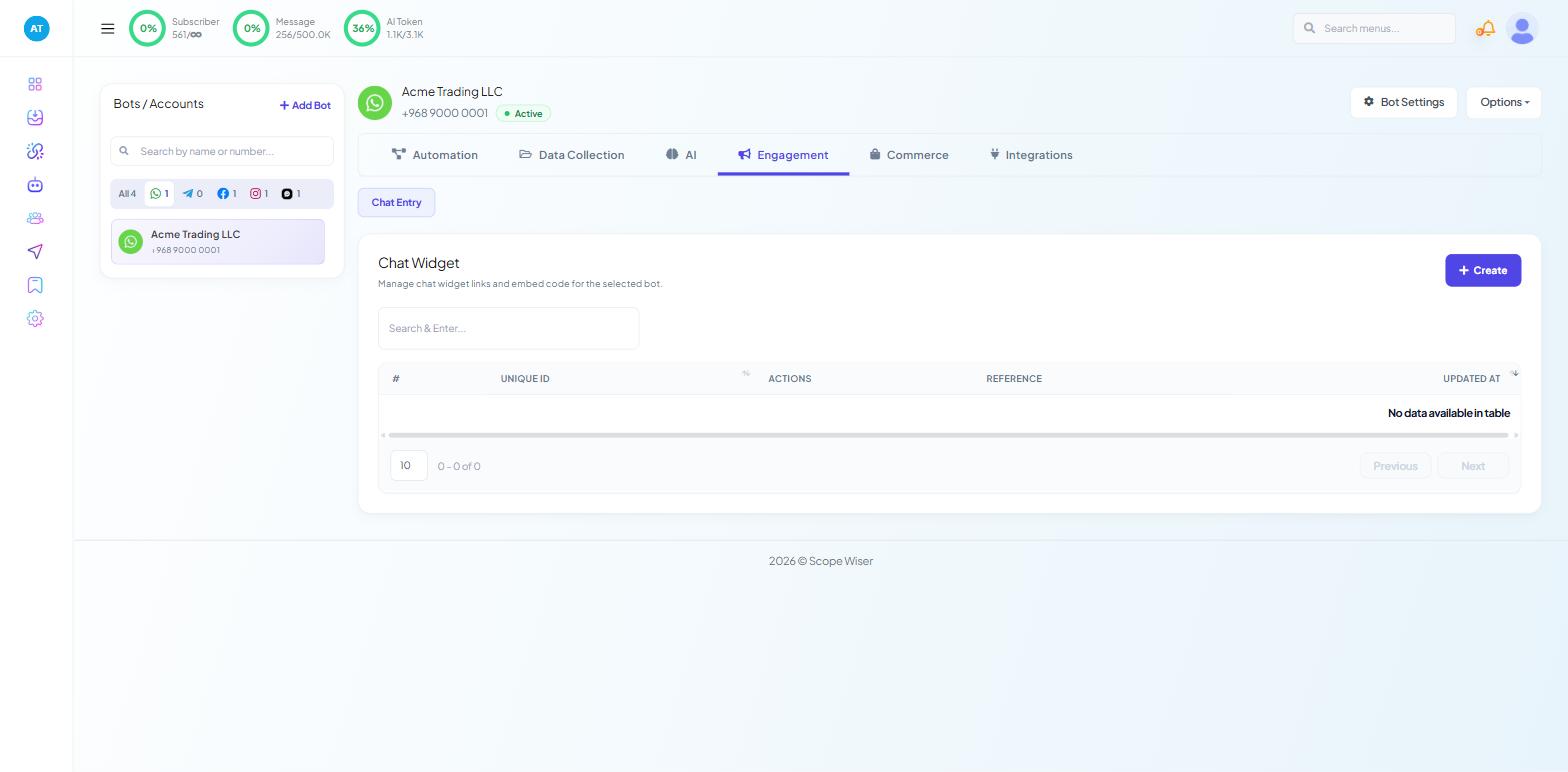
The channel is fine and the fault has moved to the bot's settings or its flow. See Why Your WhatsApp Bot Isn't Responding.
Team accounts: the permission you cannot see
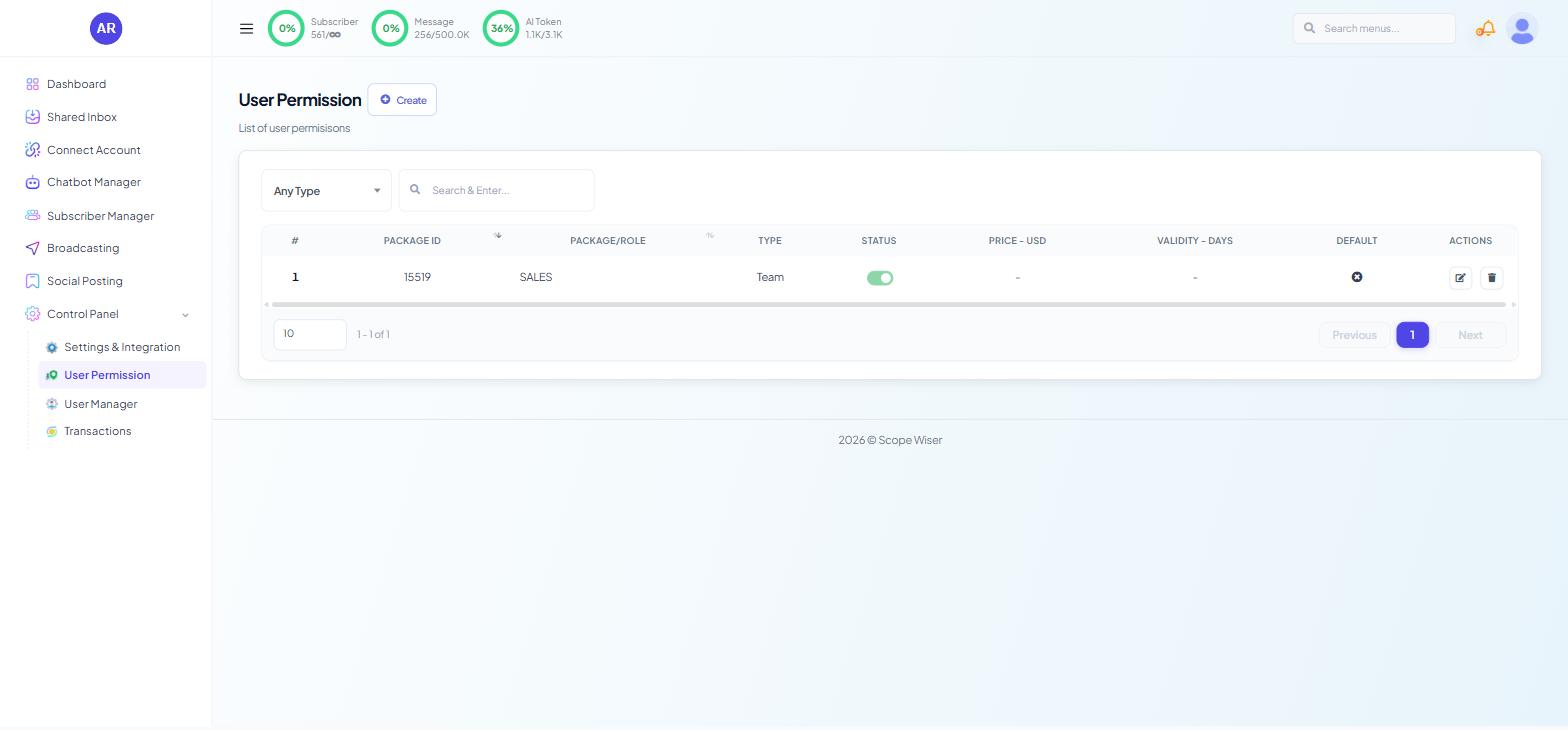
If a colleague cannot connect a channel while you can, the account is not broken — their role is. Under Control Panel → User Permission (subtitled "List of user permisisons" on screen), open the role and check the CONNECT ACCOUNT toggle and its UPDATE, DELETE and SPECIAL sub-permissions. The same form carries Disable WhatsApp, Disable Facebook and Disable Instagram switches. A channel switched off for a role is invisible to everyone holding it, with no error shown.
Confirming a fix
The Connect Account row should read Active or Connected with a recent LAST SYNC, and the account should appear in Chatbot Manager's Bots / Accounts panel with an Active pill. Only a test message from a second device landing in Shared Inbox proves it — the other two can look right while messages go nowhere.
Still stuck
Contact support with the channel, the exact status text from the Connected Accounts row, the LAST SYNC timestamp, and a screenshot of any error. That turns a long exchange into a short one.
What to do next
Where the channel is WhatsApp and the symptom is reach rather than connection, read WhatsApp Business Profile, Verification & Limits — messaging limits produce failures that look like connection faults. To reconnect from scratch, How to Connect WhatsApp to Scope Wiser and Connect a Facebook Page walk the flows in order.