
How to Connect WhatsApp to Scope Wiser: Complete Setup Guide
Connect your WhatsApp Business Account to Scope Wiser in under an hour. Embedded onboarding step by step, phone number verification, and what to do when it fails.
This guide connects your WhatsApp Business number to Scope Wiser, so your bot, broadcasts, catalogue and shared inbox can all use it.
There are two ways in. Embedded onboarding hands the whole thing to Meta and takes about twenty minutes. The second way needs a developer; almost everyone should use the first.
Before you start
You need three things, and gathering them first saves a lot of backtracking:
A Meta Business portfolio. If you have ever run a Facebook Page or an ad account, you have one already.
A phone number for the business. A number already in the WhatsApp Business app is fine — WhatsApp Coexistence lets it run there and here at the same time. A number signed in on the ordinary WhatsApp app has to be deleted from that app first, which removes the chat history on that device, so export anything you need beforehand.
The ability to receive an SMS or voice call on that number during setup.
You do not need a developer. Embedded onboarding creates everything else for you.
If you are not sure whether your Meta side is ready — the portfolio, your admin role, the display name, business verification — work through Before You Connect WhatsApp: What Meta Requires first.
Option 1: Embedded onboarding (recommended)
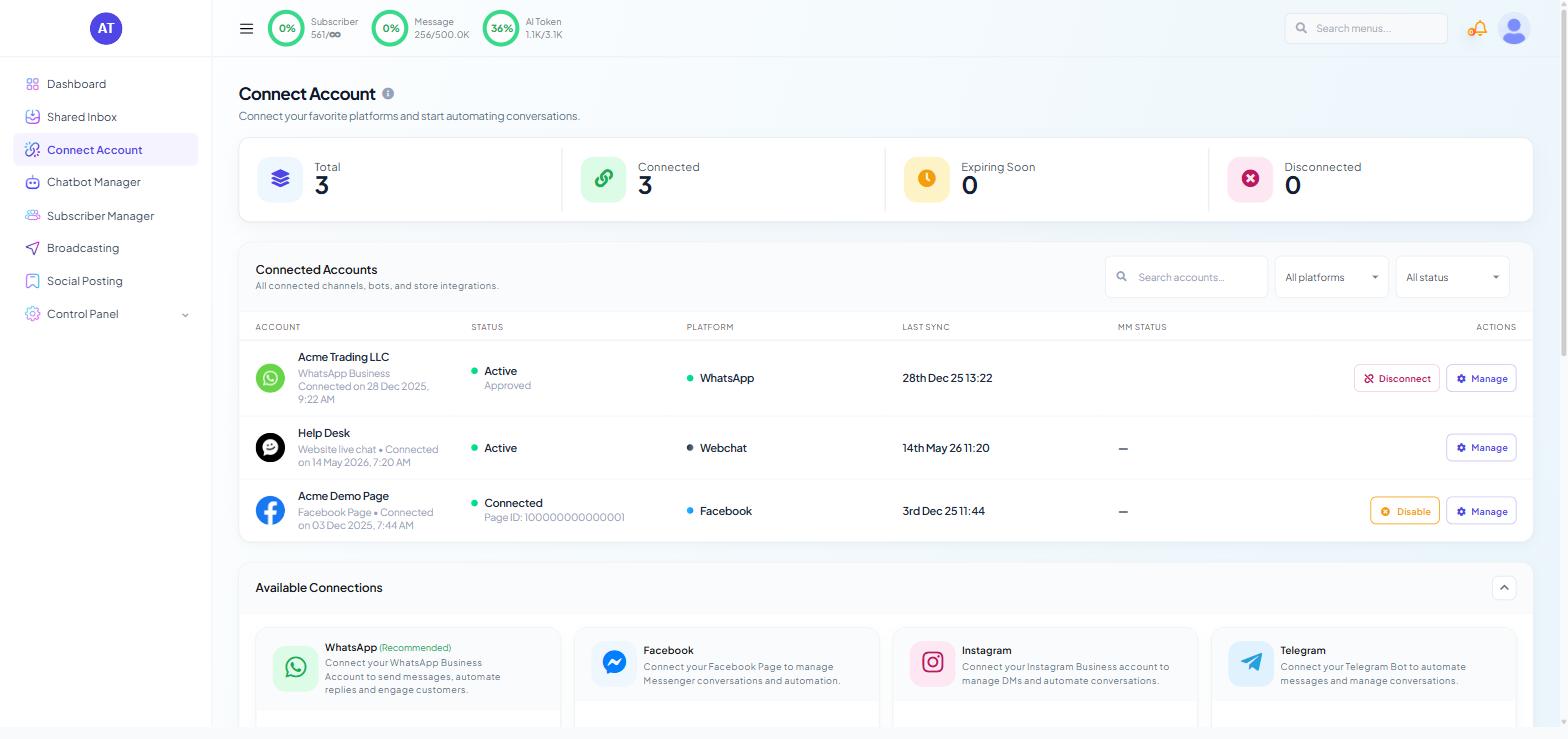
1. Open the WhatsApp integration page. From the sidebar go to Connect Account, then in Available Connections choose Connect WhatsApp. You land on WhatsApp Integration, headed "Connect and manage your WhatsApp Business Accounts and phone numbers."
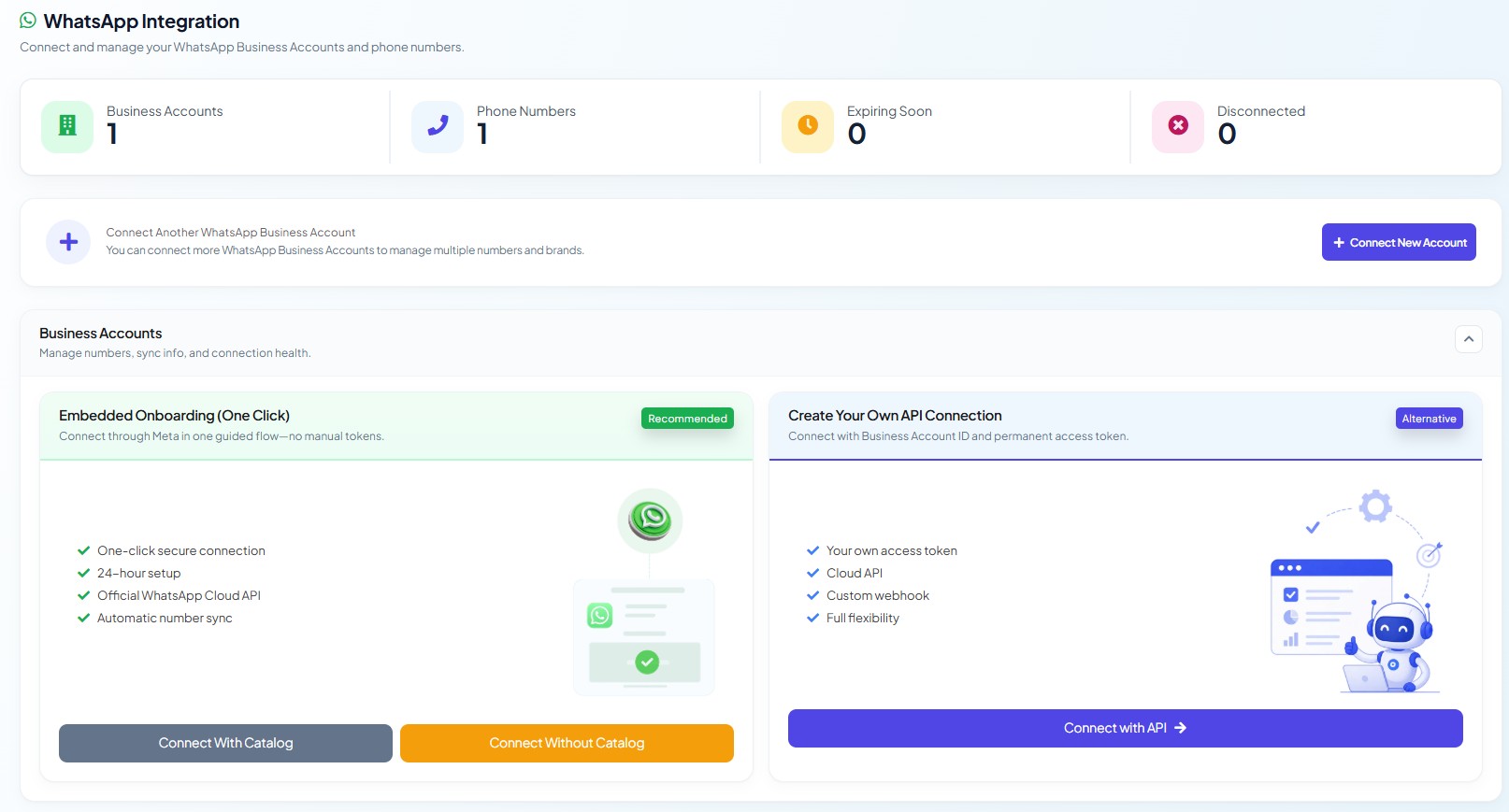
The page shows four counters — Business Accounts, Phone Numbers, Expiring Soon and Disconnected — and two connection cards.
2. Choose the Embedded Onboarding card. It is labelled Embedded Onboarding (One Click) and marked Recommended, with the description "Connect through Meta in one guided flow—no manual tokens."
Click Connect with Embed Onboarding →. The button then splits into two:
Connect With Catalog — links a Meta product catalogue at the same time. Choose this if you plan to sell through WhatsApp, so you do not have to reconnect later.
Connect Without Catalog — everything else.
If you are unsure, pick Connect With Catalog. An empty catalogue costs nothing and saves a second pass through this flow.
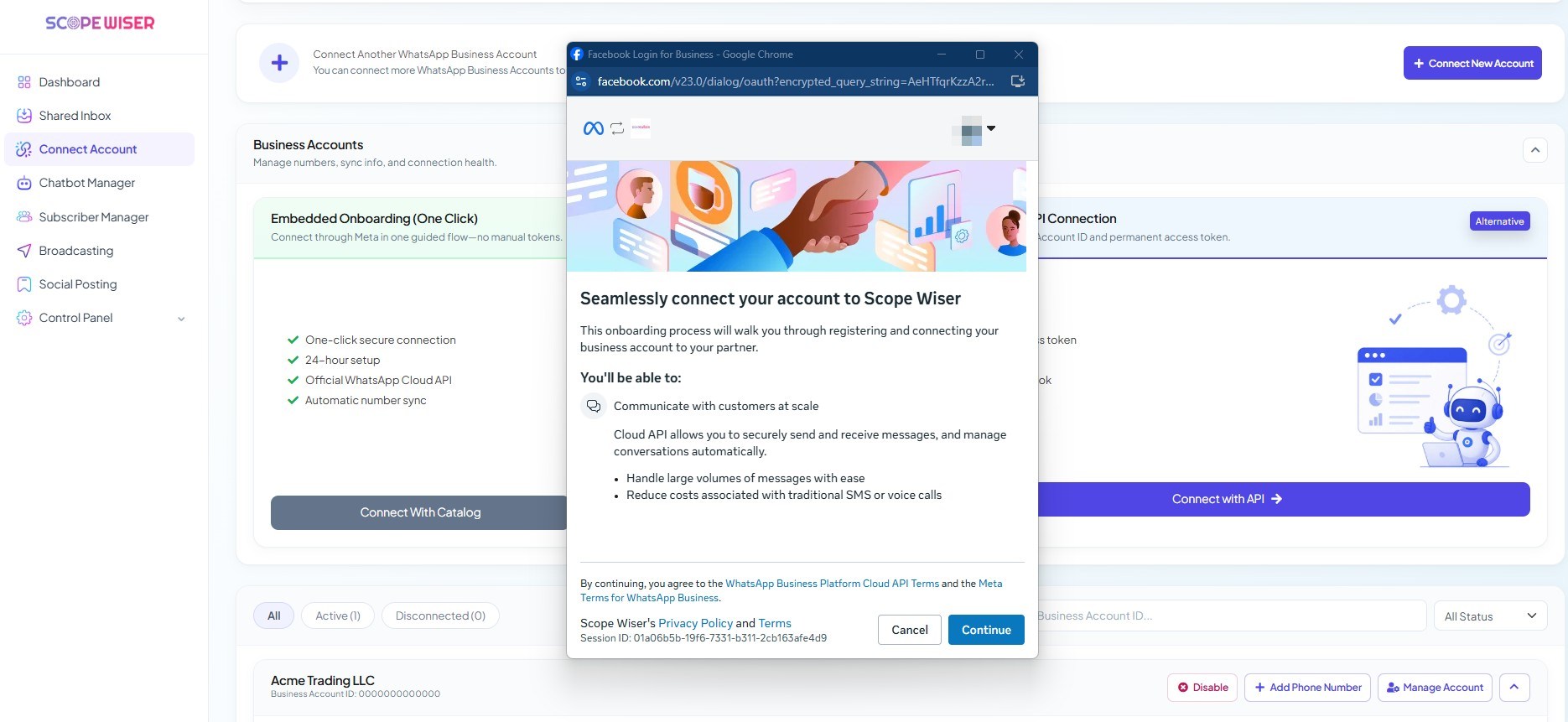
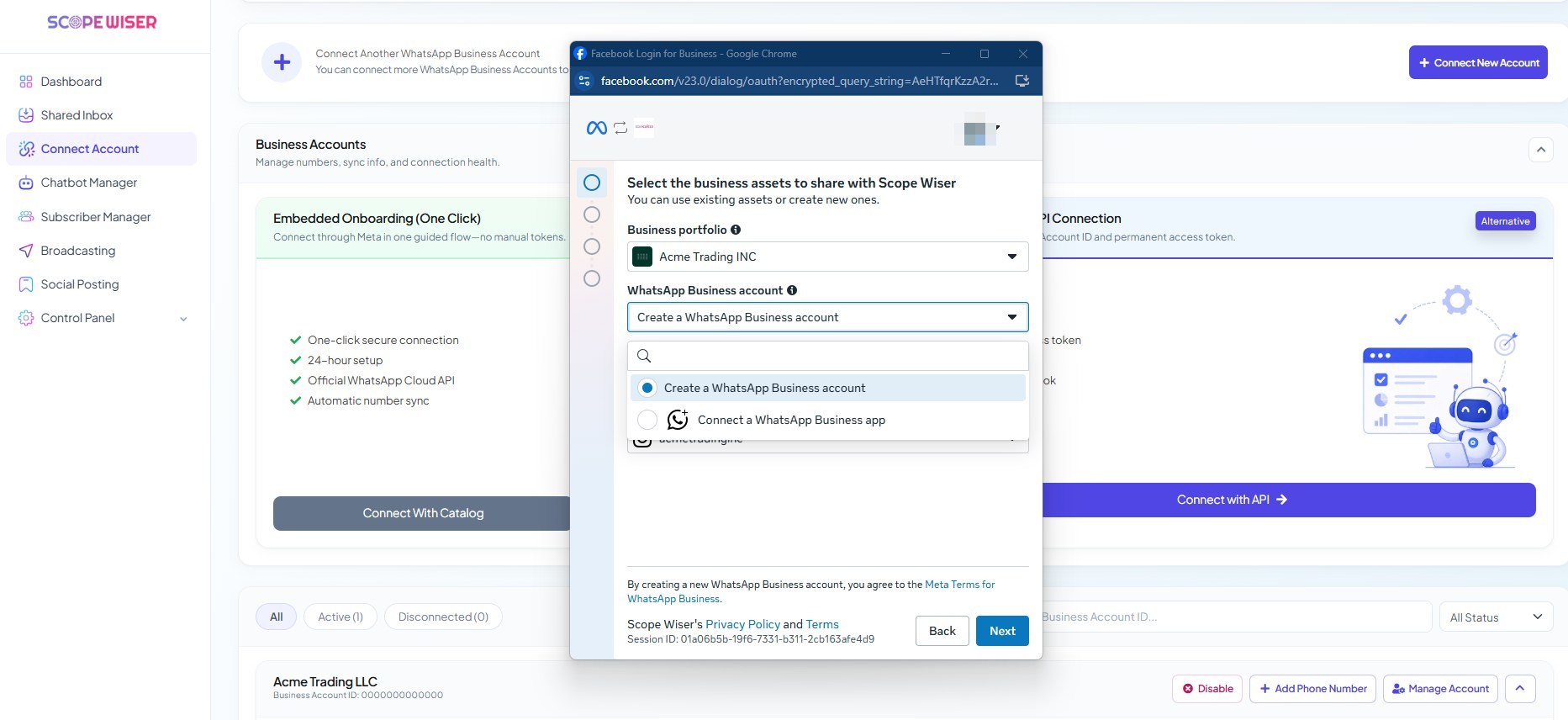
3. Work through Meta's dialog. A Meta-hosted window opens, titled "Seamlessly connect your account to Scope Wiser." This is Meta's screen, not Scope Wiser's — the wording is theirs and changes occasionally. A rail of step circles runs down the left edge, so you can see how far through you are.
Intro. Click Continue (this accepts Meta's terms).
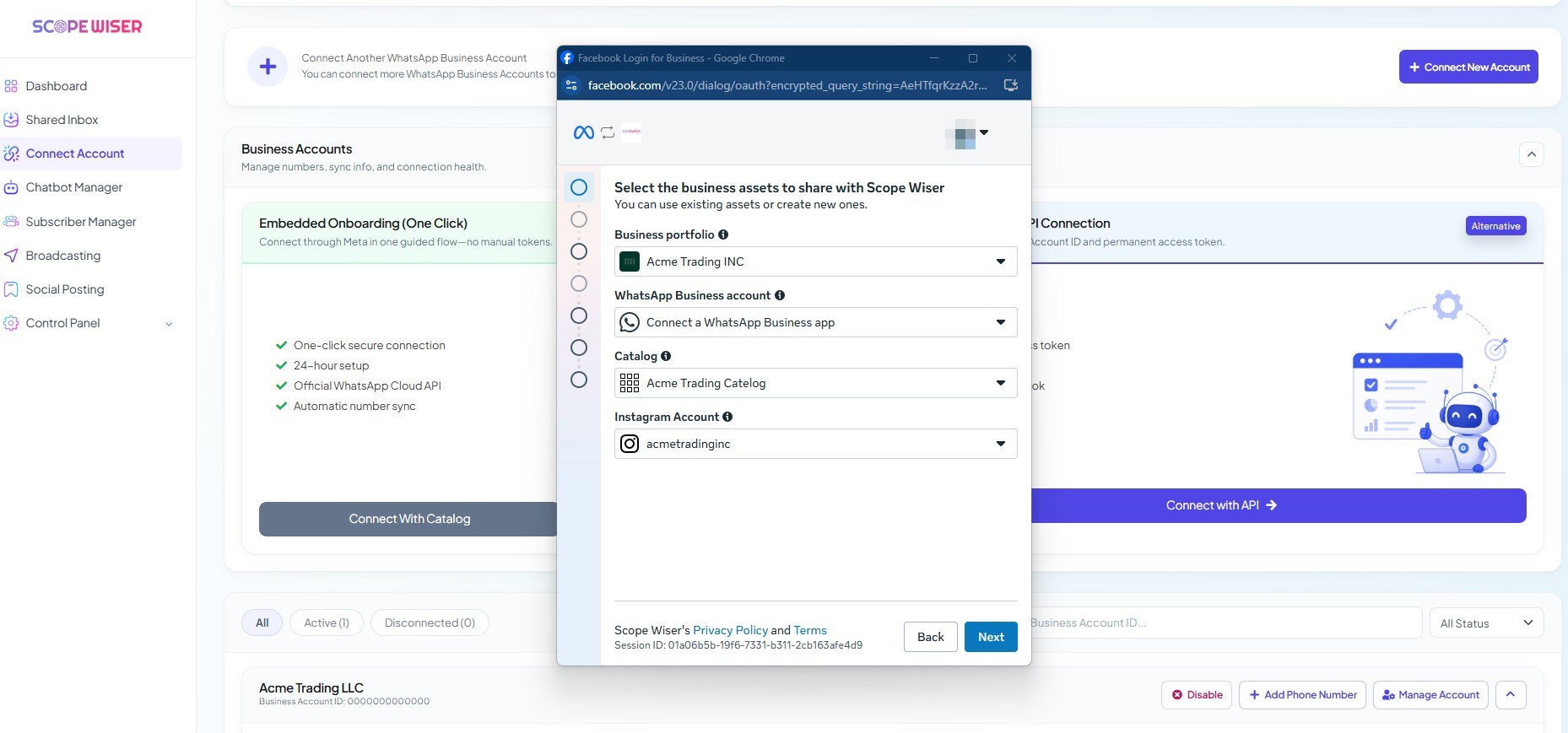
Select business assets. Four dropdowns: Business portfolio, WhatsApp Business account, Catalog and Instagram Account. The WhatsApp Business account dropdown offers two choices — Create a WhatsApp Business account, which has Meta make a new one for you, and Connect a WhatsApp Business app, for a number already running in the WhatsApp Business app. Click Next.
Phone number. Pick the country and enter the number. Next stays disabled until a number is entered. Meta warns here: "If you haven't added your WhatsApp Business App number to your business portfolio, you'll need to verify it to continue."
Verification. Meta sends a code by SMS or voice call. Enter it.
Finish. Meta returns you to Scope Wiser.
4. Confirm the connection. Back on WhatsApp Integration, expand Business Accounts — "Manage numbers, sync info, and connection health." Your account appears with its Business Account ID, and beneath it a Phone Numbers table:
Column | What it tells you |
|---|---|
PHONE NUMBER | The connected number and its display name |
STATUS |
|
QUALITY | Meta's quality rating — |
MESSAGING LIMIT | Your tier — how many unique customers you can message in 24 hours. A new, unverified account starts at the 250-customer tier; Meta raises it as you send |
LAST SYNC | When Scope Wiser last pulled status from Meta |
MM STATUS | Marketing message status. Usually blank |
If STATUS reads Active, you are done. QUALITY reflects how people respond to your messages, so it only becomes meaningful once the number has started sending.
Option 2: Create Your Own API Connection
Only choose Create Your Own API Connection if a developer manages your Meta credentials.
For developers
On the same page, the second card is Create Your Own API Connection, marked Alternative: "Connect with Business Account ID and permanent access token."
Click Connect with API → and supply your Business Account ID and permanent access token from Meta's developer console. A token you generate is yours to rotate and yours to fix when it expires; embedded onboarding does that for you.
Using a number that is already on the WhatsApp Business app
You do not have to give the number up. WhatsApp Coexistence lets the same number run in the WhatsApp Business app and here at the same time: your team can keep replying from the app while automation, broadcasts and the Shared Inbox work through this connection. Recent chats and contacts can come across when you connect.
Run embedded onboarding as above. At the WhatsApp Business account step choose Connect a WhatsApp Business app, enter that number, and follow Meta's prompts.
A number signed in on the ordinary WhatsApp app is a different case — coexistence does not cover it:
Export your chat history from the app if you want to keep it. It does not come across.
Delete the account from within the app — Settings → Account → Delete my account.
Wait a few minutes, then run embedded onboarding with that number.
Connecting more than one number
Use + Connect New Account for an additional WhatsApp Business Account, or + Add Phone Number on an existing account to add another number to it. The filter chips — All, Active, Disconnected — and the search box ("Search by name or Business Account ID...") become useful once you have several.
When it goes wrong
A few failures account for most cases:
Verification code never arrives. Try the voice-call option instead of SMS. Numbers that forward or sit behind a virtual PBX often silently drop the SMS.
"Number already registered". The number is still active on the WhatsApp app. Go back and delete it there.
The Meta window is blank, or shows a bad gateway. A temporary fault at Meta's end or ours. Wait a few minutes and run the flow again.
"You don't have permission". Your Meta user is not an admin of the business portfolio. Fix the role in Meta Business Manager first; nothing on the Scope Wiser side works around it.
Status shows
Disconnectedafter working fine. The access token expired or Meta revoked permissions. Use Manage Account to re-sync.Quality rating drops to
MediumorLow. This is about how customers respond to your messages, not about setup. Blocks and "report" taps push it down; it recovers if you message more selectively.
For anything else, see Fixing Channel Connection Problems.
What to do next
With WhatsApp connected, the next step is Build Your First Chatbot in 5 Minutes — the flow that answers your first message. If you plan to sell through WhatsApp, go to Chatbot Manager → Commerce → Product Catalog and confirm your catalogue came through.