
Live Chat and the Shared Inbox: Complete Overview
One inbox for WhatsApp, Facebook, Instagram and Webchat: account fields to set first, the filter rail, conversation list, composer and Chat Actions panel.
What this covers: the account fields to set before you start, then a tour of every part of the Shared Inbox: the filter rail, the conversation list, the conversation, the reply box and the Chat Actions panel.
The Shared Inbox is where the automation stops and a person starts. Every conversation your bots handle — WhatsApp, Facebook, Instagram and Webchat — arrives in the same list. Any agent with the right permission can read it, take it over and answer.
1. Set your account fields first
Four fields on your own account change what you see in every conversation. Each agent sets their own.
Open the profile menu at the top right.
Choose Account.
In the Update Account form, set:
TIMEZONE — every timestamp you read, and every follow-up you schedule, is shown against this.
LIVECHAT TRANSLATION LANGUAGE — the language incoming messages are translated into. It is not the same as APPLICATION LANGUAGE, which changes the interface.
SIGNATURE MESSAGE — your own line, sent when you join a conversation on a bot that has signature messages switched on.
Profile picture and NAME — how colleagues see you in the inbox. The picture must be 200KB, png/jpg/webp, Square Image.
Click Update.
2. Open the inbox
Click Shared Inbox in the sidebar. You can also use the Dashboard quick action Open Inbox.
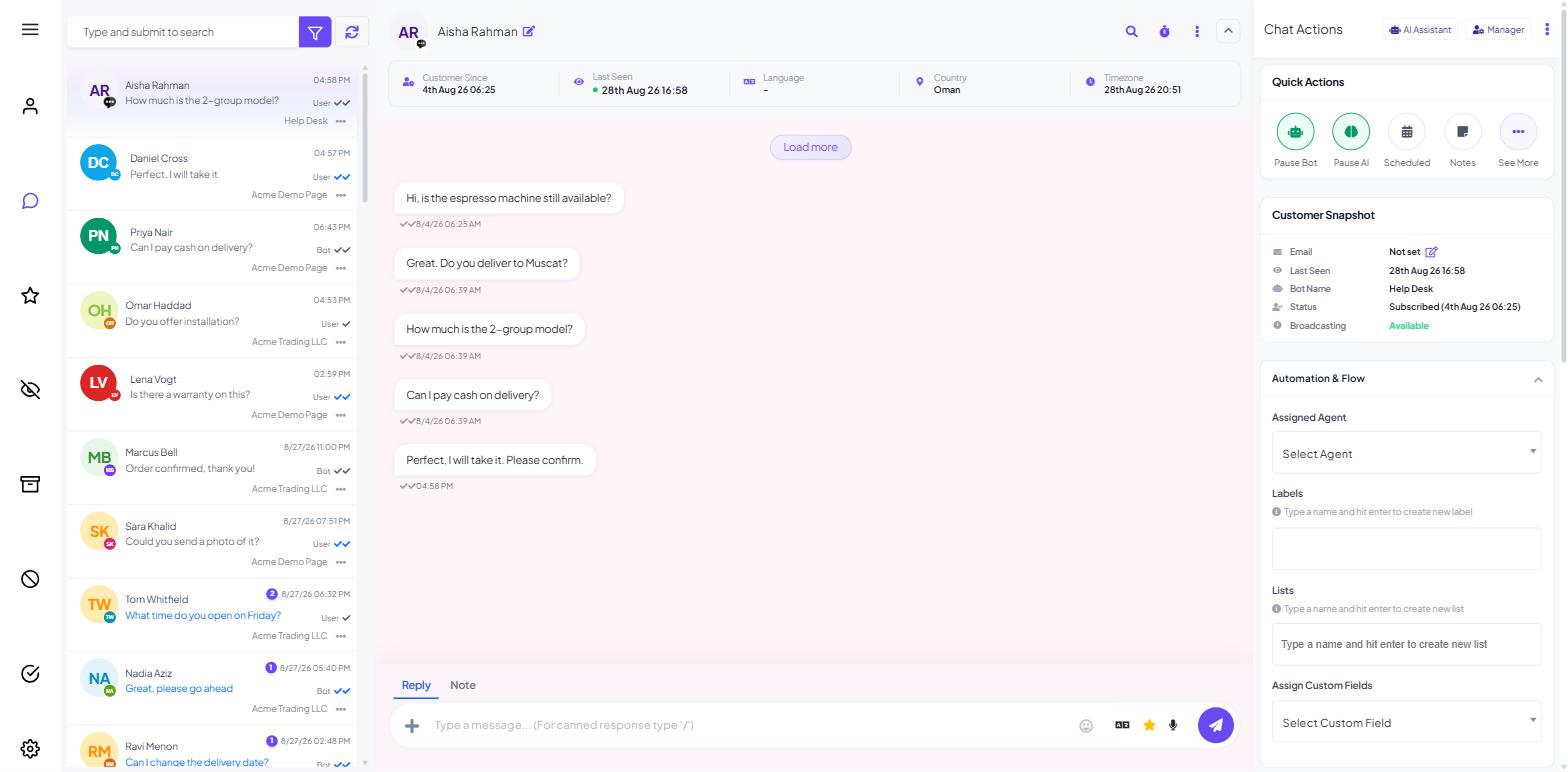
You should now see four regions, left to right:
a narrow filter rail
the conversation list
the conversation itself
the Chat Actions panel on the right
The main sidebar collapses to icons on this screen, to give the conversation room.
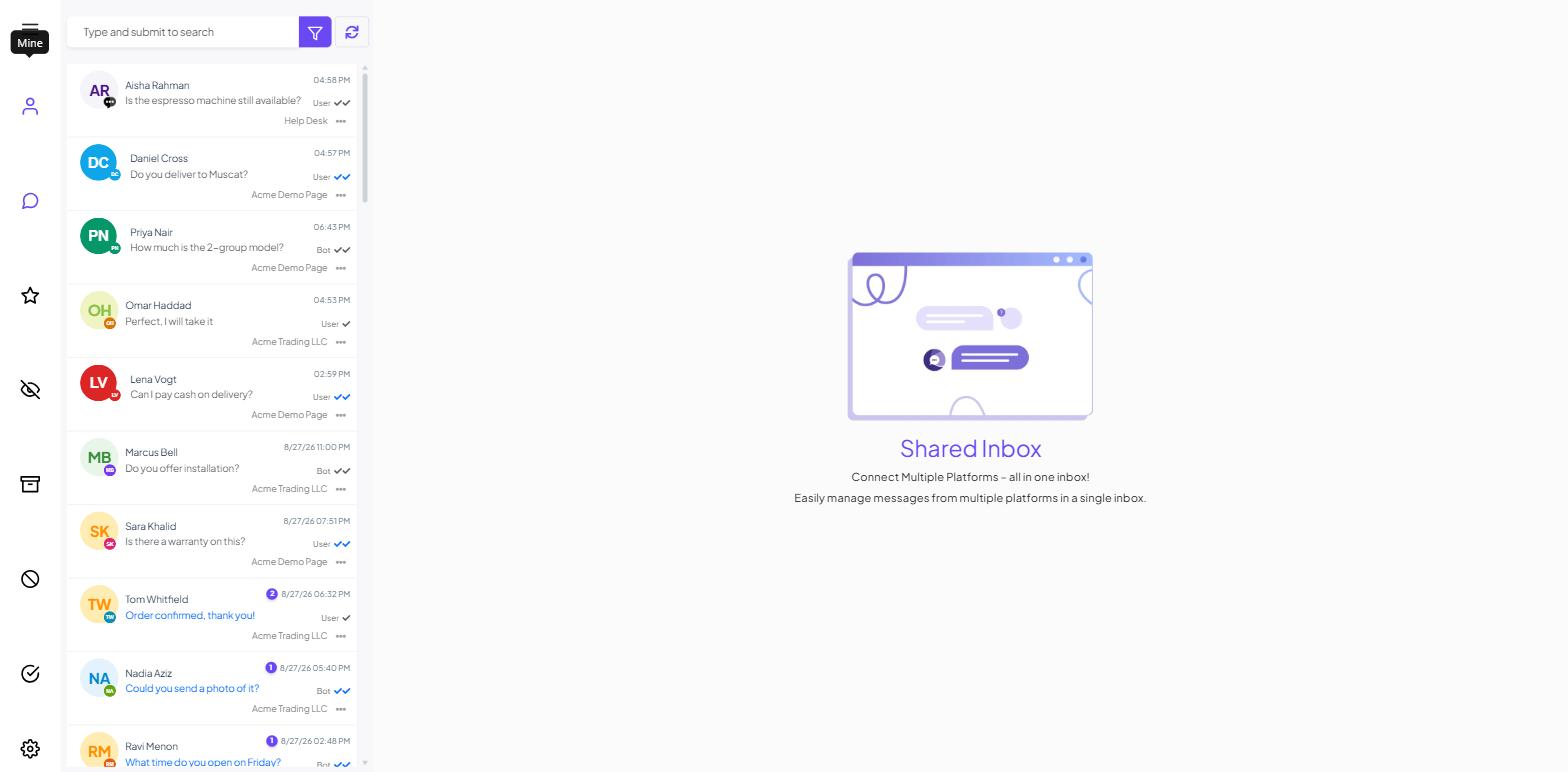
Before any channel is connected you see an empty state. There is nothing to switch on. Connect a channel and its conversations start appearing here on their own.
Tip: to work two conversations at once, open the inbox in a second browser tab.
3. The filter rail
Ten entries run down the far left, in this order:
Filter | What it shows |
|---|---|
Mine | Conversations assigned to you |
All | Every conversation you have permission to see |
Important | Conversations you have starred |
Unread | Anything nobody has opened yet |
Archived | Chats moved out of the working list |
Blocked | Contacts you have blocked |
Resolved | Conversations closed as finished |
Follow-up List | Every follow-up reminder you have set |
Open CRM Board | The deals board, one column per sales stage |
Custom Fields | Your custom fields |
The rail also holds a toggle: "If enabled, Shared Inbox CRM will auto-fill deal data using AI from the conversation." See Track Deals in the Shared Inbox CRM.
A settings gear sits at the bottom of the rail.
Resolved and Archived are not the same thing. Resolved means the customer's problem is finished. Archived means the conversation is out of your way.
For each agent, turn on Allow Only Assigned Chat in Livechat (Control Panel → User Manager → the person) so they see only their own chats. Leave it off for supervisors.
4. The conversation list
At the top of the list are a search box ("Type and submit to search"), a funnel filter button and a refresh button. The search runs on submit, so press Enter.
Each row shows:
The contact's avatar with a channel badge, so you can see which platform the message came from.
The name and a preview of the last message.
An unread count and a timestamp.
A sender tag — Bot, User or Admin — with delivery ticks. This tells you who spoke last. Bot means automation is still handling it. Admin means a person has replied.
The bot or account name the conversation belongs to. This matters as soon as you run more than one bot.
A "..." menu for row-level actions.
Tip: scan for rows tagged User. The customer spoke last and nobody has answered.
5. The conversation
The header shows:
the contact's name, with an edit (pencil) icon beside it
their phone number, unless the agent's role has LIVE CHAT - NUMBER MASK switched on, which hides it
on the right: a search icon for finding messages in the thread, a timer icon, a kebab menu, a collapse chevron, and two buttons, AI Assistant and Manager
Below the header runs a contact strip: Customer Since, Last Seen, Language, Country and Timezone.
Long threads load in pages, with a Load more control at the top.
Hover over an incoming message to see three actions on the bubble itself: reply to quote it, translate it, and a react control. To translate a message or your reply, see Live Chat Translation.
6. Writing a reply
The reply box (composer) at the bottom has two tabs:
Reply goes to the customer.
Note does not. It is an internal message for whoever picks the conversation up next. Type in "Write an internal note..." and send. The thread shows " has attached a note: ...".
Important: after you send a note, the composer switches back to Reply on its own. The next thing you type goes to the customer. Check the tab before you send again.
The reply field reads: "Type a message... (For canned response type '/')". Type a forward slash / to bring up your saved replies. That is how you answer the twentieth delivery question of the morning without typing it out again.
The icon row beside the field gives you: translate, AI rewrite, microphone, emoji, an attachment button (+) and send.
Voice notes from customers
A customer's WhatsApp voice note shows in the thread as a player with a Convert to text button under it.
Click Convert to text. The words appear under the voice note.
If they are in a language you don't read, click Translate under the text.
For key details such as an order number or an address, check the text against the voice note before you act on it.
If an AI agent is switched on, it answers voice notes too, in text. See Set Up Your First AI Agent, Step by Step.
7. The Chat Actions panel
The right-hand rail is headed Chat Actions. It is long, and it scrolls. In order:
Section | What it holds |
|---|---|
Quick Actions | Twelve buttons, the rest behind See More / See Less: Pause Bot, Pause AI, Scheduled, Notes, Follow-up, Send Flow, Add Label, Assign Team, Add Sequence, Custom Field, Messaging Window and Google Meet |
CRM Overview | The deal for this contact: Pipeline, Stage, Deal Value, Expected Close, Deal Owner, Lead Score, Source. Edit to change it |
Customer Snapshot | Email (editable in place), Last Seen, Bot Name, Status, Messaging Window (Inside 24H with a live countdown) and OPT-IN Through |
Automation & Flow | The automation currently attached to this contact |
Assigned Agent | A Select Agent dropdown. One agent holds a conversation at a time |
Labels | "Type a name and hit enter to create new label" |
Lists | "Type a name and hit enter to create new list" |
Message Sequence | Put this contact into a follow-up sequence without leaving the conversation |
Assign Custom Fields | A Select Custom Field dropdown, then a Custom Field Value |
Custom Fields | What is already stored, or "No custom fields assigned" |
Follow-up History (0) | An + Add button, or "No follow-up history" |
Notes | Your notes, or "No notes yet" |
Below all of that sits the AI Assistant panel, with a Reasoning Effort setting, Analyze Customer Conversation and Help me to reply. See AI in the Shared Inbox.
Pause before you reply
Pause Bot stops the scripted automation for this contact. Pause AI stops the AI agent replying.
An agent stepping into a live conversation normally wants both. Otherwise the bot talks over them.
The Messaging Window decides whether you can reply
On WhatsApp, the Messaging Window row shows either Inside 24H with a live countdown in hours, minutes and seconds, or a red Outside 24H Window.
After 24 hours you can only send an approved template. See WhatsApp Rules You Must Know: 24-Hour Window & Template Messaging.
Save labels, lists and custom fields with the save icon
Pressing Enter is not enough. Nothing is saved until you click the save icon.
Type a label or list name, or pick a custom field and type its value. Press Enter.
A small save icon appears beside the section heading. Click it.
You should now see the toast "Subscriber changes have been saved successfully." and a line in the thread such as "Label added: hot-lead", "List added: VIP" or "1001 value added to order_number custom field".
Labels are shared
Labels are the same objects you use for segmentation elsewhere, and they are shared across all channels and bots in your account. Anything you tag here is available when you build an audience later.
CRM Overview
The CRM Overview section tracks the sale with this contact: its Stage (New, Qualified, Proposal, Negotiation, Won, Lost), Deal Value, Expected Close, Deal Owner and Lead Score (Hot, Warm, Cold). Click Edit to change it, then Save. The board icon beside it opens the CRM Board. See Track Deals in the Shared Inbox CRM.
If something doesn't work
The Select Agent dropdown is empty. People only appear there if they exist as team members whose role carries the LIVE CHAT permission. On a single-login account the dropdown opens empty.
The inbox is empty. No channel is connected yet. Connect one and its conversations appear on their own.
Search does nothing. It runs on submit. Press Enter.
A label, list or custom field disappeared. You pressed Enter but did not click the save icon beside the heading.
An agent can see customer phone numbers and shouldn't. Turn on LIVE CHAT - NUMBER MASK for their role.
Reference
Who can see what
Access is set in Control Panel → User Permission. The inbox has its own group of toggles: LIVE CHAT, plus LIVE CHAT - WIDGET, LIVE CHAT - NUMBER MASK, LIVE CHAT - TRANSLATOR and LIVE CHAT - ADVANCED.
Turn LIVE CHAT - NUMBER MASK on if agents should not see customer phone numbers.
Restricting which bots a person can reach happens on their User Manager record, not in the role. Adding Team Members & Access Control covers both screens.
What to do next
Read Assigning Agents and Joining Conversations next. It covers who owns a conversation and how a person takes it off the bot. After that, the rest of this module takes one feature at a time: signature messages and handover, follow-up reminders, translation and the inbox settings.
Next: Assigning Agents and Joining Conversations