
Auto-Comment on Your Posts
Schedule comments of your own on Facebook and Instagram posts to keep them visible: comment templates, one-time and recurring schedules, and what to check in the report.
Auto-comment is Scope Wiser posting a comment from your own page, on your own post, at a time you choose. It is not a reply to anybody. To answer people who comment, see Auto-Reply to Comments on Your Posts; the two are configured separately even though they can run on the same post.
What to use it for
Putting the link in the comments. Write the post without a URL, then auto-comment the URL a minute later. The post keeps its reach and the link is still one tap away.
Extending a post's life. A comment a day or two after publication surfaces the post again. Two or three well-spaced comments over several days is the useful range.
Prompting a conversation. A question in the comments — "which colour would you pick?" — gets replies that a statement does not.
Announcing the next step. "Doors close Friday", on an existing launch post, without publishing anything new.
Step 1: Write a comment template
Comment text is stored as a reusable template rather than typed into each campaign.
Click Manage ▾ at the top right of the Comment Automation card — the one level with the heading, not the per-post Manage ▾ buttons in the Latest Posts list — and choose Comment Template. The menu also holds Reply Template and Manage Custom Fields.
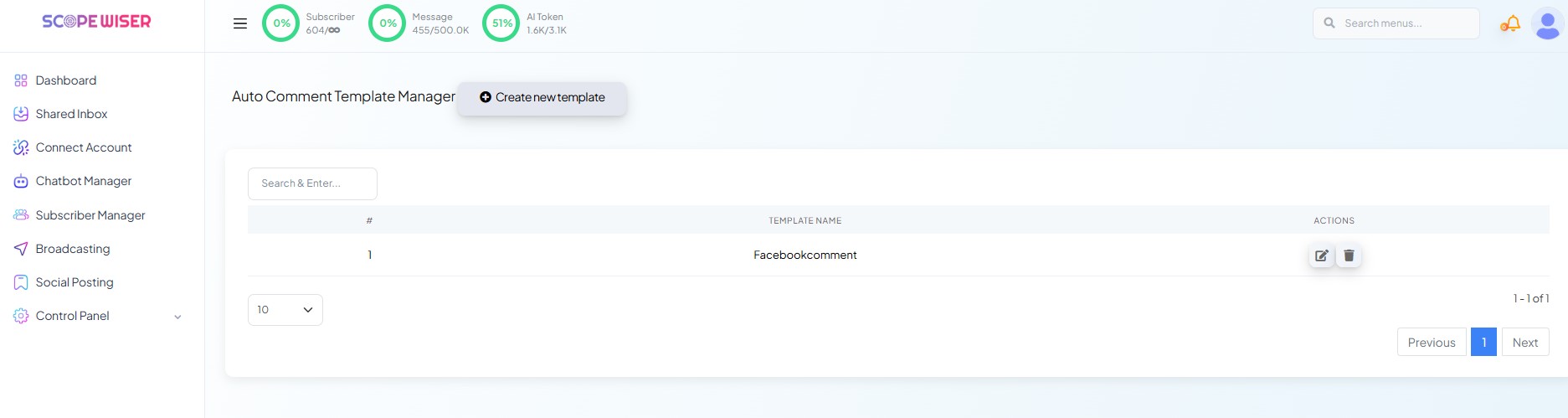
On the Auto Comment Template Manager, click Create new template.
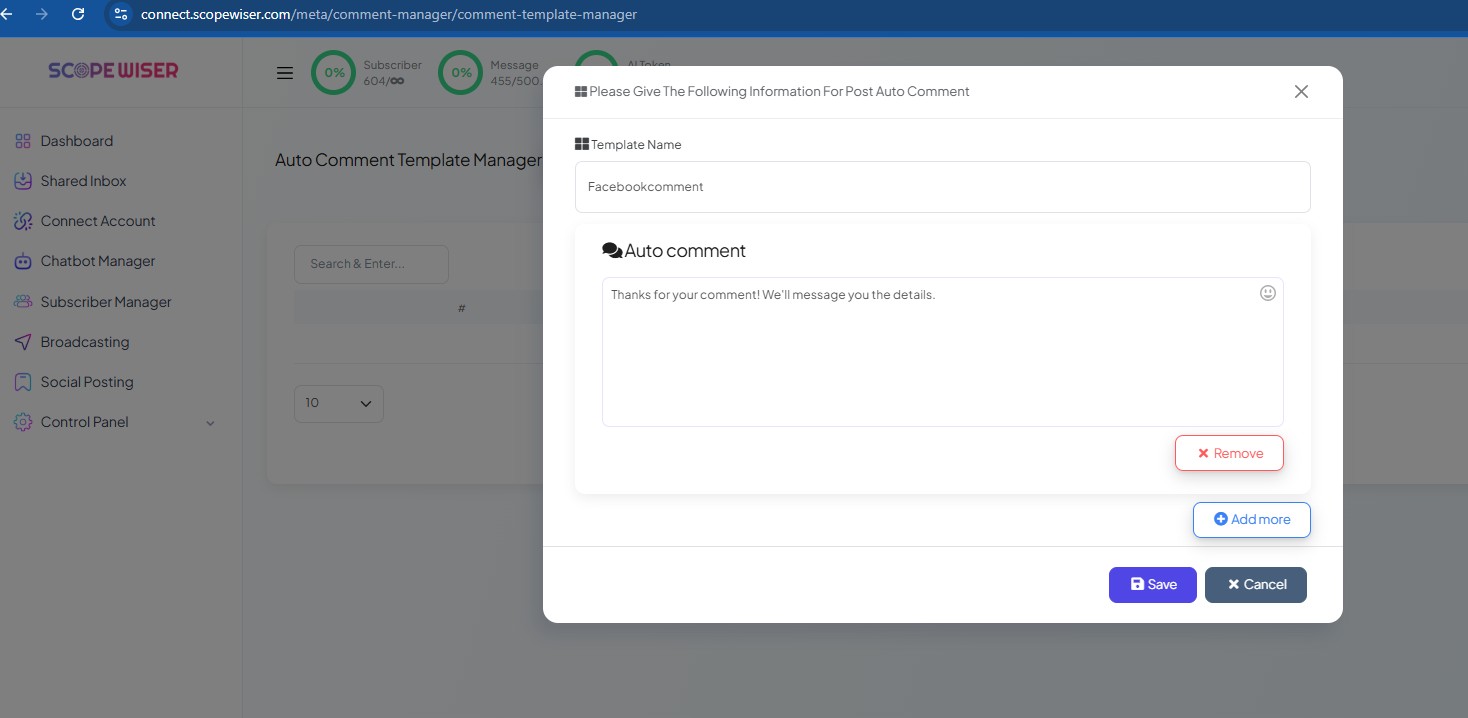
Enter a Template Name, type the comment, use Add more for variations, then Save.
Each extra row is another version of the comment and the bot rotates between them; Remove deletes a row. Emoji, links and line breaks are all fine in a comment.
Write a handful of templates at the start rather than one — a link comment, a question comment, a "last chance" comment — so campaigns become a matter of choosing, not writing. Give each a name you will recognise in a dropdown six months from now: link-in-comments-store beats template 2.
Step 2: Schedule the comment on a post
Click Manage ▾ beside the post in Latest Posts and choose Enable auto comment.
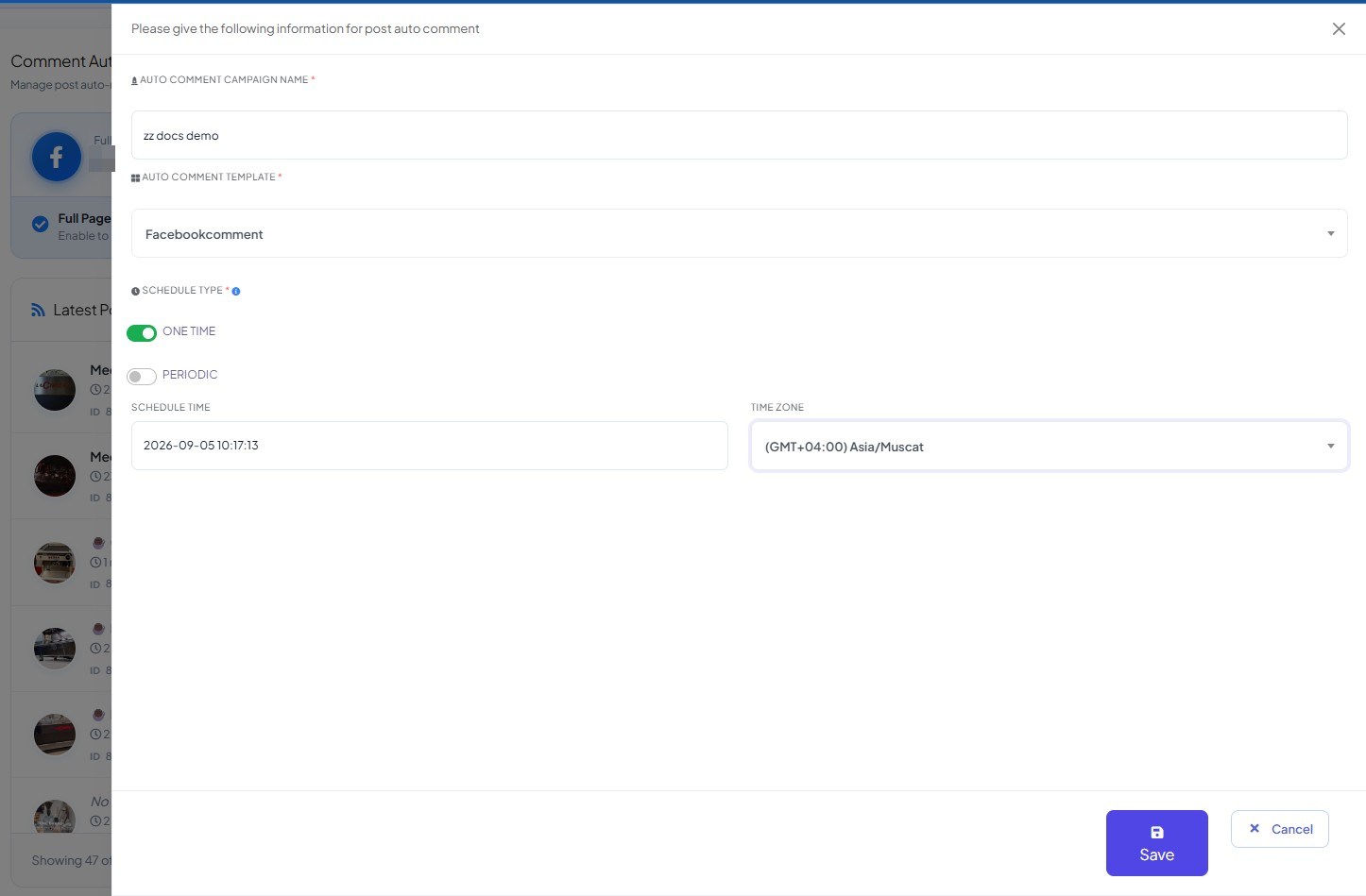
Fill in the dialog:
AUTO COMMENT CAMPAIGN NAME — name it after the post, not the feature.
AUTO COMMENT TEMPLATE — the template from step 1.
ONE TIME or PERIODIC — a single comment, or one that repeats at an interval.
SCHEDULE TIME — the date and time.
TIME ZONE — set this deliberately. A comment scheduled for 09:00 in the wrong time zone lands in the middle of the night for the audience it was written for, and it is the single most common thing to get wrong on this screen.
Click Save. The comment posts itself when the time arrives.
Step 3: Check the report
Each post keeps a record of what was commented and what happened to it. Look at it after the first campaign, because a failure here is silent: nothing appears under your post and nothing tells you why.
The report shows the comment that was posted, when it was posted, whether the schedule was one-time or recurring, and the outcome. Nothing is recorded until the scheduled time has passed, so an empty report an hour after saving a campaign set for tomorrow is expected. A failed entry usually means the post was deleted, the page permissions changed, or the comment was rejected as spam by Meta.
Using it well
Space comments out. Two or three comments over three to five days on a campaign post.
Vary the templates. The same comment under every post on a page is more conspicuous than no comment at all.
Check how it behaves with a page-wide reply campaign. If page-wide auto-reply is running, your own auto-comment may be a comment that something else then decides to reply to. Test on a quiet post first.
If comments stop appearing, Facebook may have flagged rapid posting; space them out.
The Instagram version is reached the same way — Chatbot Manager → the Instagram account → Engagement → Comment Automation — and does the same job.
Links in Instagram comments are not clickable, so the "link in the comments" use does not transfer. On Instagram the value is the conversation prompt and the reminder.
What to do next
If you are scheduling the comment, you may as well schedule the post it sits under: Scheduling Social Posts: Multimedia, CTA & Carousel covers the composer at Social Posting, where a post and its auto-reply template are set up together.