
Page-Wide Comment Automation
Run one comment automation across every post on a Facebook Page or Instagram account, including posts you have not published yet — and know when that is the wrong choice.
Page-wide automation applies one configuration to every post on the account — including posts you have not written yet, and old posts people still find and comment on. This article covers setting it up, reading its report, and when to use a per-post campaign instead.
When it is right, and when it is not
Page-wide automation is right when the intended behaviour is the same everywhere. That is almost always a support-shaped or moderation-shaped goal:
Acknowledge every commenter politely and invite them into the inbox.
Hide spam and abuse wherever it appears.
Answer the handful of questions that come up on every post — hours, delivery, how to order.
Catch comments on posts from two years ago that you would otherwise never see.
It is wrong when the reply should depend on the post. A giveaway reply appearing under a service announcement is worse than silence. Campaign automation belongs on the campaign post.
Most accounts end up running both: a quiet, generic page-wide campaign as a floor, and specific per-post campaigns on top for anything being actively promoted.
Setting it up
Open Chatbot Manager and select the Facebook Page or Instagram account in the Bots / Accounts panel.
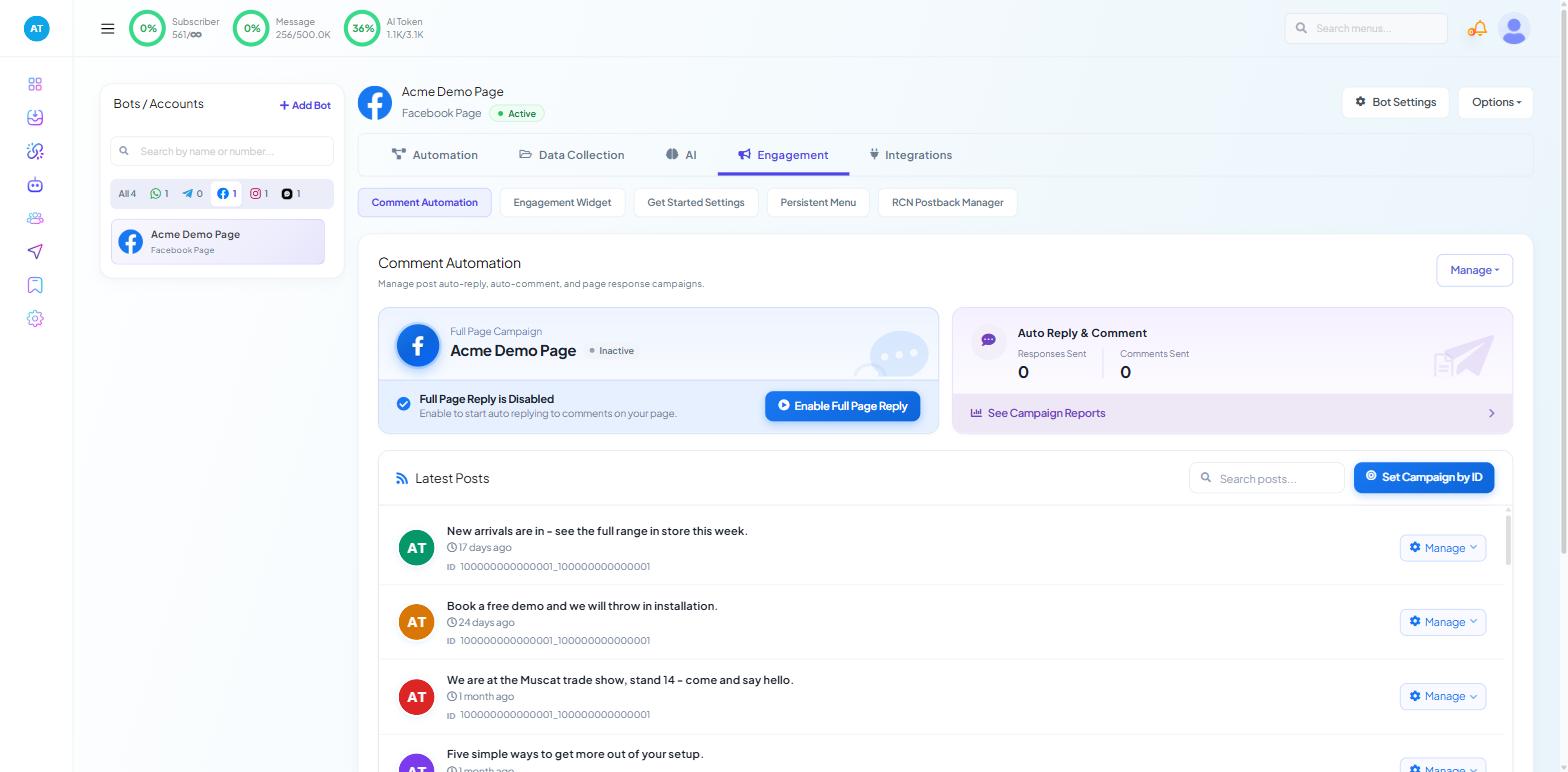
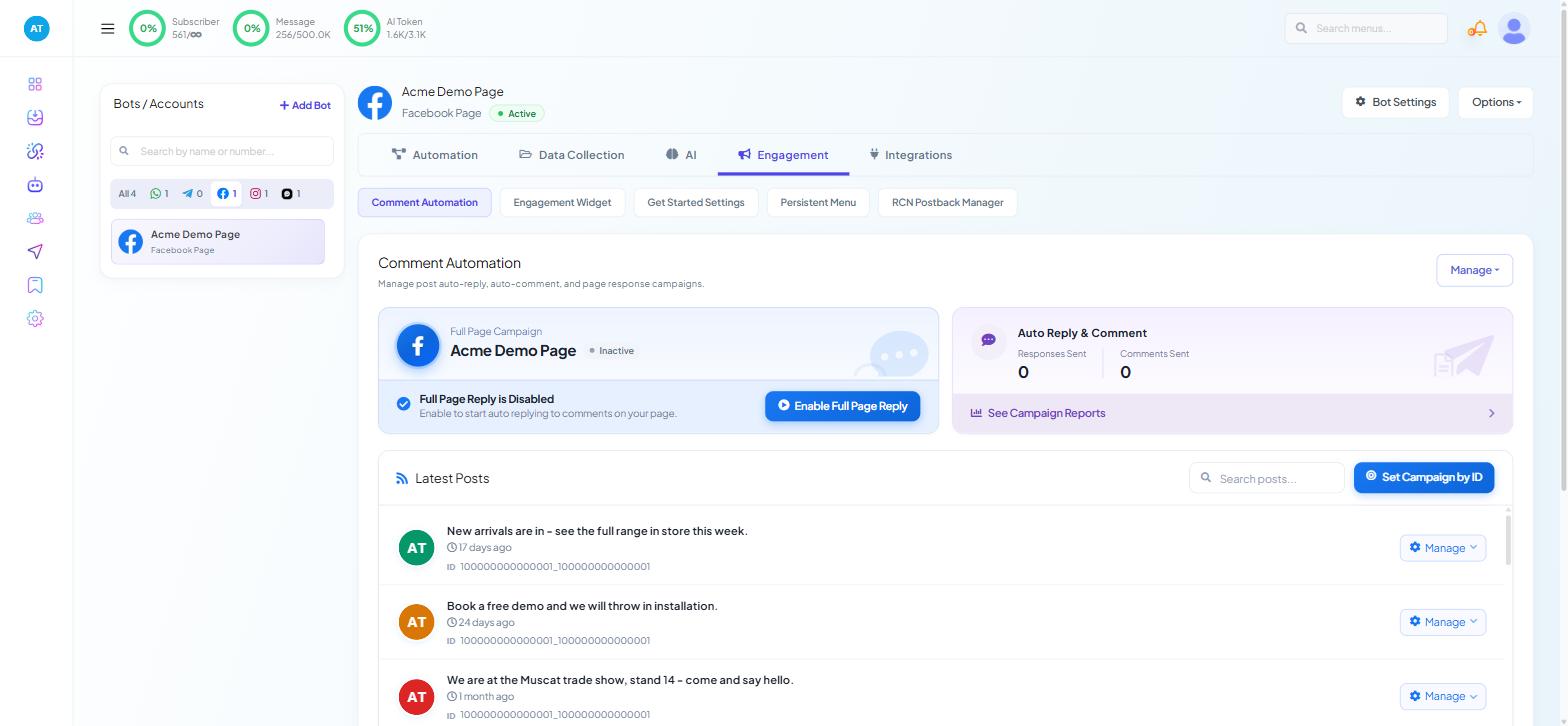
Go to Engagement → Comment Automation. The page-wide controls sit alongside the post list rather than inside any single post.
Configure the campaign. This is the same work as configuring a single post — the same three reply modes, the same behaviour toggles, the same moderation list, the same optional private message. Auto-Reply to Comments on Your Posts covers all of them, and Keyword Filters & Offensive-Comment Moderation covers the word lists.
Click Enable Full Page Reply on the Full Page Campaign card. Until you do, the card reads "Full Page Reply is Disabled". It takes effect immediately across the whole Page.
Old posts are included
Turning on page-wide replying does not just cover future posts — comments on posts you published long ago are in scope too.
That is often what you want: there is usually a backlog of unanswered questions under old content. But it means the first hours after you enable it can be busy, and your reply wording has to make sense against content you have forgotten writing.
Two precautions. Write the reply so it works with no context — "Thanks for getting in touch, we've sent you a message" works everywhere; "Your discount code is on its way" does not. And watch the shared inbox for the first day, because if the campaign sends private messages you have just opened a lot of conversations at once.
Choosing the reply mode for a whole account
Generic is the safest and most common choice at page level. One short, neutral acknowledgement plus a private message that does the real work. It cannot say anything wrong because it barely says anything.
AI is the most useful and needs the tightest brief. The training context is now answering on behalf of your entire page, on posts of every kind, so it must state what the business does, the tone, and — critically — that it should invite a direct message rather than guess. Keep prices and dates out of it entirely.
Filtered keyword works at page level for a small set of universal questions: hours, location, how to order. Keep the list short. A forty-rule filter applied to every post you have ever published will fire in places you did not imagine.
Page-wide replying and auto-commenting are separate features and they interact — see Auto-Comment on Your Posts.
Watching it work
Page-wide automation is the one comment feature you should not set and forget, because it affects every post.
Check three things in the first week. What is actually being replied to — pull up a few recent posts and read the threads as a visitor would. What is being hidden — an over-broad moderation word will quietly remove legitimate comments, and the only symptom is that your posts look unpopular. What is arriving in the inbox — if private replies are switched on, someone has to answer the ones that reply back. Live Chat and the Shared Inbox covers assigning them.
The campaign report
The reporting for a page-wide campaign lives behind the Campaign Report action on the campaign row — the eye icon. It opens as a second table underneath the campaign list, and it is empty until you click that icon, so a blank report screen usually just means you have not drilled in yet.
Each row is one comment the campaign acted on: the commenter's name, the comment text, the reply that was posted, the time, and then two separate status columns — one for the public comment reply, one for the private reply.
That separation matters more than anything else on the screen. The two legs succeed and fail independently. If you judge a campaign by whether replies appeared under your posts, you will not notice the private replies quietly falling over.
When a private reply fails, the reason appears in the last column. Two are common:
Error | What it means |
|---|---|
| The platform refused the DM — usually because the comment is outside the window in which a private reply is allowed, or because one has already been sent to that comment. |
| A generic platform rejection. Check the template the campaign is sending. |
Two things to know before you read the numbers. Rows can lag a minute behind; refresh before assuming a miss. And if you are looking at the per-post report while running a page-wide campaign, it reads as empty — the activity is recorded against the account campaign, not the post. An empty per-post report is not a broken automation.
Turning it off
You can disable a page-wide campaign at any time from the same place you enabled it, and it stops immediately. Comments already replied to stay replied to; comments already hidden stay hidden until you unhide them on the platform itself.
If something has gone wrong, disable first and diagnose afterwards. The cost of a paused campaign is a few unanswered comments.
What to do next
The conversations this creates land in the shared inbox — Live Chat and the Shared Inbox covers assigning them. To sort people with one qualifying question before a person takes over, see Auto-Reply to Comments on Your Posts.