
Scheduling Social Posts: Multimedia, CTA & Carousel
Schedule Facebook and Instagram posts from Scope Wiser: the three post types under Social Posting, what each one supports, and how to attach an auto-reply template.
Open Social Posting in the sidebar. (Missing? Your role needs SOCIAL POSTING under Control Panel → User Permission.)
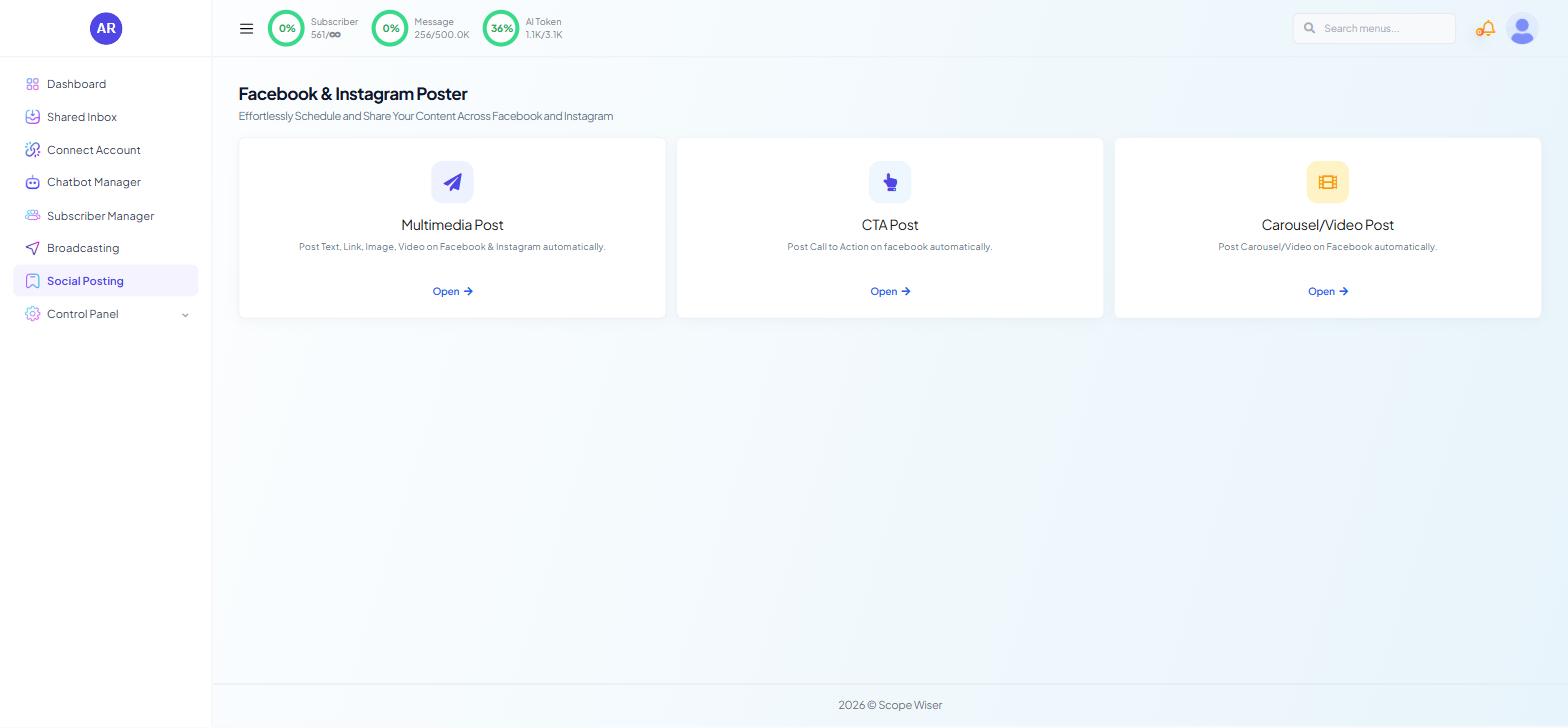
You land on a page headed Facebook & Instagram Poster — "Effortlessly Schedule and Share Your Content Across Facebook and Instagram" — offering three cards, each with an Open → link:
Multimedia Post — "Post Text, Link, Image, Video on Facebook & Instagram automatically."
CTA Post — "Post Call to Action on facebook automatically."
Carousel/Video Post — "Post Carousel/Video on Facebook automatically."
The three are not variations on one composer. They produce different objects on the platform, and only one of them reaches Instagram.
Multimedia Post | CTA Post | Carousel/Video Post | |
|---|---|---|---|
Yes | Yes | Yes | |
Yes, via a toggle | No | No | |
Content | Text, link, image, carousel, video | A link with a call-to-action button | Multi-slide carousel or video slideshow |
Media upload | Yes | No — link only | Yes, per slide |
If a post needs to appear on Instagram, it has to be a Multimedia Post.
Multimedia Post
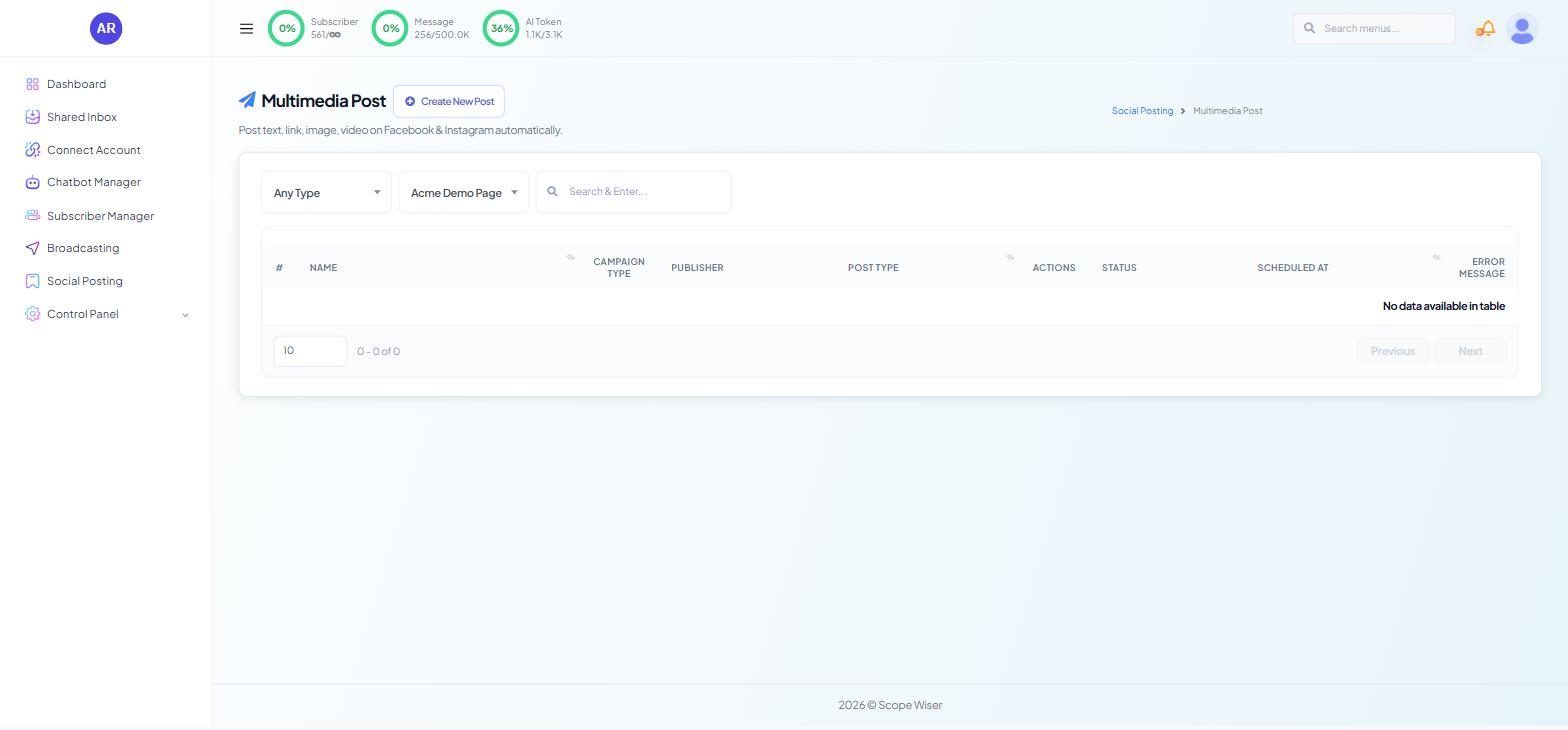
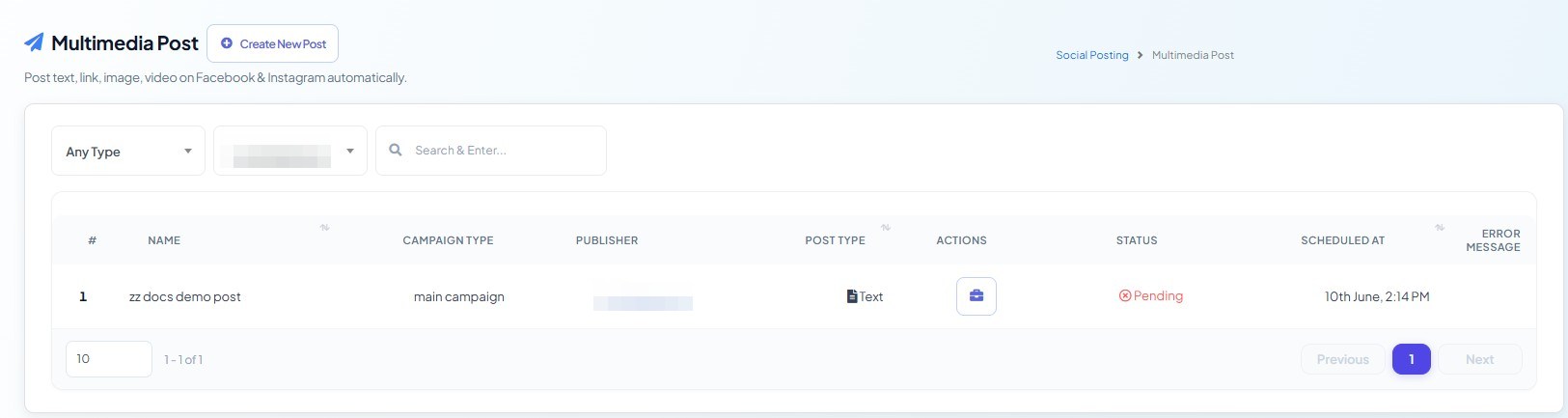
Social Posting → Multimedia Post opens a list filtered by Any Type and ALL Pages, with a Search & Enter... box. The table columns are #, NAME, CAMPAIGN TYPE, PUBLISHER, POST TYPE, ACTIONS, STATUS, SCHEDULED AT and ERROR MESSAGE. That last column is the one to look at when a post did not appear.
Click Create New Post to open Multimedia Post Create. The screen is three columns: page picker on the left, composer in the middle, live preview on the right.
Pick the content type. Four tabs across the top of the composer: Text, Link, Image/Carousel and Video. Choose before you write — switching tabs changes which fields are available.
Choose the page. The left column lists your connected pages with a Search pages…… box above them.
Select Auto Reply Template. Pick the auto-reply template that should answer comments on this post (create one first in Auto-Reply to Comments on Your Posts). This is the field most people skip, and it is the reason to compose posts here rather than natively.
Name the campaign. The CAMPAIGN NAME field is how you will find this post in the list later. It is not shown to anyone on Facebook.
Write the post. The TEXT area — placeholder "Type your message here..." — with an emoji picker beside it. The preview panel updates as you type.
Decide when. POSTING TIME carries a POST NOW toggle, on by default. Leave it on to publish immediately; turn it off to schedule.
Add Instagram if you want it. The INSTAGRAM toggle sits at the top of the preview panel and is off by default. Turning it on publishes the same content to the connected Instagram account as well.
Click Submit. You are returned to the list, where the post appears with its status.
Which content type to choose
Text is for announcements and questions — the posts that get replies rather than clicks.
Link attaches a URL and lets Facebook build the preview card. Use it when the click is the point.
Image/Carousel is the workhorse. This is a native Instagram-compatible carousel of images, which is a different thing from the Carousel/Video Post type — that one builds a Facebook link carousel with a separate destination per slide.
Video uploads a video file. Expect processing time between submitting and the post appearing; a status that sits at pending for a few minutes is normal.
CTA Post
A CTA post is a Facebook link post with an action button — Learn More, Sign Up, Book Now and similar — attached to it. It carries no uploaded media; if you want an image, use a Multimedia Post.
Fill in CAMPAIGN NAME.
Write the MESSAGE that introduces the link.
Enter the POST LINK — the address the post and its button point at.
Choose the CTA BUTTON TYPE. Facebook offers a long list: Book Travel, Buy Now, Call Now, Download, Get Directions, Get Quote, Install App, Install Mobile App, Learn More, Like Page, Listen Music, Message Page, No Button, Open Link, Play Game, Shop Now, Sign Up, Subscribe, Use App, Use Mobile App, Watch More and Watch Video.
Pick the page under POST TO PAGES.
Choose an AUTO REPLY TEMPLATE if comments on this post should be answered automatically.
Set POSTING TIME, or tick Post now, then Submit.
A preview panel sits beside the form, under the note "This preview may differ with actual post." Treat it as a rough guide to layout, not to final appearance.
Carousel/Video Post
This is Facebook's swipeable multi-card post, where each card has its own image, title, description and destination link. The same screen also builds a video slideshow, which assembles the images into a video instead.
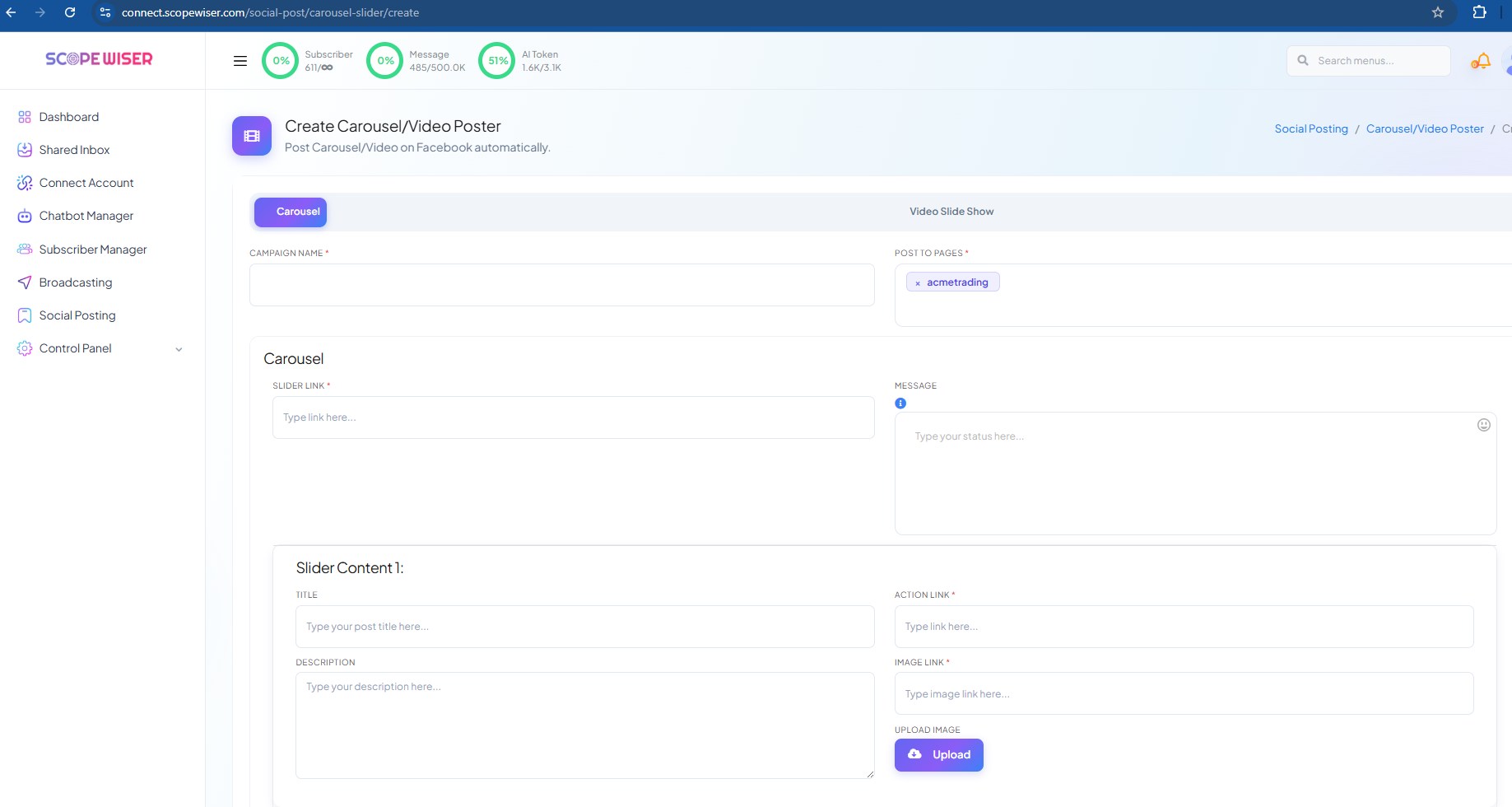
The screen is headed Create Carousel/Video Poster, with two tabs at the top: Carousel and Video Slide Show. Choose the tab before you fill anything in.
Fill in CAMPAIGN NAME.
Choose the page under POST TO PAGES.
Enter the SLIDER LINK — the destination that applies to the whole carousel — and the MESSAGE that appears above it as the post's text.
Fill in Slider Content 1: TITLE, DESCRIPTION, ACTION LINK (where this card goes) and the image, either as an IMAGE LINK or through UPLOAD IMAGE → Upload.
Click Add More Content for each further card.
Set POSTING TIME, or leave Post now on, then click Create Campaign.
The SLIDER LINK and each card's ACTION LINK are not the same field. Confusing them sends everyone to the same page regardless of which card they tapped.
After you submit
Every post lands back in its list with a status. Pending means scheduled and waiting. A failure writes its reason into ERROR MESSAGE, and the three that account for most of them are a disconnected page, a video still processing, and a URL the platform has flagged.
Reconnect a page from Connect Account → Connect Facebook, which opens Facebook Integration — the same page Instagram connects through. A post that failed does not retry itself; recreate it once the connection is healthy.
What to do next
Read Auto-Comment on Your Posts to schedule the follow-up comment that carries your link — posting the URL in a comment rather than in the post keeps the post's reach intact, and the two schedules are worth planning together.