
Auto-Reply to Comments on Your Posts
Set up automatic replies to comments on Facebook and Instagram posts: the three reply modes, when to use AI, and how to pair a public reply with a private message.
Auto-reply answers comments instantly and can open a private chat with the commenter.
This article covers replying to comments other people leave. Posting comments of your own on a schedule is a different feature — see Auto-Comment on Your Posts.
Getting to the settings
Open Chatbot Manager.
Select the Facebook Page or Instagram account in the Bots / Accounts panel.
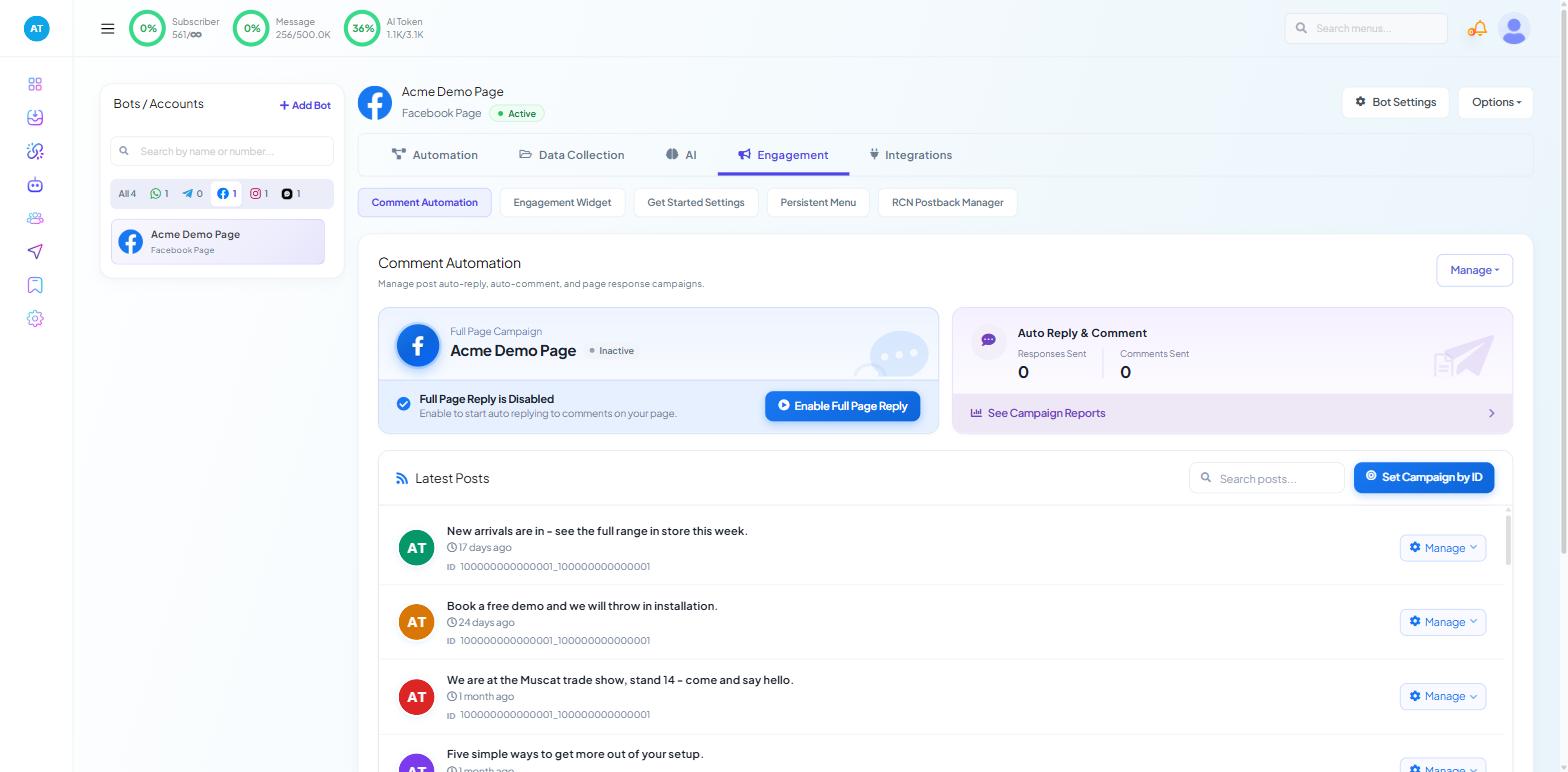
Open the Engagement tab, then Comment Automation. If the sub-tab is not there, you have a WhatsApp or Webchat bot selected — neither has comments.
In the Latest Posts list, click Manage ▾ beside the post and choose Enable auto reply option.
Choose a reply mode first
Everything else on the configuration screen follows from this decision. There are three modes, and you pick one per campaign — they cannot be mixed.
Generic message for all. One fixed reply, sent under every comment regardless of what it says. Fastest to set up, and the right choice for giveaways, contests and announcements, where the comments are all essentially "me" or "🔥". Keep it short and warm, and do not try to answer a question with it, because it will land under comments that asked nothing.
Automated reply by AI. Scope Wiser reads the comment and writes a reply in context. You supply the training context — a short brief describing who the bot is and how it should behave, along the lines of "You are a support agent for Acme Trading. Be polite, helpful and brief. If you do not know an answer, invite the person to message us." Use this where comments genuinely vary: product questions, availability, delivery, opening hours.
Filtered keyword reply. You list words or phrases and give each one its own reply, with an optional image or video attached, plus a fallback for comments that match nothing. This is the most controllable mode and the one to use when the answers are facts — prices, sizes, shipping zones. It has its own article: Keyword Filters & Offensive-Comment Moderation.
The rule of thumb: generic for campaigns, keyword for facts, AI for support.
The rest of the configuration
The form is headed "Please give the following information for post auto reply". Its switches are worded as questions:
Do you want to send reply message to a user multiple times? Usually best left off. A regular customer who comments on five posts in a week does not need five identical public replies. Turn it on for the giveaway case, where multiple entries are the point.
Do you want to enable comment reply? This is the public reply under the comment. Leave it on unless you only want the private message.
Do you want to hide comments after comment reply? Useful in one situation: a comment containing a customer's phone number or order details that they should not have posted in public. Answer it, then hide it. As a general setting it makes your post look like nobody engaged with it.
Offensive-comment handling. A word list plus an action — hide or delete — and an optional private message to the person. Hiding is the calmer option: the commenter still sees their own comment, and nobody else does. Deleting is visible to them and tends to escalate.
Campaign name. Name it after the post and the intent — "Autumn launch — price replies" — not "Facebook comment reply". You will have a dozen of these within a few months.
When it runs. Three time fields decide the window: Campaign Start time, Campaign End time, and Comment Between Time, which limits replies to a range within each day. Leave them empty and the campaign answers whenever a comment arrives; set them when you only want to answer during business hours, or only while an offer is live.
Add a private message
In the same configuration, set the Private message template — the message the commenter receives in their inbox.
Write the public reply so it makes sense to a bystander, and the private one so it makes sense to the individual. They are different audiences.
Meta lets a page send a direct message to someone who has commented. With both set, the sequence becomes: the person comments, everyone sees a polite public answer, and the person themselves gets a message where you can ask a qualifying question, send a catalogue, or take an order.
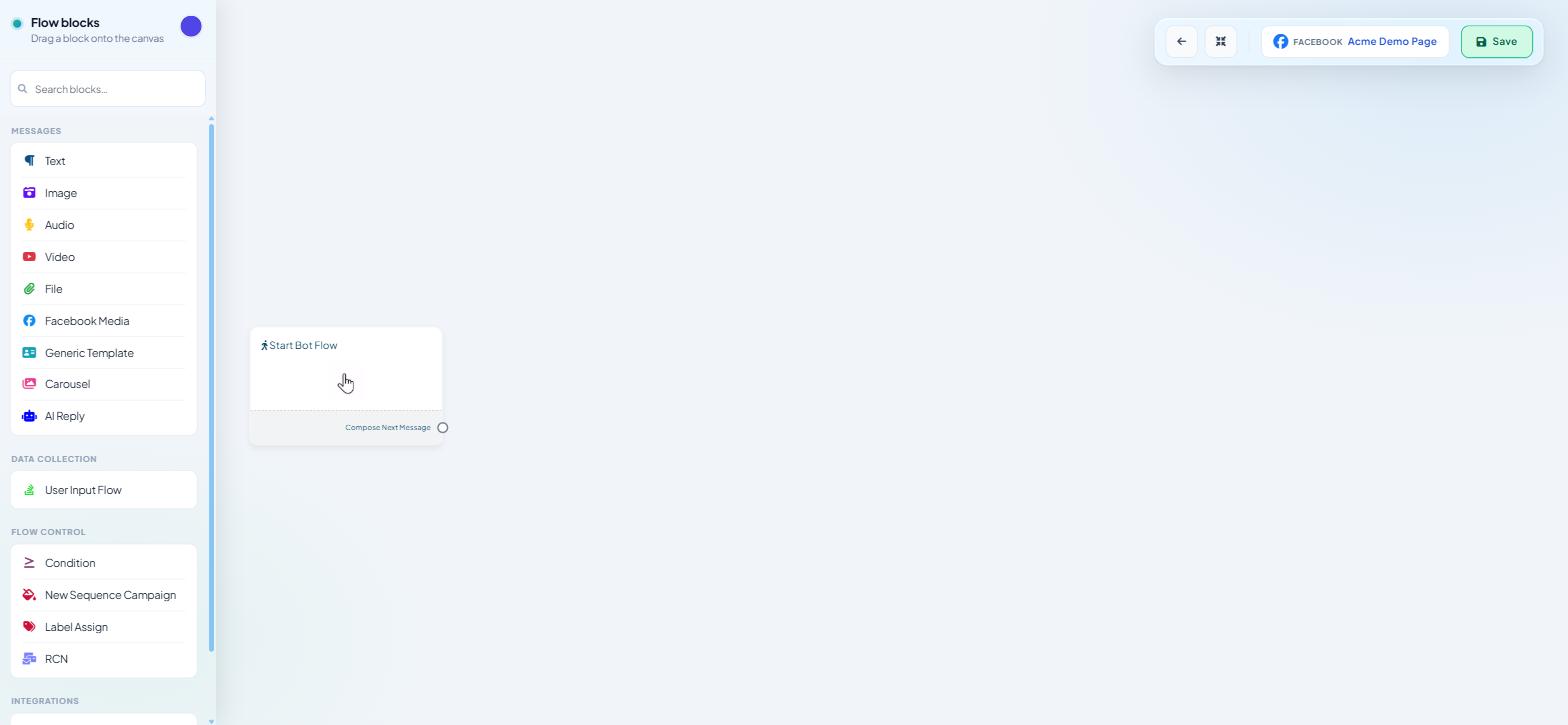
That private message is a bot message, built in the Flow Builder; its buttons come from Generic Template or Carousel.
The public reply and the DM are reported separately; check the private-reply column in the campaign report (see Page-Wide Comment Automation).
A pattern worth copying: make the public reply mention the commenter and point at the DM — "Hi @name, I've sent you a message" — so the person knows to look, and bystanders see that a real answer exists without it being posted publicly.
Instagram example: comment-to-DM
Publish a post that asks for a specific word in the comments — a guide, a discount or a price list in exchange for typing STYLE or PRICE. Then:
Go to Chatbot Manager → your Instagram account → Engagement → Comment Automation.
Click Manage ▾ beside that post in Latest Posts and choose Enable auto reply. The same menu also carries Enable auto comment, Latest comments and Leave a comment now.
Choose the filtered keyword reply mode and set the trigger word.
Write a short public reply, so bystanders see the account is alive.
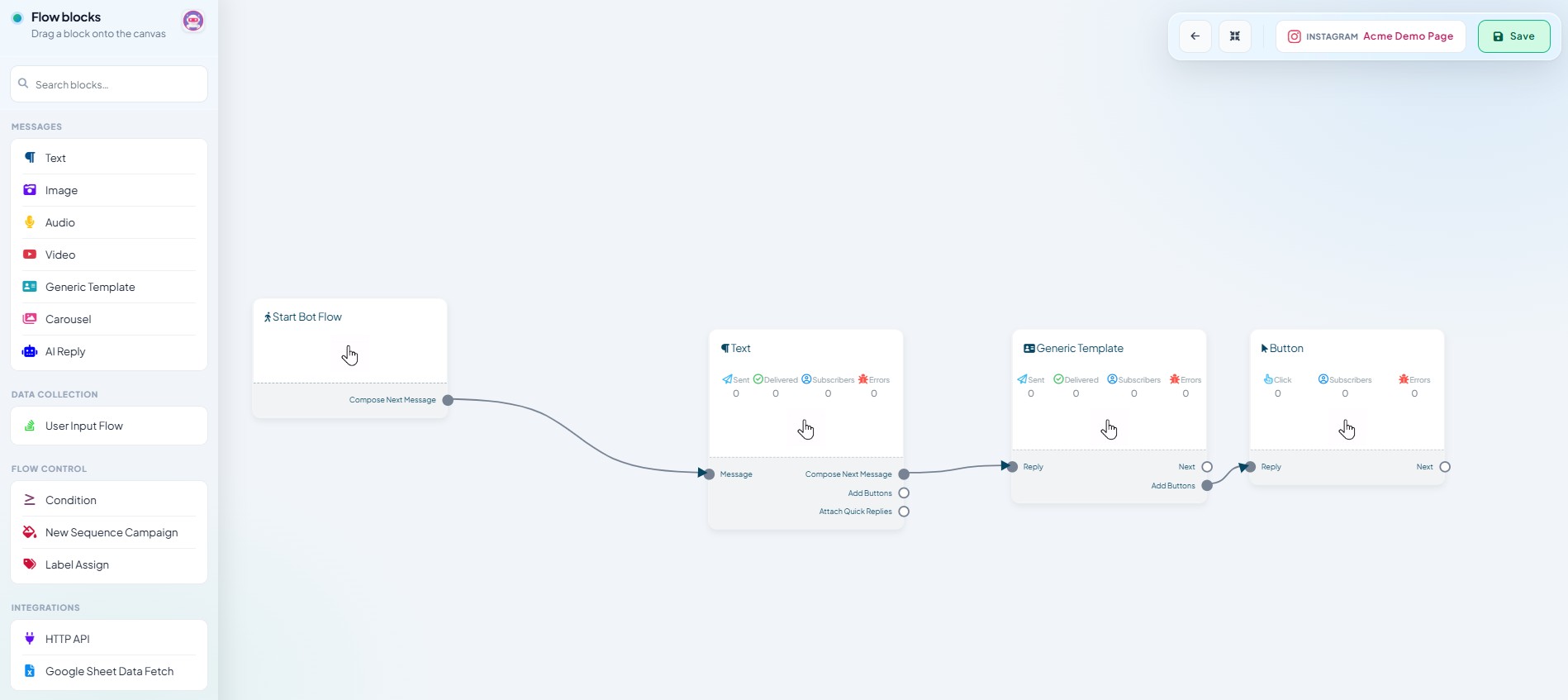
Build the private message: a Text block that delivers what they asked for, then a Generic Template with two buttons — one to see more, one to talk to a person.
The post has to state the trigger word plainly, or nothing fires.
Ask one qualifying question
After the comment-to-DM message, ask one question with a Generic Template carrying three buttons: what they want, which budget band, or which product line. Branch on the answer with a Condition block, then tag them with Label Assign — that turns every conversation into a segment you can broadcast to later.
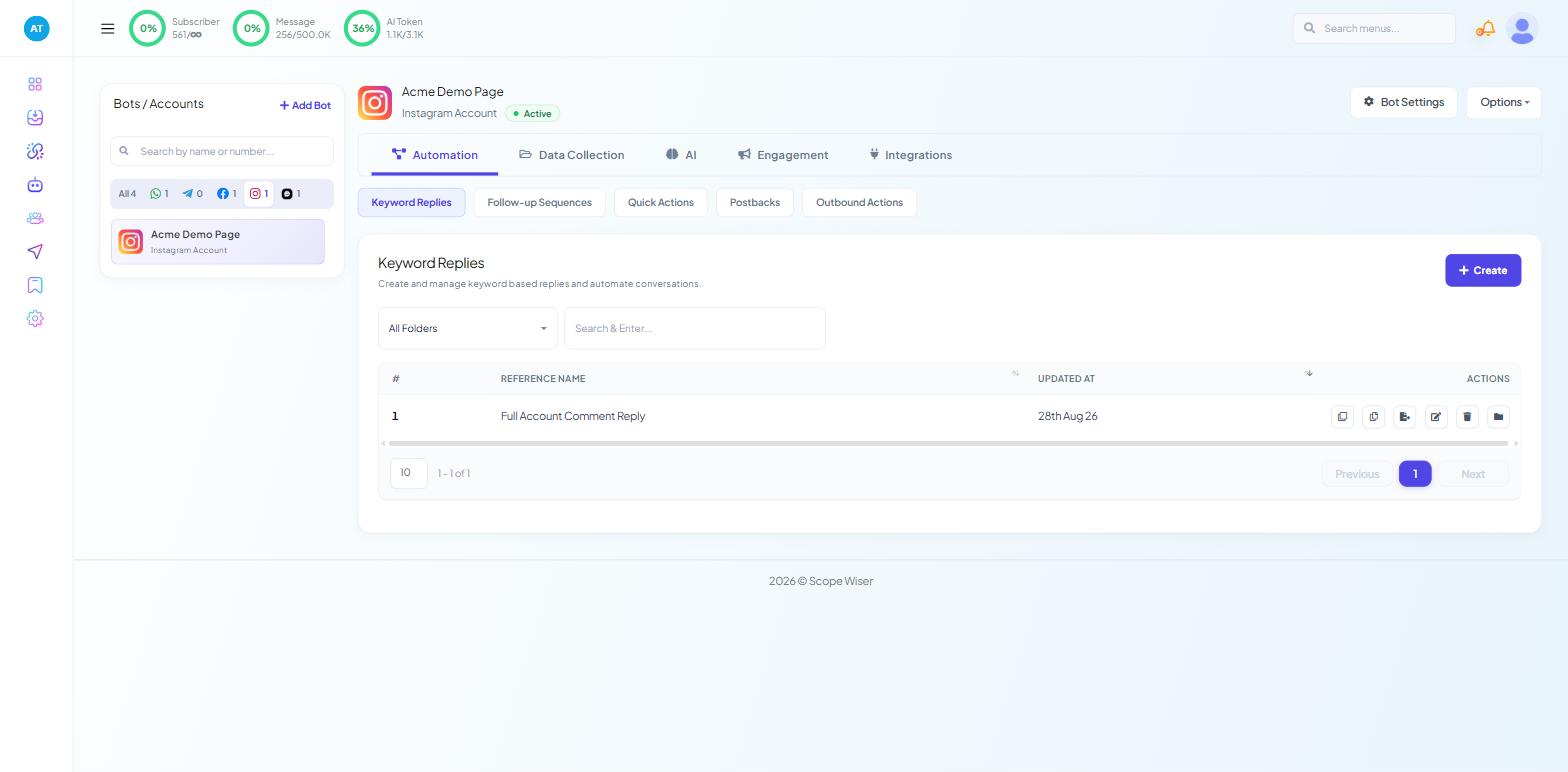
The same flow can be started from a keyword instead, under Chatbot Manager → Automation → Keyword Replies.
Keep it to one question, two at most. Every extra question loses people.
Training an AI reply that behaves
If you choose the AI mode, the training context is the whole product. A vague brief produces a chirpy assistant that invents delivery times.
Put three things in it, always: who the business is and what it sells; the tone you want, in one clause; and an explicit instruction on what to do when it does not know — which should be to invite a direct message, never to guess. If you sell in a specific market, say so, or you will get replies quoting the wrong currency.
Keep prices, stock levels and dates out of the training context. Anything that changes weekly belongs in a keyword-filtered reply, where you can edit it in one place.
When it goes wrong
Nothing replies at all. The campaign is attached to a different post from the one you are testing on, or the automation was never enabled for that post. Check both before suspecting the reply itself.
The public reply fires but no private message arrives. The person has never messaged your page and Meta's window for a comment-triggered message has passed, or no private template was selected on the campaign.
The same person gets replied to repeatedly. The multiple-replies toggle is on.
AI replies are confidently wrong. The training context is too thin. Add the missing facts, or move that class of question to a keyword reply.
Replies land on comments you would rather ignore. Add the words to the moderation list so those comments are hidden before a reply is generated.
What to do next
Read Keyword Filters & Offensive-Comment Moderation to get precise answers for the questions that repeat, and Page-Wide Comment Automation when a per-post setup starts to feel like admin.