
Comment Automation: How It Works on Facebook & Instagram
Where Comment Automation lives in Scope Wiser, what it can and cannot do on each platform, and how public replies, private replies and auto-comments differ.
Comment Automation watches the comments on your Facebook and Instagram posts. It can reply publicly under a comment, message the commenter privately, post comments of your own on a schedule, and hide or delete comments containing words you list.
Where it lives
Comment Automation is per bot, not global.
Open Chatbot Manager from the sidebar.
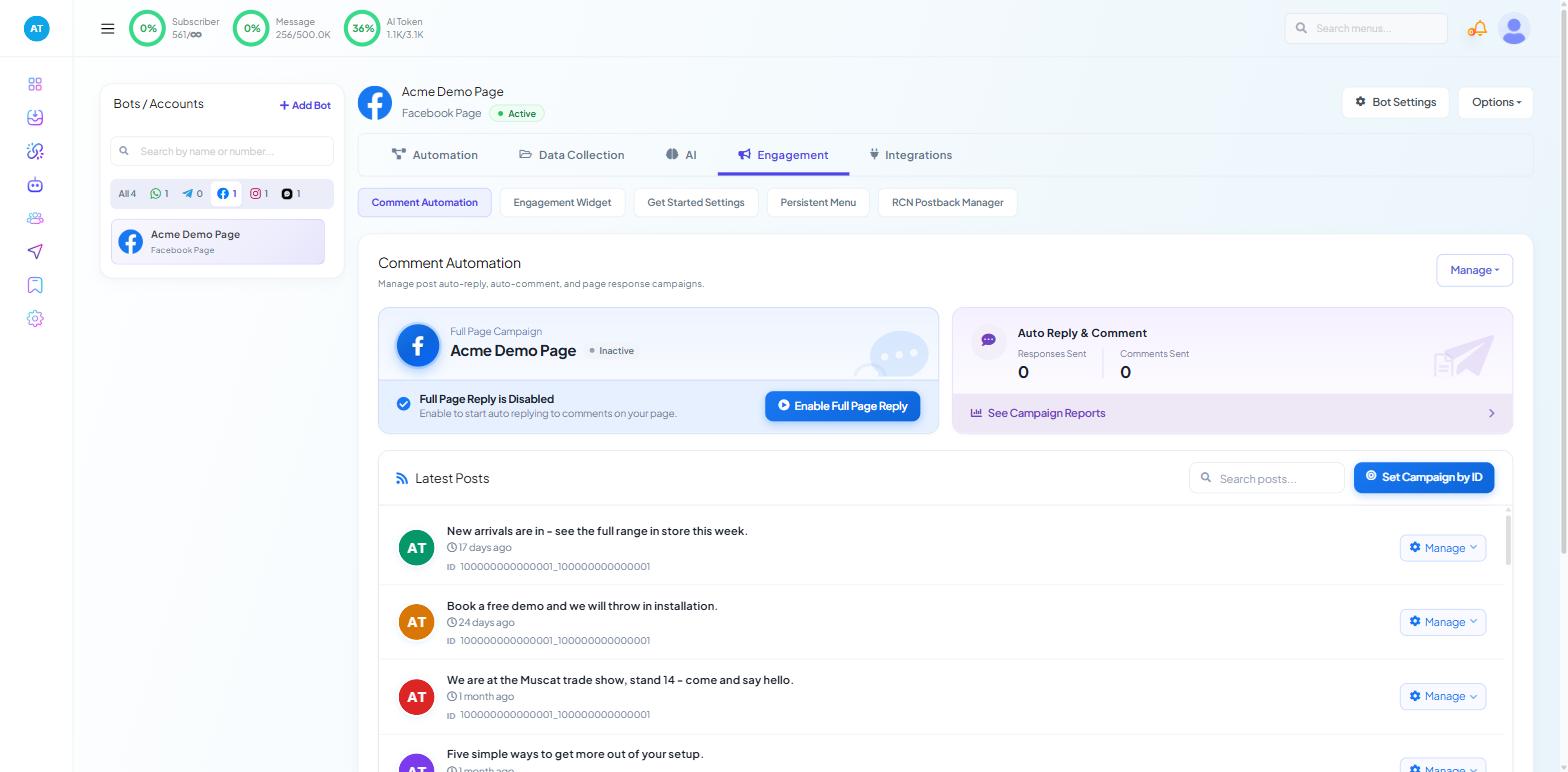
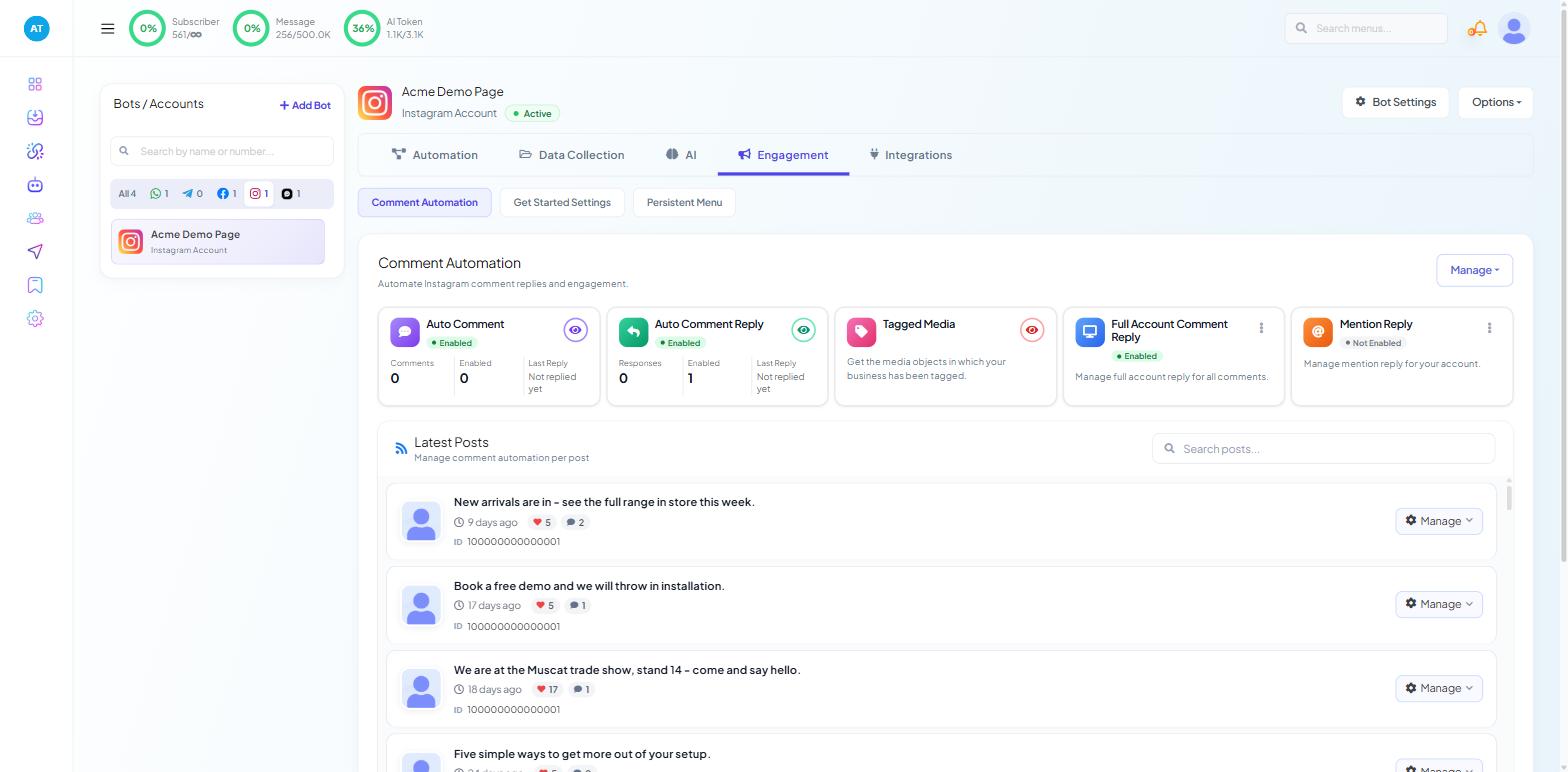
Pick the Facebook Page or Instagram account in the Bots / Accounts panel on the left. The channel filter chips above the list make that quicker when you run several.
Open the Engagement tab.
Channel | Engagement sub-tabs |
|---|---|
Comment Automation · Engagement Widget · Get Started Settings · Persistent Menu · RCN Postback Manager | |
Comment Automation · Get Started Settings · Persistent Menu | |
Chat Entry only — no Comment Automation | |
Webchat | Get Started Settings · Persistent Menu — no Comment Automation |
WhatsApp and Webchat bots have no Comment Automation; Instagram has no Engagement Widget or RCN. If you cannot find the tab, check which bot is selected first.
If the tab is missing on a team login, your role needs COMMENT AUTOMATION under Control Panel → User Permission.
The four things it does
Public reply — a reply posted under the visitor's comment, where everyone can see it.
Private reply — a direct message to the commenter. Meta allows this only in response to a comment, and only inside its own window.
Auto comment — a comment from your own page on your own post, at a time you set. It is not a reply to anybody.
Moderation — hides or deletes comments containing words on a list you write. Hiding leaves the comment visible to the person who wrote it and invisible to everyone else.
Private replies are built in the Flow Builder; buttons come from Generic Template or Carousel.
The first three have their own articles: Auto-Reply to Comments on Your Posts, Auto-Comment on Your Posts, and, for moderation, Keyword Filters & Offensive-Comment Moderation.
Per-post or per-page
Automation can be attached to one specific post or to the whole account.
Attach it to one post when you are running a campaign — a launch, a giveaway, a single Reel — so the reply wording can be specific to that post.
Attach it to the whole page when the behaviour should be the same everywhere, such as answering every commenter politely and routing them to the inbox.
Page-Wide Comment Automation covers the second case, including when it is the wrong choice.
Before you turn anything on
Connect the account properly. Facebook Pages and Instagram messaging accounts both connect through the same page — Connect Account → Connect Facebook or Connect Instagram, both of which open Facebook Integration. An Instagram account has to be a professional account linked to a Page, and it has to appear under the Instagram tab of a connected profile there.
Decide what the automation is for. Acknowledgement, answering, or capture. Each wants different wording, and trying to do all three in one reply produces something that does none of them.
Test on a post nobody is looking at. Publish something ordinary, comment on it yourself from a second account, and watch what happens.
What to do next
Start with Auto-Reply to Comments on Your Posts — it introduces the three reply modes (generic, AI and keyword-filtered) that the other articles build on. If your goal is reach rather than response, read Auto-Comment on Your Posts instead.