
Conditions, Triggers & Branching Logic in Flow Builder
How a Scope Wiser flow starts, and how to send people down different paths with the Condition block. A worked example that asks a question, stores the answer and branches on it.
This article shows how a flow starts and how to send people down different paths.
Triggers decide whether a flow starts at all. Conditions decide where a running flow goes next.
How a flow starts
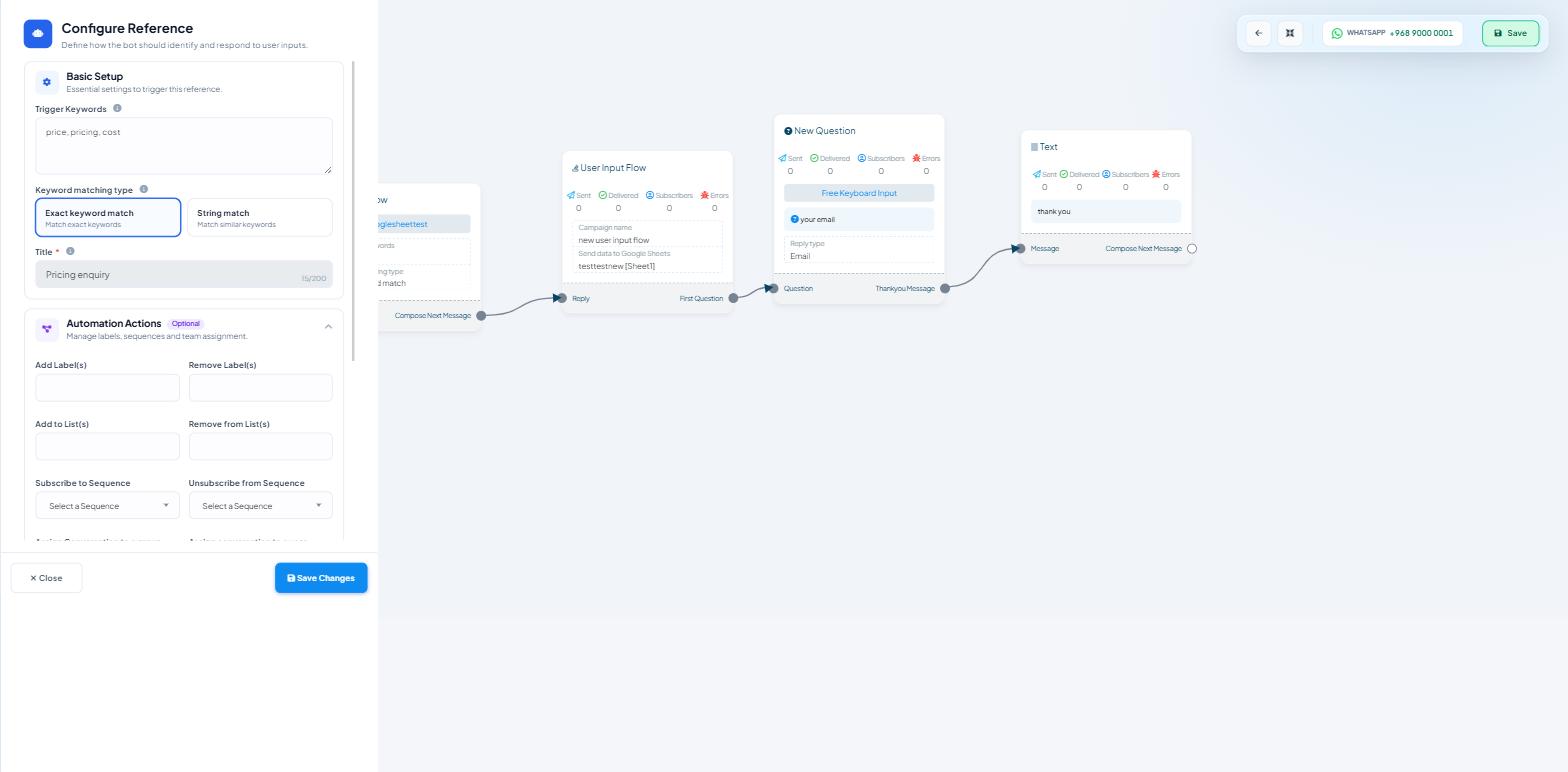
Set the trigger keyword and matching type on the Start Bot Flow node — see Introduction to Flow Builder: How Scope Wiser Flows Are Built.
Flows also start from Quick Actions, Follow-up Sequences, User Input Flows, Chat Entry and Broadcast campaigns — same canvas, different first node.
Set up the Get-started and No Match quick actions before anything else. No Match is the safety net for every message your keywords do not catch.
Branching with the Condition block
Condition sits under FLOW CONTROL in the palette and is on every channel. Drag it onto the canvas, or pull a line out of the previous block's port and choose Condition from the menu.
One Condition block can hold several rules (if / else if / else), so a three-way split needs one block, not three. A rule can check a system field (first name, last name, gender), a custom field you filled earlier in the flow, or a value another system returned.
To set it up:
Click the Condition block.
Add a rule: choose the field to check and the value it must match.
Click Save Changes.
The block has two output ports, True and False. Connect a block to each.
A worked example: qualify, then split
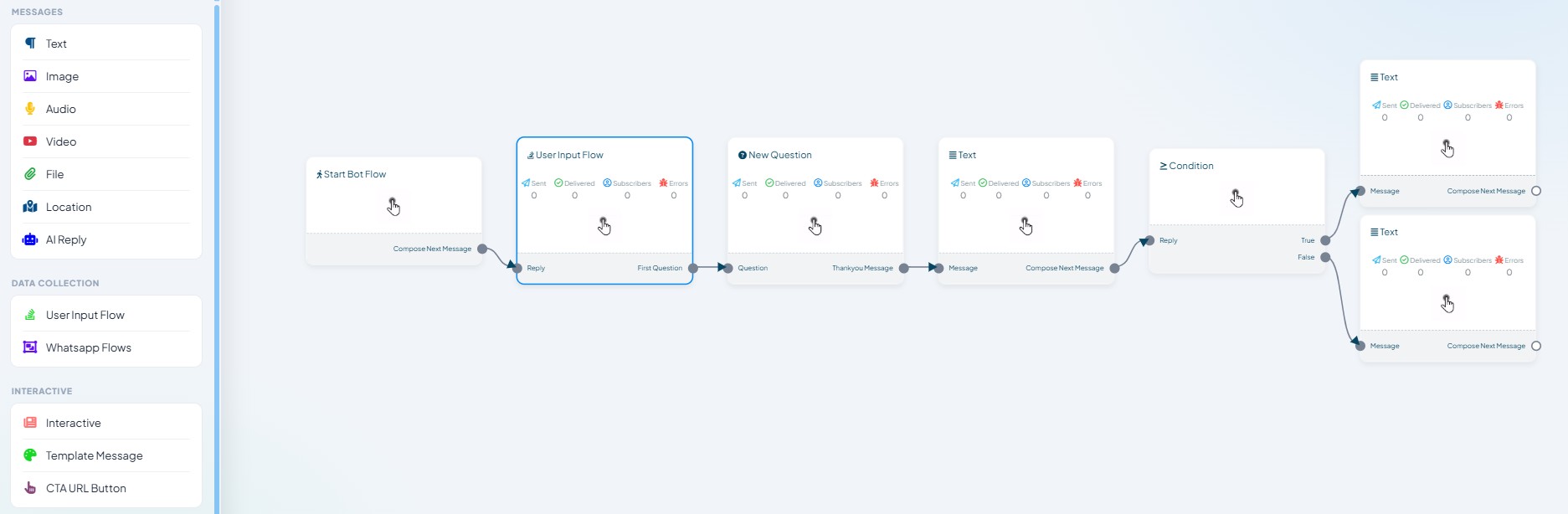
This is the pattern you will reuse most. It asks a question, stores the answer and branches on it.
Set the trigger. Click Start Bot Flow, set Trigger Keywords to a single word your audience would not send by accident, keep Exact keyword match, and give it a Title such as
Customer check. Click Save Changes.Ask the question. Drag User Input Flow from DATA COLLECTION onto the canvas and connect it. Its panel is headed Configure User-Input-Flow. Pick a campaign from the User input flow dropdown, or build one first under Chatbot Manager → Data Collection → User Input Flows. The same panel can Add Label(s), Remove Label(s), Add to List(s) and Remove from List(s), and can send the answers out through Forward Data to Webhook or Sync Data to Google Sheets.
Acknowledge the answer. Drag a line out of the node's First Question port. This creates a New Question node. Build the question there, then connect a Text block to that question's Thankyou Message port with something short — "Thanks, one moment." Under Delivery Options you can set Delay in reply and switch on Typing on display so the reply does not land in the same instant as the question.
Branch. Connect a Condition block and check the field the input flow just filled.
Give both outcomes somewhere to go. Connect a Text block to the True port and another to the False port. The False path matters most: it runs when someone answers in a way you did not expect, and an unconnected False port leaves that person with silence.
The rest of Flow Control
Label Assign adds a subscriber label mid-flow, so everyone who reached that branch can be filtered in Subscriber Manager later. Not on Webchat.
New Sequence Campaign starts a timed series of messages that continues after the conversation ends. Give it a Sequence Campaign Name; it adds three Send Message After nodes to the canvas. Tick Allow re-entry only after completion if someone should be able to go through the sequence again once it has finished. Not on Webchat.
Random Number Generator splits people at random, for testing two versions of a message. WhatsApp only.
RCN lets a Messenger customer agree to receive regular updates from you. Facebook only — see Media Blocks: Images, Files, Cards and Carousels.
Testing, and the mistakes that cost most time
Send the trigger word from a real phone on the connected channel. Judge the test by what arrives on the phone.
Three failures account for most of the debugging:
Nothing fires at all. Check the trigger keyword and matching type first. Exact matching will not catch "hi there" when the keyword is
hi.The wrong flow fires. Two flows share an overlapping keyword, and a broad string match on one is catching the other's traffic. Keyword Replies lists every flow for the bot — check for collisions there.
The branch never resolves. The condition is reading a field that was never filled, usually because the input flow ran later than you thought, or saved to a different field.
Then save twice. Save Changes saves the panel you are in; the blue Save in the top-right toolbar saves the flow.
What to do next
Quick Replies, Buttons & CTA URLs is the natural next step — branching on a tap is more reliable than branching on typed text, because you chose the answers.