
Media Blocks: Images, Files, Cards and Carousels
Which media and card blocks each channel gives you in Scope Wiser Flow Builder, and how to add buttons to a Generic Template or Carousel card on Facebook, Instagram and Webchat.
This article shows which picture, file and card blocks each channel gives you, and how to set up cards with buttons on Facebook, Instagram and Webchat.
What each channel gives you
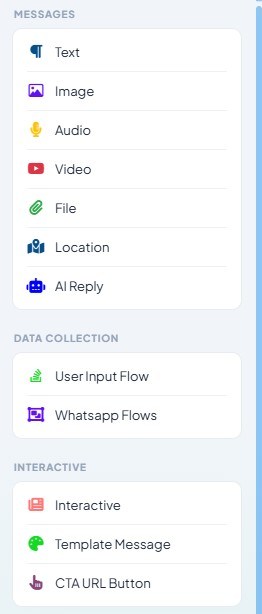
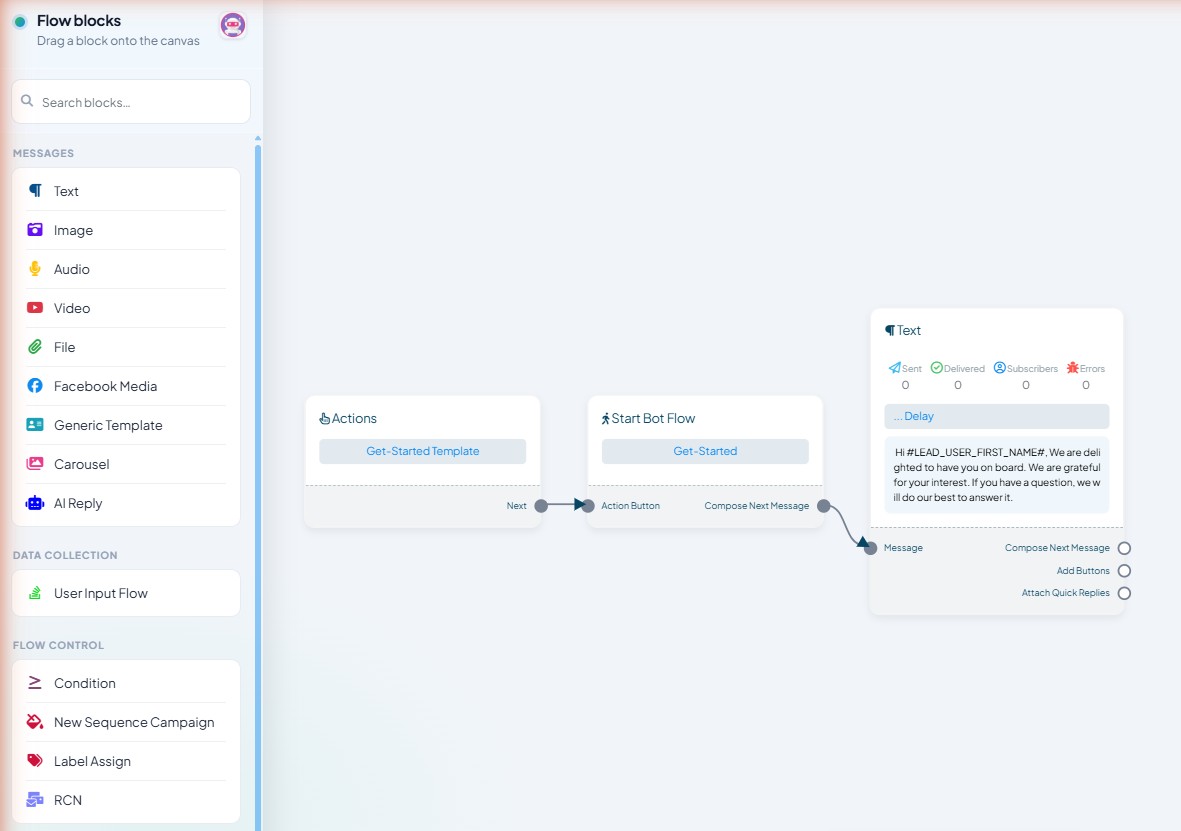
Open Flow Builder on a bot and look at the MESSAGES group in the palette. The list depends on the channel.
Block | Webchat | |||
|---|---|---|---|---|
Text | Yes | Yes | Yes | Yes |
Image | Yes | Yes | Yes | Yes |
Audio | Yes | Yes | Yes | Yes |
Video | Yes | Yes | Yes | Yes |
File | Yes | Yes | — | Yes |
Location | Yes | — | — | — |
Facebook Media | — | Yes | — | — |
Generic Template | — | Yes | Yes | Yes |
Carousel | — | Yes | Yes | Yes |
AI Reply | Yes | Yes | Yes | Yes |
Facebook, Instagram and Webchat have Generic Template and Carousel for cards. WhatsApp has neither; its messages with buttons come from the Interactive block in the INTERACTIVE group instead. A flow designed on Facebook does not move to WhatsApp block for block, so check the palette before you build.
The simple media blocks
Image sends one picture, with or without text.
Audio sends a voice note.
Video sends a clip.
File sends a document such as a PDF price list. It is not on Instagram, so link to the document from a Text block there.
Location (WhatsApp only) sends a location, and pairs with the location a customer shares from their phone.
Click a block to open its panel, fill in the required section, then click Save Changes.
Two habits pay off. Compress images before uploading, because a heavy image is slow to arrive on a phone. Give files sensible names, because the file name is what the customer sees.
Cards on WhatsApp: the Interactive block
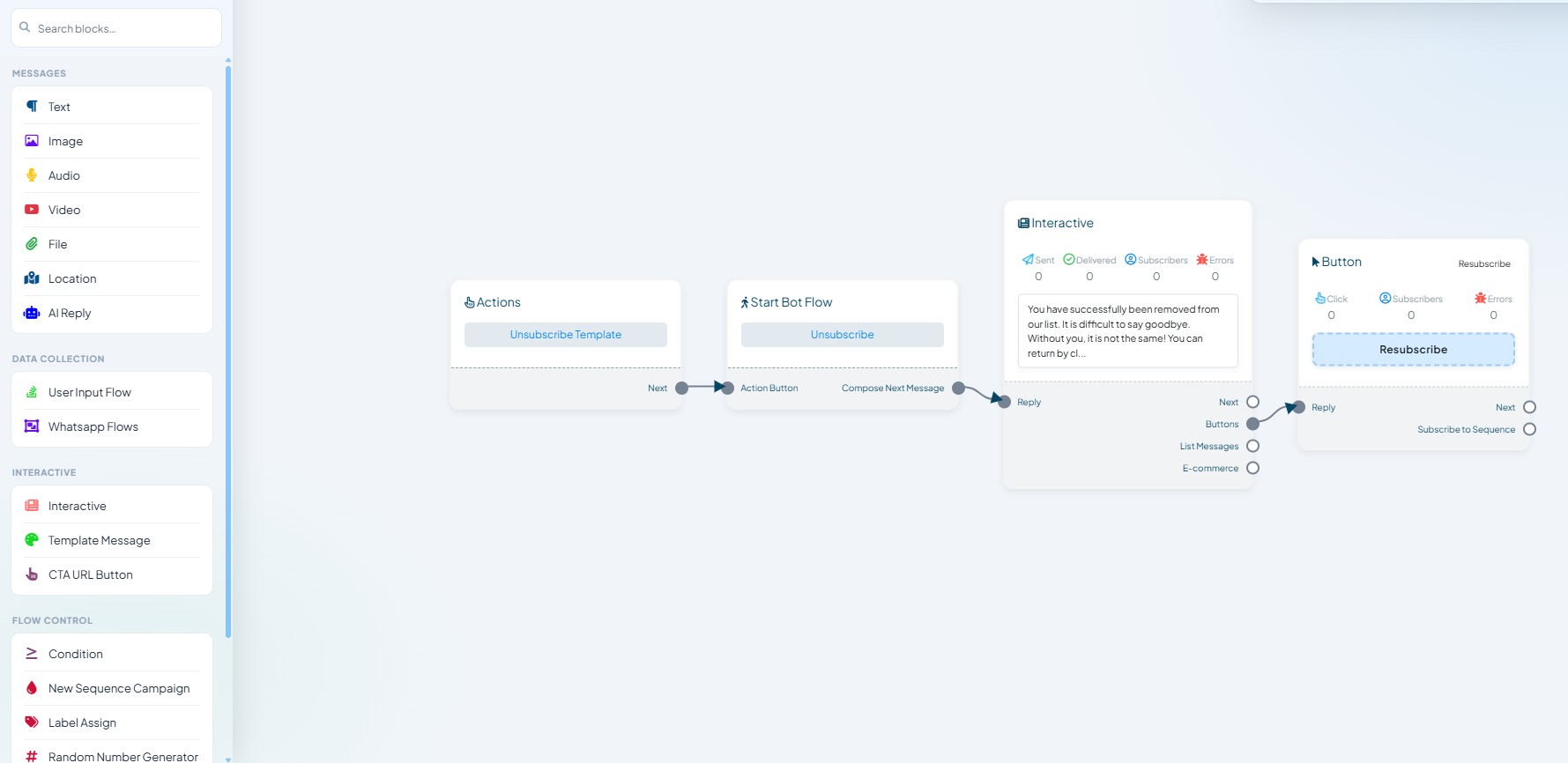
The Interactive block carries WhatsApp's messages with buttons and lists. It has one input port, Reply, and four output ports: Next, Buttons, List Messages and E-commerce. Buttons and list rows are built from those ports, not inside the block's own panel — Quick Replies, Buttons & CTA URLs shows how.
Cards on Facebook, Instagram and Webchat
Generic Template sends one card — an image, a title and buttons beneath it. Use it for one clear offer where you want one obvious action.
Carousel sends several cards side by side, each with its own image, title and buttons. Use it when the choice is between things of the same kind: three products, three plans, three appointment slots.
Facebook Media (Facebook only) shows an existing post from your Page inside the conversation, with its likes and comments intact.
Adding buttons to a card
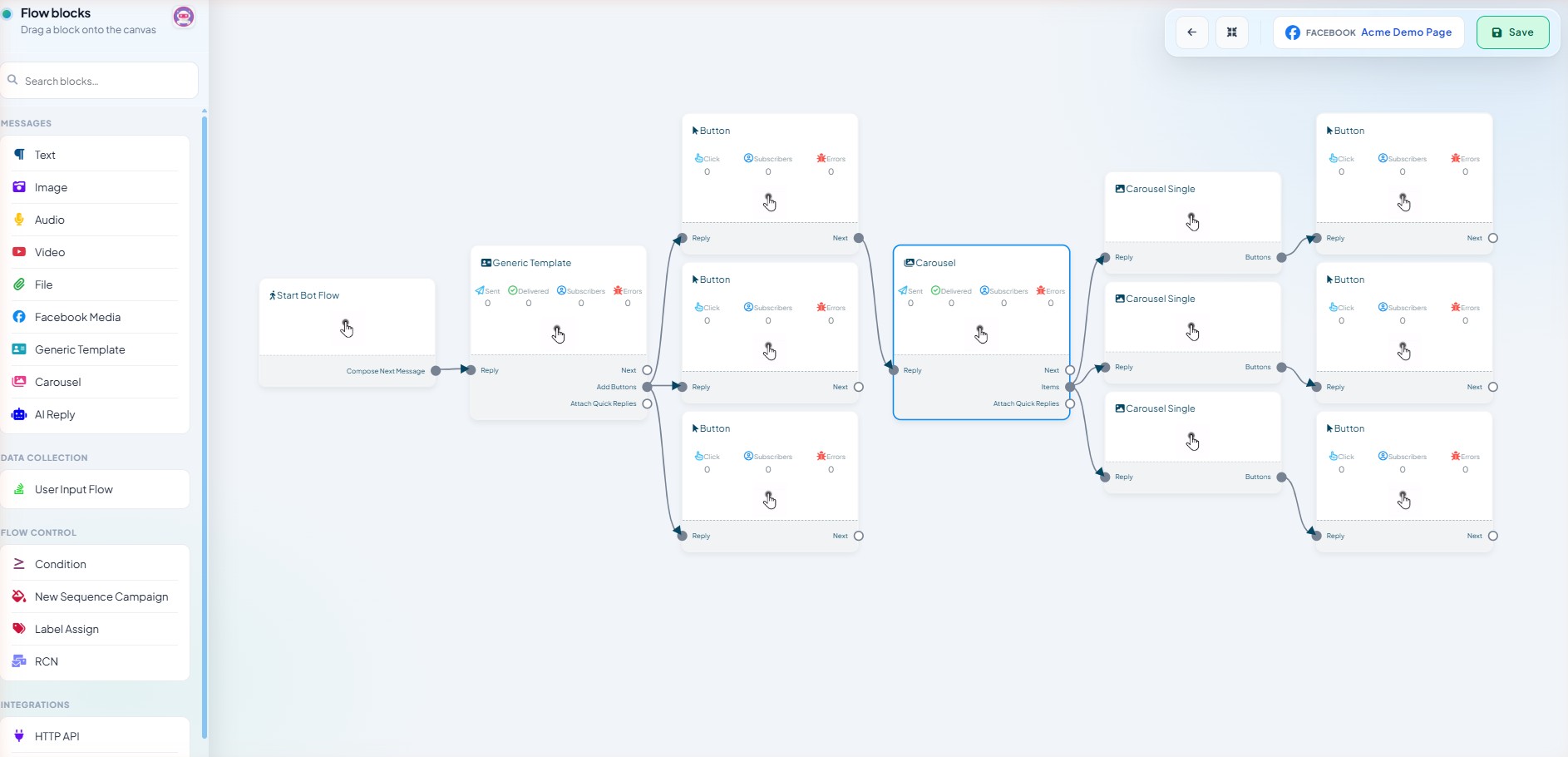
Drag Generic Template onto the canvas. It arrives with one Button node already connected.
For a second or third button, drag a line out of the template's Add Buttons port onto empty canvas. Each drag creates another Button node.
Drag Carousel onto the canvas and it arrives with three cards, each with its own Button node.
Click a Button node to give it a Button Title and choose what happens When user press the button. The choices are listed in Quick Replies, Buttons & CTA URLs.
Click Save Changes, then the blue Save in the toolbar.
Worked example: a card that opens an opt-in (Facebook)
RCN (recurring notifications) lets a Messenger customer agree to receive regular updates from you. The RCN block sits under FLOW CONTROL on Facebook bots only.
Start Bot Flow — set a Trigger Keyword and a Title.
Generic Template — one image, a title such as "This month's offers", and one button.
RCN connected to that button, so tapping it asks the customer to opt in.
Text — a short confirmation so the tap is acknowledged.
Worked example: a carousel of products
On Facebook, Instagram or Webchat:
Start Bot Flow with a trigger keyword and a title.
Generic Template — one image, a welcome title and three buttons: Products, Offers, Learn more.
From Products, a Carousel with one card per product: image, product name and a button. Connect each button to its own Text block confirming the choice.
From Offers, an Image block with the banner, then a Text block explaining the offer and its end date.
From Learn more, a button that opens your website.
Every branch must end in a block that says something. A button with nothing connected to it is a dead end the customer can reach in one tap.
Testing
Save twice — Save Changes in the panel, then the blue Save in the top-right toolbar — then send the trigger word from a real phone on the connected channel. Cards look different in the mobile app, the desktop app and the web client, so check at least mobile and desktop. Tap every button.
What to do next
Quick Replies, Buttons & CTA URLs covers the tappable parts of these messages, including the CTA URL Button block, which is how you send someone to a web page from WhatsApp.