
Managing Multiple Bots From One Dashboard
Switch between connected bots, know what is per-bot and what is account-wide, and duplicate, copy, export or import a flow without breaking it.
Most accounts have more than one bot — a WhatsApp number and a Facebook Page, or two numbers for two brands. This page shows how to switch between them, what is shared across the account, and how to reuse a flow on another bot instead of building it twice.
The bot switcher
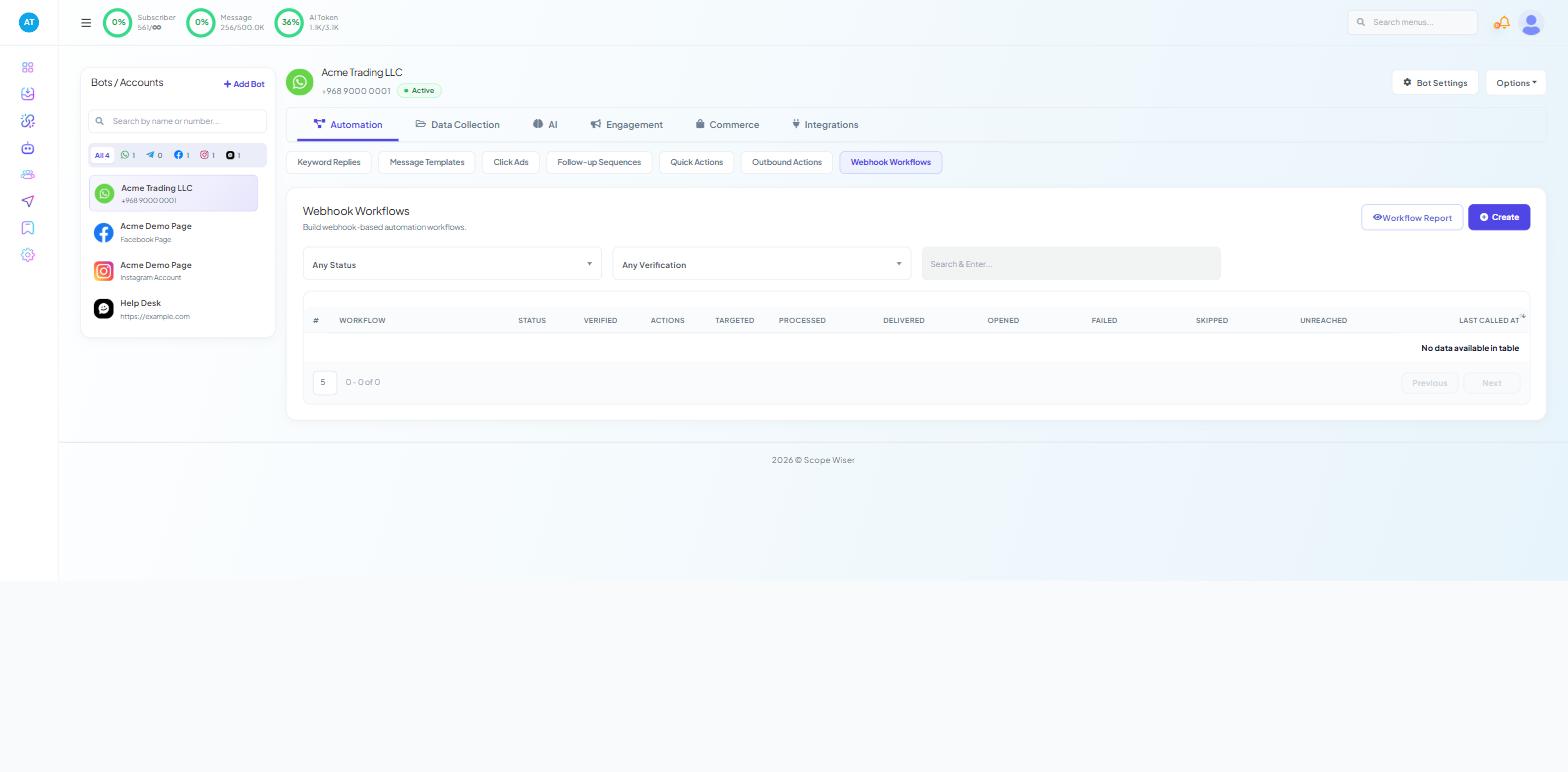
Chatbot Manager has a panel called Bots / Accounts down the left. It holds:
+ Add Bot, for connecting another account
a search box, "Search by name or number..."
channel filter chips with live counts — All, WhatsApp, Facebook, Instagram and Webchat
Each entry shows the bot's name above its identifier: a phone number for WhatsApp, Facebook Page or Instagram Account for those channels, the site address for a webchat widget. Click one and the header updates to that bot's name, identifier and Active badge, with Bot Settings and Options beside it.
Everything below the header now belongs to that bot. The tabs change too: a WhatsApp bot has a Commerce tab, and the other channels do not.
After selecting a bot, bookmark the page — the bookmark reopens that bot and tab.
What is per-bot and what is not
Belongs to one bot | Shared across the account |
|---|---|
Keyword Replies and every other Automation tab | Shared Inbox (all channels in one queue) |
Bot Settings — all eight tabs | Subscriber Manager (filterable by channel and bot) |
Integrations, which differ by channel | Usage meters and plan limits |
Quick Actions, Follow-up Sequences, Message Templates | Control Panel, users and permissions |
WhatsApp message templates belong to the WhatsApp Business Account behind a number, so a template approved for one number cannot be used by another number until it is approved there too.
Reusing a flow
Select the bot that already has the flow.
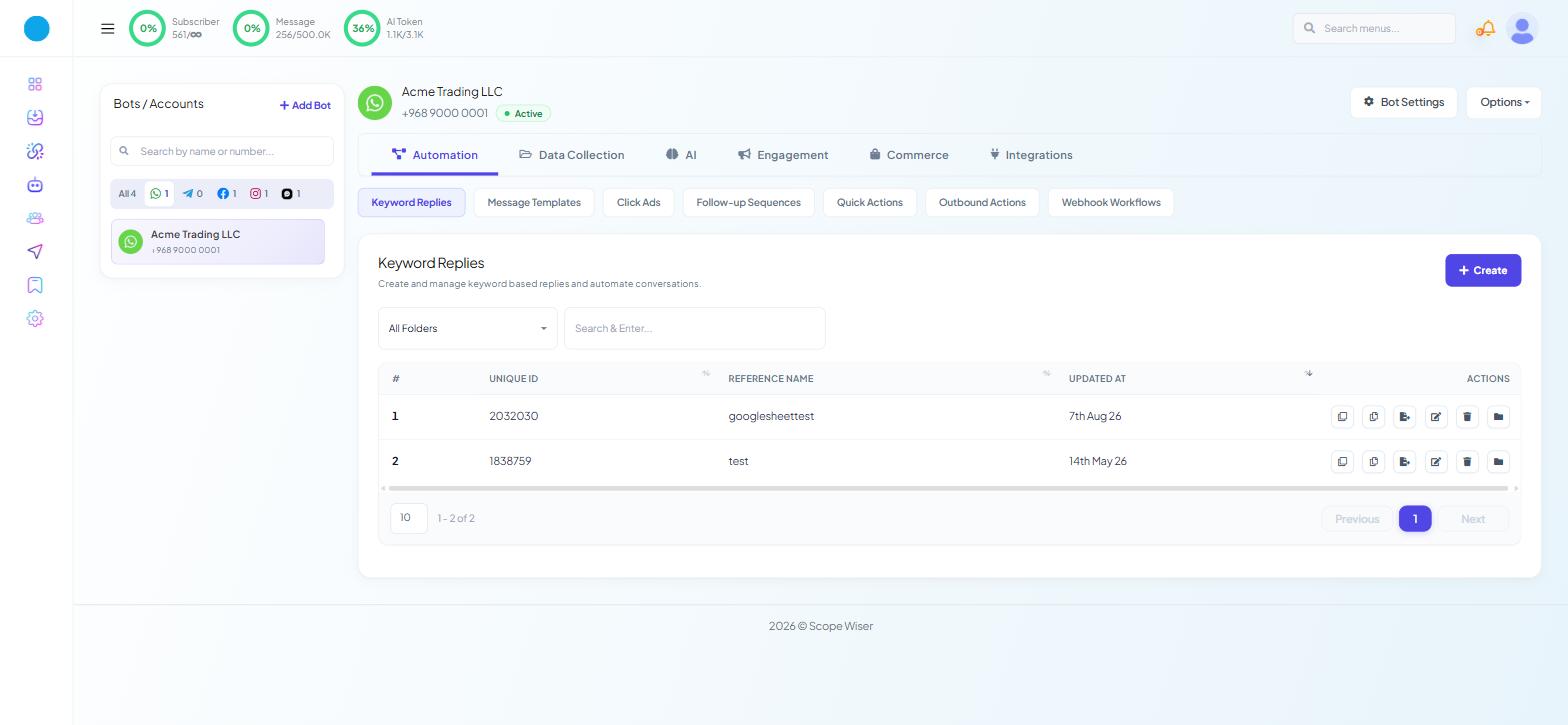
Open Automation › Keyword Replies. Each row carries six action icons: Duplicate, Copy to other Bot, Export flow data, Edit, Delete and Move to Folder.
Choose the action you need:
Duplicate makes a second copy of the flow under the same bot — useful for a variant such as a seasonal greeting. The copy gets its own unique ID; nothing is overwritten.
Copy to other Bot sends the flow to a different bot on this account. Pick the target bot from the list. Structure, buttons, conditions and settings all come across.
Export flow data downloads the flow as a .txt file you can keep as a backup or import into another account.
Folders keep a long list manageable — see Organising, Exporting and Importing Flows.
Importing a flow back in
Select the target bot.
Click Options ▾ in the bot header, then Flow Import.
In the Upload Text File drawer, choose the exported .txt file and click Save.
Organising, Exporting and Importing Flows covers export and import in full.
What travels and what breaks
A copied or imported flow is a structure, not a set of working connections. Check these before you switch it on:
Message templates. A Template Message block points at a template on the original number. On the target bot that template must exist and be approved, and you must re-select it. Nothing warns you at copy time; the failure appears when the flow first runs.
Channel-only blocks. Some blocks exist on one channel only (WhatsApp buttons vs Facebook cards); a flow copied across channels needs those blocks rebuilt.
Labels, lists and sequences. If the flow assigns a label or subscribes someone to a sequence, confirm that label or sequence exists on the target bot.
Integrations. Integrations (Google Sheets, HTTP API, webhooks) are set up per bot; set them up again on the new bot.
Trigger keywords. Two flows on the same bot using the same keyword is the commonest cause of a bot answering with the wrong thing. Check the target bot's Keyword Replies list before copying a flow that uses hi.
Keeping several bots tidy
Give each flow a REFERENCE NAME that says what it does and, where relevant, which brand it belongs to.
Keep one bot as the master copy of shared flows and copy outwards from it, rather than editing the same flow in several places.
After copying, open the flow on the target bot and test it once.
Export before deleting anything. Deleting is per bot and cannot be undone.
What to do next
Introduction to Flow Builder: How Scope Wiser Flows Are Built explains the blocks a copied flow is made of. If the extra bot is not connected yet, How to Connect WhatsApp to Scope Wiser: Complete Setup Guide is the starting point.