
Abandoned Cart Recovery
Recover abandoned carts over WhatsApp: the built-in Shopify action, the WooCommerce plugin and webhook route, message timing, and reading the recovery report.
What you'll do: send a short WhatsApp message a while after someone leaves a full basket, to bring them back to checkout.
Time: 15 minutes on Shopify, 30 minutes on WooCommerce.
A short reminder like this recovers a meaningful share of those carts. The two platforms take genuinely different routes, and it is the biggest practical difference between them in Scope Wiser. Follow the section for your store.
Shopify | WooCommerce | |
|---|---|---|
Route | Store Automation, built in | Webhook Workflow plus a WordPress plugin |
Effort | One form | Plugin install, callback URL, field mapping |
Detection | Scope Wiser watches the store through its API | The plugin detects the abandonment and calls Scope Wiser |
Before you start
☐ Your store is connected (Connecting Shopify or Connecting WooCommerce)
☐ Your checkout asks for the phone number early
Only carts where the customer typed a phone number can be recovered. Both routes depend on it.
1. Get a template approved (both stores)
On the WhatsApp bot, go to Chatbot Manager → Automation → Message Templates.
Open the Create dropdown. It offers General Template, WP Template, Mixed Template, Carousel Media Template, Carousel Product Template and Default Template.
Write a short body with the customer's name and a button that returns them to their cart.
Choose the Marketing category.
Use Sync Templates to check approval status.
2a. Shopify: the built-in action
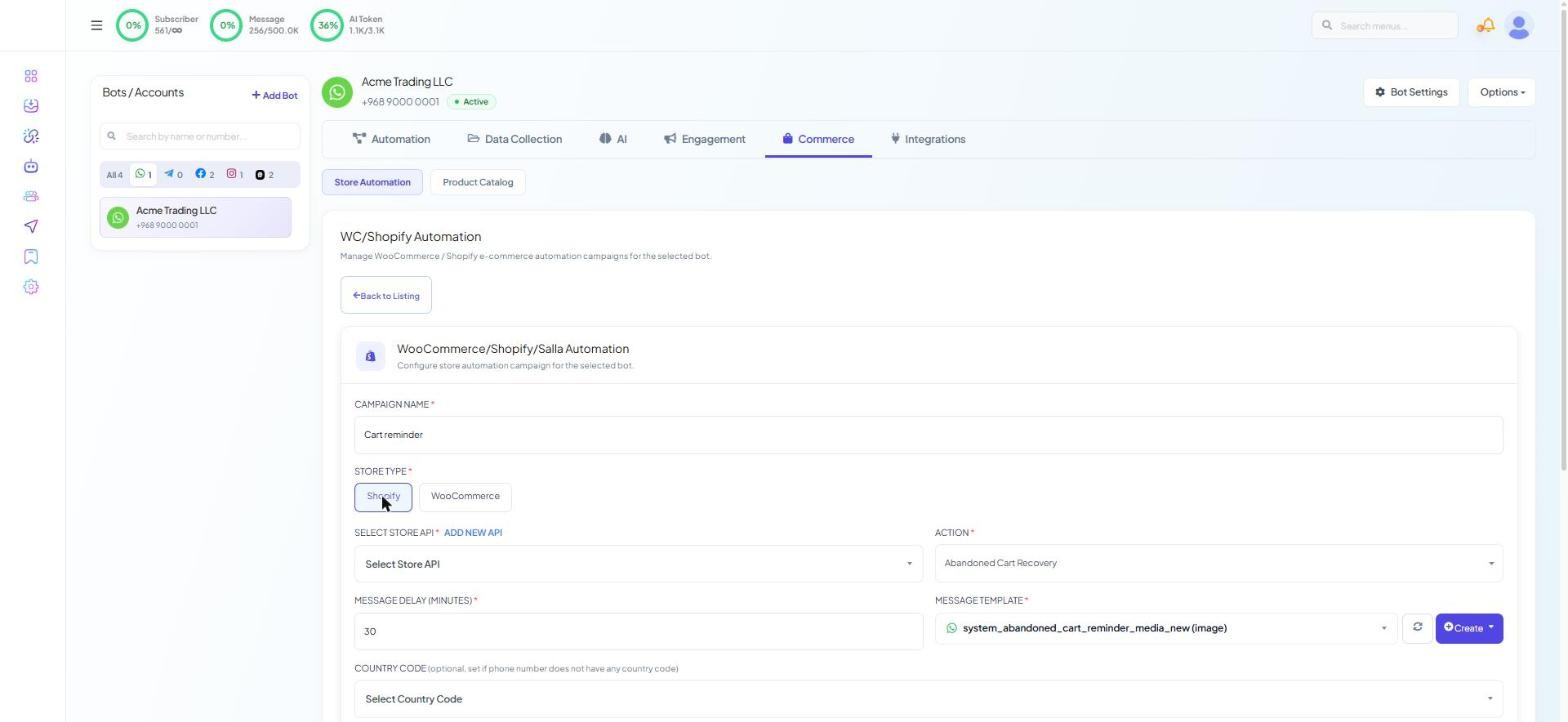
Go to Chatbot Manager → Commerce → Store Automation (headed WC/Shopify Automation) and click Create. Commerce is a WhatsApp-only tab.
CAMPAIGN NAME * (placeholder "Name it to identify it later"): type a name.
STORE TYPE *: click Shopify.
SELECT STORE API *: choose your connected store. ADD NEW API sits beside it.
ACTION *: Abandoned Cart Recovery. Choosing Shopify makes this the default.
MESSAGE DELAY (MINUTES) *: defaults to
30. This is the delay from abandonment to message.MESSAGE TEMPLATE *: choose the approved template.
COUNTRY CODE (optional, set if phone number does not have any country code): set it if your checkout stores local-format numbers.
ASSIGN LABEL and ASSIGN SEQUENCE: a label on everyone who abandoned is a segment worth having.
Click Save.
The campaign runs from then on. Scope Wiser watches for carts where contact details were entered but checkout was not completed, waits out the delay, checks whether the purchase has since happened, and sends only if it has not.
2b. WooCommerce: plugin and webhook
Abandoned Cart Recovery is not in the WooCommerce action list. The ACTION list on a WooCommerce campaign has exactly three options — Order Notification, COD Verification and Order Update Notification. Cart recovery on WooCommerce runs through a plugin and a webhook workflow instead.
Install the plugin
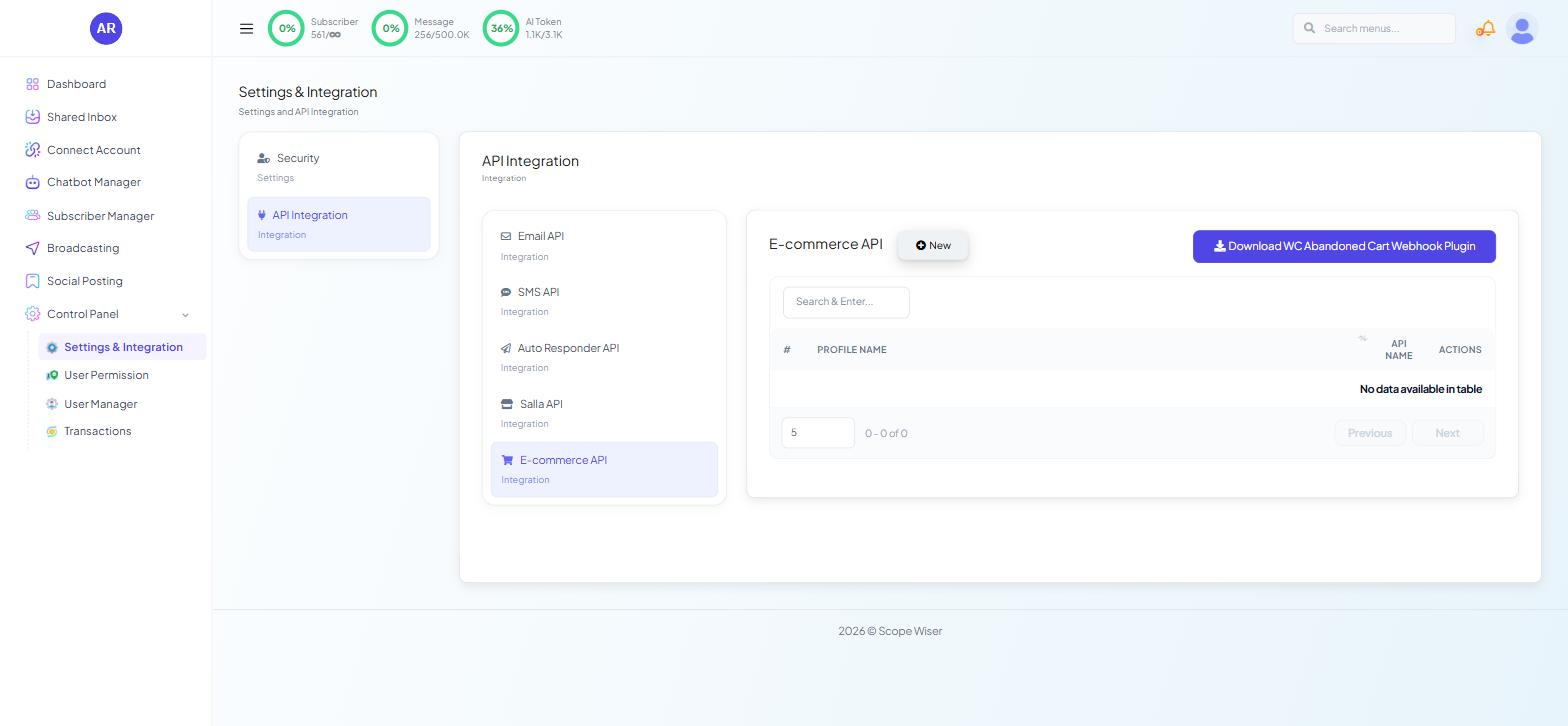
Go to Control Panel → Settings & Integration → API Integration → E-commerce API.
Click Download WC Abandoned Cart Webhook Plugin. (Only this API Integration screen has the button.)
In WordPress, go to Plugins → Add Plugin → Upload.
Choose the downloaded file, install and activate.
Create the workflow
Go to Chatbot Manager → Automation → Webhook Workflows → Create. The form opens with Workflow Details and nothing else.
Set WORKFLOW NAME *, and set MESSAGE TEMPLATE * to your cart-recovery template.
Check the TEMPLATE INFO preview shows the variables you expect.
Press Create Workflow. The callback URL and everything below it appear only after that button.
Connect the plugin to the workflow
Copy the Webhook Callback URL — the read-only box at the top of Configure Webhook Data. (It is also available later from Copy Webhook URL on the workflow's row.)
In WordPress, paste it into the plugin's settings and save.
Map the data
Abandon a cart yourself.
On the Real-time Response tab, press Capture Webhook Response to load what the plugin actually sent. (Or use the Custom JSON Body tab to paste a sample; its Run Test button loads the mapping fields with no external trigger at all.)
Map the phone number and the customer's name onto your template variables.
Attach the Trim Left (
+) formatter to the phone row.If your template names the abandoned products, attach Concat List Items to the product list. How to build formatters is in Webhook Workflow: Complete Beginner's Guide → Data Formatters.
Set the delay and follow-up actions
Send message with a delay is a single row — Wait
0minutes after a webhook triggers. Minutes are the only unit, so thirty minutes is30and four hours is240.Under Actions following successful webhook call:
ASSIGN LABEL marks everyone who abandoned
ASSIGN SEQUENCE enrols them in a Follow-up Sequence for a later reminder
SUBSCRIBER NAME pulls the customer's name out of the payload
Click Save Workflow.
Test by abandoning one more cart. Watch the workflow report before checking WhatsApp.
✅ Done when…
☐ Your cart-recovery template is approved
☐ A test abandoned cart (with a phone number) gets the WhatsApp reminder after the delay
☐ Only one campaign or workflow watches each store
If something doesn't work
No carts detected at all. On Shopify, check the store connection. On WooCommerce, check the plugin is active and the callback URL is saved in its settings.
Carts detected, nothing sent. Missing phone numbers, or numbers with a
+that has not been stripped. Set COUNTRY CODE if your checkout stores local-format numbers. On the webhook route, check that a Trim Left formatter with+is attached to the phone row.A big gap between detected and sent in the report. Missing phone numbers. Fix your checkout form.
Messages sent to people who did buy. The delay is long enough that the purchase happened after the message was queued. Shorten it, or accept a small overlap.
The template will not send. Not approved, or paused. Use Sync Templates to refresh the status.
Duplicate messages. More than one active campaign or workflow is watching the same store. Only one should.
Reference
Timing
Start at 30 minutes. Try shorter for cheap impulse items, a few hours for expensive ones. Change one thing at a time.
Writing the message
Say what was in the cart. Naming the product is a reminder; "your order" is a mailshot.
Link back to the cart, not the homepage.
Send once. A second reminder recovers very little.
Save any discount for a second message to people who did not come back.
Reading the report
Open a Store Automation campaign's report from the ACTIONS column on its row. On the WooCommerce route the numbers sit on the Webhook Workflows listing instead, and the LAST CALLED AT column on the Workflow Report tells you when the plugin last called.
For what the FAILED, SKIPPED and UNREACHED columns mean, see Webhook Workflow: Complete Beginner's Guide.
What to do next
Order Notifications: WooCommerce & Shopify completes the pair: recovery brings people back to checkout, and a confirmation is what should meet them when they finish. Both use the same templates and the same store connection.
Next: Order Notifications: WooCommerce & Shopify