
Sending Catalog Purchase Data to Google Sheets
Connect Google, create or attach a sheet, and send the order-related data that can be written out automatically — and which Google Sheets setting to use.
What you'll do: connect your Google account, set up a sheet, and send order-related data to it automatically.
Time: 20 minutes.
Catalog Orders rows cannot yet be sent to a sheet automatically. Rows in Chatbot Manager → Commerce → Product Catalog → Catalog Orders stay in Scope Wiser. This guide covers the order-related data that can be sent: details you collect in a flow, and your buyers as subscribers.
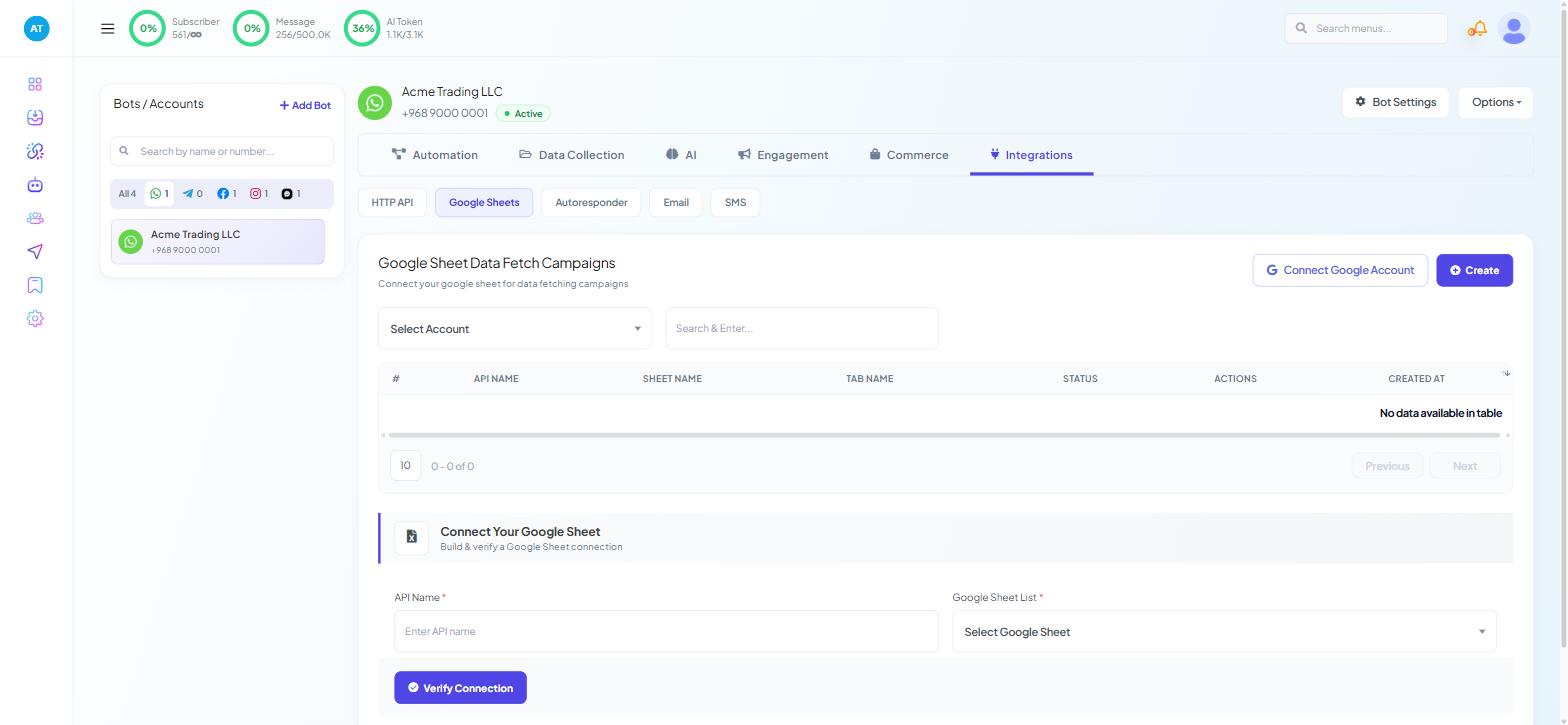
Use the right Google Sheets setting. This costs people an afternoon. Scope Wiser has several different Google Sheets settings and they do different jobs. The one under Integrations → Google Sheets is called Google Sheet Data Fetch Campaigns, and it reads from a sheet into your bot. That is the opposite direction to the one you want here.
Before you start
☐ Your role has the CONNECT ACCOUNT and GOOGLE permissions. Without them you will not see Connect Google. Ask the account owner to enable them.
☐ Your catalogue is sending products and test orders appear in Catalog Orders (see Triggering Catalog Products From a Bot Flow)
1. Connect your Google account
In the sidebar, go to Connect Account.
Under Available Connections, choose Connect Google.
You should now see Google Integration — "Connect and manage your Google accounts, sheets, and calendars."
On the Connect Google Account card, click Sign in with Google.
Complete Google's consent screen. Tick every permission Google asks for.
Check the four counters at the top. They show what the connection actually granted:
Google Accounts — how many accounts are linked
Sheets Access
Calendar Access
Limited Access — the one to watch
Limited Access should be zero. A count here means Google withheld some permission, and a sheet write will fail later without an obvious reason. If it is not zero and sheets are not listing or a write has failed, disconnect and sign in again, ticking every permission.
2. Create or attach the sheet
Below the counters sits Google Sheets — "List of Google Sheets".
Click one of the two buttons:
Create New Sheet makes a fresh sheet in the connected account.
Add Existing Sheet attaches one you already keep.
You should now see the sheet in the table, with SHEET TITLE, ACTIONS, CREATED AT and MODIFIED AT.
In Google Sheets, set up a header row before you connect anything to it. Match the Catalog Orders columns (see Reference).
Add whatever your own process needs on the right-hand side: a
Packedcolumn, a courier reference, initials of whoever handled it.Format the phone column as plain text. A leading
+can be eaten by Sheets' own formatting.
Keep your own columns to the right of the imported ones, so a change in what arrives does not shift them.
3. Pick a route to the sheet
Choose the route that matches the data you want.
Option A: sync from a flow (delivery details you collect)
Several Flow Builder configuration panels carry a Sync Data to Google Sheets field:
the Configure Reference panel on a Start Bot Flow node, under Data & Integrations ("Store data in custom fields or send to external tools.")
the Configure User-Input-Flow panel, under its Integrations card ("Webhook and Google Sheets options.")
If you collect delivery details with a User Input Flow after the order, instead of relying on the catalogue's own address capture, this writes them straight out.
Option B: send subscribers to a sheet (buyers as contacts)
In Chatbot Manager, click Bot Settings and open the Google tab.
Find the Google Sheet section, headed "Send collected subscriber to google sheet".
Fill in GOOGLE SHEET LIST and choose the GOOGLE CONTACTS ACCOUNT.
Click Publish Changes. Bot Settings does not take effect until you do.
This gives you buyers as contacts, not orders as rows.
Option C: a WhatsApp Flows form
Order details collected through a WhatsApp Flows form have their own sheet field on the form itself. See Creating a WhatsApp Flows Form.
For developers
Automation → Outbound Actions and Automation → Webhook Workflows both move data out to an external endpoint. If your operations already run through a tool that writes to Sheets, sending the payload there gives you transformation and error handling that a direct write cannot.
4. Test it
Place a real test order against your own number, then check these in order:
A row appeared in Catalog Orders. If not, the problem is upstream and no sheet setting will help. Go back to Triggering Catalog Products From a Bot Flow.
A row appeared in the sheet. Check the sheet in the same Google account you connected, not a copy someone shared with you.
The columns line up. Phone numbers are the usual casualty. Format the phone column as plain text before you go live.
✅ Done when…
☐ Limited Access shows zero on the Google Integration page
☐ A test order's data appears in your sheet, in the right columns
If something doesn't work
Nothing arrives and there is no error. Check Limited Access on the Google Integration page. A partial grant fails quietly.
Rows arrive with columns shifted. Someone inserted a column in the middle of the sheet. Rebuild the header row and keep custom columns on the right.
It worked and then stopped. Google access tokens expire and get revoked — a password change or a security review on the Google account is enough. Reconnect from Connect Account → Connect Google.
You are looking at the wrong screen. If the page says "Connect your google sheet for data fetching campaigns", you are in the read-from-a-sheet feature. Go back.
You cannot see Connect Google. Ask the account owner to enable CONNECT ACCOUNT and the GOOGLE permissions on your role.
Reference
What data there is to send
Build your sheet around the Catalog Orders columns: order IDs, catalogue, phone number, buyer, amount, currency, status, timestamps and shipping address. The full column lists for both order tables are in Cash on Delivery & Online Payments in Chat.
Orders paid outside an automated gateway land in the separate Catalog Orders (Manual Payment) table, whose columns differ. Plan for two sheets, or a column that says which table a row came from.
What to do next
With order data flowing somewhere useful, work on what the buyer sees after the order. Cash on Delivery & Online Payments in Chat covers order statuses, confirmations and the manual-payment table. For non-commerce data, Exporting Flow Data to Google Sheets covers the same connection from the flow side.
Next: Cash on Delivery & Online Payments in Chat