
Displaying Store Products Inside WhatsApp
Pull live WooCommerce products into a WhatsApp list: read-only API keys, the HTTP API wizard, dynamic rows, and the ten-row limit.
What you'll do: fetch WooCommerce products live from your store and show them as a WhatsApp list, so the bot is right every time a price changes.
Time: 45 minutes.
This article is for developers, or for store owners working with one.
Before you start
☐ You have read Displaying Dynamic Lists From an API, which covers the general mechanics of dynamic rows. Read it first if you have never built one.
☐ You have WordPress admin access to the store
☐ You have checked this is the right tool (below)
Is this the right tool?
Two other Commerce features overlap with this one. Rule them out before you start.
Feature | Use it when |
|---|---|
WhatsApp Product Catalog (Chatbot Manager → Commerce → Product Catalog) | Your catalogue is stable and you want customers to buy inside WhatsApp. It shows products as native WhatsApp product cards, with an order flow and an orders table behind it. See Connecting Your WhatsApp Catalog. |
Store Automation | You want messages sent on store events. It does not show products. |
HTTP API plus a dynamic list (this article) | The data changes constantly, is filtered per customer, stock status matters, or what you want is browsing and enquiry, not checkout. It is more work, and it is live. |
1. Create read-only API keys
Generate a second key pair for this, separate from the one your order automations use, and give it Read permission only. Nothing here writes to the store, and a read-only key limits what a mistake can do.
In WordPress Admin, go to WooCommerce → Settings → Advanced → REST API.
Click Add key.
Describe it as something like "Scope Wiser — product browse".
Set Permissions to Read, and generate.
Copy the consumer key and consumer secret.
The secret is shown once. Copy it now.
Your product list address is your store address followed by /wp-json/wc/v3/products, for example https://yourshop.com/wp-json/wc/v3/products. You can filter it by category, which is how you keep a list down to a manageable size. Add ?per_page=10 to the end so only ten products come back.
2. Build the HTTP API connection
On the WhatsApp bot, go to Chatbot Manager → Integrations → HTTP API — "Connect and manage outbound HTTP APIs for flows and automations."
Click Create.
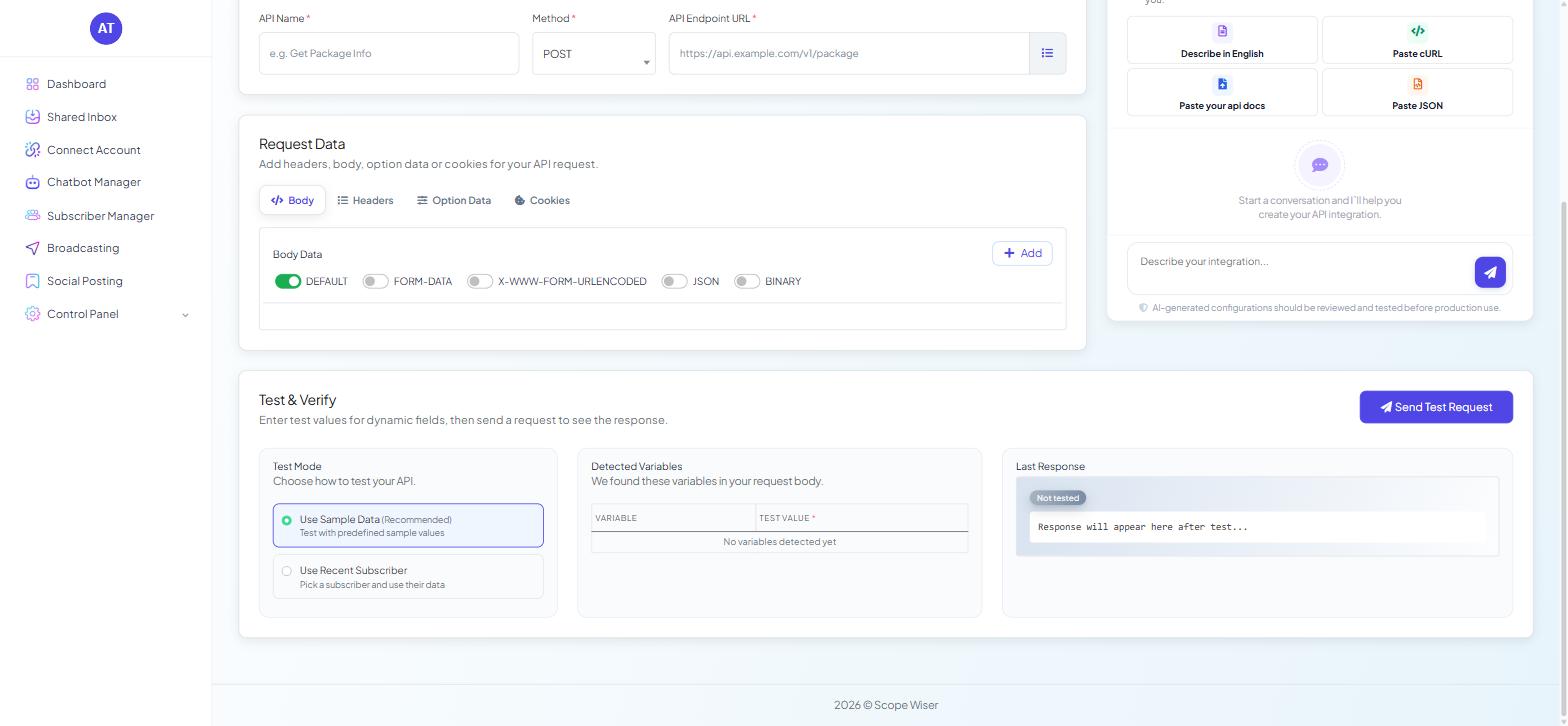
You should now see the Add HTTP API wizard, "Connect and manage your WhatsApp HTTP APIs", with four steps: API Details, Request Data, Test & Verify and Response Mapping.
Shortcut: paste a sample product response into AI API Builder and let it fill the form. Check the result.
API Details
"Enter the basic information about the API you want to connect."
API Name * (placeholder "e.g. Get Package Info"): name it after the category, not the store, for example
Products — furniture.Method *: set to GET.
API Endpoint URL * (placeholder "https://api.example.com/v1/package"): your products address, with any category filter on it.
Request Data
"Add headers, body, option data or cookies for your API request." It has four tabs: Body, Headers, Option Data and Cookies.
Open the Headers tab.
Add the WooCommerce consumer key and secret there, not in the address. WooCommerce authenticates with them.
Test & Verify
"Enter test values for dynamic fields, then send a request to see the response."
Choose a Test Mode: Use Sample Data (Recommended) — "Test with predefined sample values" — or Use Recent Subscriber — "Pick a subscriber and use their data."
Any placeholders in your request appear in the Detected Variables table (VARIABLE, TEST VALUE *). Fill them in.
Click Send Test Request.
Read what comes back in Last Response. It carries a Not tested badge until you do.
This is the most important step on the page. Every mapping decision after it depends on the actual shape of the response.
Response Mapping
"Map response fields". This is where the list is written into a custom field.
Map the whole list to one field, not one field per product.
Save.
3. Show the list in a flow
Open the Flow Builder on the WhatsApp bot.
Drag an HTTP API block from the INTEGRATIONS group onto the canvas, ahead of the message that will display the list.
Select the connection you just built.
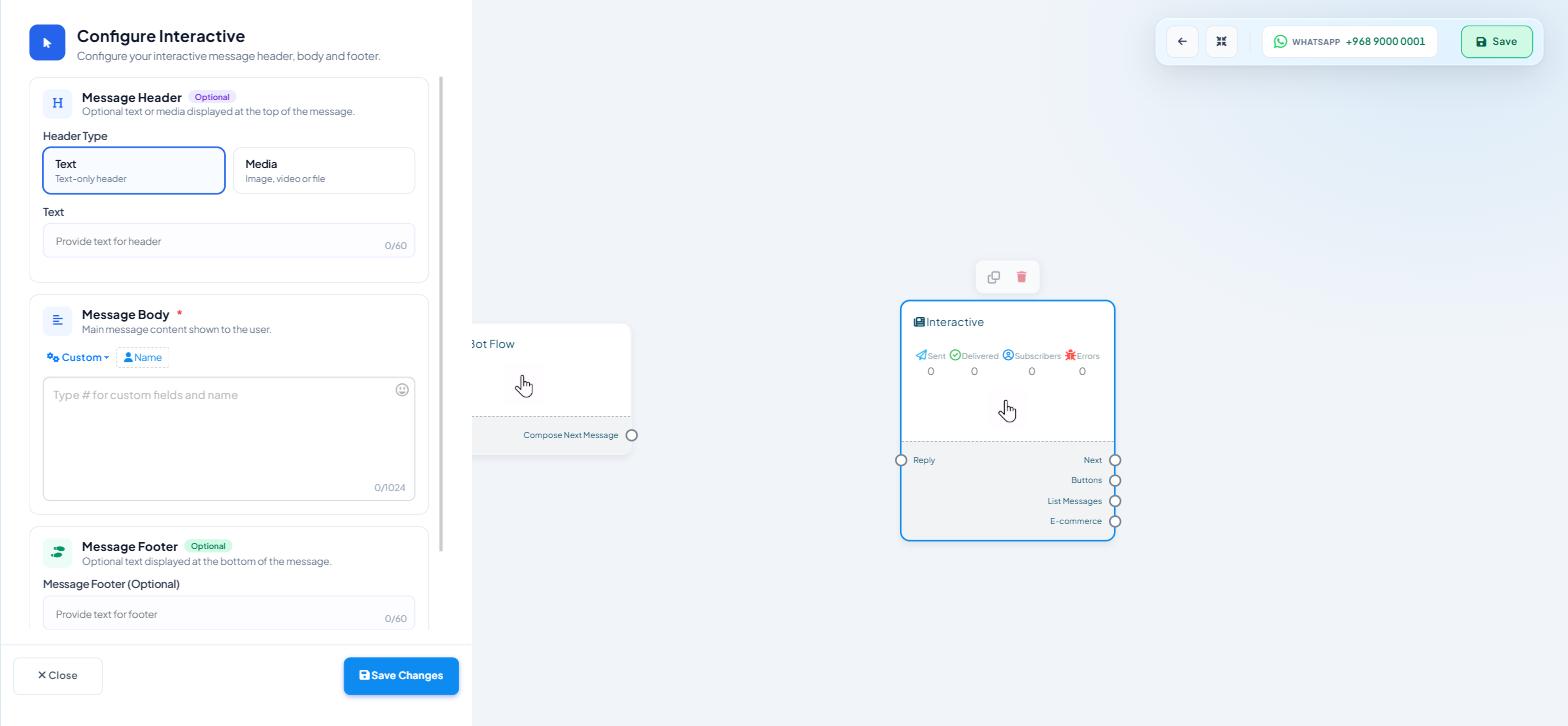
Add an Interactive block for the list itself.
In the Configure Interactive drawer — "Configure your interactive message header, body and footer." — fill in the parts around the list: Message Header (Text or Media), Message Body (1,024-character limit) and Message Footer. A collapsible Delivery Options section holds reply delay and typing indicator.
To use custom fields in the body, type #. The placeholder reads "Type # for custom fields and name" — a single hash, not two.
4. Design around the ten-row limit
WhatsApp allows a maximum of ten rows in one interactive list message. This is Meta's limit, not Scope Wiser's, and there is no setting that raises it.
Use two levels:
A first list of categories — six or eight of them.
A second list of the products in whichever category was tapped.
Save what the customer tapped into a custom field. Then reference that field in the next address's category filter. The same flow then serves every category without a branch per category.
✅ Done when…
☐ Send Test Request returns your products in Last Response
☐ The list is mapped into one custom field
☐ Testing the flow from another phone shows a list of no more than ten rows
If something doesn't work
The list message does not send. A category with nothing in it returns an empty list, and an interactive message with no rows will not send. Branch on it with a Condition block and say something sensible.
More than ten products. Add
?per_page=10, and split into categories (section 4).Customers ask for things that are out of stock. Show stock status. If the field is in the response, put it in the row description.
What to do next
Calling External APIs From a Flow covers the HTTP API block in more depth, including error handling and what happens to a flow when an endpoint is slow. That matters more here than anywhere else, because the customer is watching.
Next: Calling External APIs From a Flow