
Payment Gateways: TAP, Instamojo & Razorpay
Take card payments for catalogue orders: where a gateway attaches, how to get TAP, Instamojo and Razorpay credentials, and where paid orders are recorded.
What you'll do: get credentials from TAP, Instamojo or Razorpay and enter them on your catalogue, so customers can pay for catalogue orders by card in the chat.
Time: 15 minutes.
There are three ways to get paid in chat: WhatsApp Pay, cash on delivery, or a payment gateway (this article). Cash on Delivery & Online Payments in Chat covers the first two, and Verifying Cash-on-Delivery Orders Over WhatsApp the confirmation step.
The gateways covered here are TAP (Gulf), Instamojo and Razorpay (India). Pick the gateway that works in your customers' country and currency.
Scope Wiser does not hold funds. It passes the payment to the provider and records the outcome against the order. It does not set fees or handle disputes. Fees, refunds and disputes are handled in the provider's own dashboard.
Before you start
☐ A catalogue is connected to your WhatsApp bot. If not, see Connecting Your WhatsApp Catalog — the gateway has nothing to attach to until it is.
☐ You can sign in to your TAP, Instamojo or Razorpay account
1. Get your gateway credentials
Follow the part for your provider.
TAP
Sign in to your TAP account.
Open the goSell area.
Open API Credentials.
Copy the Secret Key and the Public Key. Both are shown together.
Use the test keys while setting up. Switch to the live keys later (section 3).
Instamojo
Instamojo's version 2 API uses a client ID and client secret, not an API key.
Sign in to your Instamojo account.
Open the API & plugins section.
Click Create New Credentials.
From the dropdown, choose Postman for Platform/Framework. This is the credential type that yields a client ID and client secret.
Click Generate Credentials.
Copy the Client ID and Client Secret.
Step 4 is where people go wrong. Instamojo offers several credential types and only this one produces the pair Scope Wiser expects. The others generate something that looks similar and will not authenticate.
Razorpay
Sign in to the Razorpay Dashboard.
Open Settings.
Open API Keys.
Click Generate Key.
Copy the Key ID and the Key Secret.
Not the same as your subscription's Razorpay. These credentials are separate from the Razorpay used to pay your own Scope Wiser subscription. Do not reuse credentials between the two without deciding that is what you want.
Keep secret keys safe. You will need them again if you ever reconfigure, and they should never be pasted into anything public.
2. Enter the keys on your catalogue
A payment gateway is attached to a catalogue — not to a bot, and not to the account as a whole. That is the thing to understand before you go looking for it.
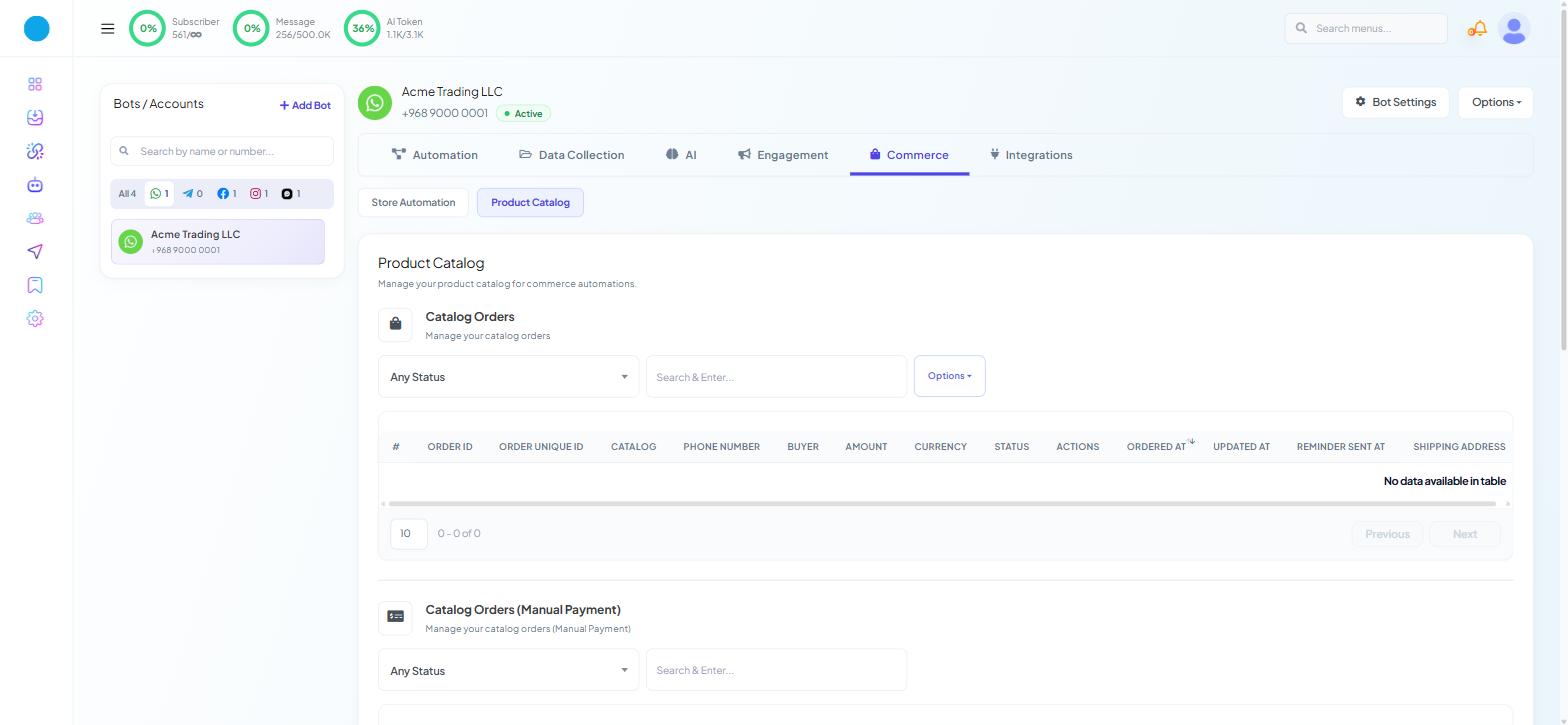
On a WhatsApp bot, go to Chatbot Manager → Commerce → Product Catalog.
Scroll past the two order tables to Catalog Manager — "Manage your eCommerce catalogs". Its rows carry IMAGE, CATALOG, PUBLIC, ACTIONS, MESSAGE TEMPLATE, SETTINGS and UPDATED AT columns.
Find your catalogue's row. Enter the gateway keys in that catalogue's payment settings.
3. Test, then go live
Set up with test keys first.
Switch to the live keys.
Make one real payment before going live.
✅ Done when…
☐ Live keys are entered on the right catalogue
☐ One real payment has gone through and appears in Catalog Orders
If something doesn't work
There is no Commerce tab. Commerce is a WhatsApp-only tab. There is no catalogue and no gateway configuration on a Facebook, Instagram or Webchat bot.
The payment step never appears. No gateway is active on that catalogue, or the catalogue the customer is browsing is not the one you configured.
The gateway rejects everything. Test credentials in a live configuration, or a secret copied with trailing whitespace.
Instamojo will not authenticate. The wrong credential type was generated. Create a new set using the Postman option.
Payment succeeds but the order is not updated. The provider took the money and the callback did not arrive. Check the provider's dashboard first. The customer has paid, so this is a fulfilment issue, not a payment one.
It worked and then stopped. Credentials were rotated on the provider's side, or the merchant account was suspended for verification.
Reference
Reconciling what happened
Gateway payments appear in Catalog Orders. Bank-transfer orders appear in Catalog Orders (Manual Payment), which carries an ATTACHMENT column for the evidence the customer sends. Both sit under Chatbot Manager → Commerce → Product Catalog, and both have an Any Status filter and a Search & Enter... box. Check both when looking for an order.
Treat these tables as a record of what happened in the conversation, not as your books. The provider's own dashboard is the authority on what settled, when, and net of what.
What to do next
Read Cash on Delivery & Online Payments in Chat for how a gateway sits alongside the other ways an order gets paid for, and Connecting Your WhatsApp Catalog if the catalogue itself is not set up yet.
Next: Cash on Delivery & Online Payments in Chat