
Connecting Your WhatsApp Catalog
Link a Meta product catalogue to your WhatsApp bot: what it can and cannot do, where it lives, connecting it at signup or later from Commerce, what to check.
What you'll do: link the product catalogue you keep in Meta to your WhatsApp bot, so your flows can send products and your orders are recorded in Scope Wiser.
Time: 10 minutes.
The catalogue is not a Scope Wiser object. It is a Meta object. This is the single thing that trips people up. Your products live in Meta's Commerce Manager. The catalogue is attached to your WhatsApp Business Account inside Meta's WhatsApp Manager. Scope Wiser holds a reference to it so your flows and order tables can use it. If products don't show in chat, the problem is usually on Meta's side.
Layer | What it holds | Where you change it |
|---|---|---|
Meta Commerce Manager | The products themselves — images, titles, descriptions, prices, availability | Meta's business tools |
Meta WhatsApp Manager | The link between that catalogue and your WhatsApp Business Account | Meta's business tools |
Scope Wiser | The catalogue reference, order records, and the flows that send products | Chatbot Manager → Commerce |
Before you start
☐ WhatsApp is connected to Scope Wiser. If not, start with How to Connect WhatsApp to Scope Wiser: Complete Setup Guide. Nothing on this page works without it.
☐ A catalogue exists in Meta Commerce Manager, with at least one product in it. You can build it by hand, upload a data feed, or connect a store platform. That choice is Meta's, not Scope Wiser's, and it does not change anything on this side.
☐ The catalogue is connected to your WhatsApp Business Account in Meta's WhatsApp Manager. A catalogue that exists but has never been attached to the WABA cannot be sent in a chat.
☐ You have the Catalog ID. Meta shows it against the catalogue. It is a long numeric string.
Use Option 1 if you are connecting WhatsApp now. Use Option 2 if your bot already exists.
Option 1: connect the catalogue while you connect WhatsApp
If you are setting up the channel now, do it in one pass.
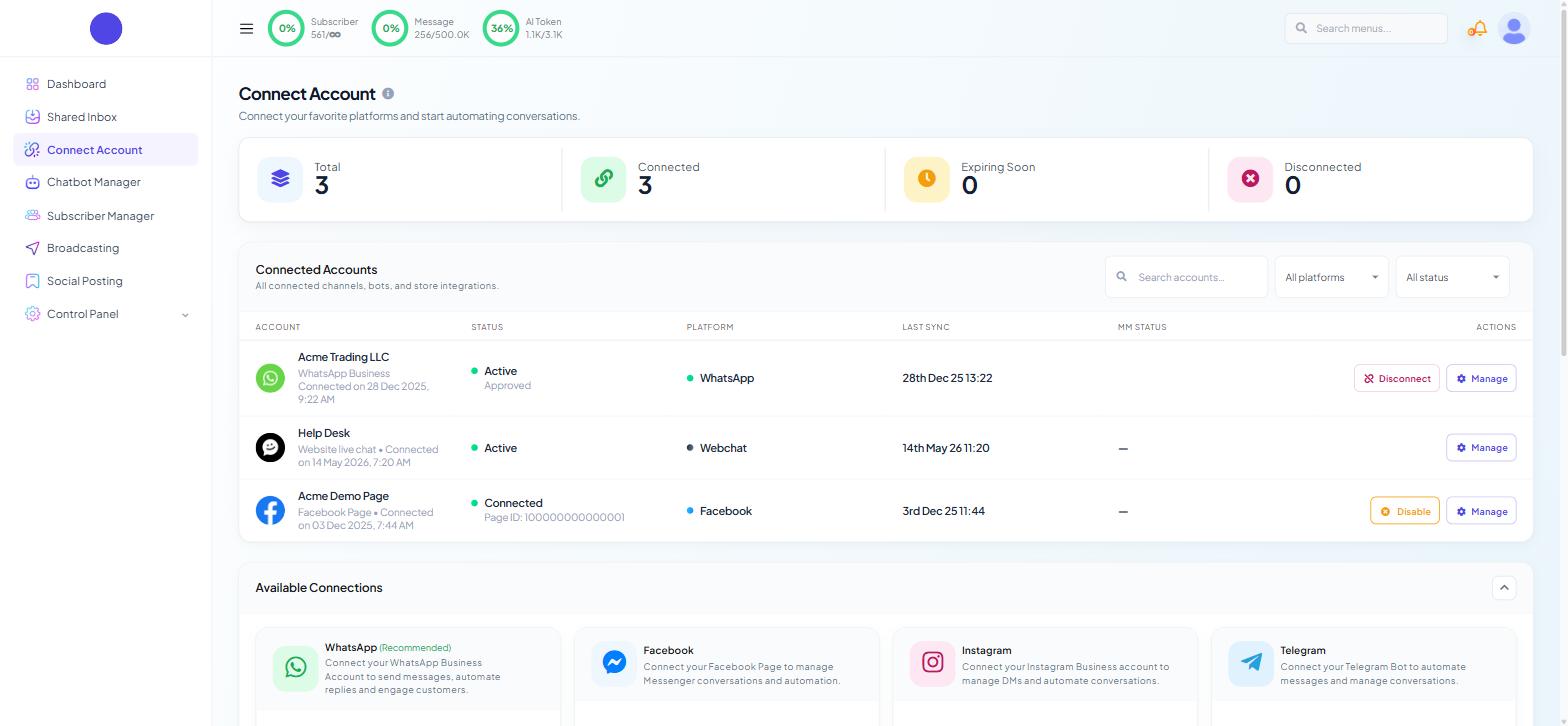
Go to Connect Account → Connect WhatsApp.
On the Embedded Onboarding (One Click) card, click Connect with Embed Onboarding →.
You should now see the button split into two choices: Connect With Catalog and Connect Without Catalog. Choose Connect With Catalog.
In Meta's dialog, go to the "Select the business assets to share with Scope Wiser" step. It has four dropdowns: Business portfolio, WhatsApp Business account, Catalog and Instagram Account.
Pick your catalogue in the Catalog dropdown and carry on.
Tip: choose Connect With Catalog even if you are not ready to sell. An empty catalogue costs nothing, and choosing it now saves you a second pass through Meta's consent flow later.
Option 2: add a catalogue to a bot you already have
1. Open the Commerce tab
Go to Chatbot Manager.
Select your WhatsApp bot in the Bots / Accounts panel.
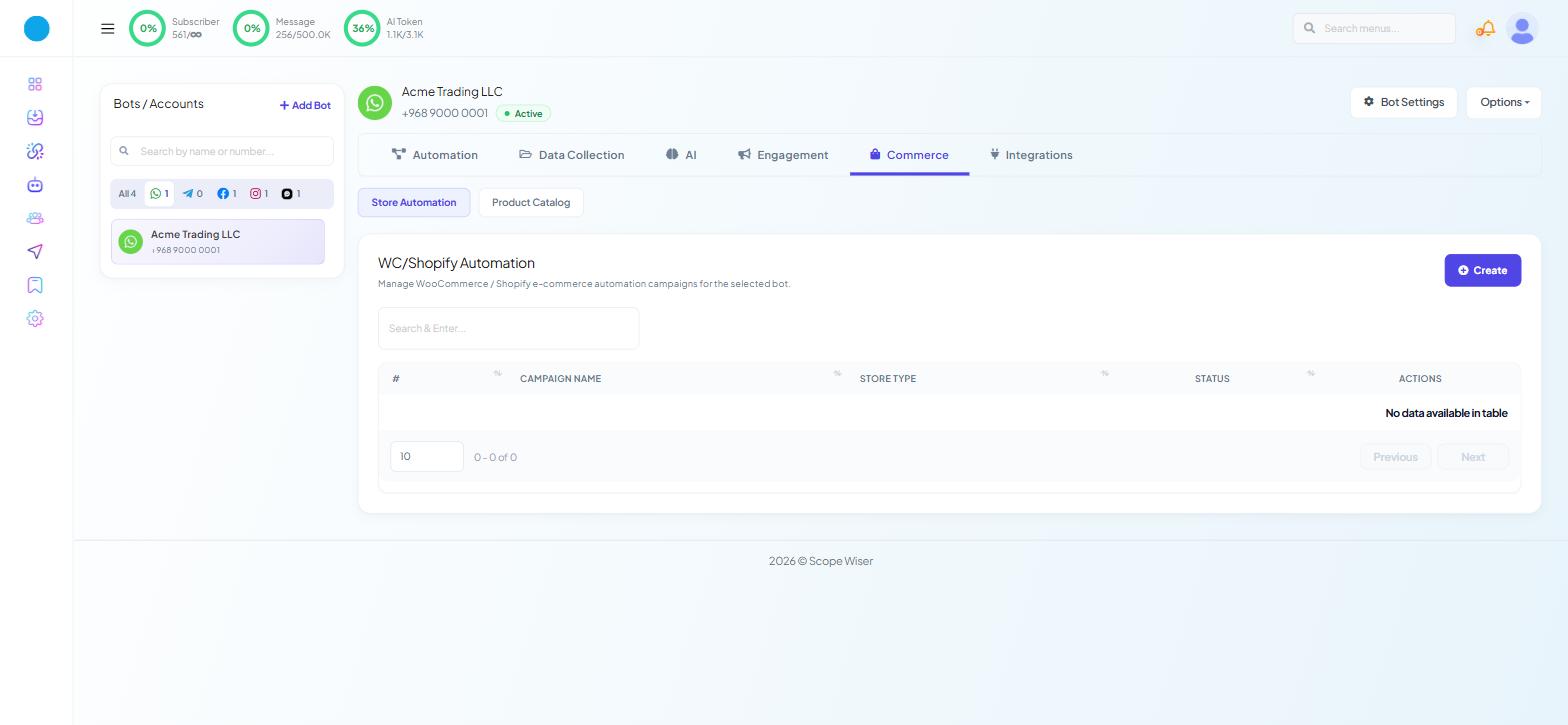
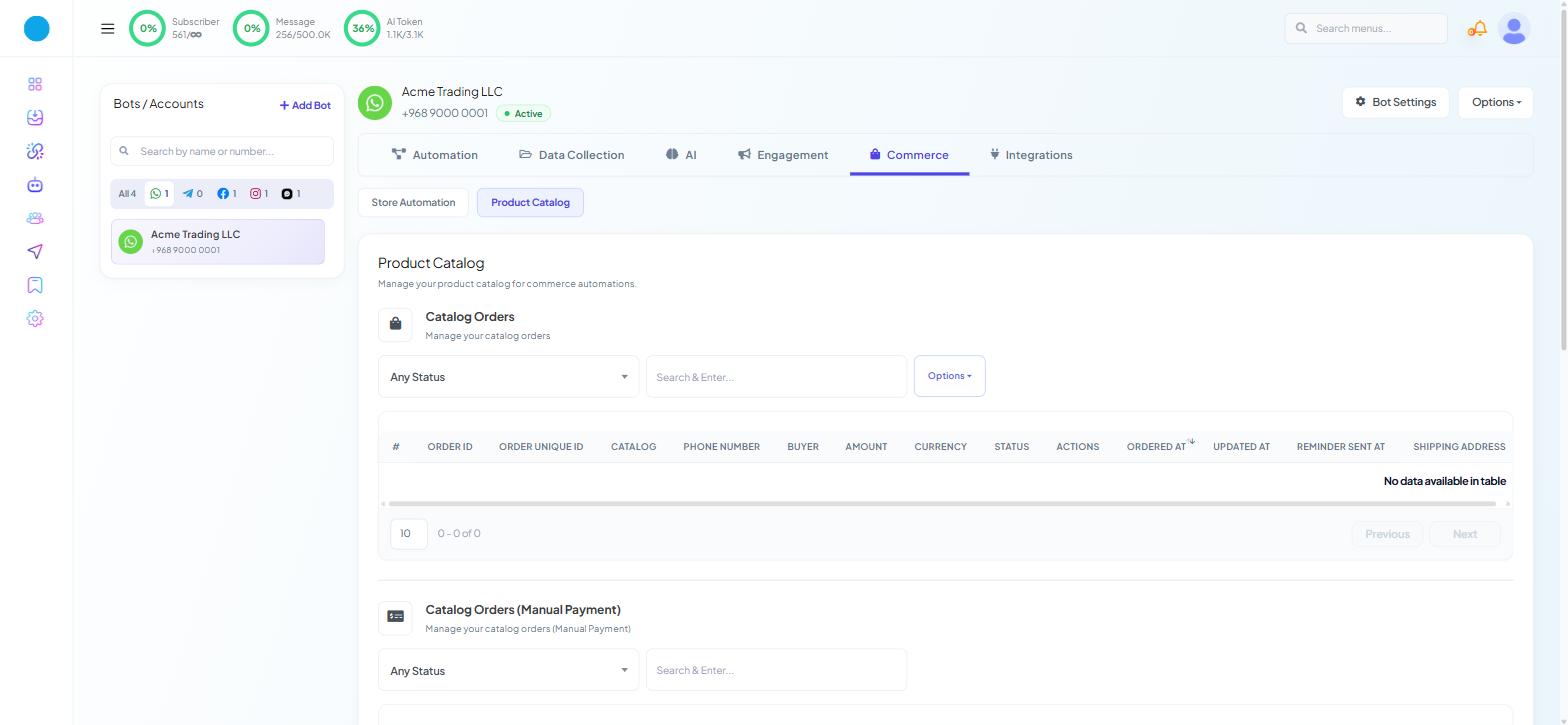
Open the Commerce tab, then the Product Catalog sub-tab. The tab shows two sub-tabs: Store Automation and Product Catalog. Order notifications, COD verification and abandoned-cart messages are set up as campaigns in Store Automation, which needs a connected store; the catalog does not.
2. Scroll to Integrate New Catalog
Product Catalog is one long page with several stacked sections. Scroll to the last one, Integrate New Catalog, headed "Integrate your catalog to Scope Wiser".
Check the banner line that names the account you are attaching to, for example "WhatsApp Account: Acme Trading".
3. Fill in the two fields
Catalog ID * (placeholder "Example : 76256114220XXXX"): paste the ID from Meta exactly. It is not the catalogue name and it is not the Business Account ID.
Catalog Name * (placeholder "Give it a name to track it later"): this one is yours. It is a label for your own listing, so name it for how you will search for it later.
Click Integrate Catalog.
Check it actually worked
Do these three checks in order. Each one rules out a different layer.
The catalogue row appears in Catalog Manager with your name against it. If not, the Catalog ID was wrong or belongs to a different Meta Business account (Meta also calls it Business Manager or business portfolio).
Products send from a flow. Build a small test flow with an Interactive block and try it on your own number. Triggering Catalog Products From a Bot Flow covers this.
An order lands in Catalog Orders. Place a test order yourself. If products display but no row appears, the problem is order handling, not the catalogue connection.
✅ Done when…
☐ Your catalogue is listed in Catalog Manager with the right name
☐ A test flow sends products to your own number
☐ A test order appears in Catalog Orders
If something doesn't work
There is no Commerce tab. Commerce is a WhatsApp-only tab. If you have a Facebook, Instagram or Webchat bot selected you will not see it at all. On a WhatsApp bot it can still be missing for a permission reason: WHATSAPP - CATALOG is its own toggle under Control Panel → User Permission, and a team member whose role lacks it sees no Commerce tab and no error.
Nothing appears in Catalog Manager after Integrate Catalog. Almost always the ID. Copy it again from Meta, don't retype it, and confirm the catalogue sits in the same Meta Business account as the WhatsApp Business Account.
The catalogue is listed but a flow sends nothing. Check in Meta WhatsApp Manager that the catalogue is attached to your WhatsApp Business Account. Integrating it in Scope Wiser does not perform that attachment.
Products display but prices or images are missing. That is catalogue data, fixed in Commerce Manager. Scope Wiser reads the products; it does not store them.
You changed products in Commerce Manager and Scope Wiser looks stale. Product data comes from Meta at send time, so refresh the page.
A second number cannot see the catalogue. Each bot integrates its own catalogue. Repeat Integrate New Catalog against that bot, and watch the WhatsApp Account: banner line.
Products send correctly from a flow, but the catalogue icon is missing from the chat header. Whether that icon appears, and whether customers get a basket in the product view, are controlled by Meta on the WhatsApp Business Account, not by any setting in Scope Wiser. Look there.
Reference
What you get on the Product Catalog page
Once a catalogue is integrated, four sections on this page do the work.
Section | What it is |
|---|---|
Catalog Manager | "Manage your eCommerce catalogs". Your list of connected catalogues. A catalogue that appears here with the right name is connected. There is also a New Catalog button. |
Catalog Orders | "Manage your catalog orders". Every order placed against the catalogue, one row per order. It filters on Any Status and has a Search & Enter... box and an Options dropdown. |
Catalog Orders (Manual Payment) | A separate table for orders paid outside an automated gateway. It has an ATTACHMENT column, which is where a customer's proof of payment lands. |
Integrate New Catalog | The form you used above. You can integrate more than one catalogue against the same account. |
The columns in both order tables are listed in Cash on Delivery & Online Payments in Chat.
What a catalogue does not do
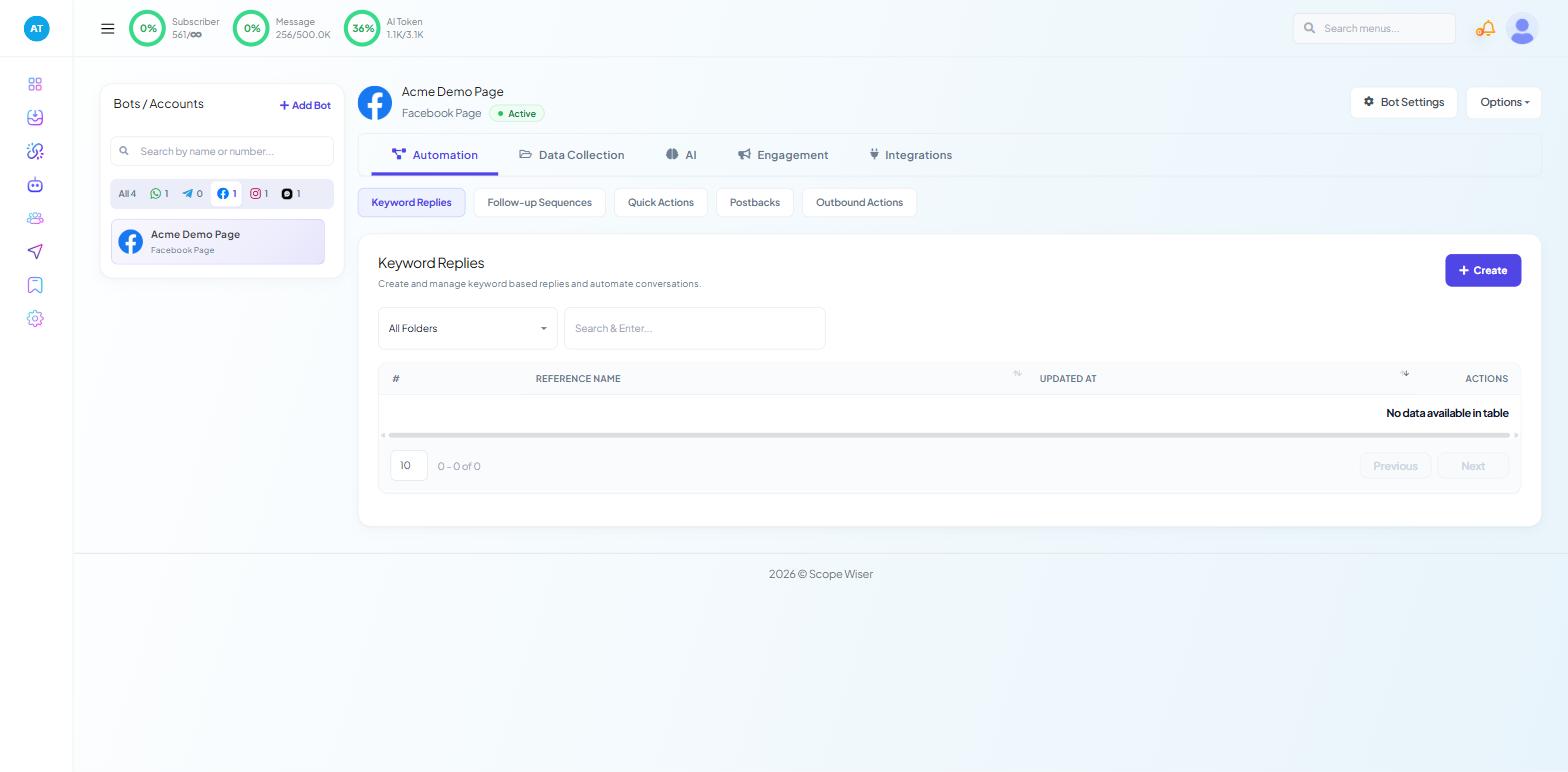
It is WhatsApp only. The Commerce tab in Chatbot Manager exists on WhatsApp bots and nowhere else. Facebook, Instagram and Webchat bots have no Commerce tab, and there is no catalogue equivalent there.
The products are Meta's, not Scope Wiser's. You maintain them in Meta's Commerce Manager. Scope Wiser sends them, records the orders and automates around them.
It is not inventory management. There is no stock system here. If you oversell, the catalogue will not stop you.
It is not a shop that finds customers. A catalogue reaches people who already message you. Getting them to message you in the first place is a separate job — click-to-WhatsApp ads, a chat widget on your site, your number in your bio.
Payment options are not universal. What a customer can pay with depends on your market, your payment provider and what Meta has enabled for WhatsApp there. In-chat payment is not available in every country.
How the pieces fit together
Piece | Where it lives | What it does |
|---|---|---|
The catalogue | Meta Commerce Manager, referenced under Commerce → Product Catalog | Holds products, images and prices |
The message that sends products | Flow Builder, Interactive block | Shows products inside a conversation |
The trigger | Automation → Keyword Replies, a template button, or a broadcast | Decides when products get sent |
The order record | Commerce → Product Catalog → Catalog Orders | Buyer, amount, status, shipping address |
The follow-up | Automation → Quick Actions → Confirm Order / Cancel Order | What the buyer hears after ordering |
Store sync | Commerce → Store Automation | Drives WhatsApp messages off events in a Shopify or WooCommerce store already connected from Connect Account |
Store Automation is a different feature
Store Automation — headed "WC/Shopify Automation" — is not the catalogue. It drives WhatsApp messages off events in your store, with actions including Order Notification, Order Update Notification, COD Verification and, for Shopify, Abandoned Cart Recovery. If you already run a shop, that is often a faster win than rebuilding the storefront inside WhatsApp.
What to do next
A connected catalogue does nothing on its own — something has to send it. Go to Triggering Catalog Products From a Bot Flow to build the flow that puts products in front of a customer, then Sending Catalog Purchase Data to Google Sheets once orders start arriving and you need them somewhere your fulfilment team can see.
Next: Triggering Catalog Products From a Bot Flow