
AI Assistant Overview: What It Can and Cannot Do
Where Scope Wiser's AI lives, how to switch it on, how AI Configuration and Agents divide the work, and the limits to know before you let it answer customers.
Scope Wiser's AI appears in four places. This guide shows where each is and how to switch it on.
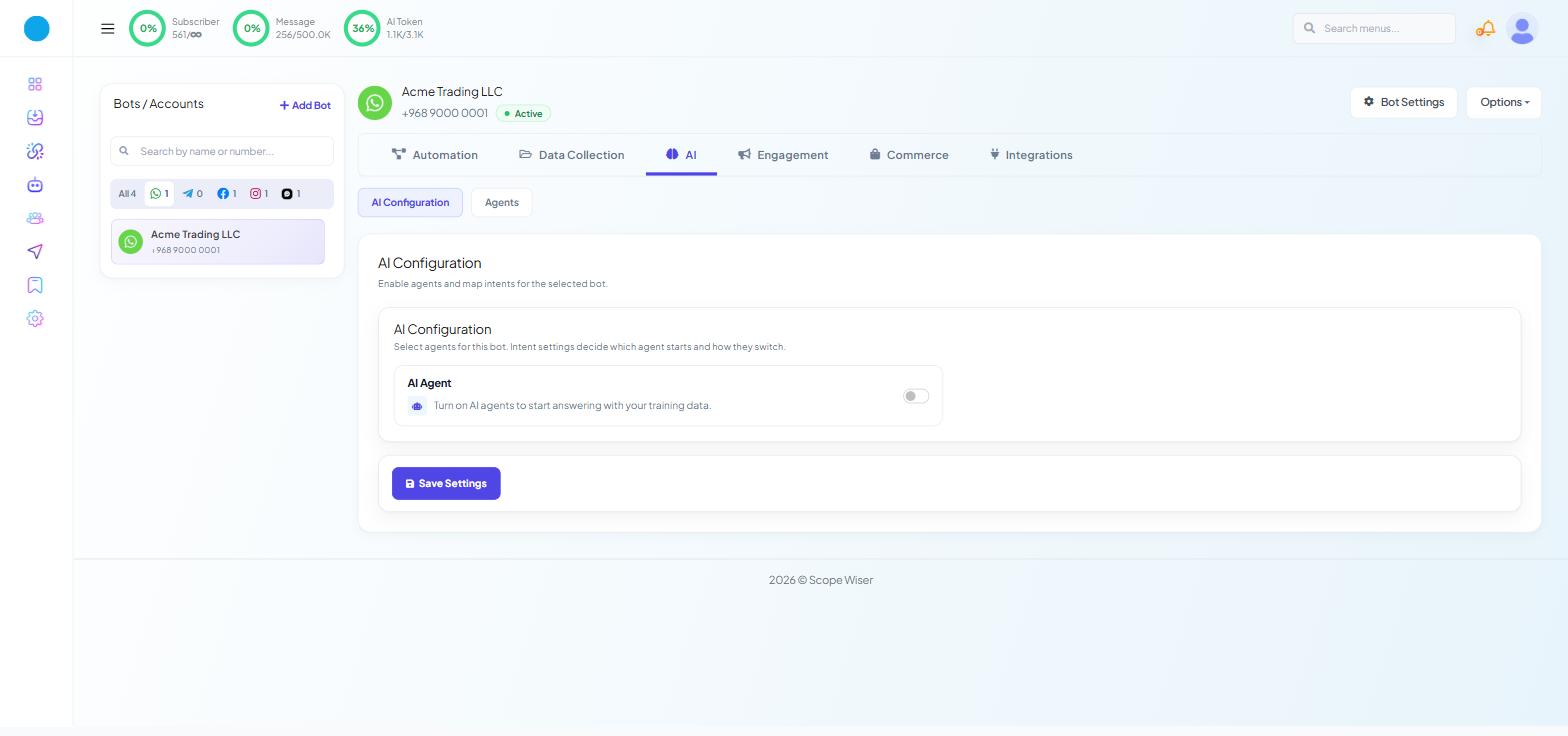
If you open Chatbot Manager → AI → AI Configuration and find a nearly empty page, nothing is missing. The whole panel sits behind one AI Agent toggle. Until that toggle is on, none of the settings below appear.
The four places AI appears
Where | What it does | Who it serves |
|---|---|---|
Chatbot Manager → AI | Creates agents and decides when they answer customers | Your customers |
Flow Builder → AI Reply block | Lets one step in a flow answer with AI instead of fixed text | Your customers |
Shared Inbox → AI Assistant panel | Analyses a conversation and drafts replies for a colleague | Your team |
AI Token meter, top bar | Shows what all of the above has used | You |
The first two speak to customers. The third only helps your team; the customer sees nothing unless a colleague sends what it drafted.
Chatbot Manager → AI, in two halves
Open Chatbot Manager and pick a bot.
Click the AI tab. Two sub-tabs appear: AI Configuration and Agents. Both exist on WhatsApp, Facebook, Instagram and Webchat bots.
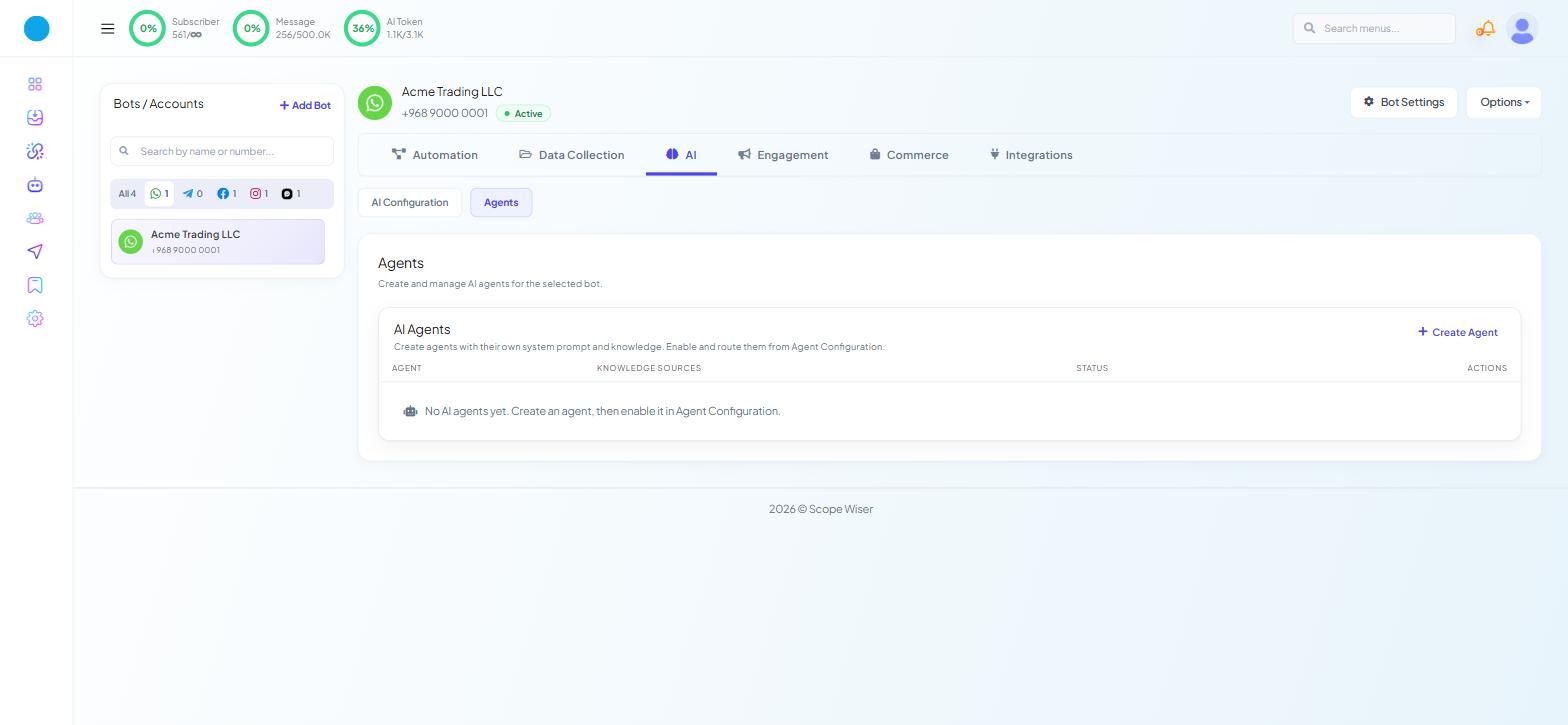
Agents is where you build an agent. Each agent has its own name, its own SYSTEM PROMPT and its own knowledge set, so a sales agent and a support agent can hold different instructions. A new account shows an empty table (AGENT / KNOWLEDGE SOURCES / STATUS / ACTIONS) and the message "No AI agents yet. Create an agent, then enable it in Agent Configuration."
AI Configuration is where agents are switched on and given work. Building an agent does nothing on its own; until you enable it here, it never answers anybody.
Note: the Agents page calls this tab "Agent Configuration"; it is the AI Configuration tab. The right-hand card on that page is headed AI Assistant Overview even though the toggle beside it is called AI Agent.
Turning it on
Go to Chatbot Manager → AI → AI Configuration.
Switch the AI Agent toggle on. The helper text changes to "AI agents are active and ready to assist." and the rest of the page appears.
Work through the settings. Each one is explained in AI Intent Detection and Agent Routing:
Active Agents — pick the agents allowed to answer. + Create Agent and Refresh sit beside it.
Agent Routing — + Add Rule to say which kind of message goes to which agent.
AI Response Mode — AI Agent for All Queries or AI as a Fallback Only.
Enable Contextual Memory and its Memory Window.
Assign to Team or Department, with Team / Department, an Assignment Message and Do Not Assign Agent in Business Off Hour.
Enable Typing on Indicator.
Restricted Topics and Response for Restricted Keywords.
Delay for AI Reply (Seconds).
AI Reasoning Level for Responses — Low, Medium or High.
Click Save Settings. Do not click Reset to Default unless you want to discard the whole configuration. There is no Publish Changes button on this screen; that belongs to Bot Settings.
The right-hand AI Assistant Overview card shows what was saved: Active Agents, Agent Routing, Response Mode, Contextual Memory, Restricted Topics and AI Reasoning Level. Check it after saving.
What the AI does well
Choose AI as a Fallback Only and your existing flows and Keyword Replies run first; the AI answers only what they miss.
Use Agent Routing to send pricing questions to one agent and problem reports to another.
An agent can also add labels, hand over, or look up orders — see AI Intent Detection and Agent Routing.
What it cannot do
It can be wrong, and it sounds confident when it is.
It only knows what you gave it. Stale prices or policies produce wrong answers.
Put medical, legal and financial topics in Restricted Topics so a person handles them.
The controls you have
SYSTEM PROMPT on each agent sets its role, tone and limits — Training Your AI: Knowledge Sets, URLs, Files and Live Data.
The knowledge set attached to each agent decides what it can answer — same guide.
Restricted Topics and Response for Restricted Keywords on AI Configuration — AI Intent Detection and Agent Routing.
Human handover: Assign to Team or Department, Pause AI in the Shared Inbox, and Disable AI assistant during business hours in Bot Settings → Business Hour — AI Customer Service: Business Hours and After-Hours Replies.
Before you switch it on
Give it something to answer from. An agent with an empty knowledge set is worse than no agent.
Decide the response mode. Fallback is the safer default.
Have a handover path. Somebody watching the Shared Inbox, or a team to assign to.
Watch the AI Token meter. It sits in the top bar on every screen; the detail is in AI Token Usage Log on the Account page.
Start small. Create one agent with a narrow job and a short knowledge set. Enable it with AI as a Fallback Only. Leave Delay for AI Reply (Seconds) at 0. Read what it says in the Shared Inbox for a few days, then widen the knowledge, add a second agent, or move to all queries — in that order.
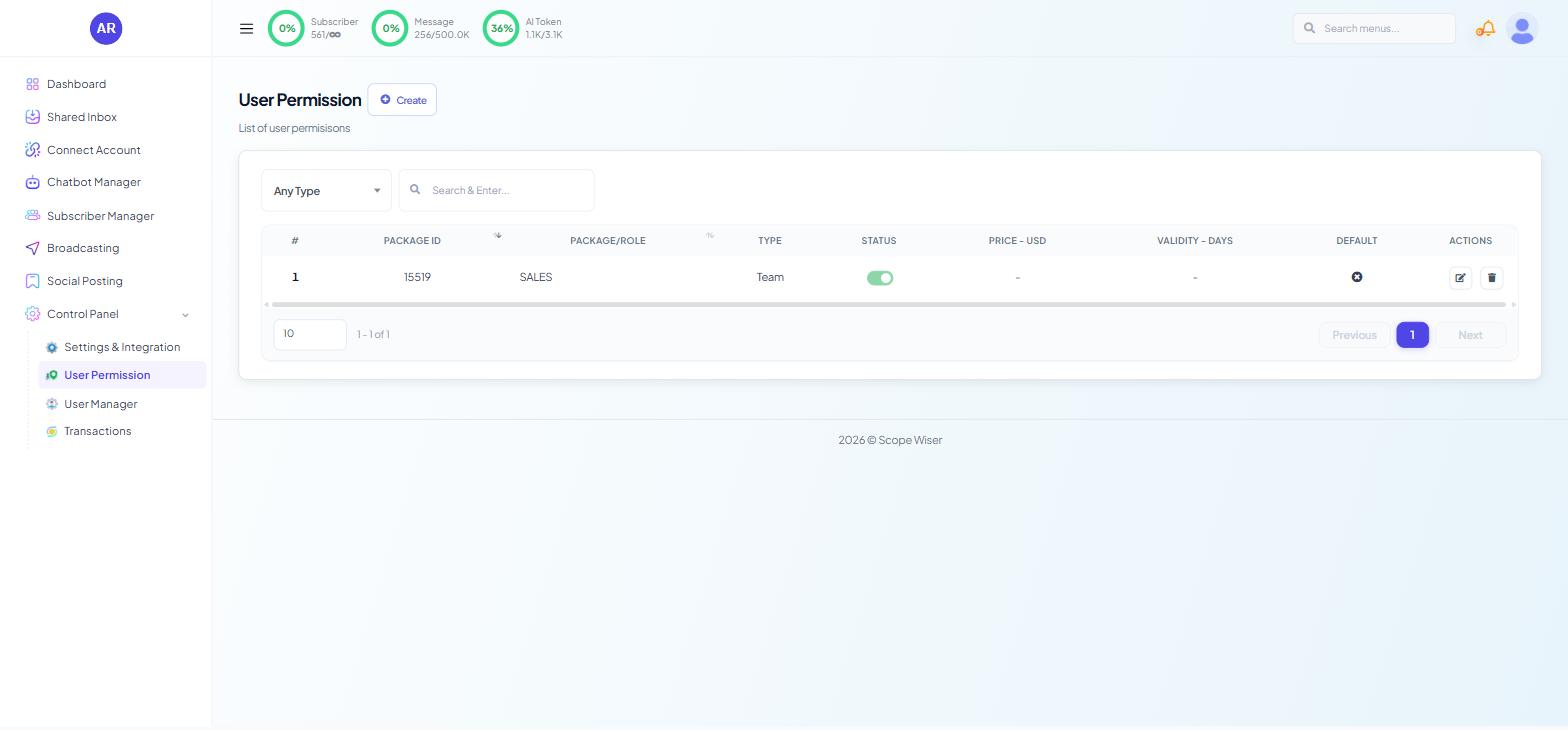
If you work with a team: BOT AI AGENT and BOT AI ASSISTANT are separate permissions under Control Panel → User Permission. Someone can be allowed to draft replies in the inbox without being allowed to change how the bot answers customers.
What to do next
Build the knowledge first: Training Your AI: Knowledge Sets, URLs, Files and Live Data. To see AI helping your team with no customer exposure, start with AI in the Shared Inbox: Smart Assistant and Conversation Analysis.