
Training Your AI: Knowledge Sets, URLs, Files and Live Data
How to give a Scope Wiser AI agent its knowledge: create a knowledge set, add Content, URL, File, Media, Google Sheet or API sources step by step, and check the training saved.
An AI agent answers from two things: its SYSTEM PROMPT (what it is and how it behaves) and its knowledge set (what it knows about your business). This guide shows how to build the knowledge set.
Where training lives
Knowledge is attached to each agent, not to the account or the bot. A bot can run several agents that know different things.
Open Chatbot Manager and choose your bot.
Click AI → Agents.
Click + Create Agent, or edit an existing agent from the ACTIONS column.
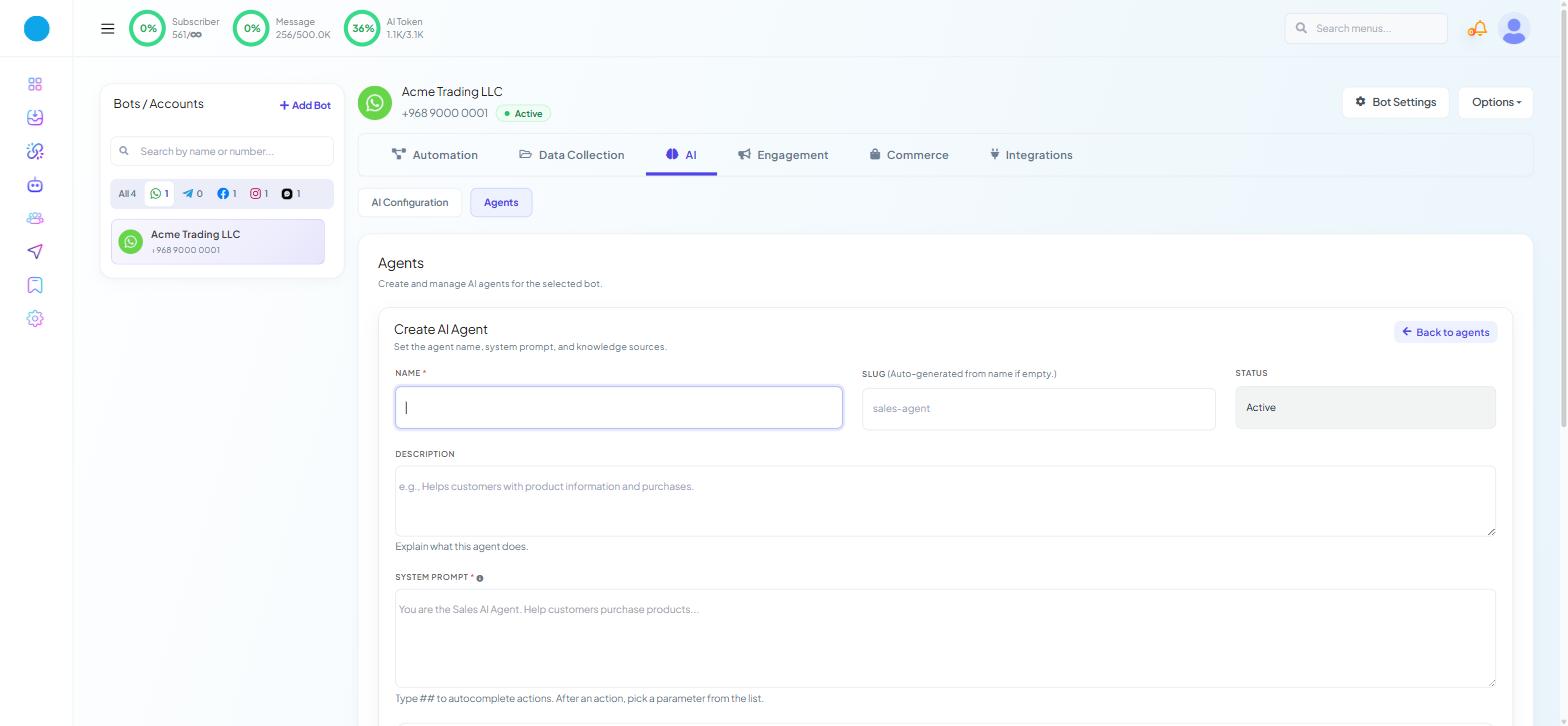
The form is headed Create AI Agent. Fill in:
NAME (required)
SLUG — auto-generated from the name if you leave it empty
STATUS —
ActiveorInactiveDESCRIPTION — what this agent does, for example "Helps customers with product information and purchases."
SYSTEM PROMPT (required) — who the agent is and how it should behave, for example "You are the Sales AI Agent. Help customers purchase products..."
Typing ## in the prompt opens a list of actions the agent can perform. Actions are covered in AI Intent Detection and Agent Routing.
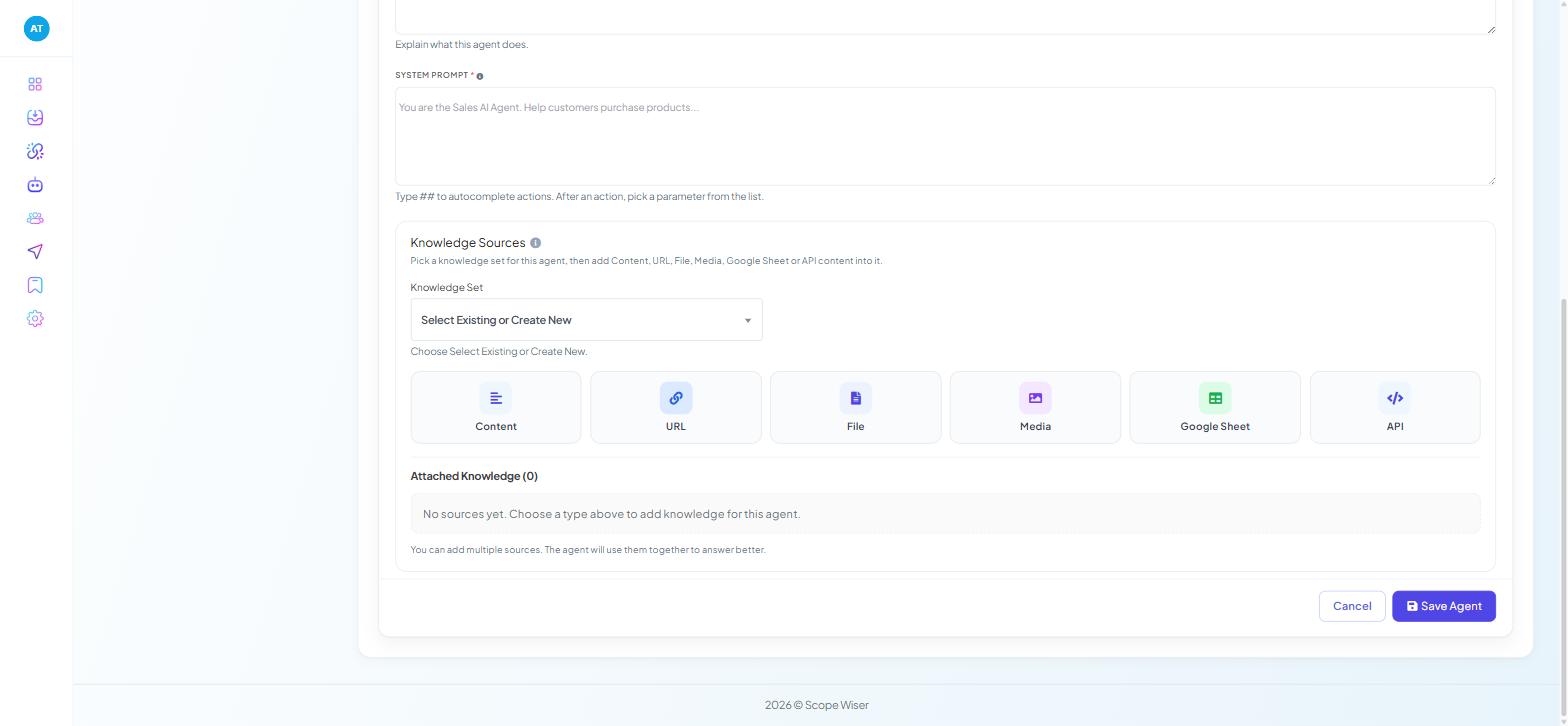
Below the prompt sits Knowledge Sources.
Knowledge sets come first
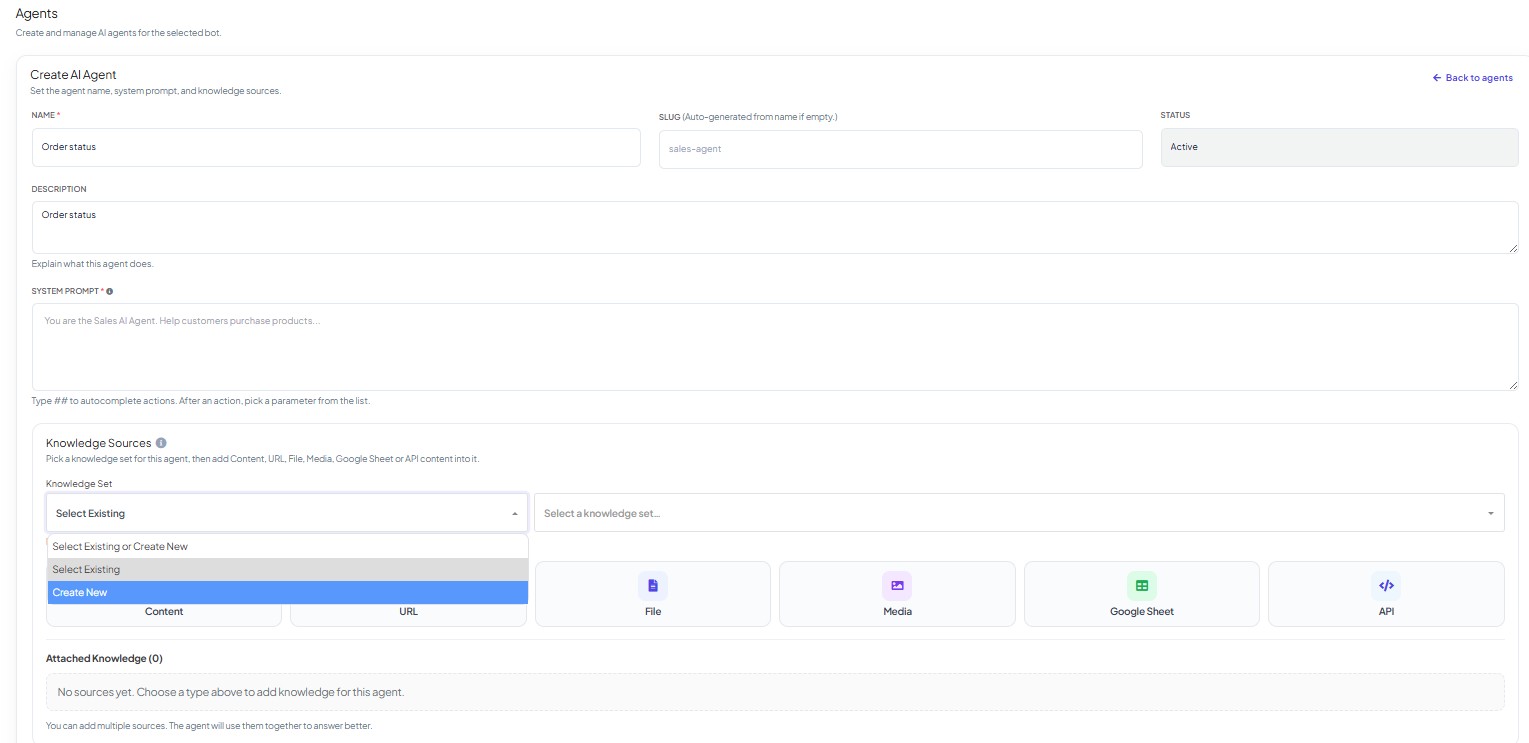
Under Knowledge Sources, open the Knowledge Set dropdown.
Choose Select Existing and pick a set, or choose Create New and give it a name.
A knowledge set is a reusable container: the same product information can back a sales agent and a support agent without being uploaded twice.
Make one small set per job (products, policies, troubleshooting) rather than one big set. Narrow sets give better answers and use fewer tokens.
Delete This Knowledge Set removes the set itself, not just this agent's link to it. Check which other agents use it before you click.
Underneath the dropdown is Attached Knowledge (0). On a new agent it reads "No sources yet. Choose a type above to add knowledge for this agent." A set can hold several sources of different types.
The six source types
Six source types sit above the attached-knowledge list: Content, URL, File, Media, Google Sheet and API.
Content, URL, File and Media are static: what you put in stays as you left it. Google Sheet and API are live: the answer changes when the data changes.
Content
Text you write or paste. Use it for question-and-answer pairs and for a short summary of your business.
Click Content.
Paste your text and add it to the set. It appears under Attached Knowledge.
Question-and-answer pairs are cheap and match predictable questions well. A short summary helps the agent with questions you did not anticipate. Most accounts want both.
URL
Points the agent at a page on your site — pricing, shipping, returns — so the knowledge follows the page.
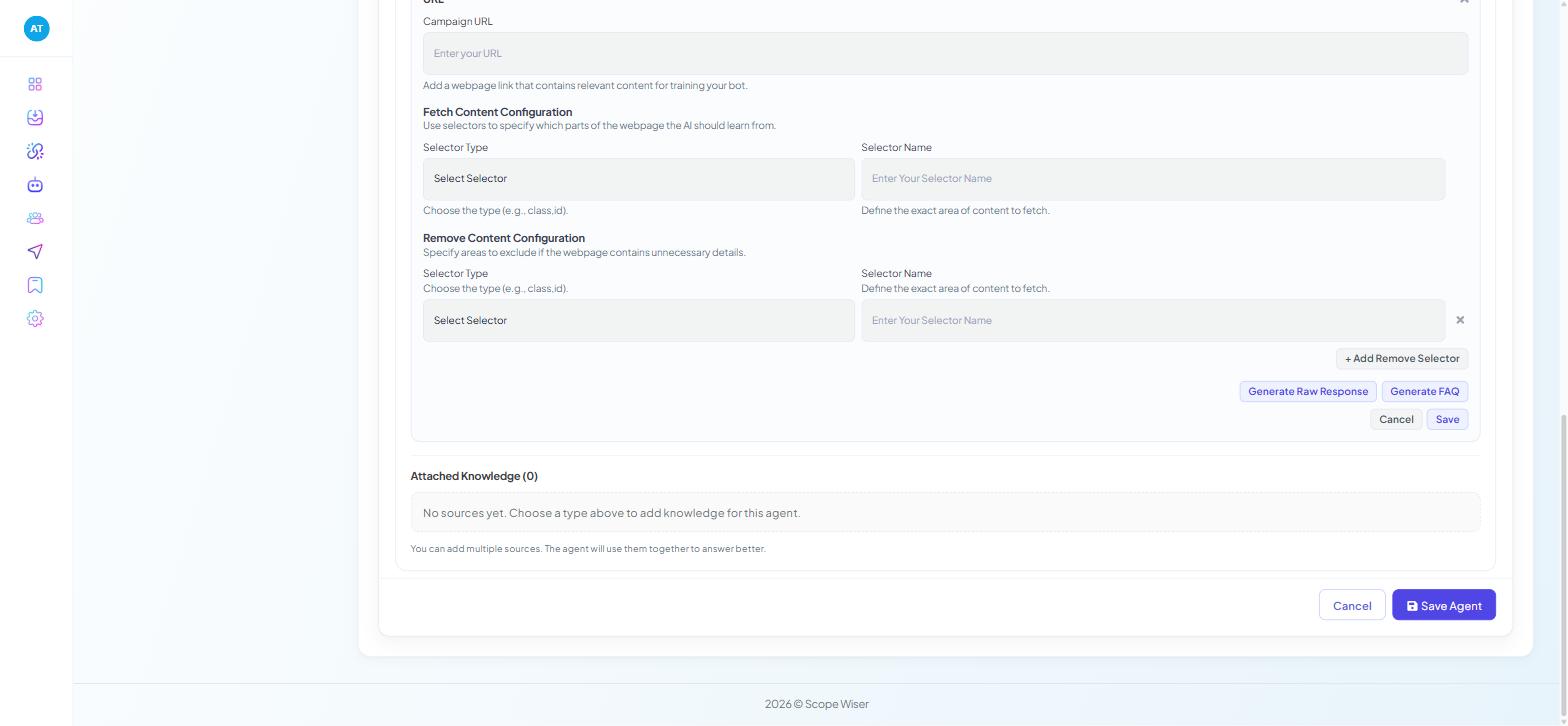
Click URL.
Enter the page address.
+ Add Remove Selector lets you tell the agent to ignore parts of the page (menu, cookie banner, footer) so only the useful text is learned.
Choose Generate Raw Response to keep the page as written, or Generate FAQ to turn it into question-and-answer pairs. FAQ suits policy pages; raw suits dense specification pages.
Import the page again after a redesign.
File
Uploads a document: a manual, a price list, a policy PDF.
Click File.
Upload the document and add it to the set.
Media
Upload product photos with a short description so the agent can send the right picture. Product images belong here, not in the system prompt.
Click Media.
Upload the image and write a short, specific description of what it shows.
Google Sheet
Live data from a spreadsheet — stock levels, delivery windows, branch opening hours — that someone already keeps up to date.
Connect the sheet first under Chatbot Manager → Integrations → Google Sheets.
Back on the agent form, click Google Sheet and choose the connected sheet.
API
Connects the agent to live data in another system, such as an order lookup or a stock check. Your developer sets it up under Chatbot Manager → Integrations → HTTP API.
For developers
Define the request endpoint, method and response mapping under Chatbot Manager → Integrations → HTTP API on the same bot, then click API on the agent form and attach that API to the knowledge set.
Choosing between them
You have | Use | Because |
|---|---|---|
Twenty questions you answer daily | Content, as pairs | Cheapest per reply, near-exact matching |
A long policy or manual | File | Already written; no re-typing |
A page your marketing team keeps updated | URL | Stays current, and remove selectors cut the clutter |
Product photos customers ask to see | Media | Sends the image rather than describing it |
A price or stock list that changes weekly | Google Sheet | Non-technical people can maintain it |
Data that must be right to the minute | API | Reads the real system at the moment of asking |
Every source you attach is read on each reply and counts towards your token use — see AI Tokens: How Usage and Cost Actually Work. Leave the most predictable questions to Keyword Replies, which cost no tokens.
Saving and checking
Click Save Agent (or Cancel to discard).
Back on the Agents list, check that the KNOWLEDGE SOURCES column shows what you attached.
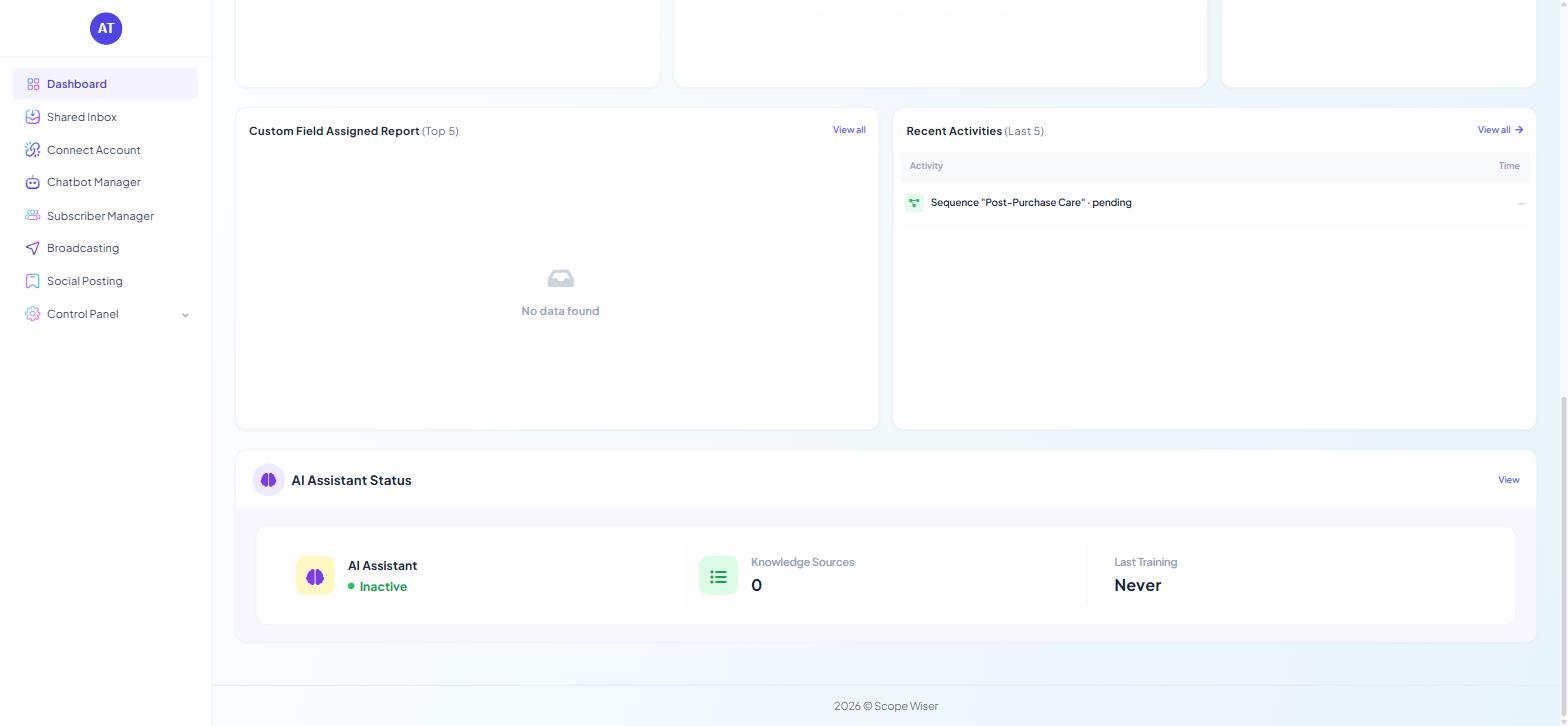
On the Dashboard, scroll to the AI Assistant Status card. Knowledge Sources
0or Last TrainingNeveron a bot you thought was trained means the training did not save.
The Dashboard's Train AI quick action is the fastest route back to this form.
Keeping it current
Update sources whenever prices or policies change. Read last week's AI replies in the Shared Inbox to find gaps.
What to do next
With knowledge attached, go to AI Intent Detection and Agent Routing to decide which agent handles which message. If your agent is built but silent, it has not been enabled under AI Configuration.