
AI in the Shared Inbox: Smart Assistant and Conversation Analysis
The two AI tools beside a conversation in the Scope Wiser Shared Inbox — how to run Analyze Customer Conversation, read its scores, and use Help me to reply without anything reaching the customer.
The inbox AI tools only help your team; nothing reaches the customer unless you send it. This guide shows where the two tools are and how to use them.
Where the tools are
Open Shared Inbox from the sidebar and select a conversation.
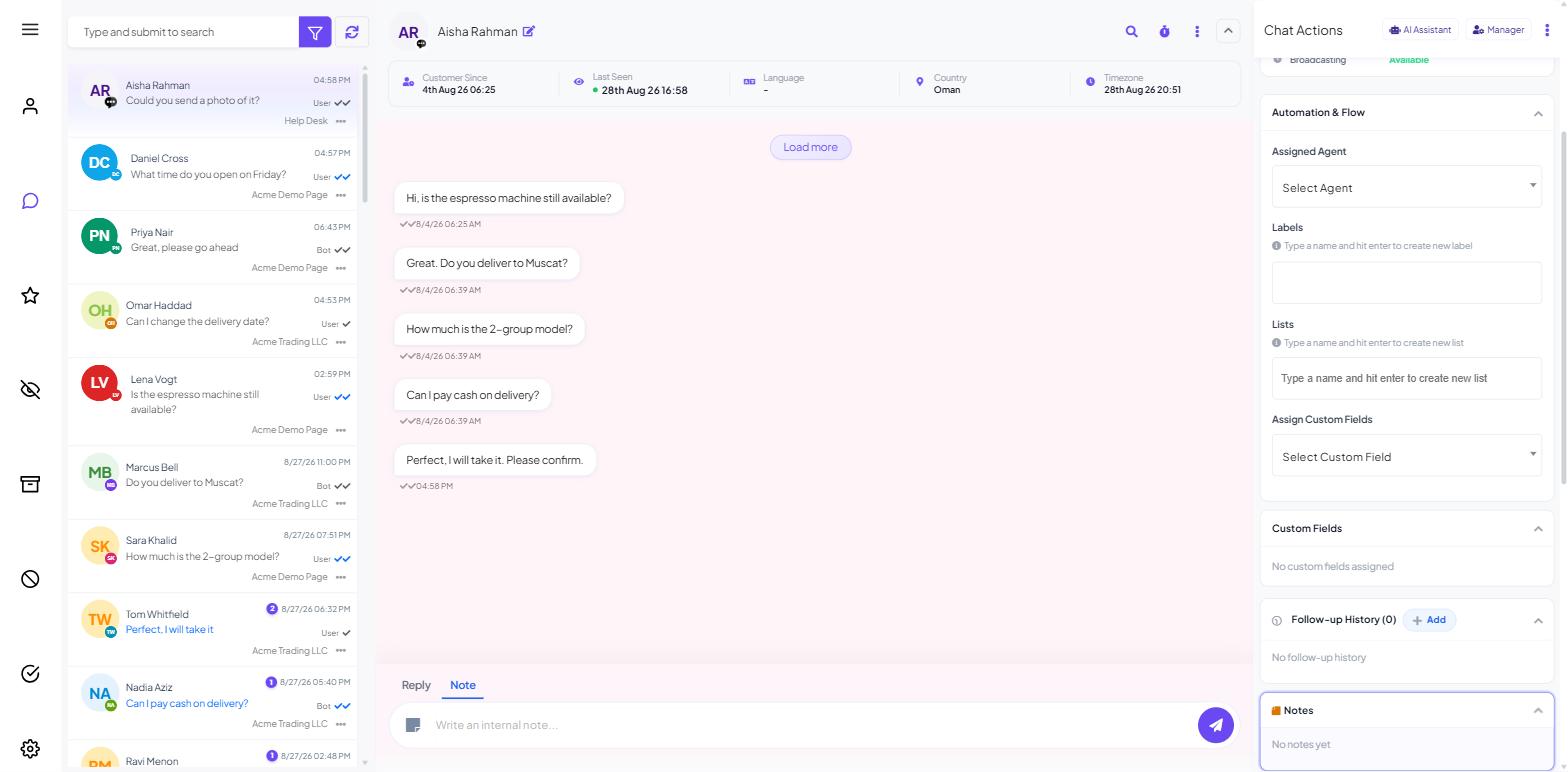
In the right-hand Chat Actions panel, click AI Assistant at the top, or scroll down past Assign Custom Fields, Custom Fields, Follow-up History and Notes to the AI Assistant section.
It holds two tools and one setting that applies to both.
Reasoning Effort
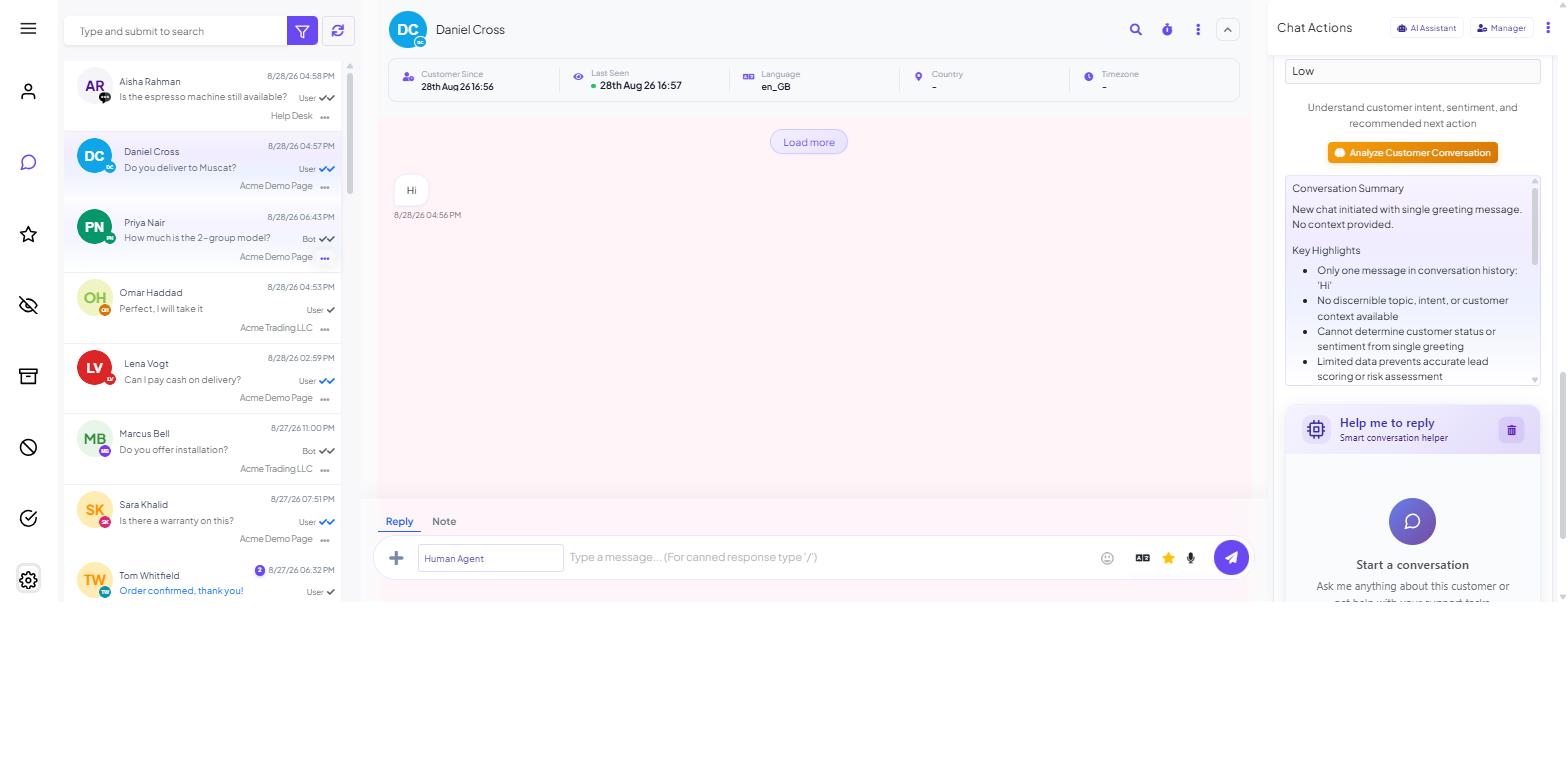
A dropdown at the top of the panel, set to Low by default. Higher effort handles long or tangled conversations better and costs more time and tokens. Leave it on Low for routine enquiries; raise it for a difficult account.
Analyze Customer Conversation
Click Analyze Customer Conversation. The AI reads the whole conversation and returns six blocks:
Conversation Summary. What the exchange is about and where it has got to. Read this when a colleague's conversation lands on you.
Key Highlights. Facts pulled from the thread: prices quoted, discounts offered, contact details, commitments made.
Sentiment. Current (for example
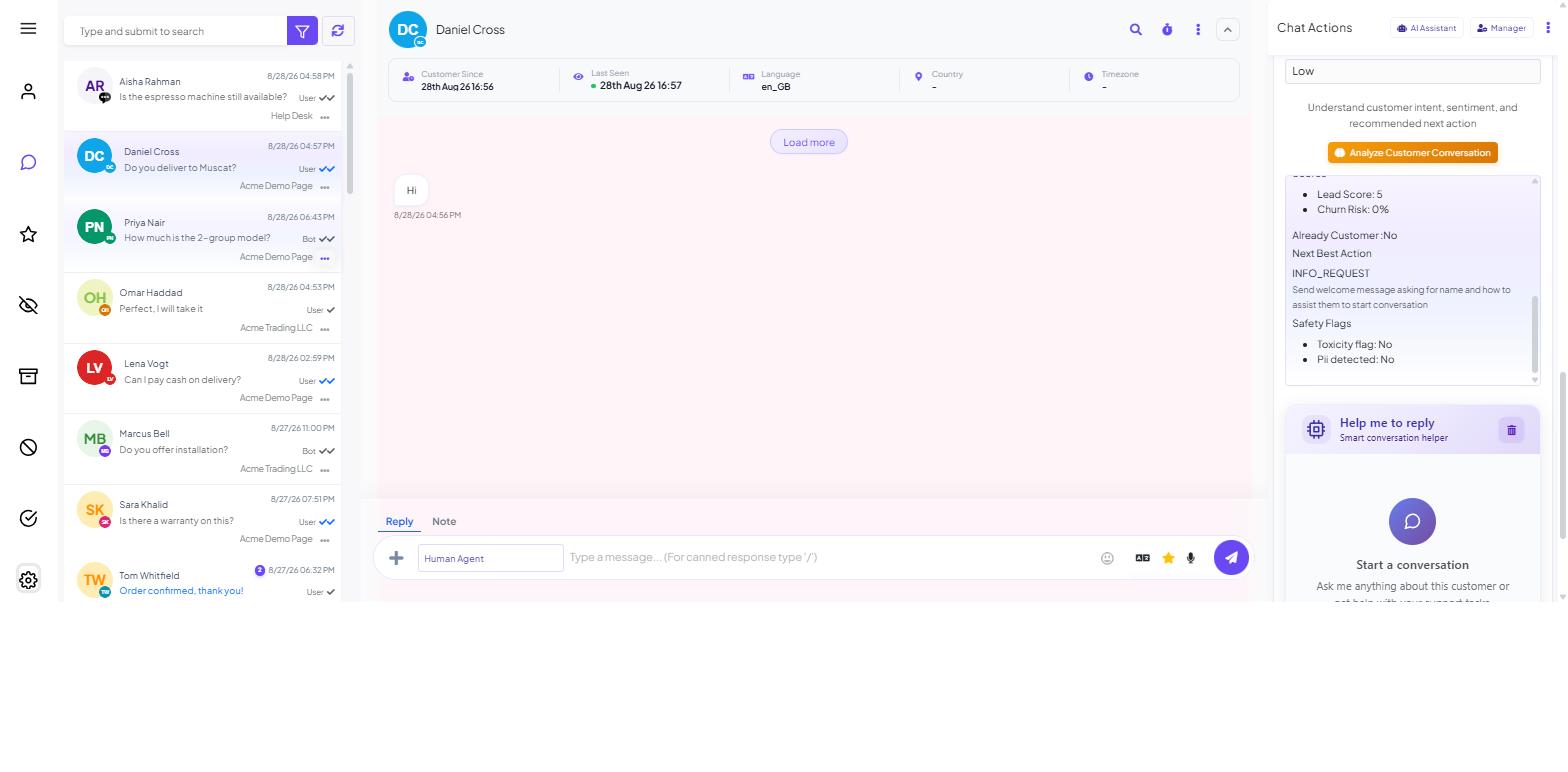
neutral) and Trend (for exampleflat). On a two- or three-message exchangeflatmeans there is not enough to say. A conversation trending down needs a person's attention.Scores. Lead Score out of 100, Churn Risk as a percentage, and Already Customer (Yes/No). Use them to sort a queue, not to judge an individual.
Next Best Action. A short code such as
INFO_REQUESTand a plain recommendation, for example "Share product catalog, pricing, or schedule a demo after receiving contact details."Safety Flags. Toxicity flag and Pii detected.
Yeson the second means the thread contains personal information, which affects how it should be handled and exported.
Reading the analysis well
Compare the summary against the thread for the first week, so you know how far to trust it.
Use the scores to decide which conversation to open first, not whether a person is worth calling back.
Do not run it on every two-message enquiry; each run reads the whole thread and costs tokens.
Help me to reply
The second tool, subtitled Smart conversation helper. It is a chat window of your own with the customer conversation in view.
Type your request into Type your message... and send it. Examples:
"Draft a reply explaining our returns window."
"What has this customer already been told about delivery?"
"Make this shorter and less formal."
Copy what you want into the message composer at the bottom of the conversation ("Type a message... (For canned response type '/')"). Nothing crosses over on its own.
Click the trash icon on the panel to clear the thread when you are finished.
The assistant's replies sometimes show formatting characters literally, such as **Summary:**. This is cosmetic.
Pause AI and Pause Bot
The Quick Actions strip near the top of the Chat Actions rail has Pause Bot, Pause AI, Scheduled, Notes and See More.
Pause Bot stops keyword replies and flows.
Pause AI stops the AI agent replying to the customer.
When you take over a live conversation, press both. Neither affects the AI Assistant panel.
Who can use it
BOT AI ASSISTANT is its own permission under Control Panel → User Permission, separate from BOT AI AGENT. Support staff can have the inbox tools without being able to change how the bot answers customers. See Adding Team Members and Access Control.
What it costs
Both use AI tokens; run them on conversations that matter — see AI Tokens: How Usage and Cost Actually Work.
What to do next
To put an AI agent in front of customers, start with AI Assistant Overview: What It Can and Cannot Do. For assignment, filters, notes, follow-ups and canned responses, see the Live Chat and Shared Inbox guides.