
Using AI on Your Website Chat Widget
How to put a Scope Wiser AI agent behind your website chat widget, switch it on, adjust the widget settings that matter, and hand a visitor to a person.
Webchat needs no template approval or 24-hour window, so it is the easiest place to try an AI agent. This guide shows how to put an agent behind your website chat widget and hand visitors to a person when needed.
What has to exist first
A chat widget embedded on your site. Go to Connect Account → Connect Webchat. The Website Chat Widgets page lists your widgets (WIDGET NAME, WEBSITE, STATUS, LAST ACTIVE) with Embed and Settings on each row. Creating and embedding one is covered in Website Chat Widget: Create, Embed and Manage.
The Webchat bot it belongs to, which appears in Chatbot Manager alongside your WhatsApp and social bots.
AI is configured on the bot, not on the widget.
Building the agent
Open Chatbot Manager and select the Webchat bot.
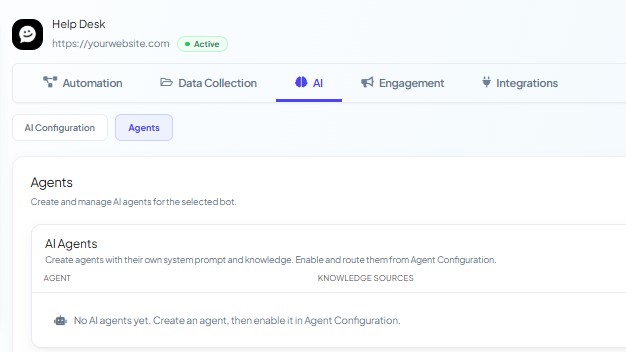
Click AI → Agents → + Create Agent.
Fill in NAME, STATUS, DESCRIPTION and the SYSTEM PROMPT, then pick a Knowledge Set and add sources (Content, URL, File, Media, Google Sheet, API). Full detail: Training Your AI: Knowledge Sets, URLs, Files and Live Data.
Click Save Agent.
Two things to do differently for a website agent:
Write the prompt for a stranger. Tell the agent to answer the question first and ask for contact details second.
Add the pages the visitor is reading. A URL source pointed at your pricing, delivery and returns pages is the highest-value knowledge a website agent can have.
Switching it on
Click AI → AI Configuration and turn the AI Agent toggle on. The rest of the page appears only after this.
Add your agent to Active Agents.
Under Agent Routing, click + Add Rule and describe the messages this agent handles.
Choose an AI Response Mode. AI as a Fallback Only lets Keyword Replies and flows run first; AI Agent for All Queries puts the AI in front of everything. Most Webchat bots have little keyword automation, so all-queries is often the better start — check your Keyword Replies list before deciding.
Click Save Settings.
The remaining settings — Enable Contextual Memory and Memory Window, Restricted Topics, Delay for AI Reply (Seconds), Enable Typing on Indicator and AI Reasoning Level for Responses — are explained in AI Intent Detection and Agent Routing.
What is different about the Webchat channel
No Commerce tab. Product Catalog and Store Automation exist on WhatsApp only.
A smaller Flow Builder palette. Messages offers Text, Image, Audio, Video, File, Generic Template, Carousel and AI Reply. Flow Control contains only Condition.
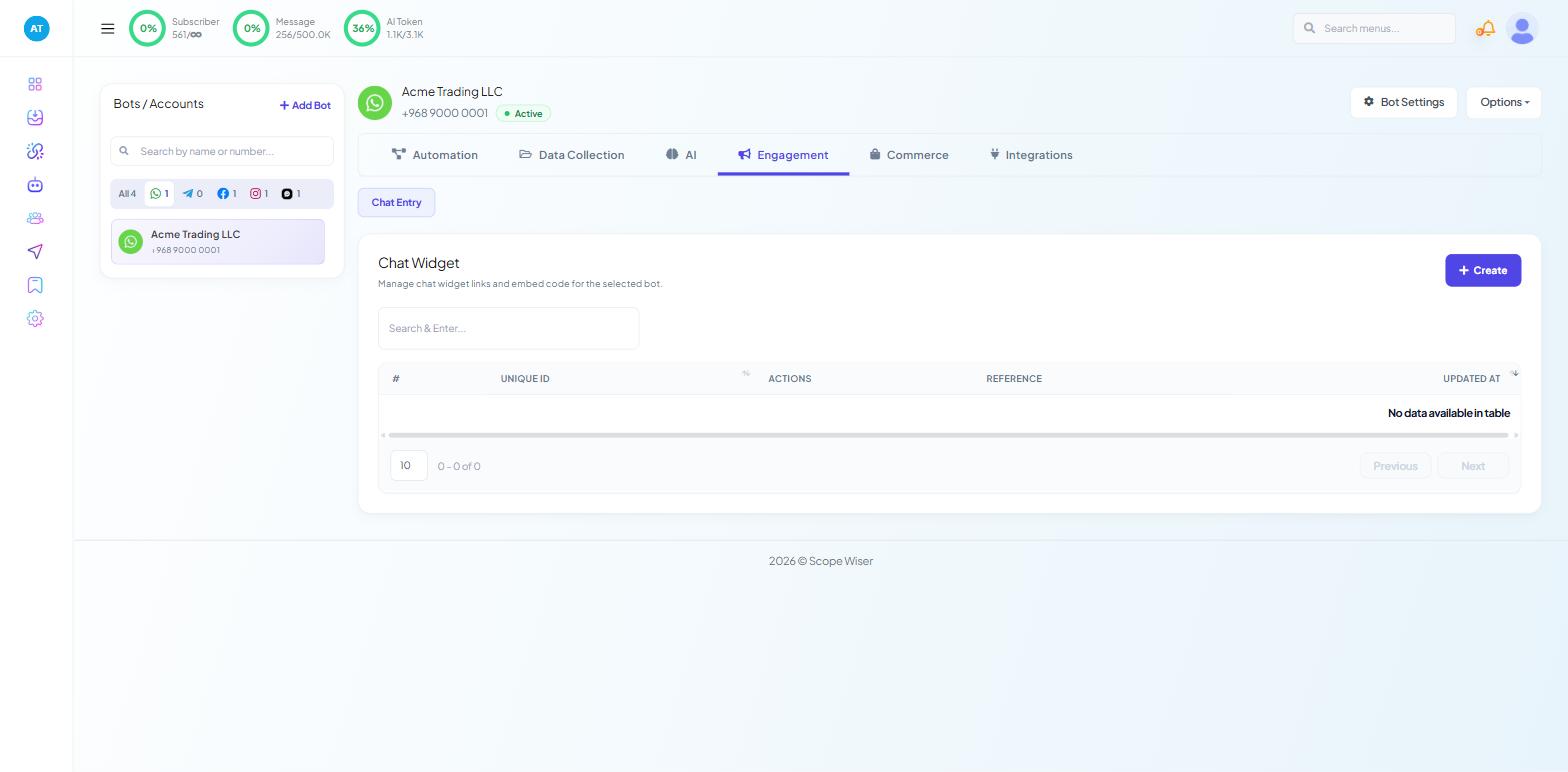
A shorter Engagement tab. Get Started Settings and Persistent Menu only.
The AI Reply block lets one step of a flow answer with AI while the rest stays scripted: collect a name and an email with fixed questions, then hand the open question to the agent.
Widget settings that change how the AI feels
On Website Chat Widgets, click Settings on the widget row. The Set Up Your Live Chat Widget drawer opens.
Set these four fields:
Chatbox display title (spelled "disaply" on screen) — the first thing a visitor reads. If an AI is answering, say so: "Ask our assistant".
Stay Open on Startup — Stay open starts more conversations and spends more tokens; Stay closed is more restrained.
Loading Chatbox After N Second(s) — a few seconds' delay lets the visitor finish reading before the widget appears.
Upload Media — switch on if visitors should be able to send a photo (a damaged item, an error screenshot).
Handing over to a person
All webchat conversations arrive in the Shared Inbox alongside WhatsApp, Facebook and Instagram. A colleague opening a conversation can click Pause AI in the Quick Actions strip to stop the AI replying while they take over. The inbox AI tools are covered in AI in the Shared Inbox: Smart Assistant and Conversation Analysis.
In Bot Settings → Shared Inbox, set CHAT WITH HUMAN SESSION EXPIRY TIME (IN MINUTE) so a visitor who returns later is still with your colleague, not handed back to the AI. It defaults to 0.
Testing it properly
Open your site in a private browser window.
Ask something your knowledge covers. Check the answer is right.
Ask something it does not cover. Check the agent says so and offers a person.
Ask to speak to somebody. Check the conversation appears in the Shared Inbox.
Watch the AI Token meter in the top bar during the first busy week, especially if the widget opens automatically on a busy page.
When it does not answer
The widget works but the AI is silent. The AI Agent toggle is off, the agent is not in Active Agents, or its STATUS is
Inactive.It answers wrongly or vaguely. The knowledge set is thin or stale. Read the conversation in the Shared Inbox and fix the source behind it.
It answers some things and ignores others. In fallback mode, a Keyword Reply matching part of the message answers instead of the AI.
Nothing arrives at all. A widget or embed problem. Check STATUS and LAST ACTIVE on the widget row.
What to do next
AI in the Shared Inbox: Smart Assistant and Conversation Analysis for the team side. Website Chat Widget: Create, Embed and Manage for the widget itself.