
AI Intent Detection and Agent Routing
How to send each kind of customer message to the right Scope Wiser AI agent, decide when the AI may answer at all, set memory, restrictions and timing, and use the ## actions an agent can perform.
Intent is what the customer wants, not the exact words they typed. "Where's my parcel", "has it shipped yet" and "tracking?" are one intent. This guide shows how to send each kind of message to the right agent, decide when the AI may answer at all, and give agents actions to perform.
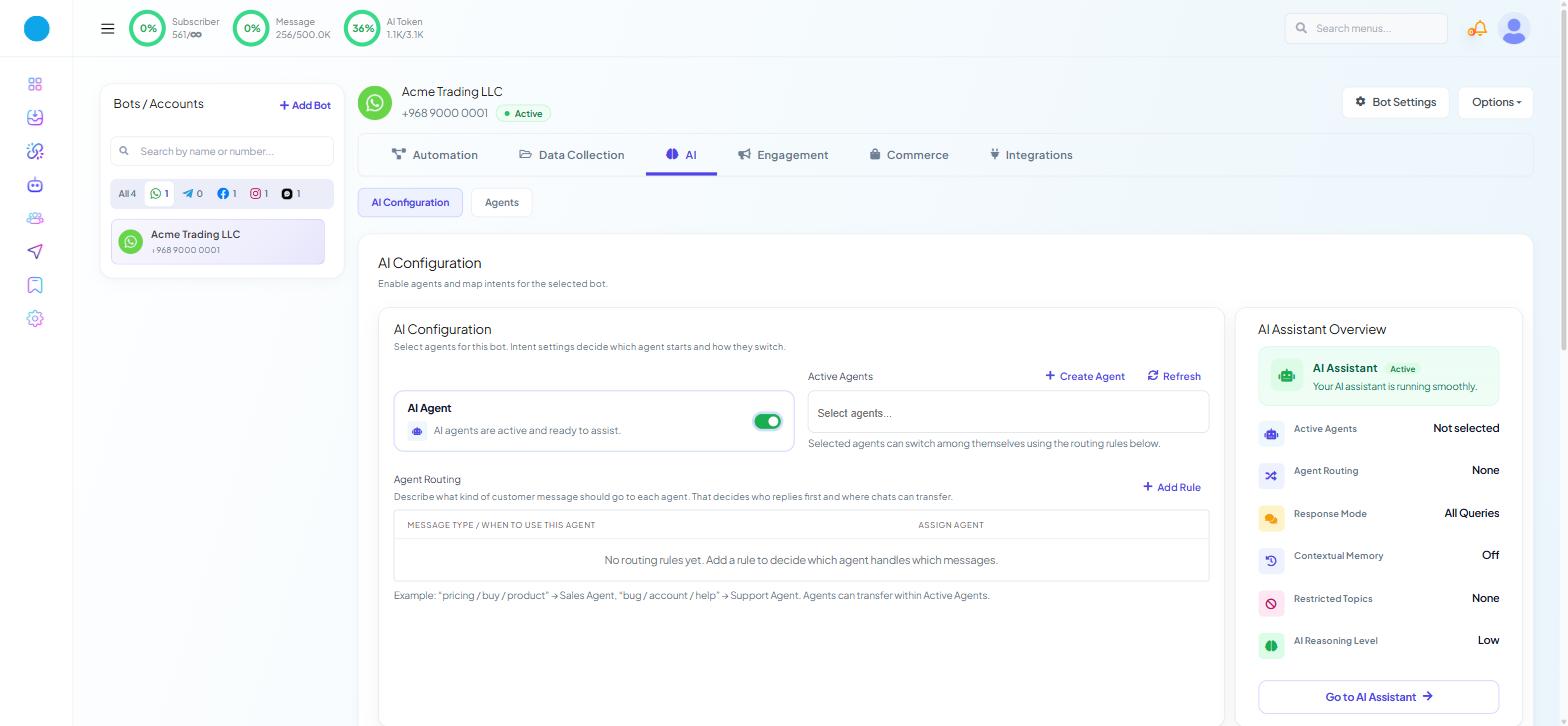
Everything here lives on one page: Chatbot Manager → AI → AI Configuration.
Where the decisions are made
Open Chatbot Manager and select your bot.
Click AI → AI Configuration.
Switch the AI Agent toggle on. Nothing below it appears while the toggle is off.
Step one: choose who is on duty
In Active Agents, select every agent that may answer on this bot.
Click + Create Agent if one is missing, then Refresh to see it in the list.
Only agents chosen here can answer, and agents can transfer conversations only to other agents in this list. Building agents is covered in Training Your AI: Knowledge Sets, URLs, Files and Live Data.
Step two: write the routing rules
Agent Routing decides which agent replies first and where chats can transfer.
Click + Add Rule.
In MESSAGE TYPE / WHEN TO USE THIS AGENT, describe the kind of message.
In ASSIGN AGENT, pick the agent.
The product's own example: "pricing / buy / product" → Sales Agent, "bug / account / help" → Support Agent.
Writing a rule that works
Describe the situation, not just the words. "Customer is asking what something costs, whether a discount applies, or how to place an order" routes better than "price, cost, buy".
Include the phrasings customers really use, including misspellings, abbreviations and mixed languages.
Keep rules distinct. If two rules both cover "my order hasn't arrived", merge the agents or sharpen the descriptions.
Start with two or three rules for the categories that dominate your inbox. Add more only when a real conversation went to the wrong agent.
Step three: decide when the AI may speak at all
AI Response Mode is one or the other. This is the most important setting on the page.
AI Agent for All Queries — the AI answers every message, even if a bot flow or keyword could match.
AI as a Fallback Only — bot flows and keywords run first; the AI answers only when nothing matches.
Choose fallback unless your flows are thin, or you have watched the AI handle real conversations and trust it. If your bot has ever sent two replies to one message, read Preventing Bot Conflicts and Duplicate Replies first.
What an agent can do besides reply
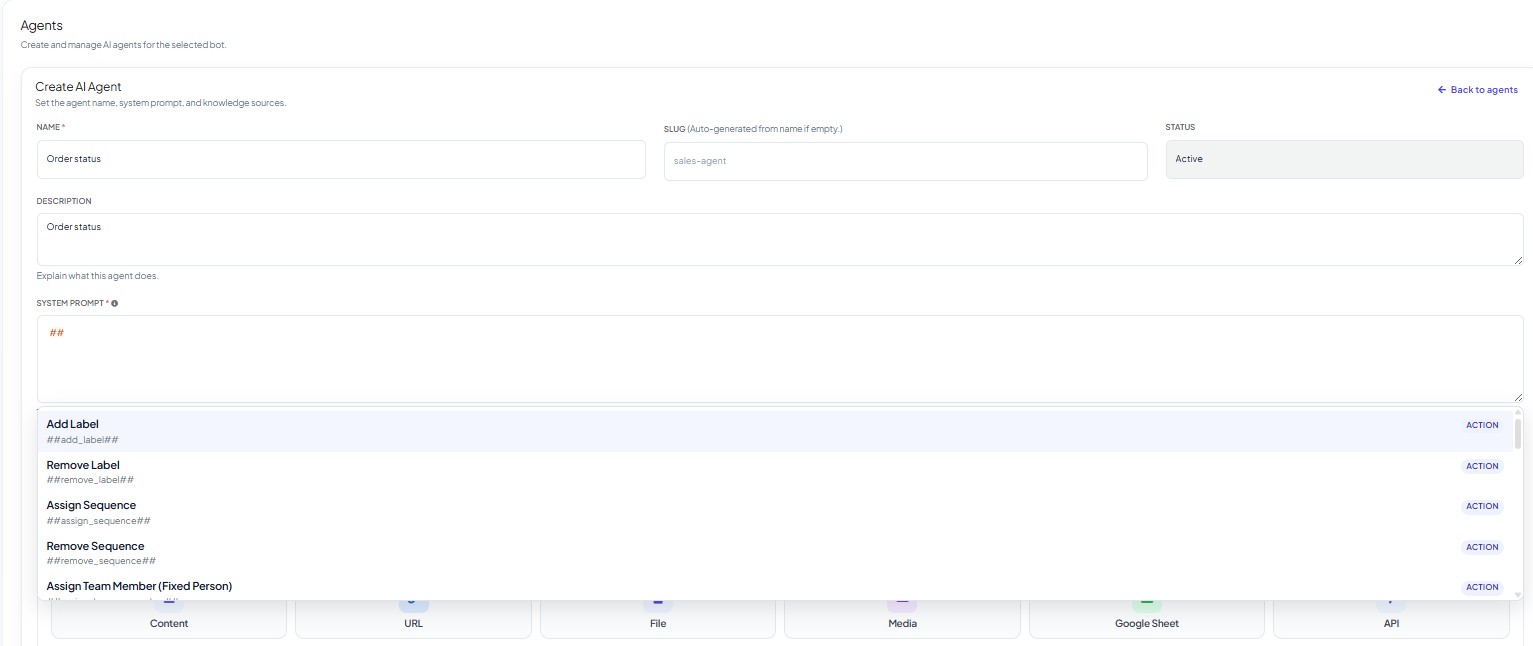
Actions are written into an agent's SYSTEM PROMPT (Chatbot Manager → AI → Agents, then edit the agent).
In SYSTEM PROMPT, type
##. A list of actions appears.Pick the action, then pick its parameter from the list.
Write the condition around it: "When the customer says the item arrived damaged, add the label
damaged-itemwith##add_label##and hand the chat to the returns role with##assign_human_role##."
One # inserts a custom field into a message; two ## make the agent perform an action.
Three cautions:
Know which handover you mean.
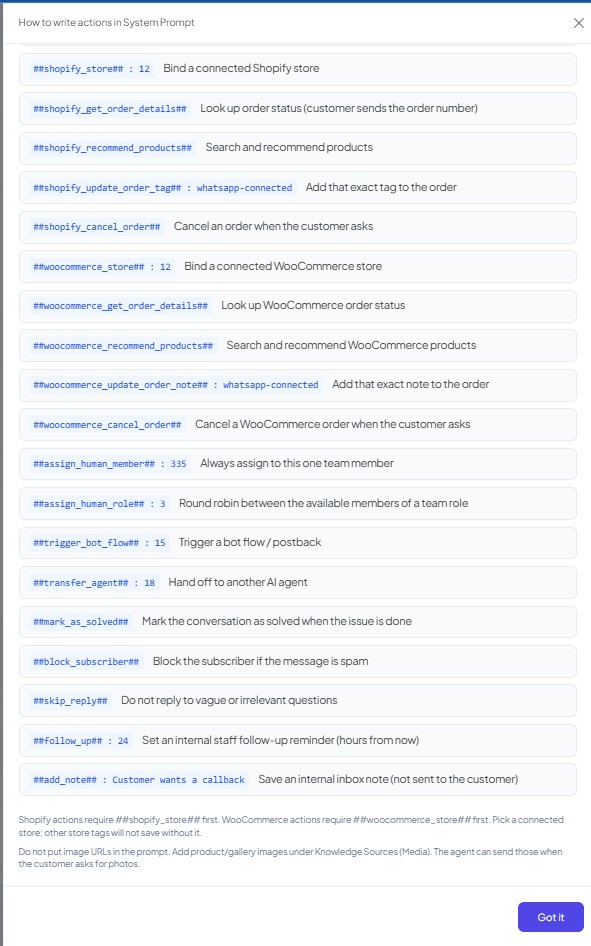
##transfer_agent##moves the chat to another AI agent listed in Active Agents.##assign_human_member##and##assign_human_role##move it to a person — a fixed person, or the next person in a rota.Be careful with the destructive ones.
##block_subscriber##and the two cancel-order actions change something real with no confirmation step. Give them narrow conditions or leave them out.Store actions need the store first. Put
##shopify_store##before any Shopify action and##woocommerce_store##before any WooCommerce action. Product images go under Knowledge Sources → Media, not in the prompt.
Reference: all ## actions
You never type these by hand — pick them from the ## list. The info icon on the agent form opens the same list under the heading How to write actions in System Prompt, showing each action's format as ##action_name## : id.
Subscriber
Action | What it does |
|---|---|
| Add Label |
| Remove Label |
| Assign Sequence |
| Remove Sequence |
| Save Custom Field |
| Block Spam Subscriber |
Handover and conversation control
Action | What it does |
|---|---|
| Assign Team Member (Fixed Person) |
| Assign Team Role (Round Robin) |
| Transfer AI Agent |
| Mark Conversation Solved |
| Internal Note |
| Follow-up Reminder |
| Ask Information |
| Finish Task |
| Skip Reply |
Flow and API
Action | What it does |
|---|---|
| Trigger Bot Flow |
| Call HTTP API (for developers) |
Store orders. Shopify and WooCommerce get the same capabilities under different tokens. The WooCommerce note action is labelled Add Order Note on screen.
Shopify | WooCommerce |
|---|---|
|
|
|
|
|
|
|
|
|
|
Handing to a team
Assign to Team or Department hands a conversation to people rather than to another agent.
Under Assignment, switch on Assign to Team or Department.
Choose a Team / Department.
Write an Assignment Message — the line the customer sees as they are passed across.
Decide on Do Not Assign Agent in Business Off Hour — see AI Customer Service: Business Hours and After-Hours Replies.
How much the AI remembers
Switch on Enable Contextual Memory and a Memory Window appears. Memory Window counts whole conversations (0, 2, 4 …). Start at 2; each step up adds history and cost on every reply.
Keeping the AI off certain subjects
Under Behavior & Restrictions:
In Restricted Topics, type a topic and press Enter. Repeat for each topic.
In Response for Restricted Keywords (500 characters), replace the default "Sorry, I cannot assist with this query. Please contact support." with a line that says what happens next, for example "I can't help with that one, but a colleague can. I've passed this on and someone will reply here shortly."
Use it for medical, legal and financial questions, complaints heading towards a dispute, and anything where a wrong answer costs more than a slow one.
Timing and effort
Under Advanced Settings:
Delay for AI Reply (Seconds) — default
0, maximum 60. A few seconds lets a customer who sends three short messages finish the thought before the AI answers.AI Reasoning Level for Responses —
Low,MediumorHigh. Higher handles awkward questions better and costs more on every reply. Low is enough for a bot answering delivery questions from a tight knowledge set. Change one level at a time.Enable Typing on Indicator — shows the customer that a reply is being composed. Pair it with a delay or a High reasoning level.
After hours
Do Not Assign Agent in Business Off Hour appears twice on this page: under Misc. Settings and under Business Hours. The Business Hours card is read-only here; its Edit button opens Bot Settings → Business Hour. Setup is in AI Customer Service: Business Hours and After-Hours Replies.
Saving, checking and testing
Click Save Settings. Reset to Default discards the whole configuration, so avoid it.
Check the right-hand AI Assistant Overview rail. Active Agents — Not selected and Agent Routing — None under a green Active badge means the AI is on with nobody to answer.
Message the bot from a real device using the phrasings your customers use. When a message reaches the wrong agent, fix the rule's description rather than adding another rule.
What to do next
To see what conversations cost, read AI Tokens: How Usage and Cost Actually Work. To sharpen the answers rather than the routing, go back to Training Your AI: Knowledge Sets, URLs, Files and Live Data.