
Using the Shared Inbox on Android, iOS and Desktop
Install the Shared Inbox as an app on phone, tablet or desktop, and set BOT REPLIES WHILE AGENT ON MOBILE APP so bot and mobile agents don't clash.
What you'll do: install the Shared Inbox as an app on a phone, tablet or computer, then decide whether the bot keeps replying while an agent is on the app.
Time: 10 minutes.
It is the same inbox, the same login and the same conversations. What changes is that it lives behind an icon with its own window, instead of a browser tab that gets closed with everything else.
1. Install the inbox
The inbox installs the way any installable web application does, using the browser's own controls.
On a desktop computer
Sign in and open Shared Inbox.
Use your browser's install control. In Chromium-based browsers this appears in the address bar.
You should now see the inbox open in its own window, with its own icon.
On Android
Sign in through Chrome and open Shared Inbox.
Open the browser menu and choose Add to Home screen or Install.
The result behaves like any other app on the device.
On iPhone and iPad
You must use Safari. Other browsers on iOS cannot install web applications. An agent who uses Chrome on their iPhone will need Safari for this one step.
In Safari, open Shared Inbox.
Tap the Share icon.
Scroll to Add to Home Screen and tap it.
Tap Add.
2. Decide whether the bot replies while an agent is on the app
Installing is the easy part. The decision that affects customers is in the bot's settings.
In Chatbot Manager, select the bot.
Click Bot Settings and open the General tab.
Find the toggle BOT REPLIES WHILE AGENT ON MOBILE APP. It ships Enabled.
Choose:
Leave it on when the phone is a safety net: nobody is watching continuously, and an automated reply is better than silence. This is the right setting for most small teams.
Turn it off if agents answer from phones during a shift, so the bot does not reply on top of them.
Click Publish Changes.
Repeat for each bot your mobile agents cover. The setting is per bot.
With it on, automation keeps answering even while an agent has the conversation open on a phone. With it off, the bot stays quiet.
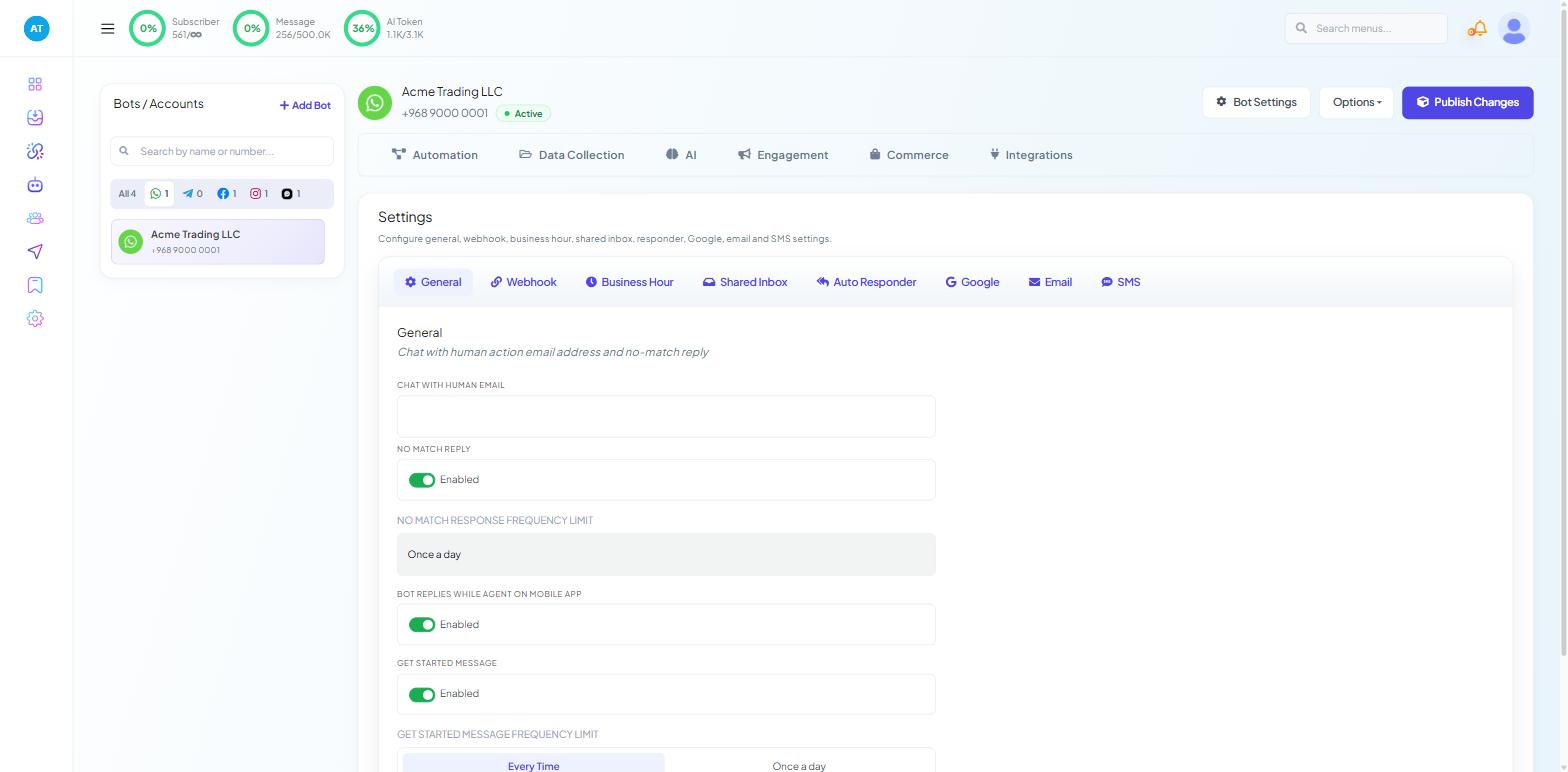
Changes need Publish Changes. Bot Settings is the eight-tab panel behind the Bot Settings button in Chatbot Manager. Nothing there takes effect until you press Publish Changes. See Bot Settings Explained: All Eight Tabs for the rest of that panel.
3. Secure personal devices
An installed inbox on a personal phone is a logged-in session on a device you do not control.
Enable two-factor authentication on the account. Account Security: 2FA, Passwords & Email Verification covers it.
Where agents handle numbers you would rather not have copied, go to Control Panel → User Permission and switch on LIVE CHAT - NUMBER MASK in their role. This hides customer phone numbers from the agent entirely.
When somebody leaves, disable their login in Control Panel → User Manager. That ends the session wherever it is installed. Removing the icon from their phone does not.
✅ Done when…
☐ The inbox opens from its own icon on each agent's device
☐ BOT REPLIES WHILE AGENT ON MOBILE APP is set the way you want on every bot, and published
☐ Two-factor authentication is on
If something doesn't work
There is no install option on an iPhone. You are not in Safari. Other iOS browsers cannot install web applications.
The bot replies on top of an agent on a phone. BOT REPLIES WHILE AGENT ON MOBILE APP is still on (it ships Enabled), or you changed it but did not press Publish Changes, or you changed it on a different bot.
Reference
Working from a phone
What works well: reading a thread, answering a short question, checking the Messaging Window countdown before you reply, and setting a follow-up so a proper answer happens tomorrow at a desk.
What is awkward: the Chat Actions rail is long — Quick Actions, Customer Snapshot, Automation & Flow, Assigned Agent, Labels, Lists, Message Sequence, Assign Custom Fields, Custom Fields, Follow-up History, Notes, and the AI Assistant panel below all of that. Reaching the bottom of it on a phone takes a lot of scrolling.
What to avoid: long replies, anything requiring a document or a screenshot, and anything you would want to reread before sending.
Out-of-hours cover
Read everything and answer what is genuinely quick. For the rest, send a short holding reply and set a follow-up so nothing is forgotten overnight. The WhatsApp messaging window is counted from the customer's last message, not yours — check the countdown in Customer Snapshot before you reply in the morning.
What to do next
Live Chat and the Shared Inbox: Complete Overview is the tour of everything the inbox holds. If mobile cover is new for your team, read Assigning Agents and Joining Conversations first.
Next: Assigning Agents and Joining Conversations