
Assigning Agents and Joining Conversations
Conversation ownership in the Shared Inbox: assign an agent, take over from the bot, restrict agents to their own chats and hand a conversation on cleanly.
What you'll do: give a conversation to one named agent, take it off the bot, and hand it on or close it at the end of a shift.
Time: 10 minutes.
Before you start
☐ Your agents exist as team members with inbox access. Adding Team Members & Access Control covers this: build a role under Control Panel → User Permission with the LIVE CHAT permission on it, then create the person under Control Panel → User Manager and give them that role.
1. Assign a conversation
Open Shared Inbox and select the conversation.
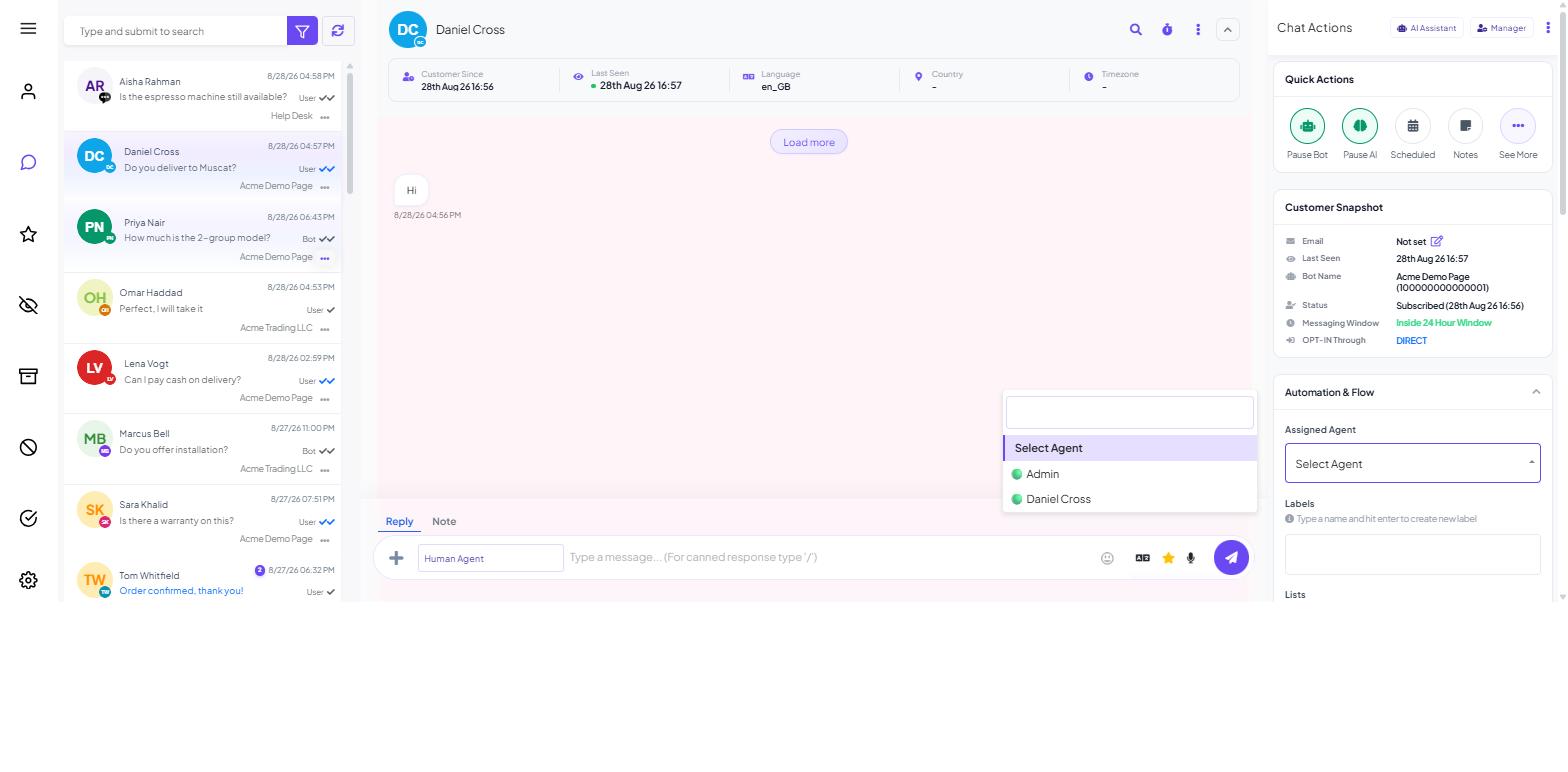
In the Chat Actions panel on the right, scroll to Assigned Agent.
Open the Select Agent dropdown and choose a person.
One agent holds a conversation at a time. Choosing a new agent replaces the previous one.
2. Make agents work from their own queue
Two settings decide whether agents actually work from their own queue.
Use the Mine filter. The top icon on the inbox's left rail is Mine: the conversations assigned to you. Agents should start their shift on Mine, not All.
Check Allow Only Assigned Chat in Livechat. Go to Control Panel → User Manager and open each person's record. This toggle is on by default.
With it on, that agent sees the conversations assigned to them and nothing else. Leave it on for agents.
With it off, they see everything. Turn it off only for supervisors who need the whole board.
3. Take over from the bot
Assignment says who owns a conversation. It does not stop the automation talking.
Before you start typing, use the Quick Actions buttons at the top of the Chat Actions panel:
Click Pause Bot. This stops the scripted automation — keyword replies and flows — for this contact.
Click Pause AI. This stops the AI agent replying.
Now type your reply.
Use both when you take over. Otherwise the bot may reply on top of your message.
To restart automation afterwards, use the same two buttons again.
4. Route conversations to a person automatically
Two mechanisms hand a conversation towards a human without an agent watching for it.
The Chat with Human quick action
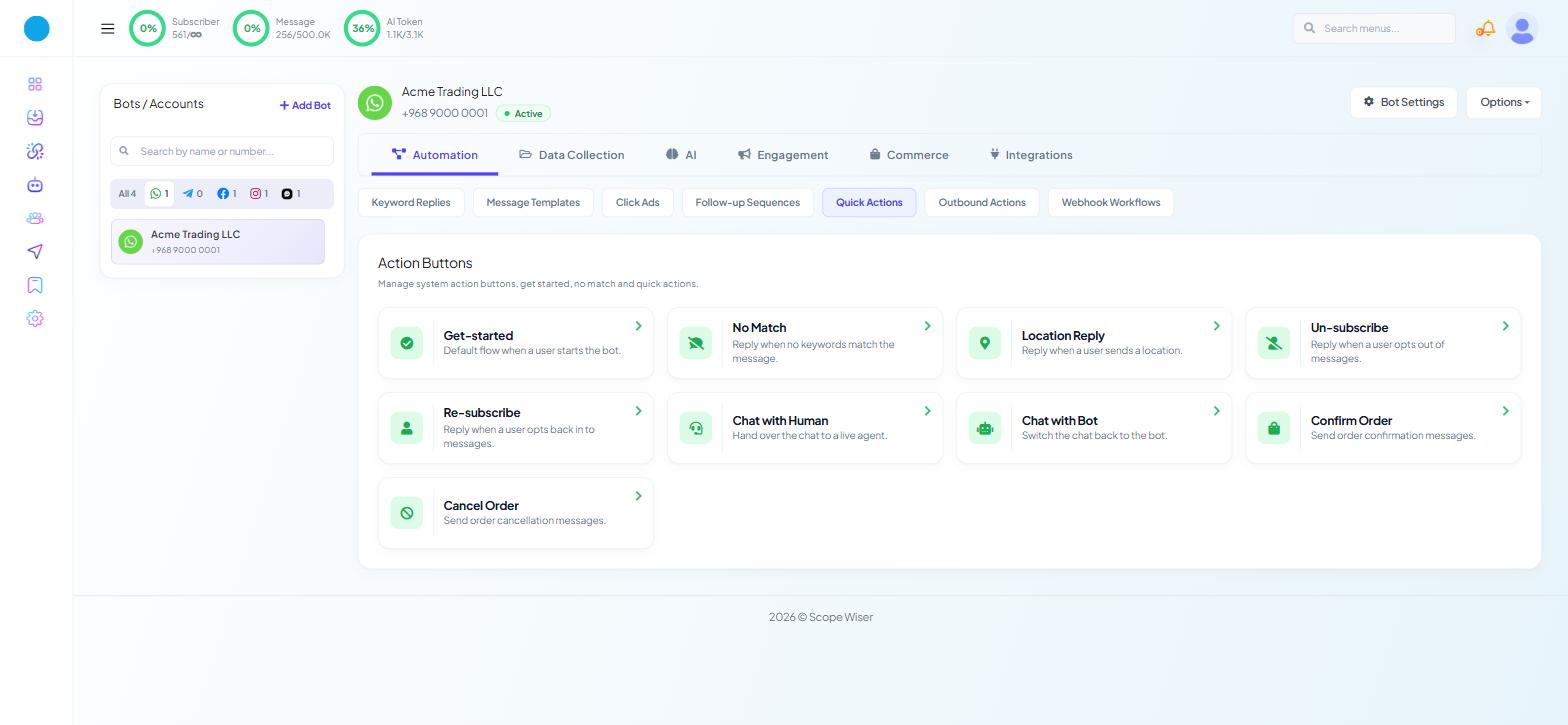
Go to Chatbot Manager → Automation → Quick Actions.
Find the card called Chat with Human — "Hand over the chat to a live agent." Its counterpart, Chat with Bot, switches the conversation back.
Wire a button or keyword to Chat with Human, so that a customer can ask for a person.
The Chat with Human email address
In Chatbot Manager, click Bot Settings and open General.
In CHAT WITH HUMAN EMAIL, enter the address to be emailed when a customer asks for a human.
Click Publish Changes.
Fill it in on any bot that runs outside your working hours.
Changes need Publish Changes. Bot Settings is the eight-tab panel opened by the Bot Settings button in Chatbot Manager. Nothing there takes effect until you press Publish Changes.
5. Hand a conversation on
Three habits stop context being lost at a shift change.
Write a note before you hand over. The composer has two tabs, Reply and Note. Anything typed on the Note tab stays internal. One line — what the customer wants, what you have promised, what you are waiting for — saves the next agent reading forty messages.
Reassign, don't abandon. Change Assigned Agent to the person taking over.
Set a follow-up if the answer is not ready. Click the timer icon in the conversation header to open Set Follow-up. It schedules a reminder with a reason attached. See Follow-Up Notifications: Reminders That Survive a Busy Inbox.
A conversation still assigned to somebody who logged off two hours ago is invisible to everybody working from Mine.
Where a signature message is configured, the customer is also told that a different person has picked up their conversation. See Signature Messages, Automatic Labels and Chat Handover.
6. Close the conversation
When the question is answered, mark the conversation Resolved so it leaves the working list.
Archived is for conversations you want out of the way without claiming they were solved.
Blocked is for people you do not want to hear from again.
Resolving is not deleting. The thread stays available under the Resolved filter, along with its notes, labels and follow-up history.
✅ Done when…
☐ A conversation shows the right person under Assigned Agent
☐ You paused the bot and the AI before replying
☐ Finished conversations are marked Resolved
If something doesn't work
A colleague is missing from Select Agent. They do not exist as a team member with inbox access. Their role needs the LIVE CHAT permission (see Before you start).
The bot replied on top of me. Click Pause Bot and Pause AI before you type.
Nobody is picking up a conversation. It may still be assigned to someone who has logged off. Reassign it.
The CHAT WITH HUMAN EMAIL never arrives. Check you pressed Publish Changes in Bot Settings.
Reference
A workable pattern for a small team
Every agent has Allow Only Assigned Chat in Livechat on, and one supervisor has it off.
The supervisor works from All and assigns anything unassigned as it arrives.
Agents work from Mine, pause the bot and the AI when they reply, and resolve when finished.
Anything that cannot be answered today gets a follow-up and a note.
What to do next
Set up signature messages next, so customers know when a person has joined: Signature Messages, Automatic Labels and Chat Handover. If you have not yet created your agents, start instead with Adding Team Members & Access Control.
Next: Signature Messages, Automatic Labels and Chat Handover