
Follow-Up Notifications: Reminders That Survive a Busy Inbox
Schedule a reminder on a conversation from the Set Follow-up drawer — duration chips, a reason, an optional note — and find it in Follow-up History.
What you'll do: attach a reminder to a conversation, so it survives the end of your shift and is visible to whoever picks the conversation up next.
Time: 2 minutes per follow-up.
A follow-up is a reminder attached to the conversation itself, not to your memory.
1. Check the messaging window first
On WhatsApp you can only send a free-form message while the conversation is inside its 24-hour window.
Open the conversation in Shared Inbox.
In the Chat Actions panel, look at Messaging Window in the Customer Snapshot section. It shows either Inside 24H with a live countdown, or a red Outside 24H Window.
Decide:
Comfortably inside the window — any time works.
Close to the edge — send a short holding message before the window closes, so you can still reply later.
Already outside, or the answer genuinely cannot come today — set the follow-up anyway, and plan to reopen with an approved message template. WhatsApp Rules You Must Know: 24-Hour Window & Template Messaging explains which templates are usable for this.
The 24-hour trap. Set a follow-up for tomorrow on a conversation whose window closes tonight, and the reminder will arrive on time to tell you that you cannot reply.
Facebook, Instagram and Webchat have their own messaging rules, so check the same row before assuming a delayed reply will land.
2. Set the follow-up
Open the drawer one of three ways:
click the timer (Follow up) icon in the conversation header, alongside the search and kebab icons
click Follow-up in Quick Actions (under See More if you can't see it)
click + Add beside Follow-up History in the Chat Actions panel
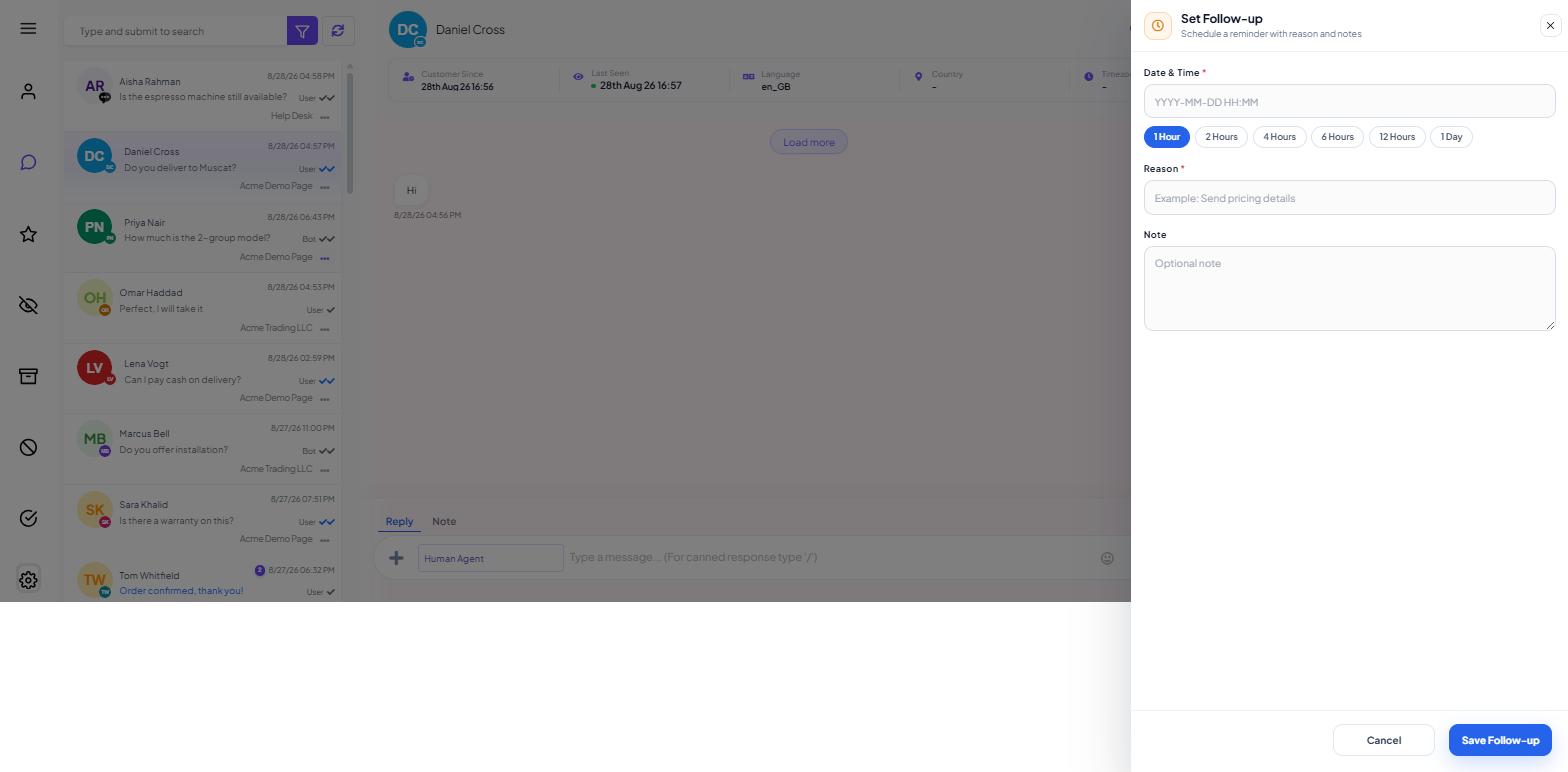
You should now see a panel slide in from the right, headed Set Follow-up — "Schedule a reminder with reason and notes".
Choose when. Click one of the six quick chips: 1 Hour, 2 Hours, 4 Hours, 6 Hours, 12 Hours or 1 Day. 1 Hour is selected by default. Clicking a chip fills in the field below it.
If none of the chips fit — for instance when you need Monday morning, not eighteen hours from now — type an exact moment in Date & Time * in
YYYY-MM-DD HH:MMform.In Reason * (required, placeholder "Example: Send pricing details"), write the action, for example Send pricing once warehouse confirms stock.
Optional: in Note ("Optional note"), add anything longer.
Click Save Follow-up. Cancel and the close (×) discard it.
You should now see the toast "Follow-up created successfully."
3. Reassign if you are going off shift
Reassign the conversation at the same time. A reminder on a conversation assigned to someone who has gone home is a reminder nobody is looking at. See Assigning Agents and Joining Conversations.
4. Find follow-ups again
A saved follow-up shows up in four places.
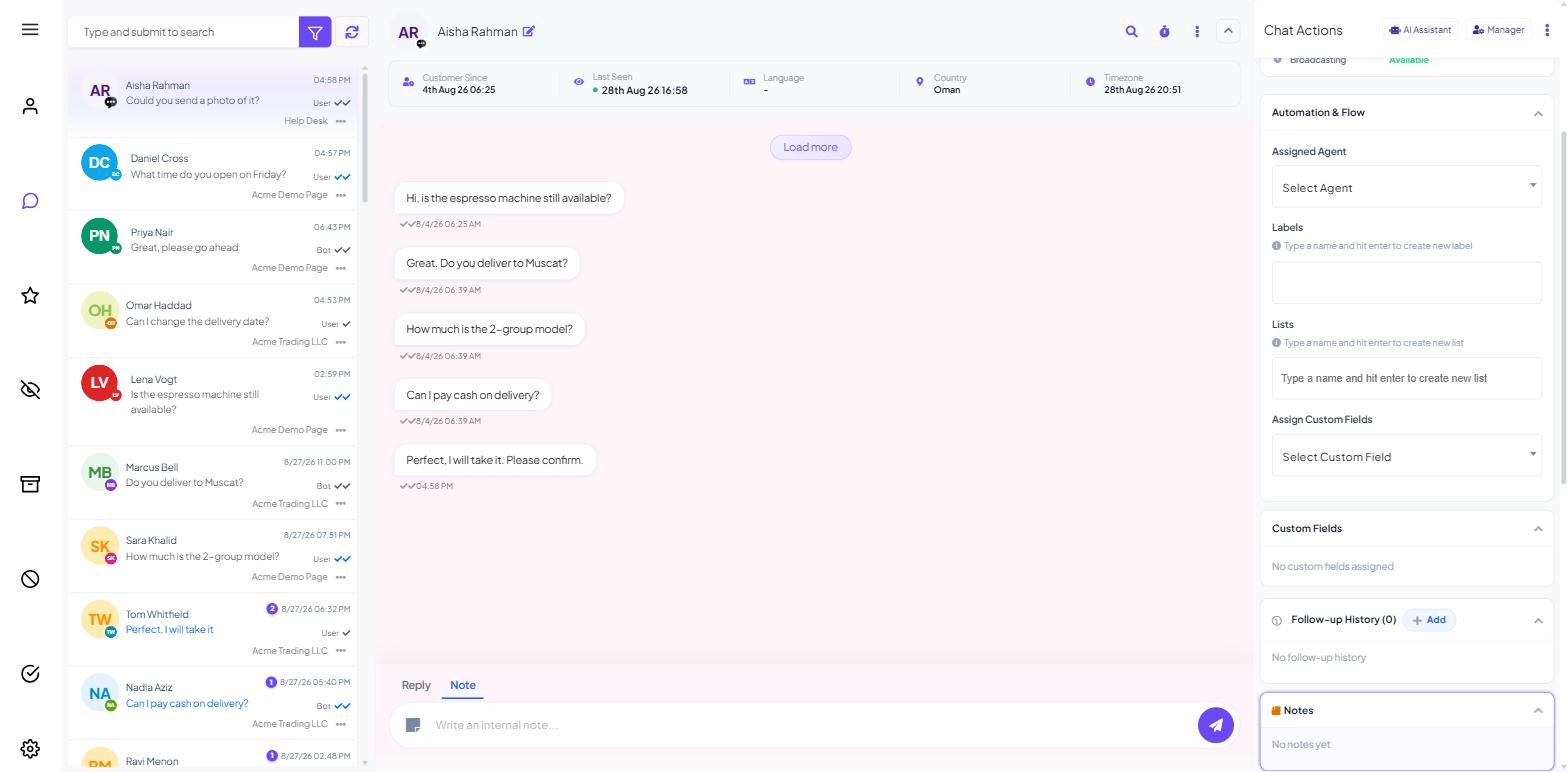
Follow-up History in the Chat Actions panel. Its heading carries a count — Follow-up History (0) when there are none. An empty section reads "No follow-up history". A new entry is marked Upcoming, with Edit, Complete and Delete. Click Complete once you have done the task. Past follow-ups stay listed, so the section also shows how many times a customer has already been put off.
A banner above the composer: Follow-up · Due Today · · Edit.
An orange tag on the chat in the conversation list: Follow-up .
Follow-up List in the filter rail on the far left. It lists every follow-up, so you can work through them at the start of the day.
The Scheduled quick action is a separate button — one of the twelve Quick Actions at the top of the Chat Actions panel. For reminders, use Follow-up.
✅ Done when…
☐ The follow-up appears under Follow-up History as Upcoming, and in Follow-up List
☐ Its time falls inside the messaging window, or you have planned a template
☐ The conversation is assigned to someone who will be working when it fires
If something doesn't work
The reminder arrived but I can't reply. The conversation is outside its 24-hour window. Reopen with an approved message template.
Save Follow-up does nothing. Reason * is required. Fill it in.
Nobody acted on the reminder. The conversation is still assigned to someone who has gone home. Reassign it.
Reference
Follow-ups, notes and sequences
Three features in this product schedule something for later, and they are not interchangeable.
Feature | What it does |
|---|---|
Follow-up | Reminds you. Nothing is sent to the customer. |
Conversation note | Records context. No time, no alert — it sits in the thread for whoever reads it next. Use it alongside a follow-up, not instead of one. |
Follow-up sequence | Messages the customer automatically. A different tool, set up per bot and triggered by labels or events, not by an agent. See What Follow-up Sequences Are. |
What to do next
Live Chat and the Shared Inbox: Complete Overview covers the rest of the Chat Actions panel. WhatsApp Rules You Must Know: 24-Hour Window & Template Messaging is the one to read if your follow-ups keep landing outside the window.