
Live Chat Translation: Answering Customers in Their Own Language
Translate incoming messages in place and your reply before sending: set LIVECHAT TRANSLATION LANGUAGE, then use Choose Target Language in the composer.
What you'll do: read a customer's message in your own language, and send your reply in theirs.
Time: 5 minutes to set up.
Translation is built into the Shared Inbox in two directions: you can translate a message the customer sent so you can read it, and you can translate your reply before it goes out. Both happen inside the conversation, and you always press send yourself.
Before you start
☐ Your role has LIVE CHAT - TRANSLATOR switched on (see If something doesn't work)
1. Set your translation language
Translation needs to know what to translate into. That is an account setting, not an inbox one. Each person on the team sets their own.
Open the profile menu at the top right and choose Account.
In the Update Account form, find LIVECHAT TRANSLATION LANGUAGE and choose your working language.
Click Update.
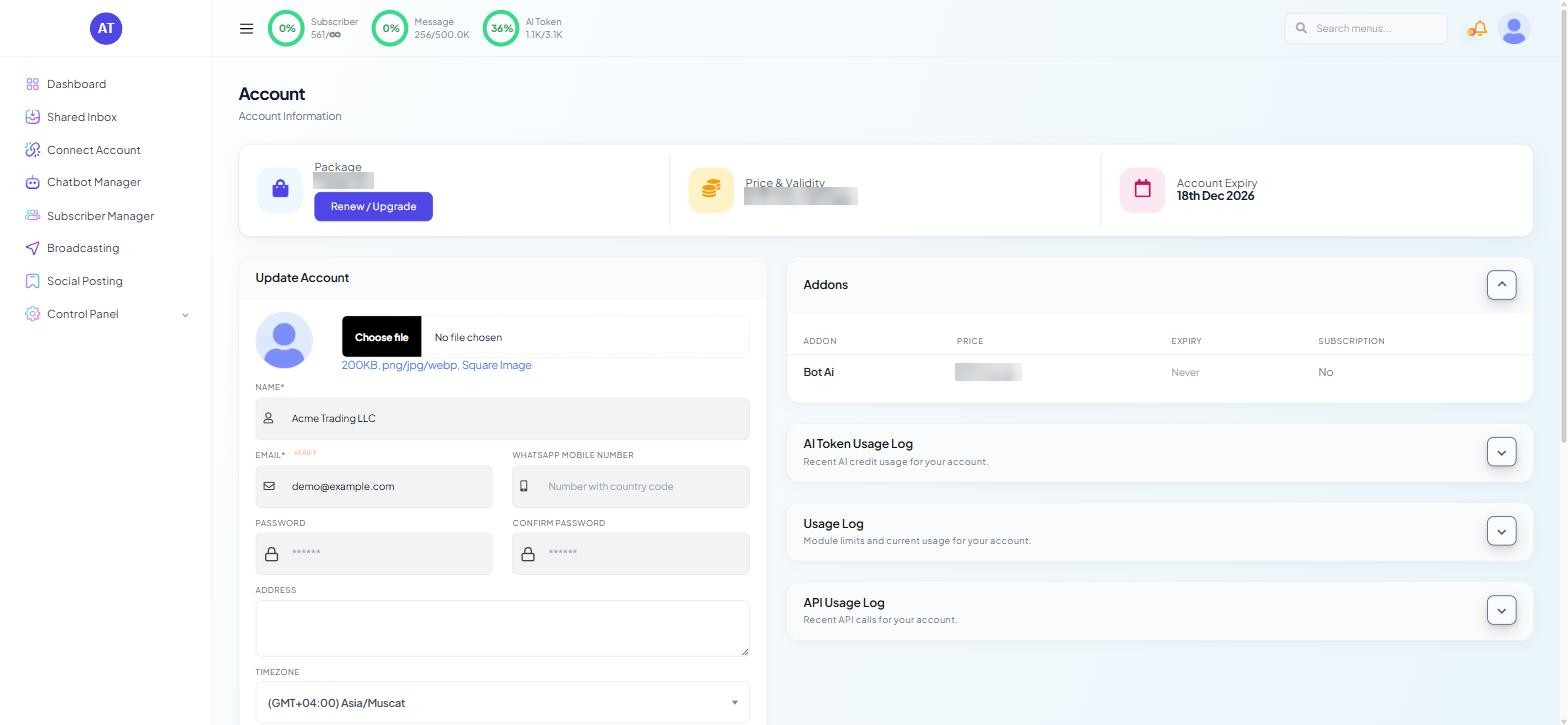
Not the same as APPLICATION LANGUAGE. The two fields sit next to each other. Application language changes the interface. Translation language changes what incoming messages are turned into. An agent who reads the interface in English but works a Spanish-speaking queue wants different values in the two fields.
2. Translate what the customer wrote
Hover over an incoming message in the thread. Three small actions appear on the bubble: reply, translate (tooltip Translate it) and a react control.
Click the translate icon.
You should now see the message replaced in place by its translation, with an attribution line underneath such as "Translated from Arabic", naming the source language in bold.
The timestamp does not change. The attribution stays visible, so nobody reading the thread later mistakes a machine translation for the customer's own words.
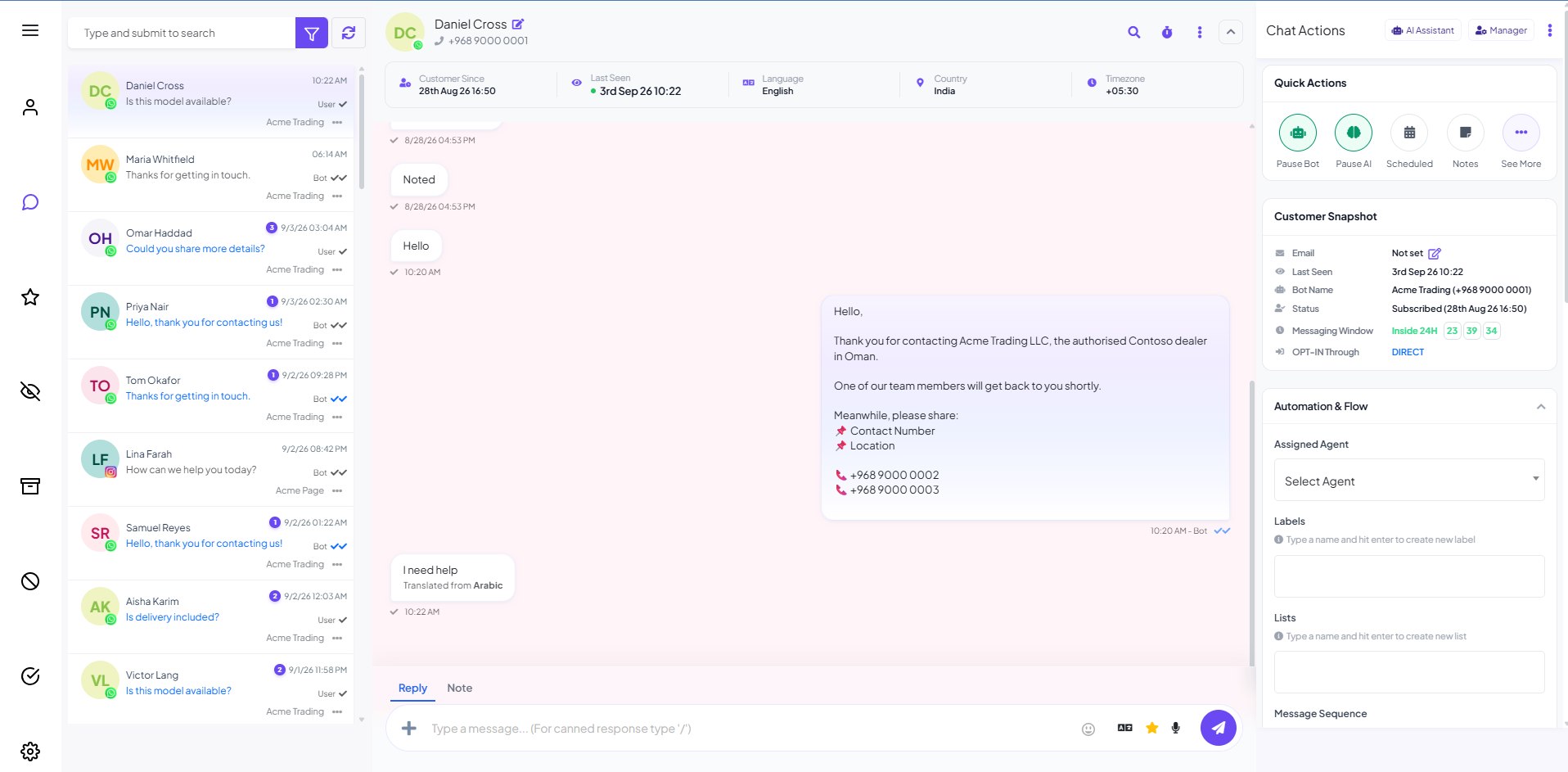
Tip: the Language field in the contact strip above the conversation — alongside Customer Since, Last Seen, Country and Timezone — usually agrees with it. It is the faster place to look when you are deciding how to open.
3. Translate your reply
Write your reply in your own language in the message field — "Type a message... (For canned response type '/')".
Select the text you want translated.
Click the translate icon in the composer icon row, between the emoji and star icons. Its tooltip reads Translate.
You should now see a Choose Target Language box open over a dimmed page, with a single language dropdown. Pick the customer's language.
Click Translate. (Cancel backs out without changing anything.)
You should now see your draft replaced by the translated version in the composer, and a green Success message: "Message translated successfully."
Read the translated text, then press send.
✅ Done when…
☐ LIVECHAT TRANSLATION LANGUAGE is set on your account
☐ You can translate an incoming message and see the "Translated from …" line
☐ You can translate a draft reply before sending it
If something doesn't work
The translation icons are missing for one agent but present for another. Check LIVE CHAT - TRANSLATOR on their role first. It is its own toggle in the permission list under Control Panel → User Permission, separate from the general LIVE CHAT permission. See Adding Team Members & Access Control.
Messages translate into the wrong language. Check LIVECHAT TRANSLATION LANGUAGE, not APPLICATION LANGUAGE.
Reference
Getting better results
Write short, complete sentences. Fragments translate badly.
Avoid idiom. "I will check and reply today" survives translation; "let me chase that up" does not.
Check names, order numbers and product codes after translating.
Do not translate a canned response you have not read.
Translation and the AI panel
Use Translate for language. Use the AI panel only when the wording itself needs help (it uses AI tokens). See AI in the Shared Inbox.
What to do next
Account Preferences & Personalisation covers the rest of the account form, including timezone and application language. For the whole inbox, see Live Chat and the Shared Inbox: Complete Overview.