
Typing Indicators and Read Receipts
Show a typing indicator before a bot replies using Delivery Options in the Flow Builder, and read the Shared Inbox delivery ticks to see if a message arrived.
What you'll do: make the bot show "…" before it replies, so it feels less robotic, and learn to read the delivery ticks in the Shared Inbox.
Time: 5 minutes.
1. Turn on the typing indicator for a message
Typing indicators are set per message block, in the Flow Builder. There is no global switch.
Open the flow that contains the message — from Chatbot Manager → Automation → Keyword Replies, or wherever the flow lives.
Click the message block on the canvas to open its configuration drawer.
Expand Delivery Options. It is marked Optional, described as "Typing indicator and reply delay settings.", and collapsed by default.
Turn on Typing on display — "Show typing indicator before the bot replies."
Set Delay in reply — "Wait before sending the next message" — using the Hours, Minutes and Sec sliders (see the next section for how long).
Save the flow.
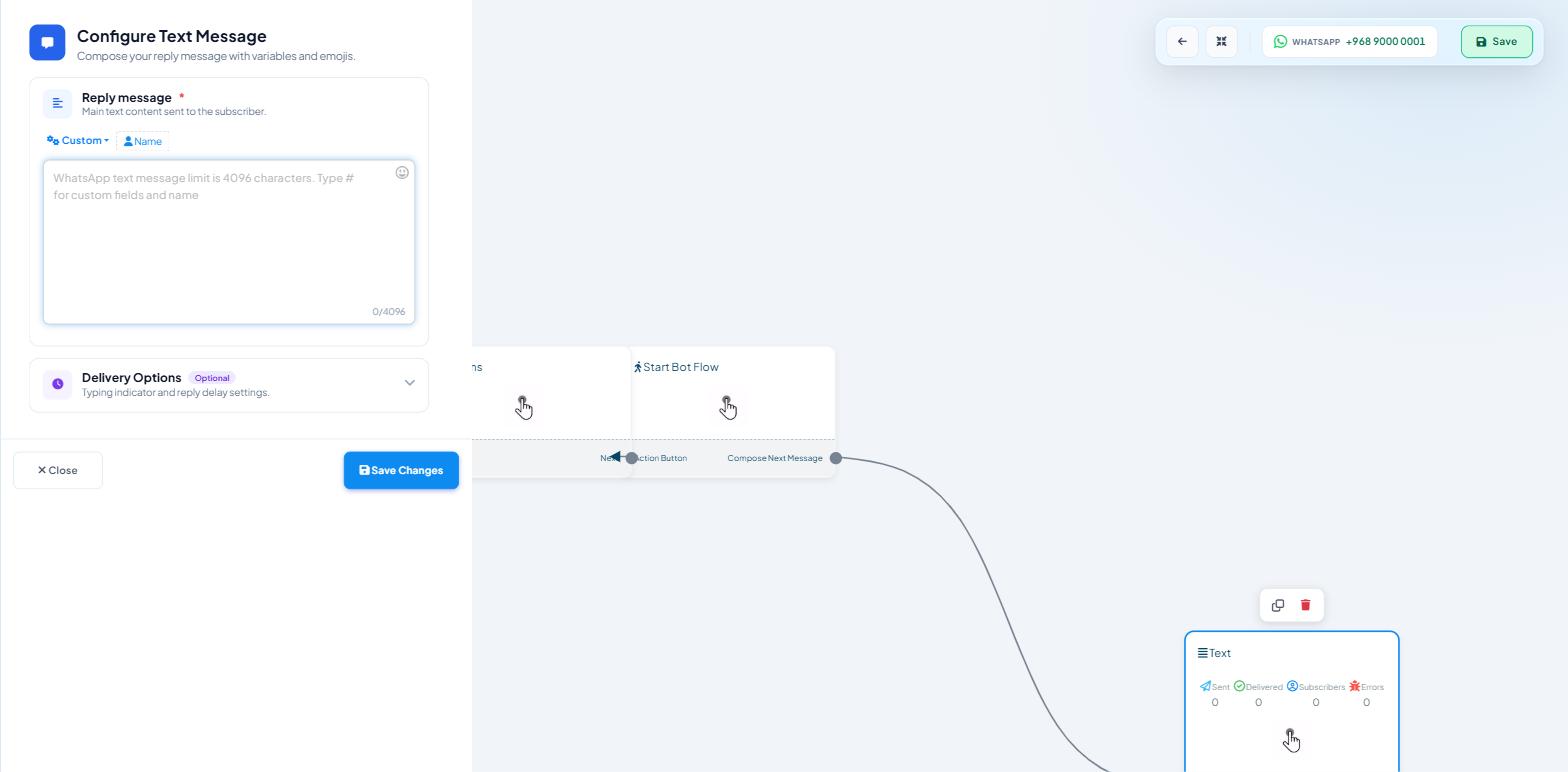
Delivery Options appears on message blocks generally, so the same two settings are available on a text block, an image block or an interactive block. The delay sliders top out at 23 hours, 59 minutes and 59 seconds.
Only enable it on blocks that actually send a message.
2. Choose a delay
The delay and the indicator work together: the indicator shows while the delay runs, then the message sends.
Delay | Suits |
|---|---|
One to three seconds | A short answer |
Three to six seconds | A longer message, or one that would plausibly take a person a moment to look up |
Above about ten seconds | Not a typing indicator any more — it is a wait |
WhatsApp removes the indicator after roughly 25 seconds if no message has been sent. A longer delay leaves the customer looking at nothing.
To space a sequence of messages out, not signal typing, see Delaying Bot Replies with Delivery Options.
3. Read delivery status in the inbox
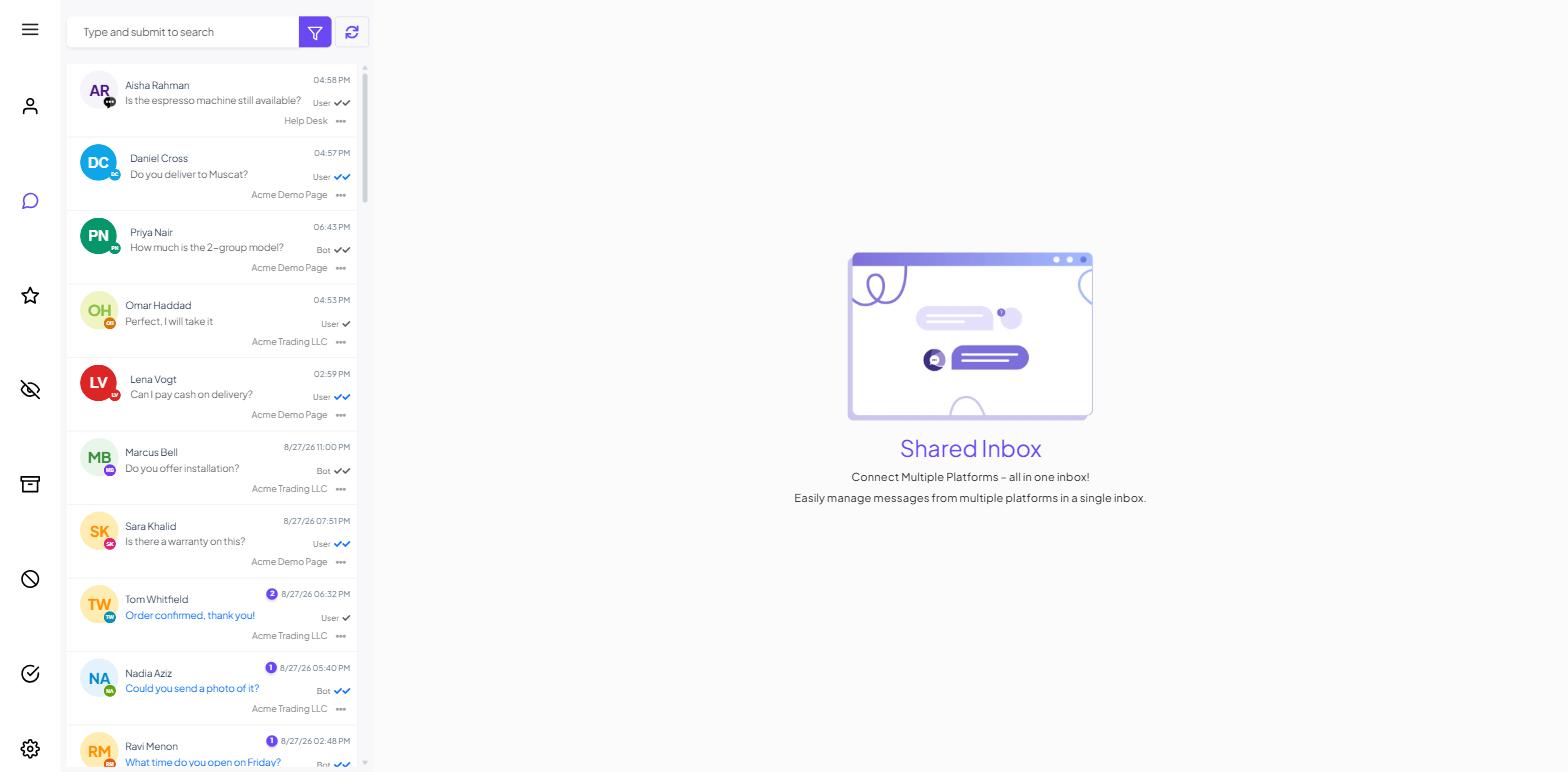
Each row in the conversation list carries a sender tag — Bot, User or Admin — with delivery ticks beside it.
The tag is the fastest thing to scan. User means the customer spoke last and nobody has answered.
The ticks are the status of your last outgoing message: sent, delivered, and read. They are the first place to look when someone reports that a reply "did not arrive".
✅ Done when…
☐ Typing on display is on for the message blocks you chose, with a short delay
☐ The flow is saved
☐ You can tell sent, delivered and read apart in the conversation list
If something doesn't work
The ticks stopped at sent. The message left Scope Wiser but the platform has not confirmed delivery. On WhatsApp this is usually a phone that is off or offline, and it often resolves on its own.
Delivered but never read. It reached the device. Nothing is wrong at your end.
Failed. Worth acting on. Set ADD LABEL FOR UNSUCCESSFUL MESSAGE DELIVERY on the Bot Settings → Shared Inbox tab and failures tag themselves automatically. That turns a scattered problem into one filterable list.
Messages on one channel keep stopping at sent. A repeated pattern like this is a connection problem, not a customer problem. See Why Your WhatsApp Bot Isn't Responding.
The indicator disappeared before the message came. Your delay is too long (see section 2).
Reference
Honest use
Show a typing indicator only where a reply is genuinely coming. Do not show one on a flow that ends without a message, or on a branch that hands to a human who may not be there for an hour. If nobody is available, send a short automated message giving your hours instead.
Bot replies while an agent is on a phone
There is also a BOT REPLIES WHILE AGENT ON MOBILE APP toggle that decides whether the bot keeps answering while an agent works from a phone. See Using the Shared Inbox on Android, iOS and Desktop.
What to do next
Delaying Bot Replies with Delivery Options covers the timing side of Delivery Options in depth. If messages are not arriving at all, not just arriving slowly, go to Why Your WhatsApp Bot Isn't Responding.
Next: Delaying Bot Replies with Delivery Options