
Building a Messenger Sequence Campaign
Build a Facebook Messenger drip campaign end to end: trigger keyword, an opt-in button, the New Sequence Campaign block, and three timed messages that respect Meta's 24-hour window.
This is the full build for a Facebook Messenger drip campaign: someone types a keyword, taps a button to opt in, and then receives three messages spread over the next two days without anyone touching it again.
Everything below happens on a Facebook bot. The differences for Instagram are noted at the end.
Before you start
A connected Facebook Page, showing as connected under Connect Account.
An image or two for your message cards.
A rough plan: what each of your three messages says, and how far apart they land.
Open the sequence canvas
Go to Chatbot Manager, select your Page in the Bots / Accounts panel, then Automation → Follow-up Sequences. Click + Create.
The Flow Builder opens with the sequence scaffold already on the canvas:
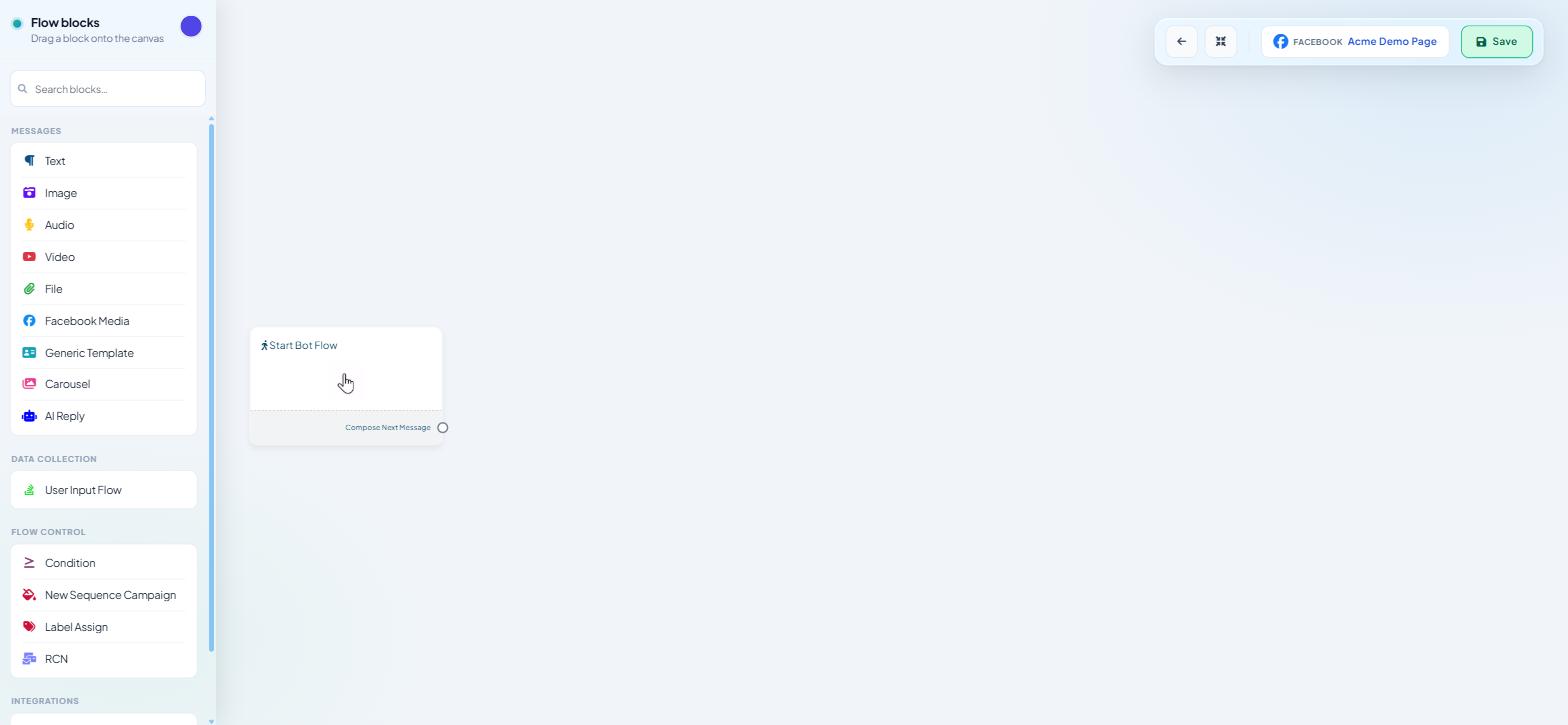
Start Bot Flow, with an output port reading Subscribe to Sequence.
New Sequence Campaign, with the ports Set-up New Sequence and Schedule Sequence Message. Its Delivery Time field appears once the campaign has been named and saved, in step 5.
Three Send Message After nodes, each with a Frequencey port and a Compose and Schedule Message port.
Drag blocks from the left palette; double-click a node to configure it.
Step 1 — Set the trigger
Double-click Start Bot Flow. The Configure Reference panel opens.
Trigger Keywords — the word people will type. Use something distinctive, like
offers.Keyword matching type — pick
Exact keyword matchfor a short word.String matchmatches the keyword anywhere in a message and will fire on things you did not intend.Title — a name for this reference, up to 200 characters. This is what appears in your lists.
Click Save Changes.
Leave the Automation Actions section alone for now. Its Subscribe to Sequence dropdown enrols anyone who types the keyword with no confirmation step, which is not what you want for a promotional drip — use the button in step 2 instead.
Step 2 — The opt-in card
Drag a Generic Template block onto the canvas and connect it to the Start Bot Flow node's Compose Next Message port.
A generic template is an image, a title, some text and one or more buttons — the standard Messenger card. Give it a picture worth looking at, a title that says what somebody is signing up for, and copy that is honest about frequency: "Three messages over the next two days. No more than that."
Step 3 — Wire the button to the sequence
Double-click the Button node under the card. Set Button Title (for example Send me the offers), leave When user press the button on Send Message, then Save Changes. On the canvas, drag from the button's Subscribe to Sequence port to the New Sequence Campaign node.
Step 4 — Confirm the subscription
Add a Text block after the button — "You're in. Watch this space." is plenty. A tap with no acknowledgement reads as a broken button, and people tap it again.
Step 5 — Configure the campaign
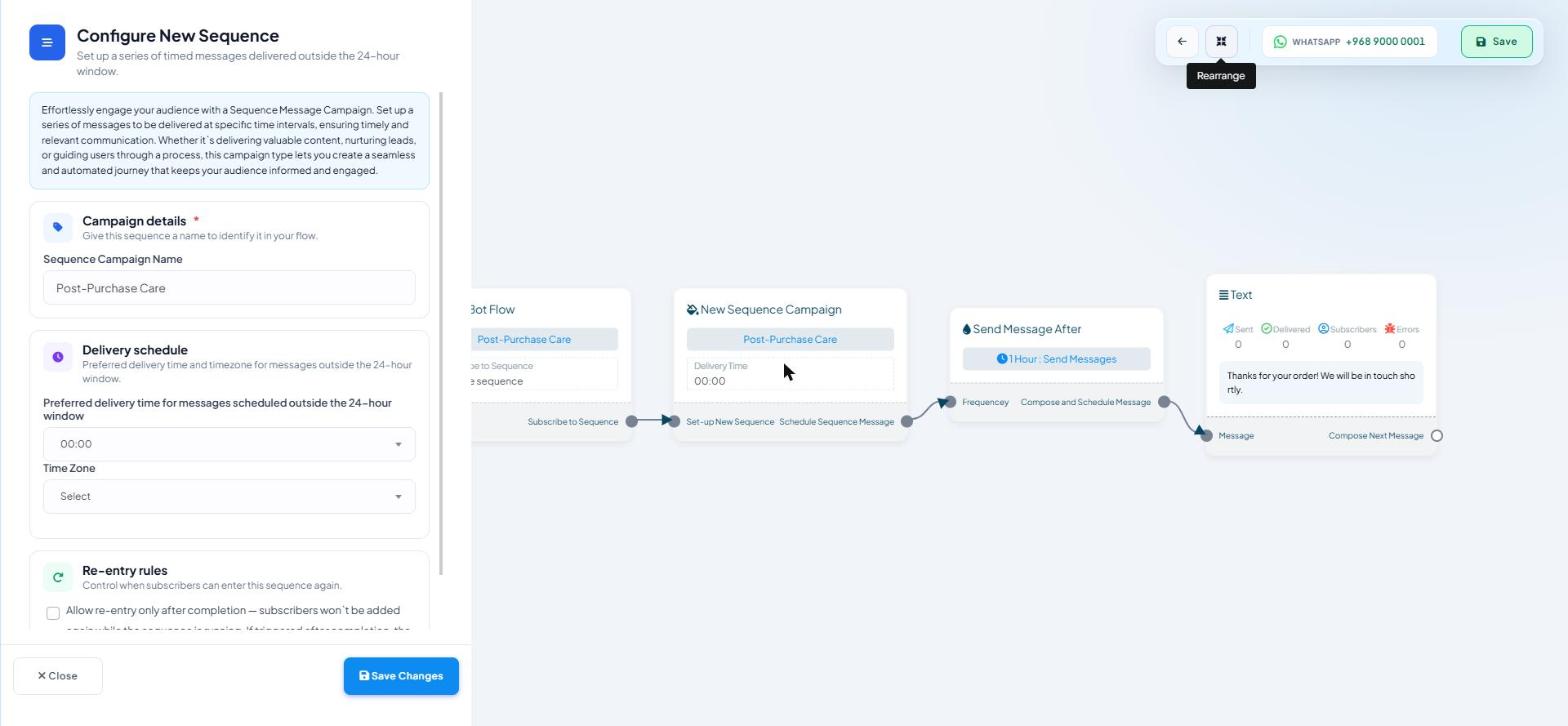
Double-click New Sequence Campaign to open the Configure New Sequence panel.
Campaign details — Sequence Campaign Name. A saved sequence cannot be deleted, so choose a name you can live with.
Delivery schedule — this section has no settings. After saving, set the send hour in the Delivery Time field on the New Sequence Campaign node (default
00:00).Re-entry rules — tick Allow re-entry only after completion — subscribers won't be added again while the sequence is running. If triggered after completion, the sequence will restart from the beginning. Without it, somebody who taps the button twice can run the campaign twice.
Click Save Changes.
Step 6 — Schedule the three messages
Double-click a Send Message After node. The Configure Sequence Message panel opens, and its first setting decides the second.
Message type is a pair of cards, and this is where the 24-hour window is handled:
Send Regular Message (Inside 24h) — a standard message that must be delivered within 24 hours of the subscriber's last interaction. It can wait up to
23 hours.Send Template Message (Anytime) — sendable minutes, hours or days later, up to
Day-30.
Schedule then follows the card you picked, and the field label changes with it. The full option list is in WhatsApp Sequences With Template Messages, step 6.
A three-step shape that works:
Step | Message type | Schedule | Content |
|---|---|---|---|
1 | Regular (Inside 24h) |
| Image + short text + a button to the thing you promised |
2 | Regular (Inside 24h) |
| Text + a link to something genuinely useful |
3 | Anytime |
| The offer, with a single clear action |
Steps one and two sit inside Messenger's 24-hour window. Step three is beyond it, and Meta requires an appropriate message tag for anything sent past the window; without one the message is not delivered and no error reaches the customer.
Attach the content by dragging from the node's Compose and Schedule Message port and picking a message block.
Step 7 — Delivery options on individual messages
Delivery Options on a message block is a pause of up to 23h 59m between blocks inside one step — not the day-to-day schedule. See WhatsApp Sequences With Template Messages.
Step 8 — Save and test
Click Save in the canvas toolbar. If Save shows Some component(s) have no data, configure or delete every empty Send Message After node; All components should be connected means a node is not wired. A clean save shows Success! Data has been saved successfully.
Then test from a Facebook account that is not yours:
Message the Page with your trigger keyword.
Confirm the card appears with the button.
Tap the button and confirm the acknowledgement text arrives.
Wait for step one. If it does not arrive, check the connection between the button's Subscribe to Sequence port and the campaign node.
Check the flow the next day. Each message node shows Sent · Delivered · Subscribers · Errors on its card — the fastest way to see which step stopped.
There is no fast-forward, so build with short first intervals while testing and lengthen them before you promote the keyword.
Instagram and Webchat
Instagram: same steps; the File, Facebook Media and RCN blocks are missing. Webchat has no sequence block.
What to do next
Sequence Triggers: Labels, Time and Events covers the other ways people enter a sequence, including labels and bulk assignment. Once your first campaign has run for a few days, Measuring Sequence Performance shows where the delivery numbers live.