
WhatsApp Sequences With Template Messages
Build a WhatsApp drip campaign that survives the 24-hour window: the opt-in, the campaign settings, the timing of each step, and two ready-made campaigns you can copy.
This article builds a WhatsApp drip campaign end to end — the opt-in, the campaign settings, the timing of each step — and finishes with two ready-made campaigns you can copy.
One rule shapes all of it: 24 hours after a customer's last message, free-form messaging stops working. From then on, only an approved template is delivered, and Meta charges for each one.
Before you start
A connected WhatsApp Business Account with an active phone number.
At least one approved message template. Approval takes time and is the thing most likely to delay your launch. Submit it before you build the flow.
A payment method on your WhatsApp Business Account, since template messages are billed.
The 24-hour window
The window opens when a customer messages you and closes 24 hours after their most recent message.
Inside it: send anything — text, images, interactive messages, buttons.
Outside it: only an approved template, sent through the Template Message block.
A step that lands at 1 hour or 12 hours is inside the window. A step at day one or later is outside it, so it has to be a template.
Step 1 — Get a template approved
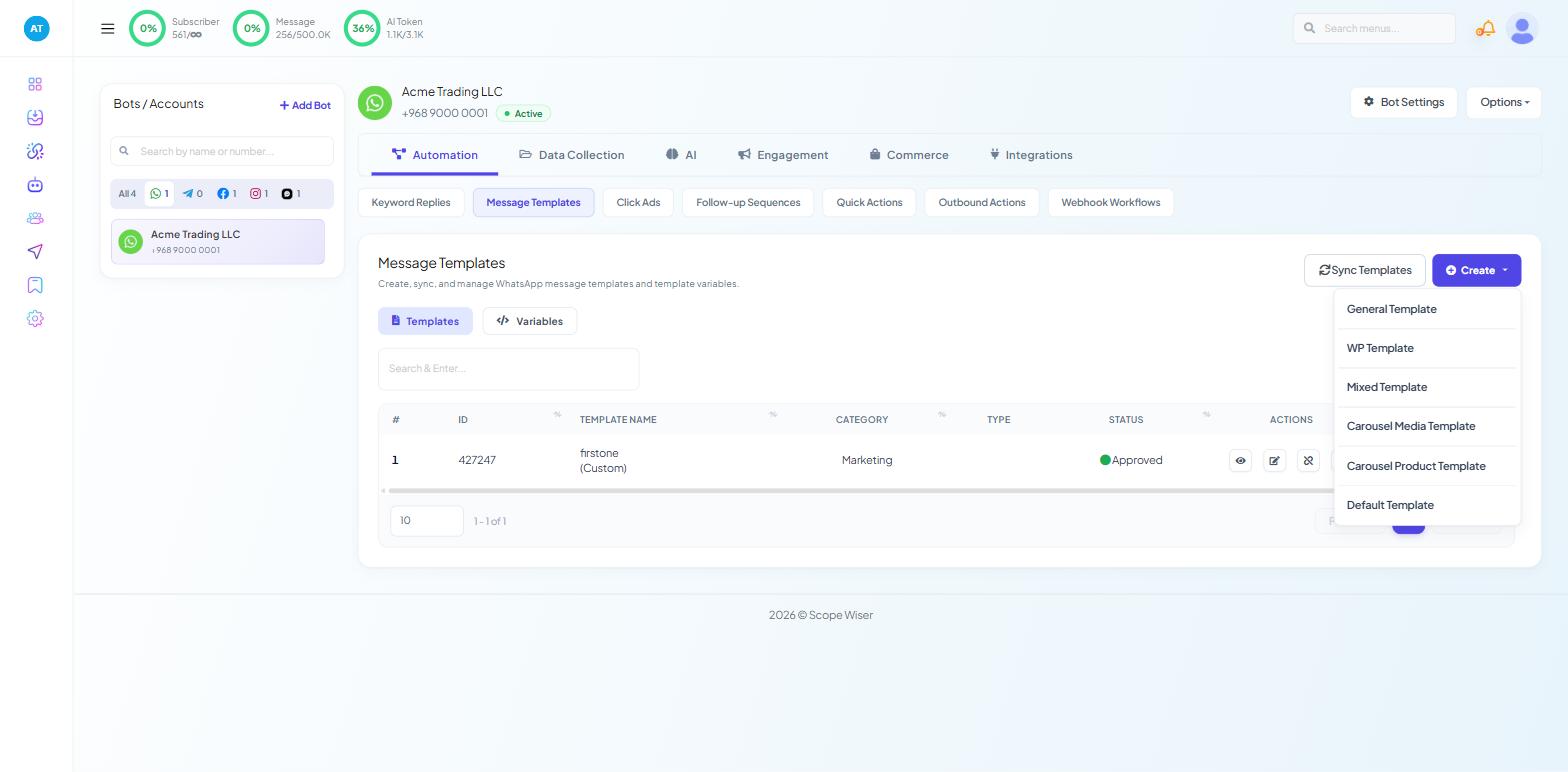
Go to Chatbot Manager → Automation → Message Templates.
The list shows #, ID, TEMPLATE NAME, CATEGORY, TYPE, STATUS, ACTIONS and UPDATED AT. A template only sends while STATUS reads Approved. Click Sync Templates to pull the current state from Meta: a template approved last month can be paused later, and the list will not know until you sync.
Create opens the Message Template dialog. Four fields decide whether it gets approved:
TEMPLATE NAME — a name you will recognise in the dropdown later.
TEMPLATE CATEGORY — Utility, Marketing or Auth/OTP. A promotion is Marketing. Do not label it Utility to move it through faster; that is a common rejection reason.
MESSAGE BODY — up to 1024 characters. Type
#to insert the customer's name or a saved field; type#!to add a placeholder Meta approves, for example an order number.BUTTON — None, Call To Action or Quick Reply.
Creating & Getting WhatsApp Templates Approved covers the rest of the dialog and the submission process. Why Message Templates Get Rejected covers the common failures.
Step 2 — Open the sequence canvas
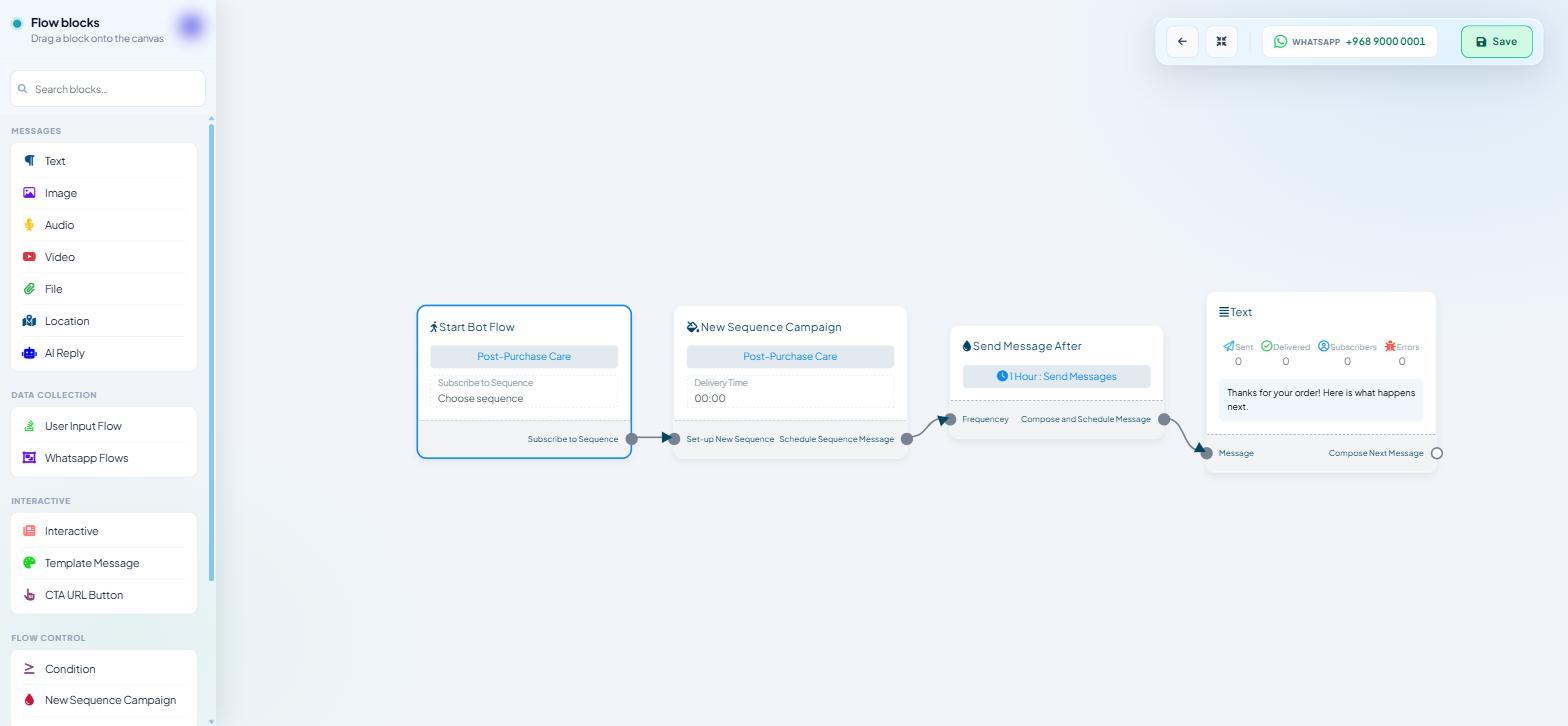
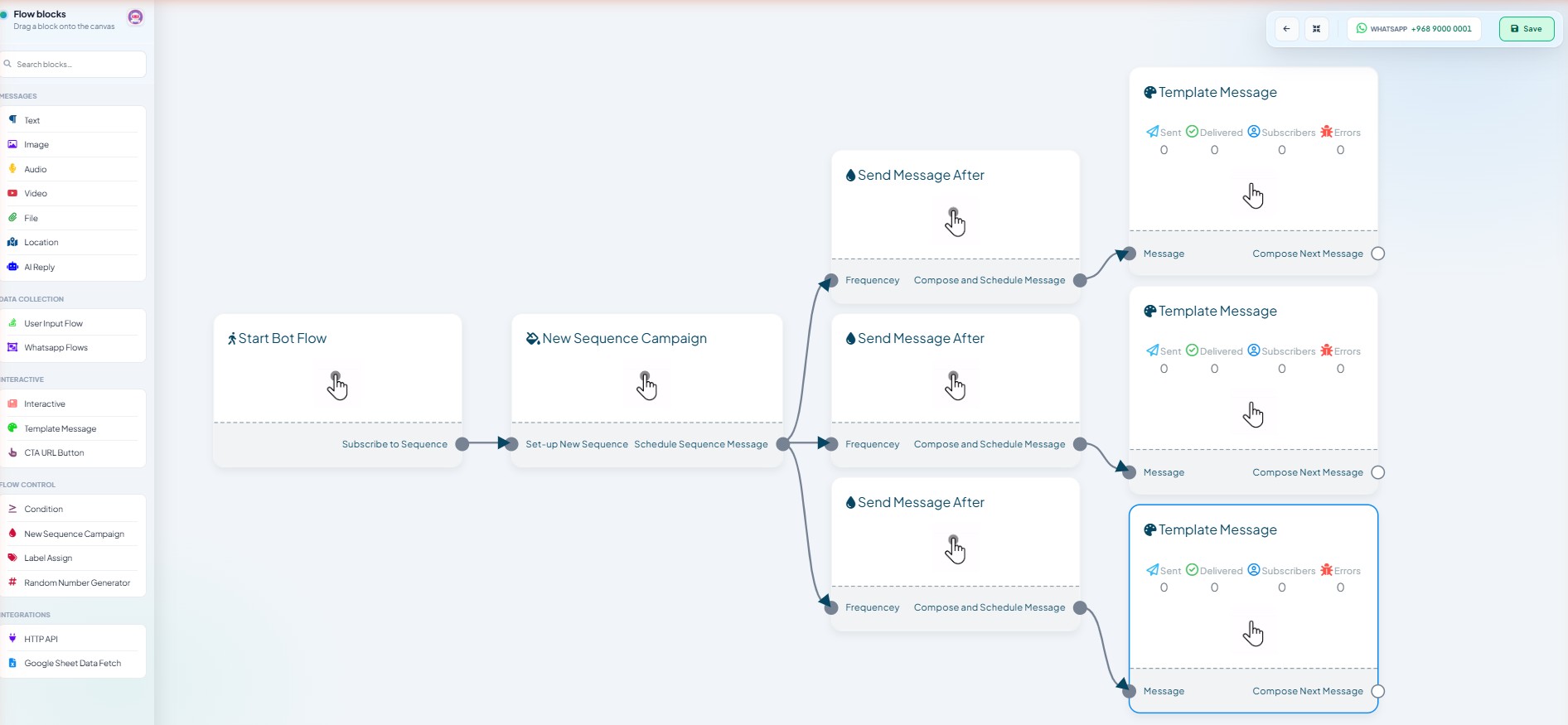
Go to Automation → Follow-up Sequences and click + Create. The Flow Builder opens with the sequence scaffold already in place:
Start Bot Flow, with a Subscribe to Sequence port.
New Sequence Campaign, with the ports Set-up New Sequence and Schedule Sequence Message. Its Delivery Time field appears once the campaign has been named and saved, in step 5.
Three Send Message After nodes, each with a Frequencey port (spelled this way on screen) and a Compose and Schedule Message port.
Drag blocks from the left palette; double-click a node to configure it. The block that sends an approved template is Template Message.
Step 3 — Set the trigger keyword
Double-click Start Bot Flow to open Configure Reference.
Trigger Keywords — something distinctive, such as
offers.Keyword matching type —
Exact keyword matchfor a short word.String matchmatches the keyword anywhere in a message and will fire on things you did not intend.Title — a reference name, up to 200 characters.
Click Save Changes.
Step 4 — The opt-in
Drag an Interactive block onto the canvas and connect it to Compose Next Message. Its drawer holds:
Message Header, optional — a
Textheader (up to 60 characters) or aMediaheader for an image, video or file.Message Body, required — up to 1024 characters. Say exactly what somebody is signing up for and how often: "Three messages over the next two days" sets an expectation you can keep.
Message Footer, optional — up to 60 characters.
Click Save Changes and save the flow. A Button node now appears under the Interactive block with a Subscribe to Sequence port. Connect that port to the New Sequence Campaign node — that connection is what enrols the customer.
Then add a Text block confirming the subscription. Without it, a tap produces silence and people tap again.
Step 5 — Configure the campaign
Double-click New Sequence Campaign to open Configure New Sequence.
Campaign details — Sequence Campaign Name. A saved sequence cannot be deleted, so choose a name you can live with.
Delivery schedule — this section has no settings. After saving, set the send hour in the Delivery Time field on the New Sequence Campaign node on the canvas; it reads
00:00until you change it, which means day-scale steps go out at midnight.Re-entry rules — tick Allow re-entry only after completion — subscribers won't be added again while the sequence is running. If triggered after completion, the sequence will restart from the beginning. On WhatsApp, duplicate enrolment means paying twice for the same template sends.
Click Save Changes.
Step 6 — Schedule the messages
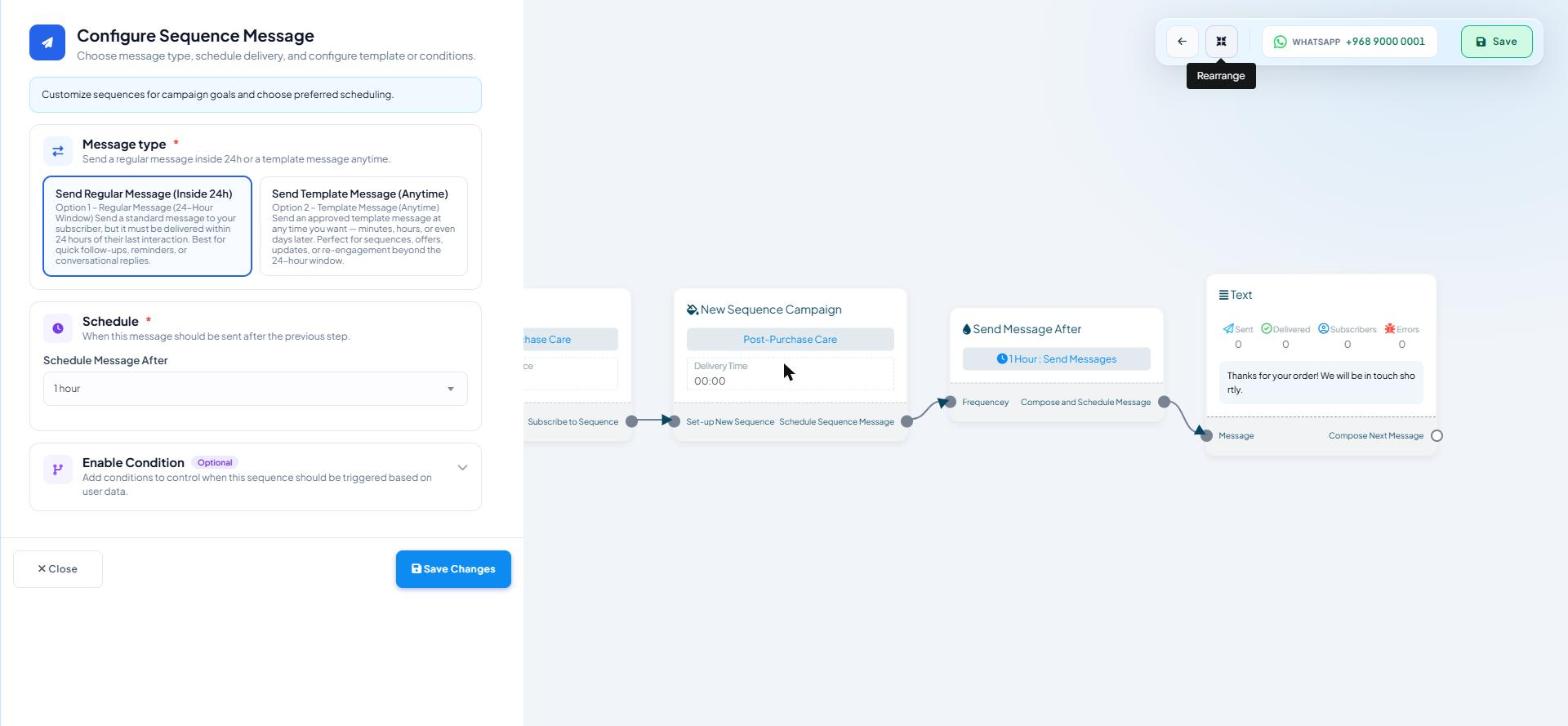
Double-click a Send Message After node to open Configure Sequence Message.
Message type
Two cards, and you must pick one:
Send Regular Message (Inside 24h) — a standard message that must be delivered within 24 hours of the subscriber's last interaction.
Send Template Message (Anytime) — an approved template, sendable minutes, hours or days later.
Schedule
The schedule field takes its label from the card you picked:
Message type | Field | Options |
|---|---|---|
Send Regular Message (Inside 24h) | Schedule Message After |
|
Send Template Message (Anytime) | Schedule Message For | the same 28 options, plus |
Select template
Choosing Send Template Message (Anytime) reveals a Select template section with a Select Template dropdown, a refresh icon and a Create ▾ button. If your template is not listed, use the refresh icon, then run Sync Templates on the Message Templates page and check STATUS.
Enable Condition
Optional: tick Enable conditional delivery for this step to skip the step for some people — for example Label ≠ Purchased, which saves a paid template send.
A three-step shape that works
Step | Message type | Schedule | Block | Why |
|---|---|---|---|---|
1 | Regular (Inside 24h) |
| Text or Image | Inside the window — free-form is fine and costs nothing |
2 | Regular (Inside 24h) |
| Text with a CTA URL Button | Still inside the window |
3 | Anytime |
| Template Message | Beyond the window — only an approved template will deliver |
Attaching the content
Drag from Compose and Schedule Message and pick a message block (Text, Image, Template Message…).
Delivery Options on a message block is a pause of up to 23h 59m between blocks inside one step — not the day-to-day schedule. Use it so an image and its caption do not arrive in the same second.
Step 7 — Save and test
Click Save in the canvas toolbar. If Save shows Some component(s) have no data, configure or delete every empty Send Message After node; All components should be connected means a node is not wired. A clean save shows Success! Data has been saved successfully.
Then test from a phone that has never messaged the number — your own number will not do:
Send the trigger keyword.
Confirm the interactive card arrives.
Tap the subscribe button; confirm the acknowledgement.
Wait for step one at the interval you set.
Check the next day that the template step delivered.
Each message node shows Sent · Delivered · Subscribers · Errors on its card. A template step with Sent above zero and Delivered at zero is nearly always the template: paused by Meta, rejected, or a billing problem on the WhatsApp Business Account.
Costs and limits
Templates are billed by Meta, per message. A sequence with three template steps is three chargeable messages per subscriber.
Free-form steps inside the window cost nothing extra, which is a reason to front-load value.
Messaging limits apply. Your number's tier caps how many unique customers you can message in a rolling 24 hours; it is shown on Connect Account as
MESSAGING LIMIT.An unapproved or paused template stops the step, not the sequence. Later steps continue.
Two ready-made sequences
Both use the scaffold above and differ only in the timing and message type of each step. Use the sale drip when there is a deadline to push against, and the nurture when somebody is not ready to buy yet.
A five-day sale
Trigger keyword sale25, printed on receipts and used in the ad creative. Opt-in card: an image of the offer, body text reading "Get the sale prices before they go public. Three messages over five days, then we stop.", and a button labelled Send me the deals.
Step | Message type | Schedule | Block | Job |
|---|---|---|---|---|
1 | Regular (Inside 24h) |
| Image + Text + CTA URL Button | The headline offer and a link to buy |
2 | Anytime |
| Template Message | A better or narrower offer for people who did not act |
3 | Anytime |
| Template Message | Final call, with the deadline stated |
Step one is free-form because it lands inside the 24-hour window, so it costs nothing. Steps two and three are paid template sends: two billed messages per subscriber.
Approval planning. Steps two and three are templates and must read Approved before launch. Categorise them as Marketing and submit them the week before, not the morning of.
Stop it for buyers. In your order-confirmation flow: Start Bot Flow → Configure Reference → Automation Actions → Unsubscribe from Sequence = this campaign.
A thirty-day nurture
Trigger keyword updates. Opt-in card: body text reading "Occasional updates about what we're making. Three messages over the next month.", and a button labelled Keep me posted.
Step | Message type | Schedule | Block | Job |
|---|---|---|---|---|
1 | Anytime |
| Template Message | Something genuinely useful — a guide, not an offer |
2 | Anytime |
| Template Message | Proof — a result, a case, a customer outcome |
3 | Anytime |
| Template Message | A clear offer with a reason to act now |
All steps are paid template sends. Set Delivery Time on the campaign node so they do not arrive at midnight. Day 30 is the last slot; a longer nurture needs a second campaign.
Suppress buyers here too, with the same Unsubscribe from Sequence action.
What to do next
Sequence Triggers: Labels, Time and Events covers entry points beyond a keyword, including store events and bulk assignment. Once the campaign has run, Measuring Sequence Performance covers where the delivery numbers appear and what to do about a gap between Sent and Delivered.