
Measuring Sequence Performance
Where the numbers for a follow-up sequence live — node counters, the Regular Message Report, the sequences list, the dashboard widget and Subscriber Manager — and how to diagnose a gap between Sent and Delivered.
This article shows you where a sequence's numbers appear and how to work out why a step is not landing. There is no single sequence dashboard, so the answers sit in five places.
The fastest check: node counters
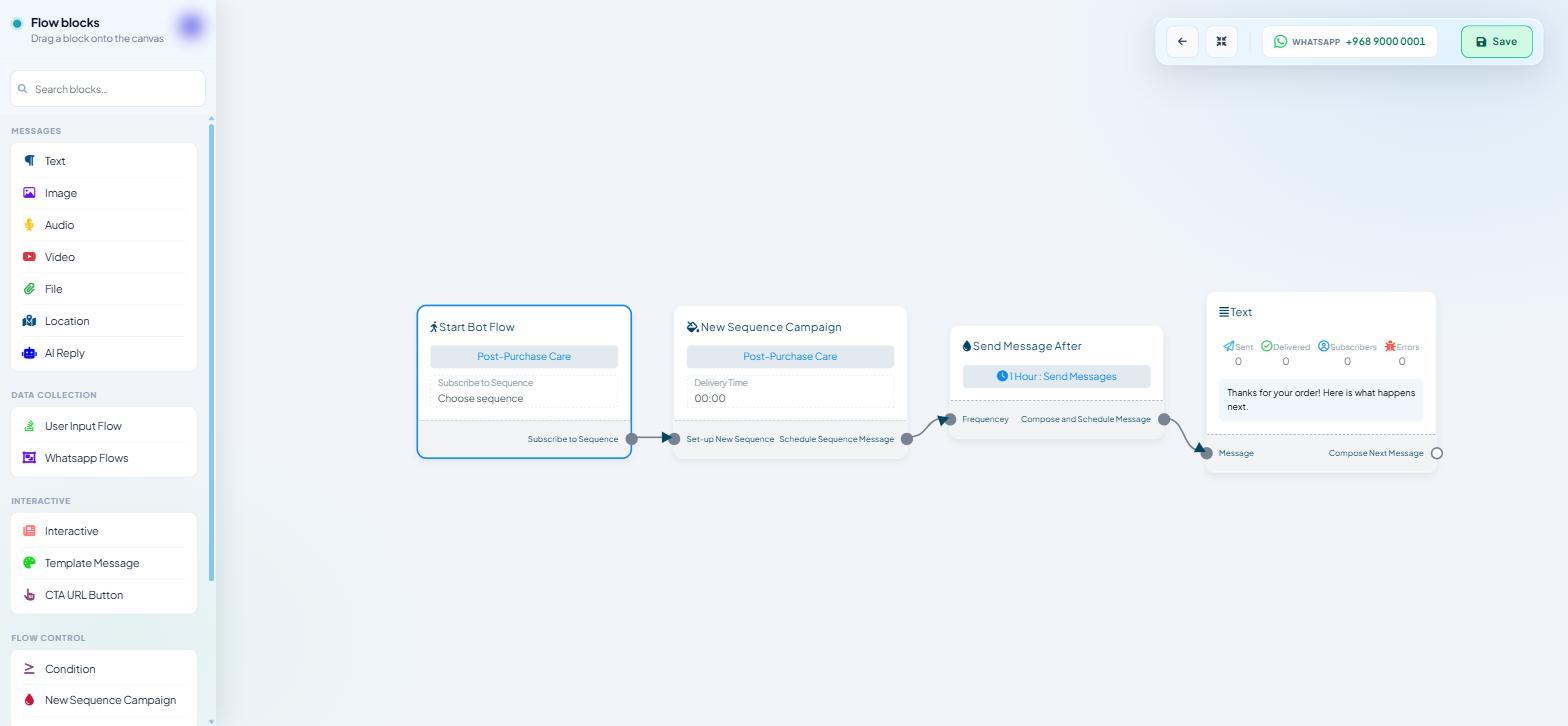
Open the sequence in the Flow Builder. Every message node on the canvas carries four counters on its card:
Sent · Delivered · Subscribers · Errors
Button nodes show Click · Subscribers · Errors.
Read them step by step, from the entry point down:
Subscribers falling sharply between steps — people are being removed, or the sequence is not reaching them. Expect some decline; expect it to be gradual.
Sent high, Delivered low on one step only — that step's content is the problem. On WhatsApp, a day-one template step is the usual suspect.
Sent zero on a step that should have fired by now — execution never reached it. Check the connection into that node and the schedule on its Configure Sequence Message panel.
Errors above zero — the send failed rather than merely failing to land.
This is the only view that tells you which step is losing people, which is the thing you can actually act on.
The campaign list
Open Chatbot Manager → Automation → Follow-up Sequences weekly and read one column: LAST SENT AT. A campaign with subscribers and a timestamp from ten days ago has stopped delivering, and that fact will not surface anywhere else until somebody complains.
The Regular Message Report
The clock icon in the ACTIONS column opens a full-width slide-over headed Sequence Report. It contains three coloured counters and nothing else:
Targeted · Sent · Delivered
No table, no per-subscriber rows, no timestamps, no search box. If you came looking for who received which message, that view does not exist anywhere in the product.
The report is per step, not per campaign. Each clock icon belongs to one step of the sequence — the first step is day zero — so a campaign with three steps has three sets of counters to read.
It is good for exactly one job: telling you whether a given step reached the people it was supposed to reach. Targeted well above Sent means people were dropped before the send; Sent well above Delivered means the channel refused it.

The dashboard widget
The Dashboard carries a Sequence Messaging Report card with a View all → link, alongside the Broadcasting Report and Webhook Workflow Report. Use it as a glance across every campaign — it is the place you notice that something has gone quiet.
Beside it, Subscriber Growth (30 days) shows gain against drop. If Drop rises after you launch a sequence, check its spacing and opt-in wording.
Who is enrolled
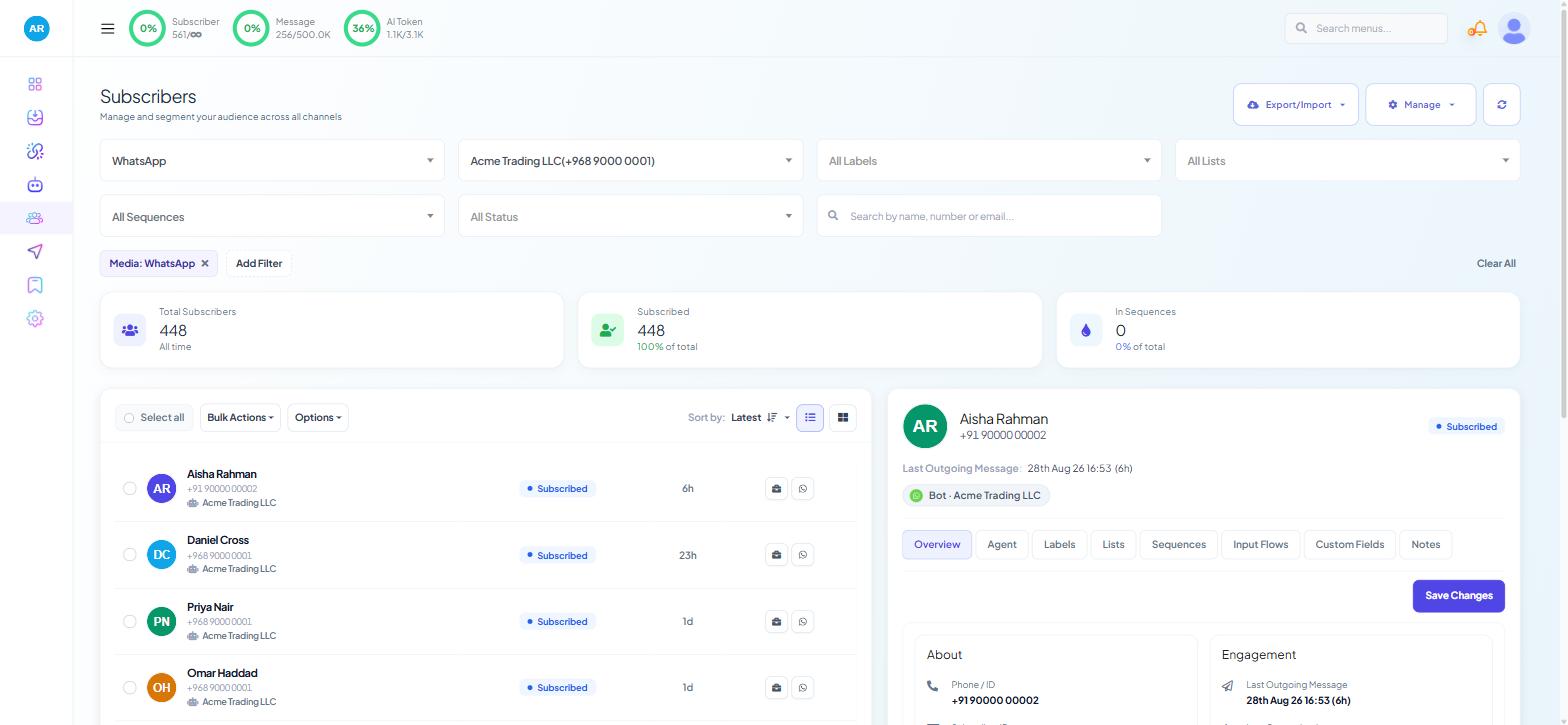
Subscriber Manager answers the audience question.
The In Sequences stat card shows how many subscribers are currently enrolled, with a percentage of your total.
The All Sequences filter narrows the list to one campaign. Combine it with All Status to see how many of your enrolled subscribers are still subscribed at all.
Any subscriber's detail panel has a Sequences tab listing their own enrolments.
The most useful single number here is enrolled-and-unsubscribed. Those are people your sequence is counting and cannot reach, and on WhatsApp they may be costing you template sends.
What the three counters mean
Targeted — subscribers due to receive a message at that step. It is a plan, not an outcome.
Sent — messages the platform actually attempted.
Delivered — messages that reached the device.
Each gap has its own diagnosis:
Gap | Likely cause | Fix |
|---|---|---|
Targeted > Sent | Unsubscribed after enrolling; messaging limit reached; skipped by a rule | Check All Status in Subscriber Manager and the |
Sent > Delivered | Number invalid or no longer on the channel; recipient blocked the business; messaging window closed | Open the thread in the Shared Inbox and read the Messaging Window state |
Errors above zero | Template paused or rejected; billing problem; malformed content | Run Sync Templates and check |
Errors is not on the Sequence Report — it appears only on the node counters on the canvas, which is why you read both views.
Reading the channel side
Shared Inbox. Open an affected thread. Outgoing messages carry delivery ticks under the sender tag, and the customer snapshot shows a Messaging Window of Inside 24H or outside it. A day-one step that failed against a closed window on WhatsApp is a design problem, not a delivery problem — that step needed an approved template.
Message Templates. On WhatsApp, check Automation → Message Templates and confirm the template your step uses still reads Approved in the STATUS column. Run Sync Templates first; approval state changes at Meta's end without notice.
Connection health. Connect Account shows MESSAGING LIMIT, QUALITY and LAST SYNC per number. A quality rating that has slipped to Medium is often the first visible consequence of a drip campaign that is too aggressive.
Failed-delivery labelling. Set ADD LABEL FOR UNSUCCESSFUL MESSAGE DELIVERY on Bot Settings → Shared Inbox and click Publish Changes. Every failure then tags the subscriber, and filtering by that label gives you a working list rather than a percentage.
A weekly routine
Follow-up Sequences list — is
LAST SENT ATrecent for every live campaign?Regular Message Report — for each step, how far apart are Targeted, Sent and Delivered?
Node counters — where in the flow are subscribers dropping, and is Errors above zero?
Subscriber Manager — how many enrolled subscribers are still subscribed?
One conversation — open a real thread and read the ticks.
Change one thing, and give it a week before changing another.
Ten minutes, and it catches the two failures that matter: a campaign that has stopped, and a step that is not landing.
What to do next
Sequence Unsubscribe and Resubscribe Logic covers what to do about the people a report shows you missed. For audience counts more generally, Subscriber Metrics Explained covers how the totals on Subscriber Manager are derived.