
Sequence Triggers: Labels, Time and Events
Six ways a subscriber enters a follow-up sequence — buttons, keywords, labels, bulk assignment, store events and conditions — and how to choose between them.
There are six ways to put someone into a sequence. Prefer the one where the customer most clearly asked.
1. A button in a flow
Button nodes in the Flow Builder carry a Subscribe to Sequence port. Connect it to a New Sequence Campaign node and anyone who taps the button is enrolled.
Prefer this: the customer chose it, which is better for delivery and, on WhatsApp, cost.
Build it as an Interactive block on WhatsApp, or a Generic Template on Facebook and Instagram, carrying a button labelled plainly — Send me the offers, not Subscribe. Follow it with a short text block confirming the subscription, so the tap is acknowledged.
2. A keyword, through Configure Reference
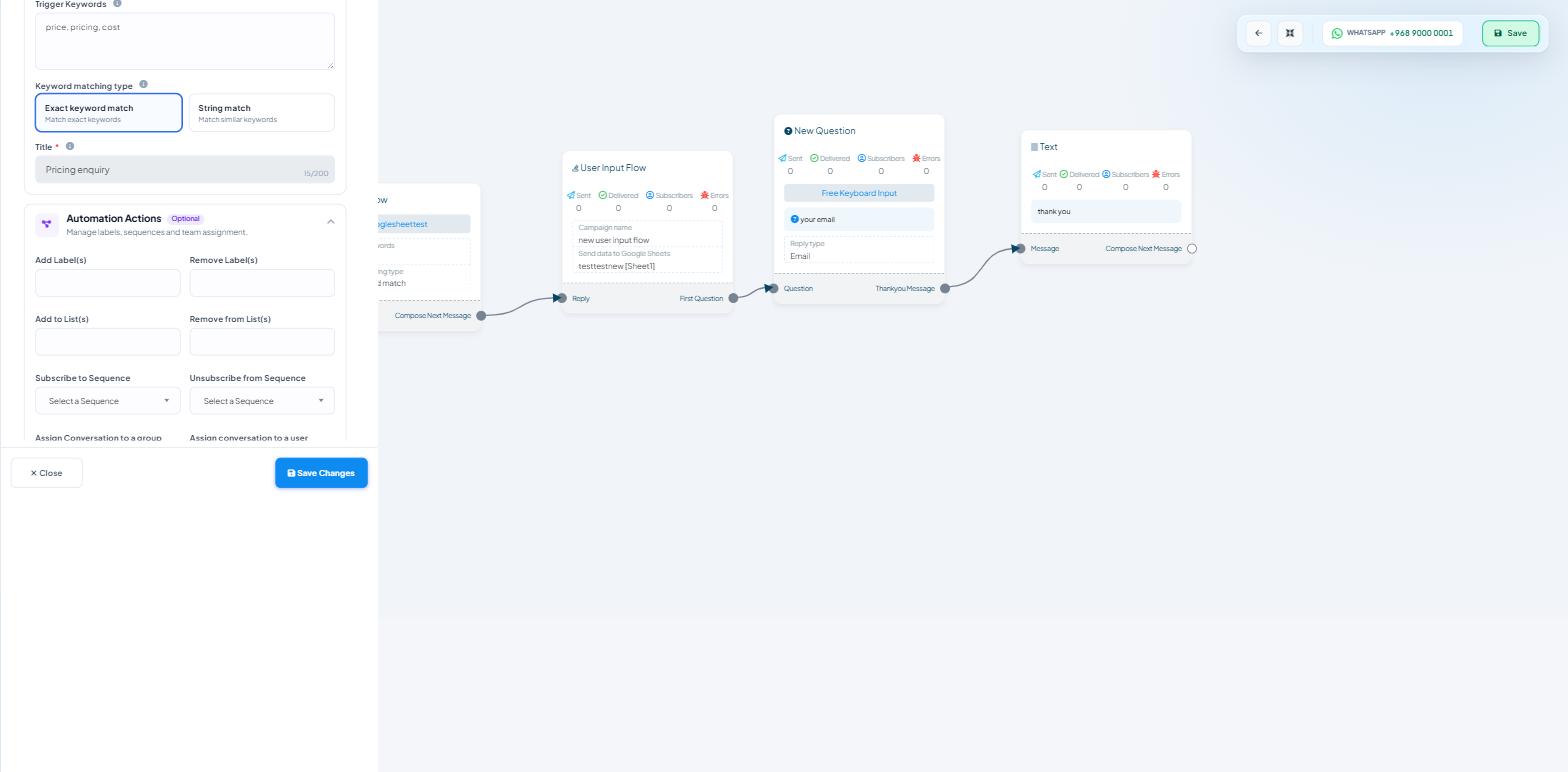
Double-click any Start Bot Flow node and the Configure Reference panel opens. Under Automation Actions, badged Optional, sit two dropdowns:
Subscribe to Sequence— Select a SequenceUnsubscribe from Sequence— Select a Sequence
Anyone triggering that reference is enrolled, or removed, with no confirmation step.
That immediacy is the trade-off. It works well for an intentional keyword — a customer texting OFFERS to a number printed on a receipt has clearly asked. It works badly on a general enquiry keyword, where the first drip message arrives as a surprise.
The same panel also holds Add Label(s), Remove Label(s), Add to List(s) and Remove from List(s), so one keyword can enrol, tag and segment in a single action.
3. Labels
Scope Wiser calls tags labels.
Labels are applied by Configure Reference, by the Label Assign block in the Flow Builder (available on WhatsApp, Facebook and Instagram, but not Webchat), from the Shared Inbox, or in bulk from Subscriber Manager.
They reach a sequence two ways.
By hand, as a segment. Filter Subscriber Manager by a label, select the results, and use Bulk Actions → Assign Sequence.
By branching. Add a Condition block (Flow Control) before the sequence node with a rule such as Label = Customer; connect True to one sequence and False to another. The same entry point then serves two audiences — existing customers get onboarding, prospects get the sales drip.
4. Bulk assignment from Subscriber Manager
For a segment that already exists, skip the flow entirely.
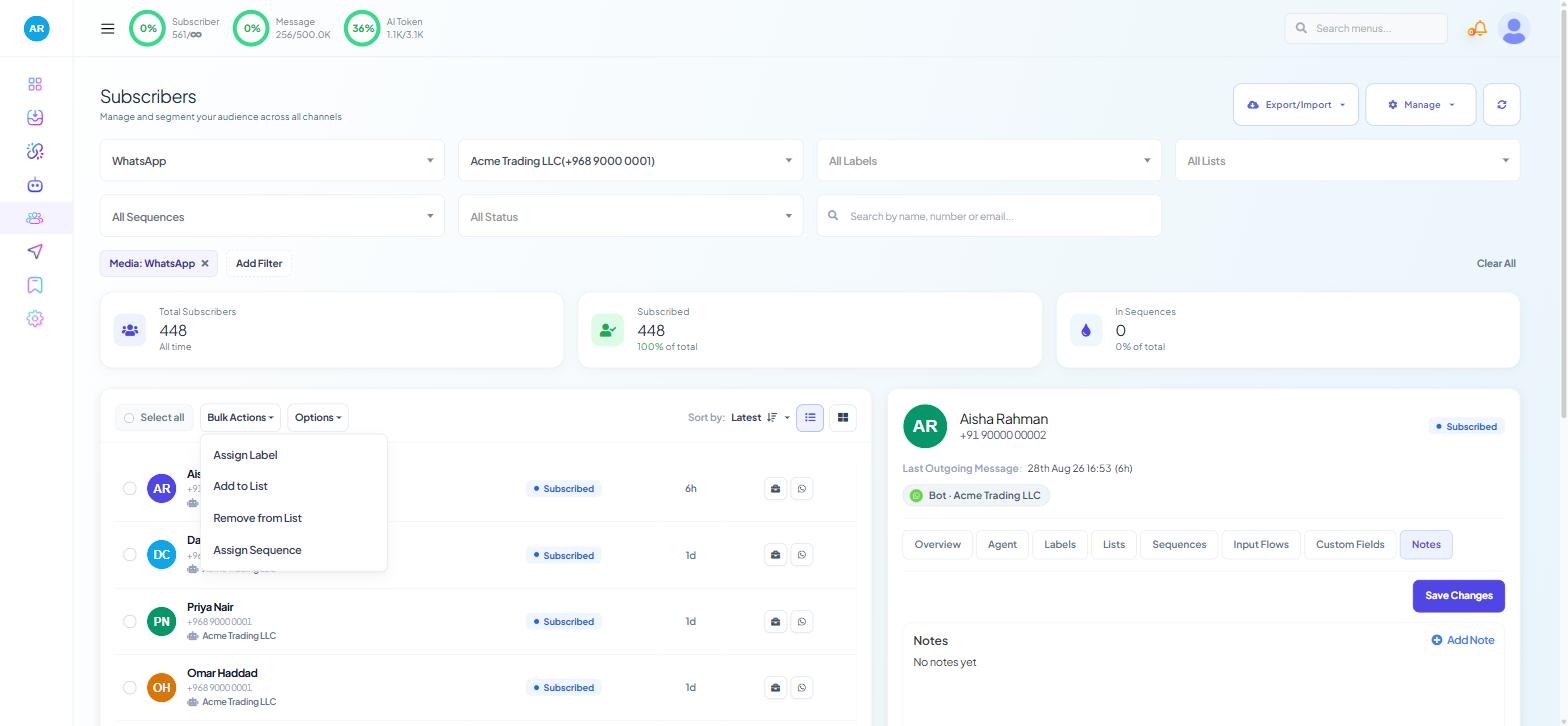
In Subscriber Manager, filter with the channel, bot, All Labels, All Lists, All Sequences and All Status selectors, or the "Search by name, number or email..." box. Select the rows you want, then use either:
Bulk Actions ▾ → Assign Sequence
Options ▾ → Assign Sequence
Check All Status before you do this. Assigning a sequence to unsubscribed contacts wastes sends and, on WhatsApp, money. The All Sequences filter also lets you exclude anyone already enrolled.
5. Store events
On WhatsApp, the Commerce → Store Automation create form opens with just CAMPAIGN NAME and STORE TYPE; pick a store type and the rest of the form appears, ending with an ASSIGN SEQUENCE field alongside ASSIGN LABEL. Pick the ACTION that should fire it — WooCommerce offers Order Notification, COD Verification and Order Update Notification; Shopify adds Abandoned Cart Recovery — and every customer hitting that event enters the sequence.
This is the strongest trigger available, because the event is a real commercial signal rather than a tap. An abandoned cart at 30 minutes followed by a two-step recovery sequence is the classic use, and the MESSAGE DELAY (MINUTES) field on the same form controls the gap before the first message.
Commerce exists on WhatsApp only.
6. Manually, one subscriber at a time
Open a subscriber in Subscriber Manager and use the Sequences tab in the detail panel, then Save Changes. From the Shared Inbox, the Chat Actions rail has a Message Sequence field on the open conversation.
Useful for a customer who asks an agent to be kept informed, and for testing your own record before anyone real joins.
Setting the timing
Timing is set per step on Configure Sequence Message — see WhatsApp Sequences With Template Messages, step 6.
Preventing double enrolment
Every trigger above can fire twice for the same person. Tick the checkbox under Configure New Sequence → Re-entry rules on any sequence with more than one entry point. Sequence Unsubscribe and Resubscribe Logic covers what that checkbox does and what it does not.
Choosing a trigger
Situation | Trigger |
|---|---|
Promotional drip | Button opt-in |
Printed or advertised shortcode | Keyword, via Configure Reference |
An existing segment | Bulk Actions → Assign Sequence |
Abandoned cart or order event | Store Automation |
Two audiences, one entry point | Condition block on a label, into two sequences |
One customer who asked | Subscriber detail panel or Shared Inbox |
What to do next
Sequence Unsubscribe and Resubscribe Logic covers getting people back out again — and back in when a delivery fails. If your labels are not yet organised enough to segment on, Labels, Lists & Segments: How Scope Wiser Groups Subscribers is the place to start.