
Displaying Dynamic Lists From an API
Build a WhatsApp list whose rows come from an API response: store the response in a custom field, generate rows from it, and save what the subscriber picks.
What you'll do: build a WhatsApp list whose rows come from an API response instead of being typed by hand. You point the Interactive block at a custom field holding the response, and Scope Wiser builds the rows at send time from whatever came back a moment earlier.
Time: 20–30 minutes.
Before you start
This article assumes the API connection already exists. If you have not connected one to a flow yet, read Calling External APIs From a Flow first.
☐ A custom field to hold the response. Create it under Subscriber Manager → Manage → Custom Fields. Give it a name you will recognise in a dropdown later, such as
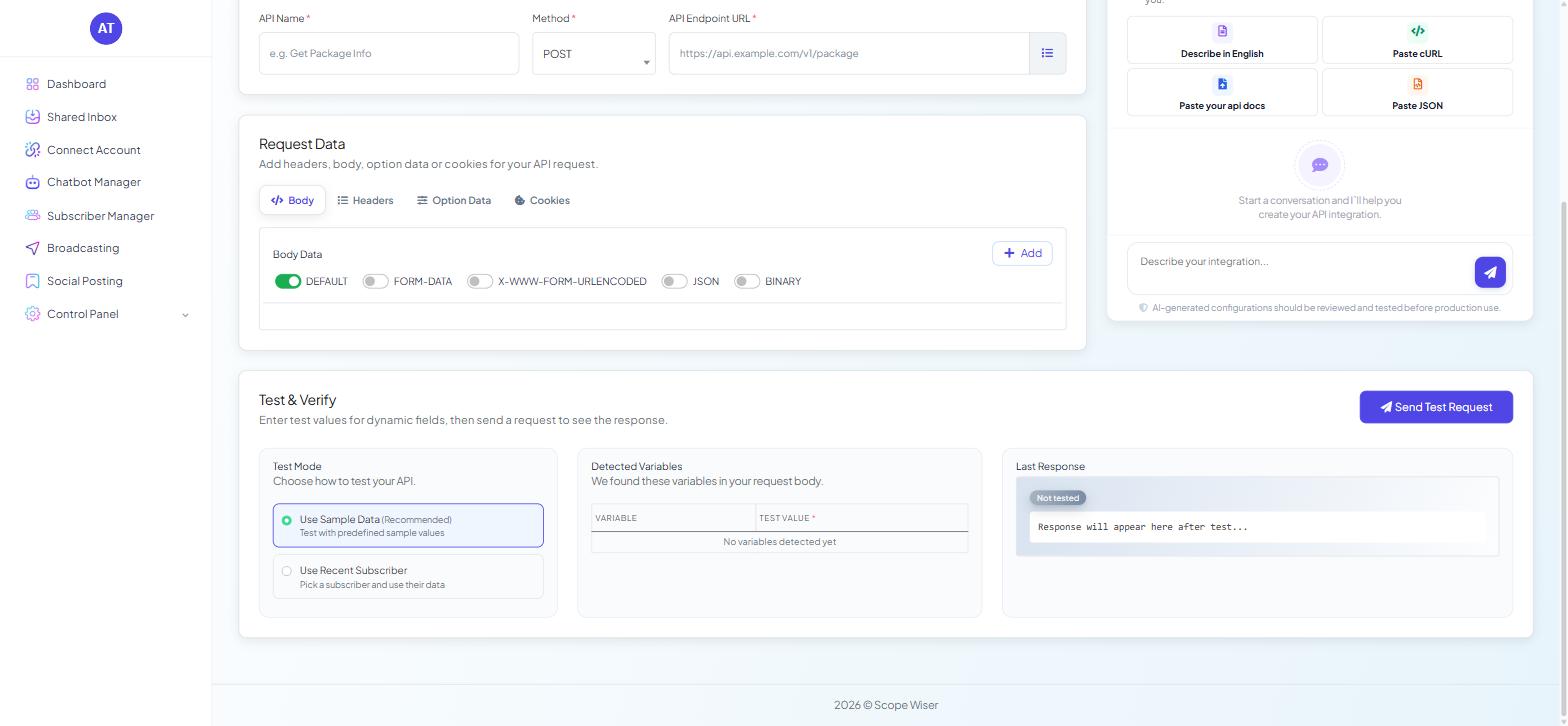
ProductCatalog. One field holds the whole list, not one field per product.☐ An HTTP API connection that returns a list. Set this up under Chatbot Manager → Integrations → HTTP API ("Connect and manage outbound HTTP APIs for flows and automations."). Click Create to open the Add HTTP API wizard.
☐ A response you have actually looked at. The wizard's third step, Test & Verify ("Enter test values for dynamic fields, then send a request to see the response."), has a Send Test Request button and a Last Response panel. Use it. Guessing at the shape of your own data is the single most common reason a dynamic list comes out empty.
☐ Ten rows at most. WhatsApp allows a maximum of ten rows in one interactive list message. This is Meta's limit, not Scope Wiser's, and there is no way around it. If your data is longer, send the first ten and offer a "See more" row that triggers a second message.
1. Store the whole response in one field
In Chatbot Manager → Integrations → HTTP API, open your API.
Go to Response Mapping.
Map the whole response to
ProductCatalog, not individual products.
The data that comes back has to be a list, and every entry in it has to use the same field names. Entries with different field names produce rows with blank titles. (See Three response shapes under Reference.)
2. Fetch the data once in the flow
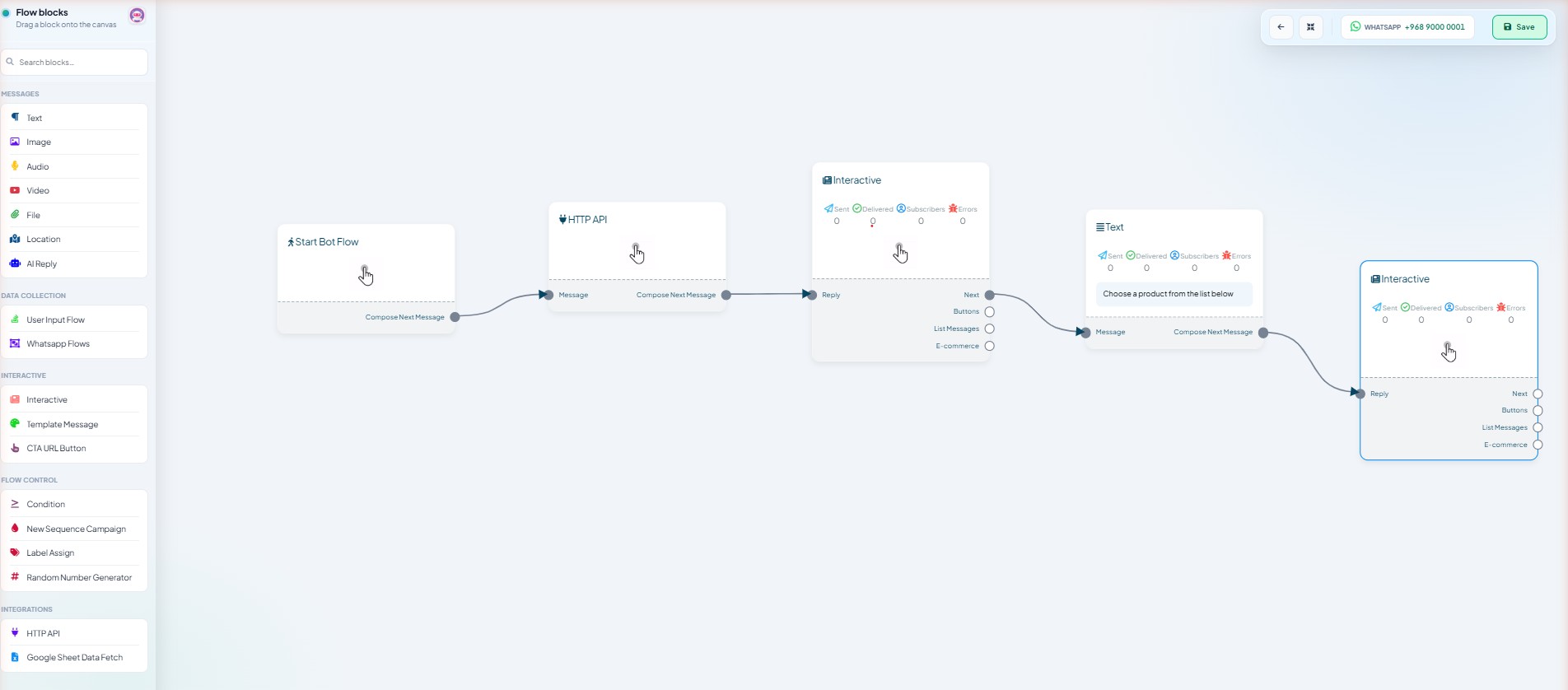
Drag an HTTP API block from the INTEGRATIONS group onto the canvas.
Connect it upstream of the message that will show the list.
Pick your API.
Fetch once. Calling the same endpoint again further down the flow costs a round trip on every conversation and gives you nothing you did not already have.
3. Add the Interactive block
Drag an Interactive block from the INTERACTIVE group.
Connect it after the HTTP API block.
You should now see five ports on the node: Reply, Next, Buttons, List Messages and E-commerce. A dynamic list is built on the List Messages port.
4. Build the list from the field
Drag a line out of List Messages to create the list.
Open it and set it to generate its rows from the custom field rather than from rows you type.
Choose the custom field holding the response:
ProductCatalog.Enter the name of the field to use as each row's title:
product_name. This is the line the subscriber taps.Build the row description from one or more of the other fields: the price, or the price followed by a short description.
Choose where the choice goes: a second custom field, such as
SelectedProduct, plus the field whose value should be stored. Choosingbuy_linkstores the URL, which the next block can drop straight into a CTA URL Button.Save the block, then click the blue Save at the top right of the canvas.
Don't skip step 6. The row title is what the subscriber sees; the saved field is what your flow can act on. They are rarely the same thing.
For developers: the description accepts tokens in the form
#ProductCatalog->price#, so#ProductCatalog->price# — #ProductCatalog->description#renders as "199.00 — Two-cup capacity, 15-bar pump, one-year warranty."
5. Test it
Trigger the flow against your own number rather than reading the canvas and hoping.
Run the HTTP API block on its own first and confirm the custom field is populated. The subscriber's stored fields are visible in Subscriber Manager, on the detail panel's Custom Fields tab.
Send yourself the interactive message and check the row titles and descriptions.
Tap a row.
Look at the subscriber's Custom Fields tab again.
You should now see the saved value, and it should be the field you asked for (the link, the ID, the slot reference), not the display title.
The Interactive node on the canvas carries a stat row: Sent, Delivered, Subscribers, Errors. Errors climbing while Sent stays flat almost always means the list came back empty or over ten rows long.
✅ Done when…
☐ The list arrives with correct row titles and descriptions
☐ Tapping a row stores the value you chose in the save-to field
If something doesn't work
Empty list, no message delivered. The custom field is empty. The API call failed, ran after the Interactive block instead of before it, or wrote to a different field.
Rows appear, titles are blank. The row-title field does not exist on every entry. Check the spelling against the Last Response panel, and remember capital letters matter.
One row containing
trueor a count. You pointed at the wrapper instead of the list inside it. Name the part that holds the rows.Nothing saved when a row is tapped. No save-to field was chosen, or the saved-value field is not present in the entry.
Message rejected by WhatsApp. More than ten rows. Cap the list at the source; that is cheaper and more predictable than trimming it in the flow.
Reference
Three response shapes and how to handle each
Most of the trouble with dynamic lists is the shape of the data, not the flow. Look at what your Last Response panel showed, and match it to one of these:
A plain list of entries, each with named fields. Give the row title a field name, such as
product_name, and build the description from the other fields.A plain list of values with no field names (dates or slots, for example). Leave the row-title field blank; each value is used as the title. Leave the saved-value field blank too and the chosen value is stored as it is. A description is optional here; static text works fine.
A wrapper around the list. Type the name of the part that holds the rows (
available_dates), not a field inside a row. Getting this wrong produces a list with one row readingtrue, which is a useful symptom to recognise.
For developers: the three shapes as JSON
In order:
[
  { "product_name": "Compact espresso machine", "price": "199.00", "buy_link": "https://example.com/a" },
  { "product_name": "Bean-to-cup machine",      "price": "549.00", "buy_link": "https://example.com/b" }
]
{ "0": "07-01-2026", "1": "08-01-2026", "2": "09-01-2026" }{ "success": true, "available_dates": { "0": "07-01-2026", "1": "08-01-2026" } }What to do next
Quick Replies, Buttons & CTA URLs shows how to turn a saved buy_link into a working button once the subscriber has tapped a row.
Next: Quick Replies, Buttons & CTA URLs