
Creating & Getting WhatsApp Templates Approved
Build a WhatsApp message template, add variables, submit it to Meta, sync templates made in WhatsApp Manager, and update one that is already live.
What you'll do: build a WhatsApp message template, submit it to Meta and check it's approved. You'll also see how to bring in templates made in WhatsApp Manager and update one that's already live.
Time: 15 minutes, plus Meta's review.
A message template is the only thing WhatsApp delivers to someone outside their 24-hour service window.
Before you start
☐ A WhatsApp bot in Scope Wiser. Templates exist on WhatsApp only: with a Facebook, Instagram or Webchat bot selected, the section isn't shown.
☐ You've decided which parts of the message change for each person (name, order number, due date). A template must be approved again if its structure changes, so decide this before you write anything.
1. Open Message Templates
Click Chatbot Manager in the left menu.
In the Bots / Accounts panel on the left, click your WhatsApp bot.
Open the Automation tab, then Message Templates.
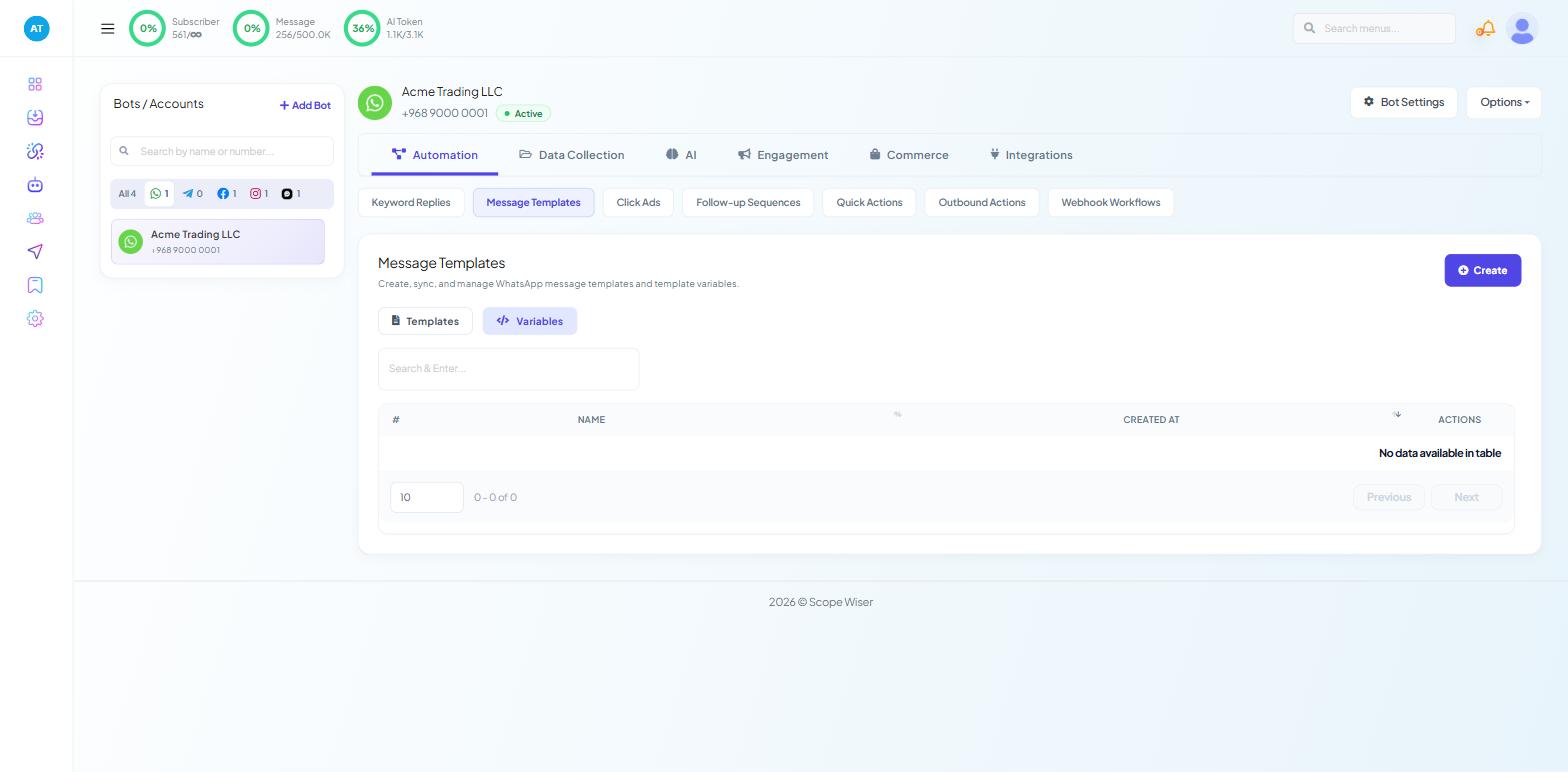
You should now see two inner tabs: Templates, which lists what you have, and Variables, which holds reusable placeholders for template text. Above them are Sync Templates and Create.
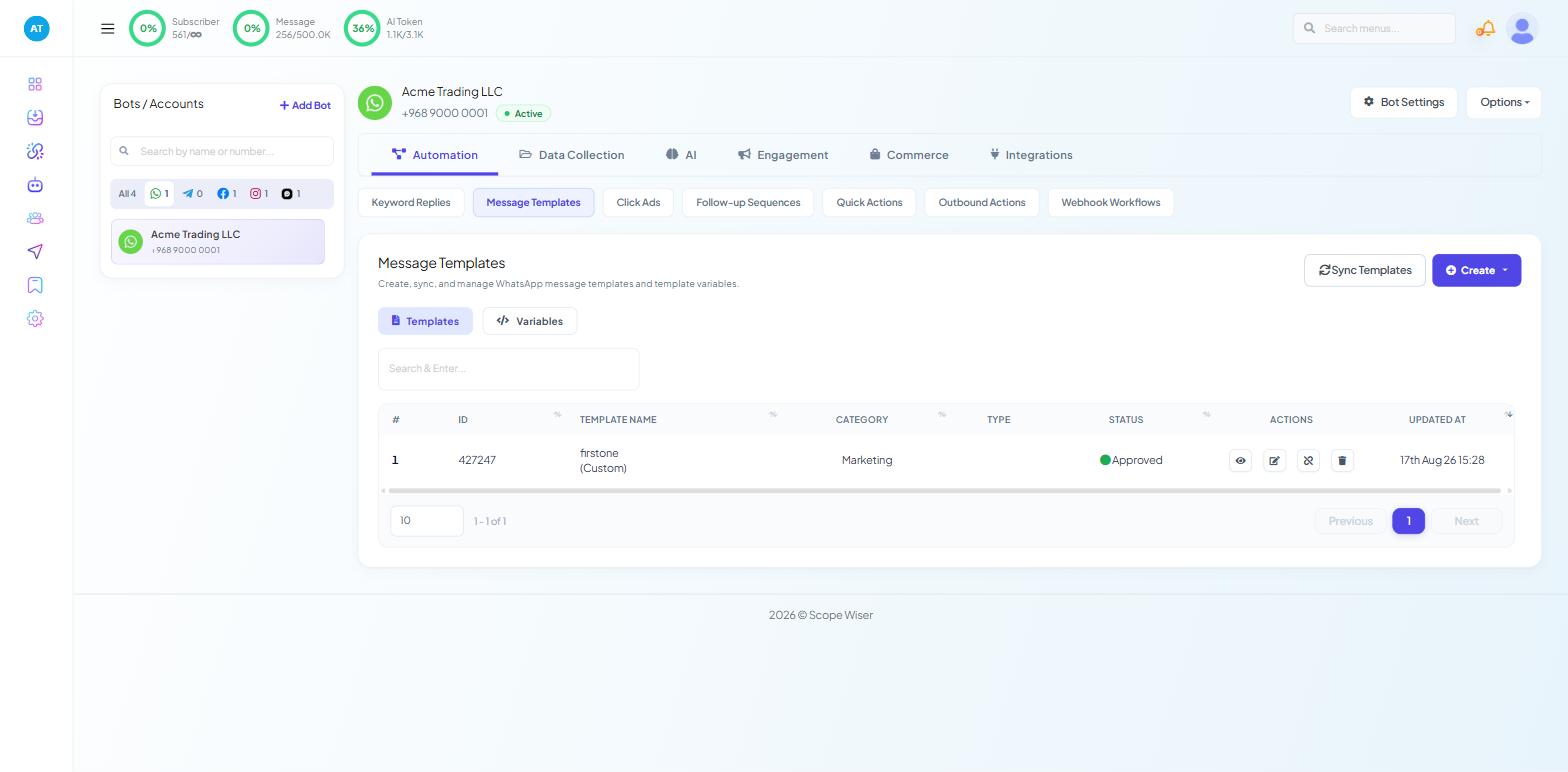
The list has the columns #, ID, TEMPLATE NAME, CATEGORY, TYPE, STATUS, ACTIONS and UPDATED AT. STATUS is the one you'll keep coming back to: a template shows Approved with a green dot once Meta has passed it.
2. Create your variables
Variables are the parts of the message that change for each person, such as a first name, an order number or a due date.
Click the Variables inner tab.
Add the placeholders you need.
You can then insert them into any template.
3. Start a new template
Click Create. The dropdown lists the template types:
General Template: the standard text-and-buttons template most campaigns use
Mixed Template: the same form, and the one to use for a Utility or Auth/OTP template
WP Template: for the WordPress auto-broadcast integration (Marketing only)
Carousel Media Template: a scrolling row of image or video cards
Carousel Product Template: cards drawn from your product catalogue
Default Template: no form; it re-saves the built-in system templates
Choose General Template. If your list doesn't show it, choose Mixed Template: the form is the same. (The carousel types are covered in WhatsApp Carousel & Dynamic-URL Templates.)
You should now see the template form, with a Live Preview phone on the right that updates as you type, and ← Back to templates at the top.
Fewer options in the dropdown? Your role is missing the permission. An owner can turn it on under Control Panel → User Permission.
4. Fill in the template
Work down the form, card by card:
Basic Information
TEMPLATE NAME *: only you see it. Use lowercase words joined by underscores, such as
order_ready_v2, that you'll recognise in a dropdown six months from now.LOCALE *: the language. It starts at
English (US). One template covers one language.
Template Category *: Utility, Marketing or Auth/OTP. Choose honestly.
Header Type *: None, Text, Image, Video or Document. A text header is a short bold line above the message. A media header puts a picture, video or file on top: you choose the actual file each time you send it, not here.
Message Content: the message itself, up to 1024 characters.
Type
#to pick a custom field or the name,#!to pick a variable.The toolbar above the box has the same things as buttons, Custom Fields, Variables and Name, plus Improve with AI and an emoji picker.
Footer Text (optional): up to 60 characters. Useful for a standing line such as how to opt out.
Buttons (optional): click + Add button and pick a type. Quick replies send a tappable answer back to your bot (which reopens the 24-hour window); call-to-action buttons open a website, call a number or copy an offer code. The limits per type, and what Meta rejects, are in WhatsApp Template Buttons & Headers.
When the preview looks right, click Save / Submit Template. Save Draft keeps it in Scope Wiser without sending it to Meta; Cancel throws it away.
Don't file promotional wording as Utility. It's the most reliable way to get rejected.
Putting a WhatsApp link in a button gets the template rejected. Meta doesn't accept
wa.meor other WhatsApp links as a Visit website button. Put that link in the message text, or use the two-step route in WhatsApp template buttons and headers.
5. Wait for approval
Saving submits the template to Meta. Approval usually takes minutes to a few hours, but there's no guaranteed time.
Click Sync Templates to get the current state from Meta.
Read the
STATUScolumn.
Build templates before you plan a campaign, not during one.
A template that isn't Approved yet still appears in a broadcast's template list, but it can't be sent. The drawer says so: "Approved and pending templates are listed. Pending templates cannot be sent until WhatsApp approves them."
6. Use the approved template
In a broadcast: pick it in the campaign drawer's Select template field.
In a flow: drag the Template Message block from the
INTERACTIVEsection of the WhatsApp Flow Builder blocks list, and pick the template inside it.
✅ Done when…
☐ Your template shows
Approvedwith a green dot after Sync Templates☐ You can pick it in a broadcast's Select template field or a Template Message block
If something doesn't work
The template was refused. Why Message Templates Get Rejected covers the causes and what to change.
A template won't send. Check in this order:
Is the status
Approved?Is the recipient opted in?
Are all its variables filled in?
Missing variable data is the quiet failure: Meta rejects the message rather than delivering it with a blank.
Reference
Templates you built in WhatsApp Manager
You don't have to write templates in Scope Wiser. If your team already works in Meta's own WhatsApp Manager:
Create and submit the template there.
Once it's approved, click Sync Templates in Scope Wiser. The template is fetched and appears in the list with the ones you built here.
If it has variables, link each one to a Scope Wiser field. Syncing brings the structure across, but a broadcast doesn't know what to fill in until you do.
Updating a template that's already live
Meta treats an approved template as fixed, so "editing" one really means submitting it again:
Make the change in Meta's WhatsApp Manager and resubmit it there.
In Scope Wiser, find the template in the list and use the unlink row action. This detaches it from Scope Wiser without touching it in WhatsApp Manager.
Click Sync Templates. Scope Wiser fetches the current version.
Link the variables again.
Send a test to yourself before pointing a campaign at it.
Row actions
Each template row has icons: an eye to preview, a pencil to edit, an unlink or disable icon, and a bin to delete.
Delete removes the template. Unlink is the one you want if you mean to bring it back.
Next: Running a WhatsApp Broadcast Campaign, which walks through targeting and sending with your first approved template. If your campaign needs product cards or per-recipient links, WhatsApp Carousel & Dynamic-URL Templates covers the two template types that need more setup.