
WhatsApp Carousel & Dynamic-URL Templates
Build scrolling card templates and per-recipient links on WhatsApp: Carousel Media, Carousel Product, and call-to-action buttons with a per-person URL.
What you'll do: build a carousel template (several products or offers in one message, as swipeable cards) or a dynamic URL button (the same button, a different link for each person), and test it before you send.
Time: 20 minutes, plus Meta's review.
Both are built in the template editor, and each has a rule that catches people out the first time.
Before you start
☐ You've built a template before. If not, read Creating & Getting WhatsApp Templates Approved first.
☐ For a Carousel Product Template: your store is connected and your catalogue has products in it (see Chatbot Manager → Commerce, which has Store Automation and Product Catalog sub-tabs). Commerce exists on WhatsApp bots only.
☐ For a dynamic URL: the changing part of the link (for example an order number) is already saved on every subscriber you'll send to, as a custom field or an imported column.
Carousels are templates, not flow blocks. There's no Carousel block in the WhatsApp Flow Builder. On a WhatsApp bot, the
INTERACTIVEsection of the blocks list has Interactive, Template Message and CTA URL Button: no Generic Template, no Carousel. A carousel reaches the customer as an approved template, sent by a broadcast or by the Template Message block. So the order is always: create the carousel template, wait for approval, then use it.
1. Build a Carousel Media Template
Go to Chatbot Manager → Automation → Message Templates and click Create.
Choose Carousel Media Template. A form headed Carousel Message Template opens.
TEMPLATE NAME: a name only you see, that you'll recognise later.
LOCALE: the language this template is written in.
TEMPLATE CATEGORY:
UtilityorMarketing. ChooseMarketing: a carousel showing products is promotional, whatever else it does.MESSAGE BUBBLE: the text above the cards. Customers read this first, so say what the cards are.
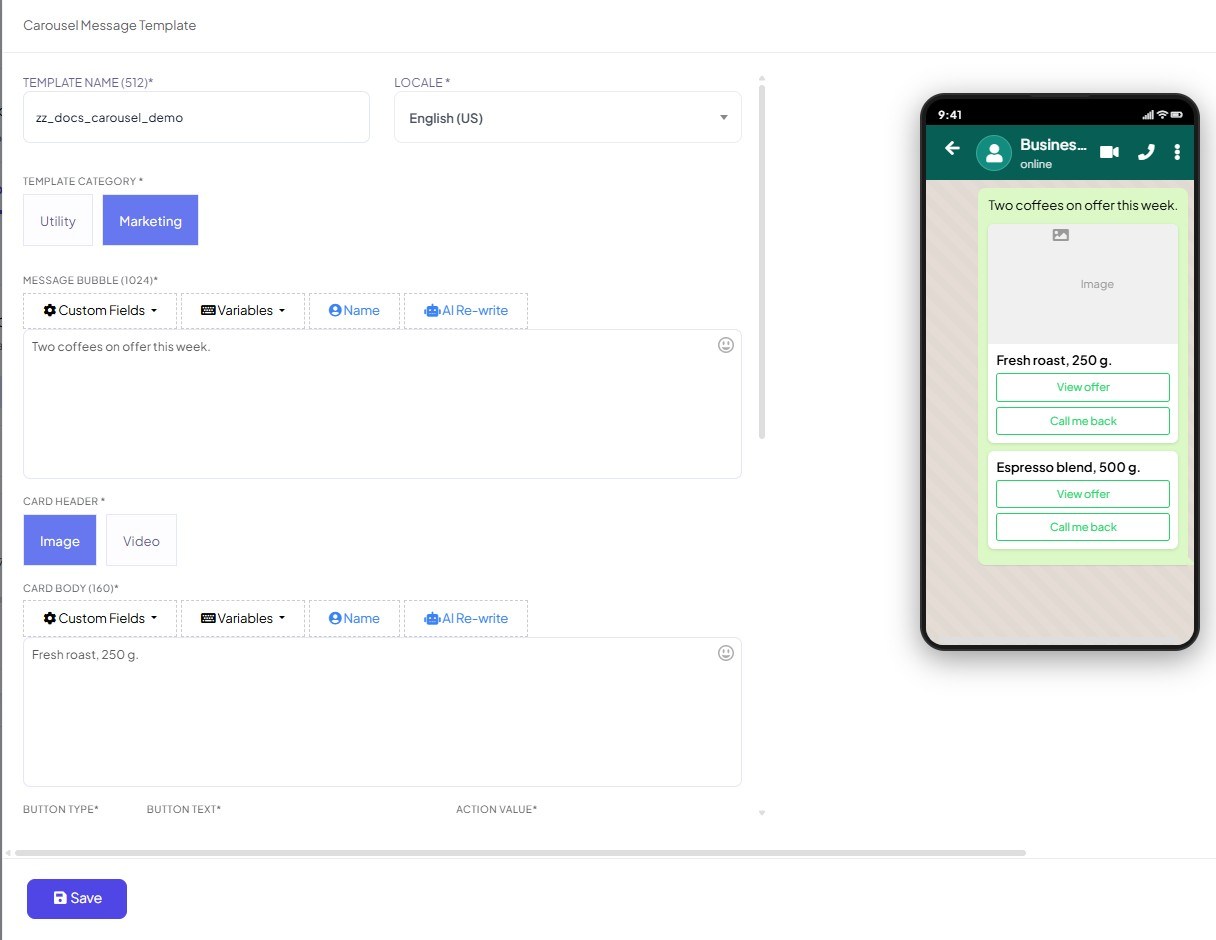
CARD HEADER:
ImageorVideo. Upload the media for the first card.CARD BODY: the short line of text on that card.
BUTTON TYPE, BUTTON TEXT and ACTION VALUE: the card's button and where it goes.
Click + Add Card and repeat steps 7 to 9 for each further card.
Click Save. This sends the template to Meta for review.
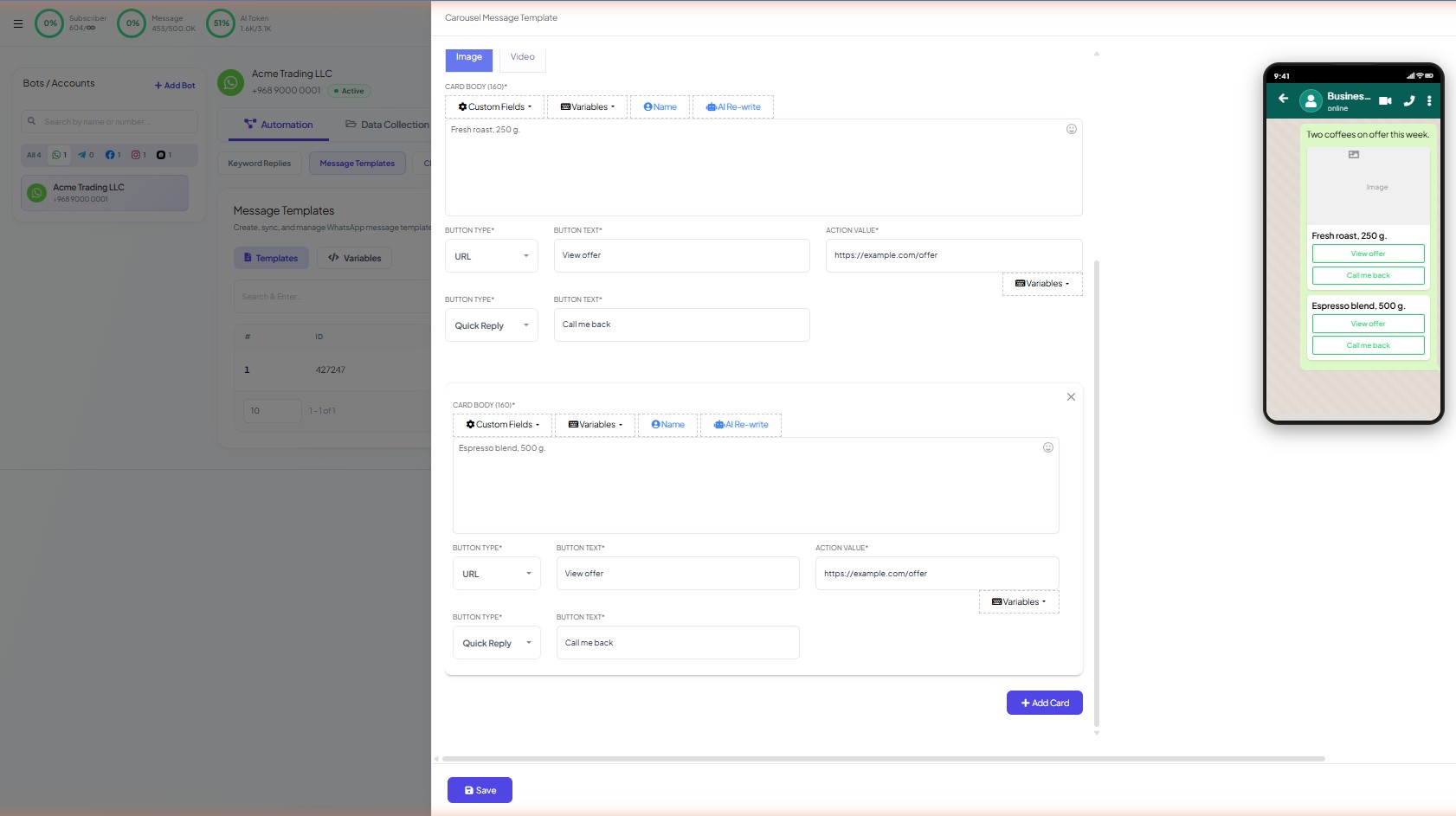
Every card must have the same buttons in the same order. If card one has a URL button then a quick reply, cards two and three must too. Mix the order and the template won't save.
To make a video carousel instead of an image one, change CARD HEADER from Image to Video. Everything else stays the same.
2. Or build a Carousel Product Template
This version takes its cards from your catalogue instead of you building each one. It's the right choice for a store with more than a handful of items.
Choose Carousel Product Template from the Create menu.
Instead of writing cards, set how many products the carousel should show.
You pick the actual products later, when you use the template in a flow or a broadcast. One approved template then works for any products you choose at send time, so a seasonal change doesn't need a new review.
3. Add a dynamic URL button
A normal call-to-action button sends everyone to the same page. A dynamic one is a fixed link plus one changing part, for example a link ending .../orders/ followed by the order number. Each person lands somewhere that means something to them. Only the end of the link changes, which is what lets Meta approve the button once.
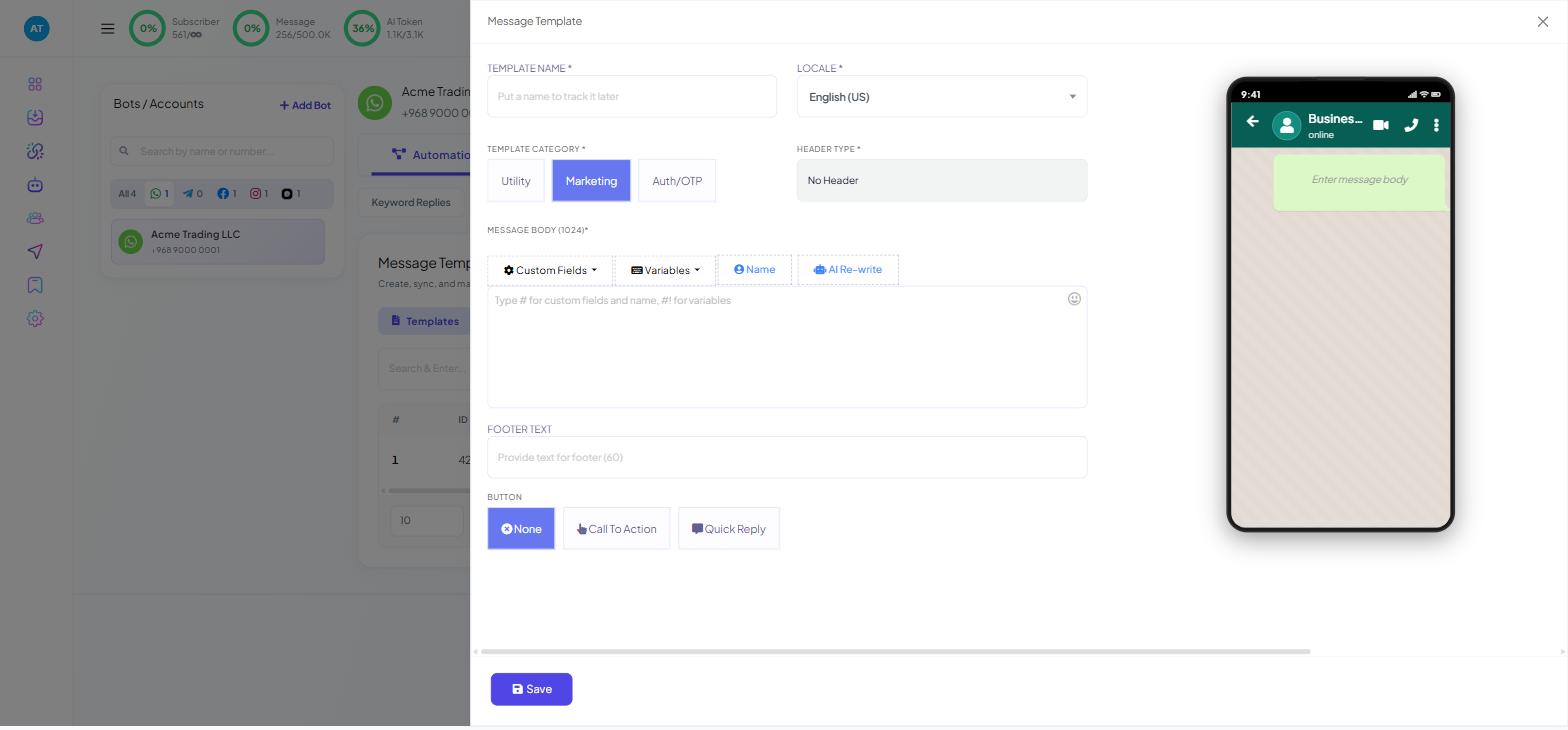
In the template editor, set BUTTON to
Call To Action.Enter the button text. Keep it to a verb and a noun, such as Track order.
In the button's URL field, type the fixed part of the link.
Type
#!and pick the variable for the changing part.
4. Leave out people without the value
Recipients who don't have the value saved are the failure to plan for. Filter them out of the audience rather than letting the send fail on them. The broadcast drawer's Custom Field and Custom field contains value pair exists for this, and Personalised Broadcasts From Google Sheets covers the wider pattern.
5. Test it on yourself
Send one to yourself first and check three things:
The images load. A broken card in a carousel looks worse than no carousel.
The link works. Tap the button and check you arrive at a real page with the variable filled in, not the fixed part of the link with a placeholder stuck on the end.
The cards scroll. Check the whole set can be reached on a phone, not just the first card.
✅ Done when…
☐ Your template shows
Approved☐ Your test message's images load, link works and cards scroll
If something doesn't work
The Carousel options aren't in the Create dropdown. WHATSAPP - CAROUSEL TEMPLATE is its own permission under Control Panel → User Permission.
The carousel won't save. The cards' buttons aren't in the same pattern and order.
The template was refused. On top of the usual reasons, two are specific to these types:
cards whose buttons are in a different order from one another
link shorteners, or a domain unrelated to your business: reviewers can't check where the link goes, so they decline it
Why Message Templates Get Rejected has the full list.
Reference
Building a dynamic URL in WhatsApp Manager instead
Meta's own editor calls it a Visit Website button with a URL type of dynamic. You give the fixed part of the link and a sample of a complete link, so reviewers can see where it goes.
Submit it for review in WhatsApp Manager.
Click Sync Templates in Scope Wiser to bring it across.
Link the variable to a Scope Wiser field, as with any synced template.
Next: Running a WhatsApp Broadcast Campaign, which covers choosing your approved template and targeting an audience. To send the same template from inside a conversation flow, see Quick Replies, Buttons & CTA URLs.