
WhatsApp Broadcast Analytics & Reporting
Read the Broadcast Center numbers properly: what Processed, Delivered, Opened and Unreached mean, how to filter campaigns, and what to change next time.
What this covers: the five summary cards and four campaign counts in Broadcast Center, and what to change when they look wrong.
Where to find the numbers
Click Broadcasting in the left menu. Broadcast Center opens on the WhatsApp tab.
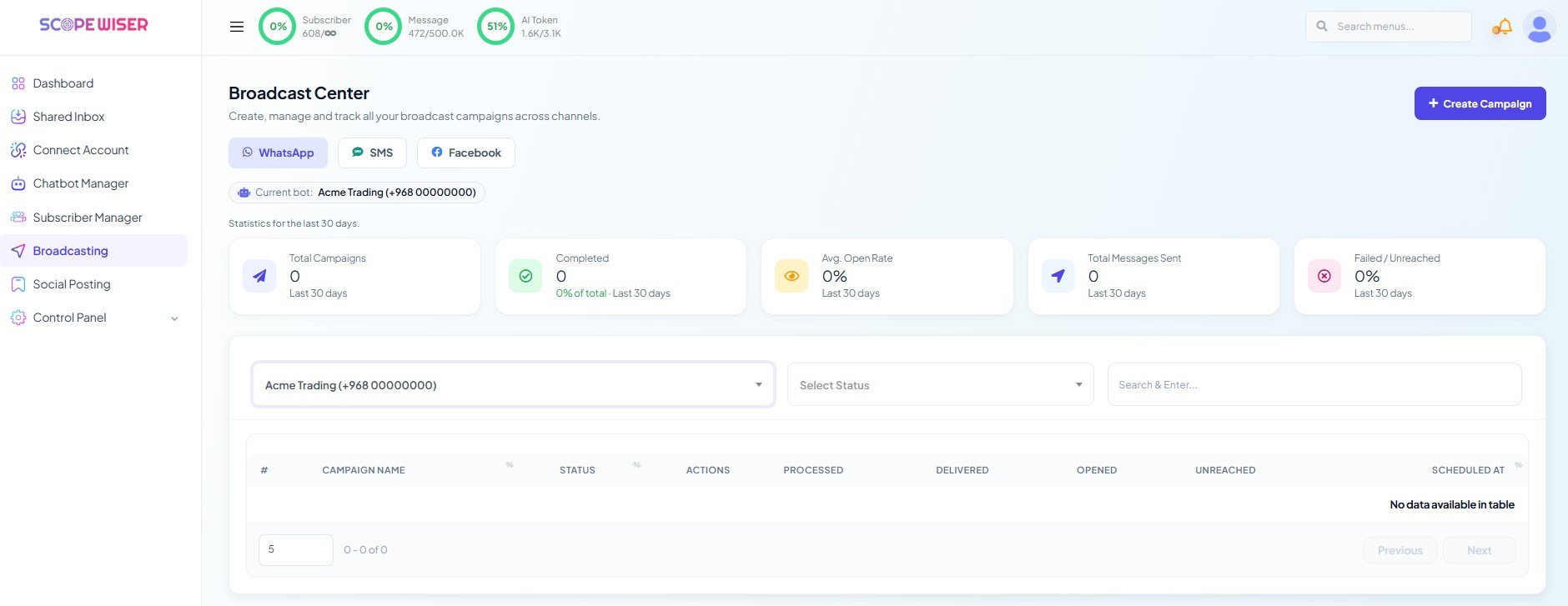
Check the Current bot: chip. Every figure on the page belongs to that account, and changes when you change the bot.
Report looks empty? It's often a report for the wrong account. Check the bot first.
The five summary cards
The cards across the top cover the last 30 days. The page says so: "Statistics for the last 30 days."
Card | What it counts |
|---|---|
Total Campaigns | Campaigns created in the period |
Completed | How many finished, also shown as a percentage of total |
Avg. Open Rate | Average open rate across the period's campaigns |
Total Messages Sent | Messages, not campaigns |
Failed / Unreached | Shown as a percentage |
These show trends; they don't diagnose a single campaign. Watch Failed / Unreached month by month: a rising percentage means your list is going out of date faster than you're cleaning it.
The campaign counts
Under the cards, every campaign for the selected bot is listed with the columns #, CAMPAIGN NAME, STATUS, ACTIONS, PROCESSED, DELIVERED, OPENED, UNREACHED and SCHEDULED AT.
The four counts work as a funnel. The gaps between them are where the information is:
PROCESSED: messages Scope Wiser handed to WhatsApp. If this is well below your targeted audience, look at the account's daily conversation limit, or the send may still be in progress.
DELIVERED: messages that reached a phone. The gap between processed and delivered is numbers that no longer exist on WhatsApp, people who blocked you, or phones that have been offline since the send.
OPENED: messages the person actually looked at. The gap between delivered and opened is a content and timing problem, not a list problem.
UNREACHED: people the message never got to. Treat this as a measure of how clean your list is.
STATUS shows where the campaign is. Values include Completed, Processing, Pending, On-hold and Paused. A large campaign sitting at Processing for a long time is usually normal; a small one doing the same is worth looking into.
SCHEDULED AT shows when the campaign was set to go. That matters when you compare open rates across send times.
Find one campaign
Above the table are three controls:
the bot selector
a Select Status dropdown
a Search & Enter... box that matches campaign names
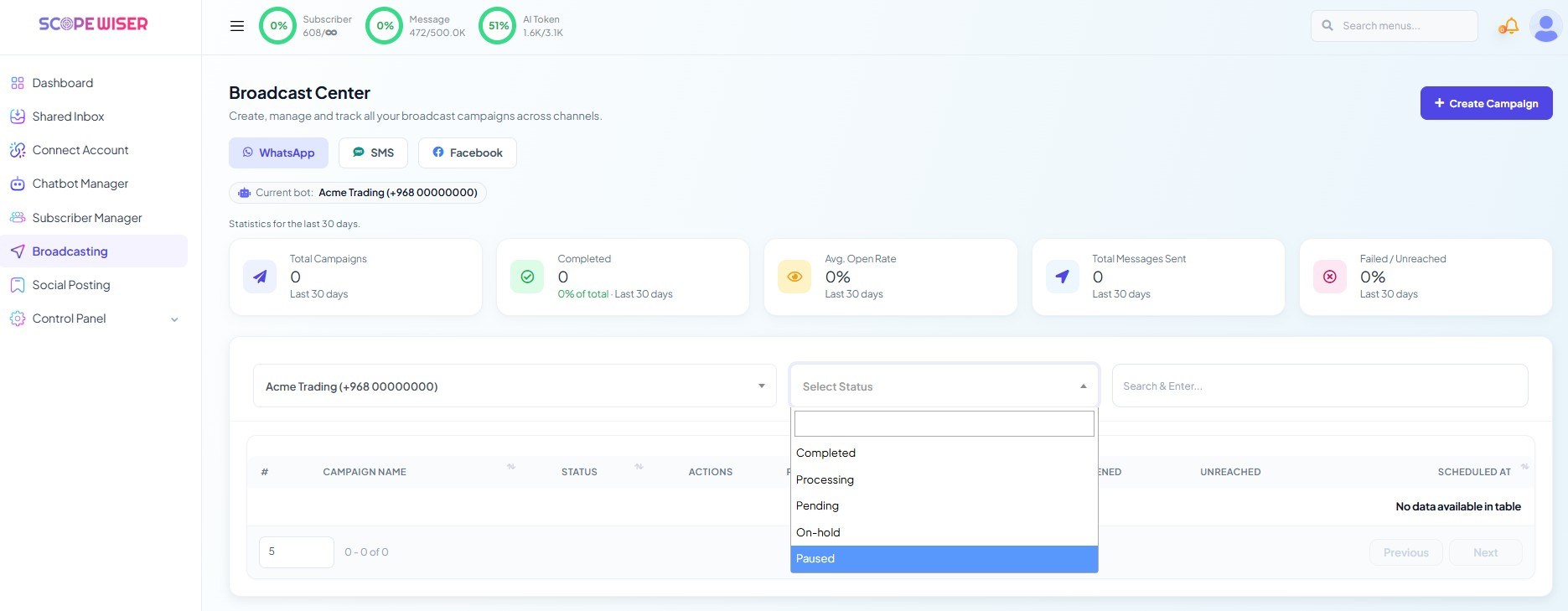
Tip: to spot anything stuck, set Select Status to
ProcessingorPendingand see what should already have finished.
The table shows five rows per page by default, with a page-size field and Previous / Next controls underneath.
This is also why campaign names matter. October price list — recent buyers can be found months later; test 3 can't.
The ACTIONS column on each row has controls to open that campaign's own report, export its data and remove it.
What the results tell you
Compare the funnel with the audience you targeted. Its shape tells you what to change.
Delivered is far below processed. A list problem: numbers have gone dead or people have blocked you.
Export the campaign.
Remove the people it failed for.
Check your quality rating on the WhatsApp Integration page. A delivery gap and a falling rating usually appear together.
Delivered is high, opened is low. Nothing to do with your list. Either the message arrived at a bad time, or the first line didn't earn a tap. Try a different send time for the next campaign before you rewrite anything: timing is the cheaper experiment.
Processed is far below your targeted number. Look at the daily conversation limit, not the campaign. Meta caps the account, and the extra messages don't go out.
Opens are good but nothing happens. The message worked and the call to action didn't. Interactive buttons make the next step tappable, and any reply reopens the 24-hour window.
One campaign's open rate means little on its own. Change one thing per campaign and note it in the name.
The dashboard view
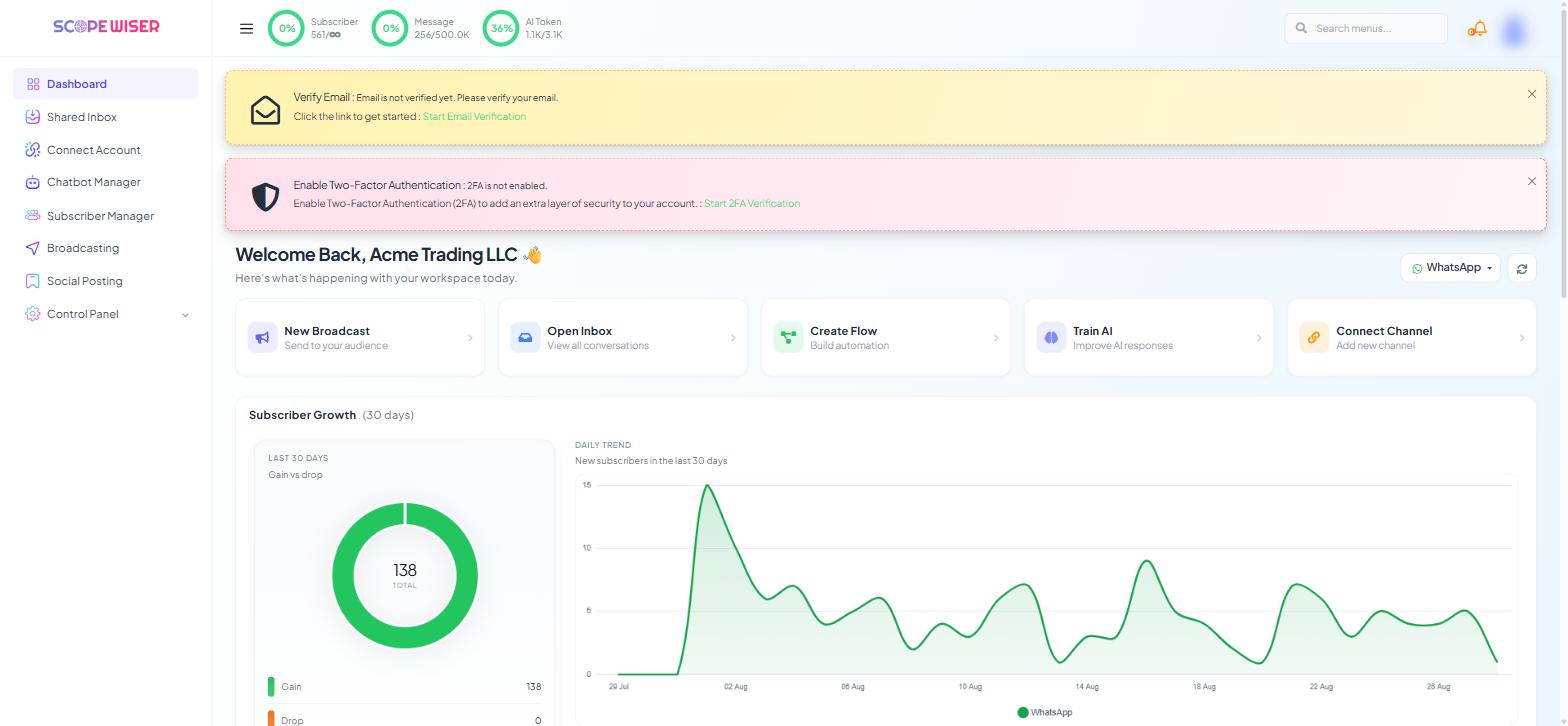
For a quick check without opening Broadcast Center, the Dashboard has a Broadcasting Report (Last 5 Campaigns) card with a View all → link.
Housekeeping
The cards cover a rolling 30 days, so leftover test campaigns distort the averages you're trying to read. Delete campaigns you'll never look at again: test runs, duplicates, abandoned drafts.
Export first. Deleting removes the record from the table, so export anything you want to keep before you delete.
If there's no delete icon, your role lacks the DELETE permission for BROADCAST (Control Panel → User Permission).
Next: Running a WhatsApp Broadcast Campaign, to take what the funnel told you into the next campaign. If delivery rather than engagement is the problem, Labels, Lists & Segments covers building the smaller, cleaner audiences that fix it.